Video & Casting
Web Player Fullscreen and AirPlay Controls Explained
Distinguish web video fullscreen, screen mirroring and AirPlay output, and diagnose missing controls without assuming every receiver or service supports them.
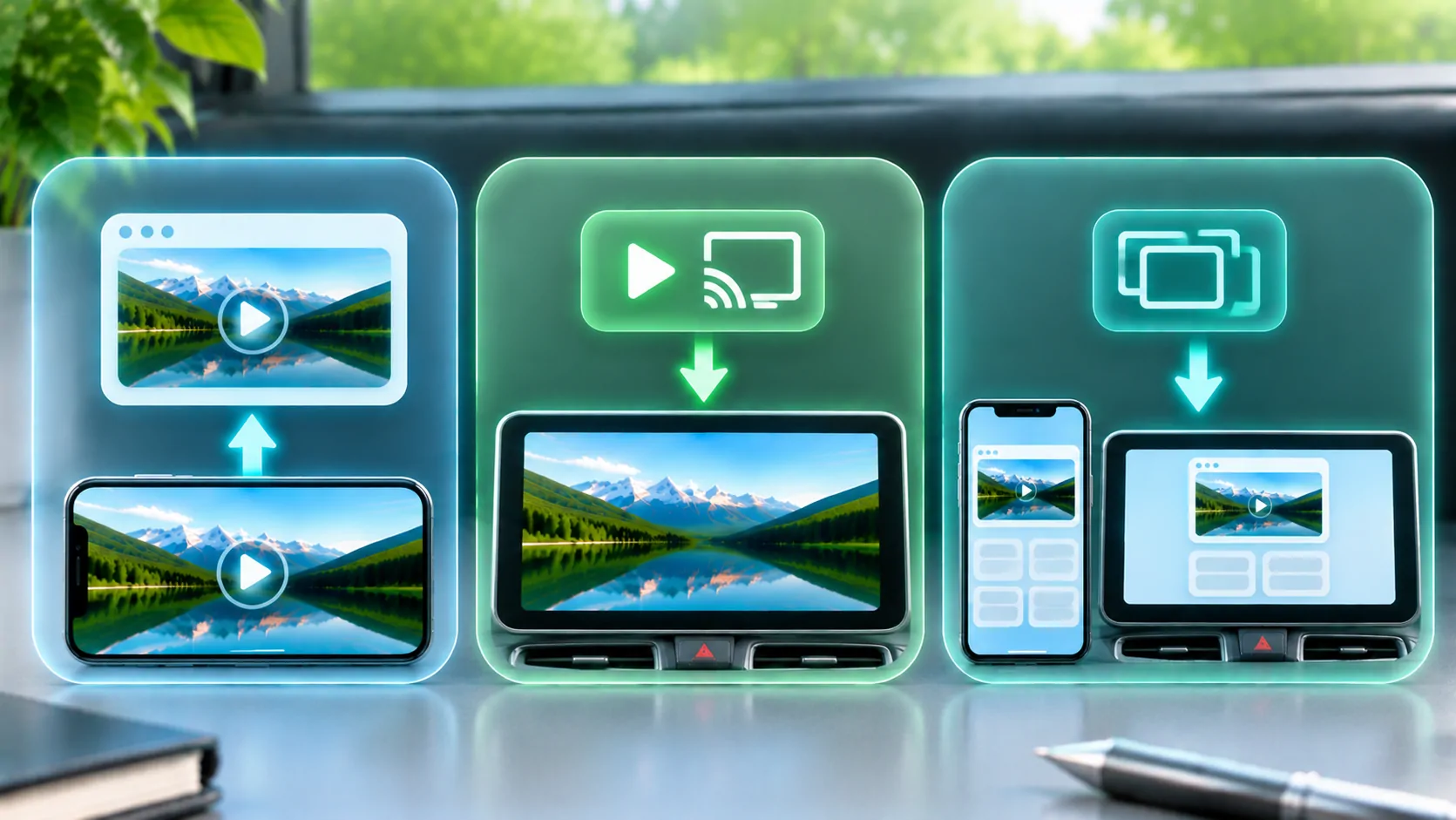
Fullscreen changes how a video or page occupies the current display. AirPlay sends supported media or a mirrored screen to a compatible receiver. They are separate controls, and one can be available while the other is absent. A fullscreen button does not prove that external output is supported, and an AirPlay connection does not guarantee every website permits playback.
Start with the service's supported browser and a known authorised video. For a vehicle-related display, confirm compatibility and perform visual setup while parked. Do not assume that a dashboard supporting CarPlay is also an AirPlay receiver or a generic browser-video destination.
Understand the Fullscreen Control
A web player can use browser media controls, a page-designed interface or browser APIs to present fullscreen content. The Fullscreen API documentation explains the web mechanism and its restrictions. Actual behaviour depends on the browser, platform, element and page context.
Some video interfaces use a dedicated platform player rather than making the whole webpage fullscreen. Others keep the video inline. A page embedded in another frame or an app may have different permissions and presentation capabilities from the same page in a full browser.
If the button is missing, check the service's support requirements before assuming an app defect. A site can intentionally omit controls or build its own interface. Enlarging the page with pinch zoom is also different from entering a supported fullscreen media mode.
Distinguish AirPlay Video from Mirroring
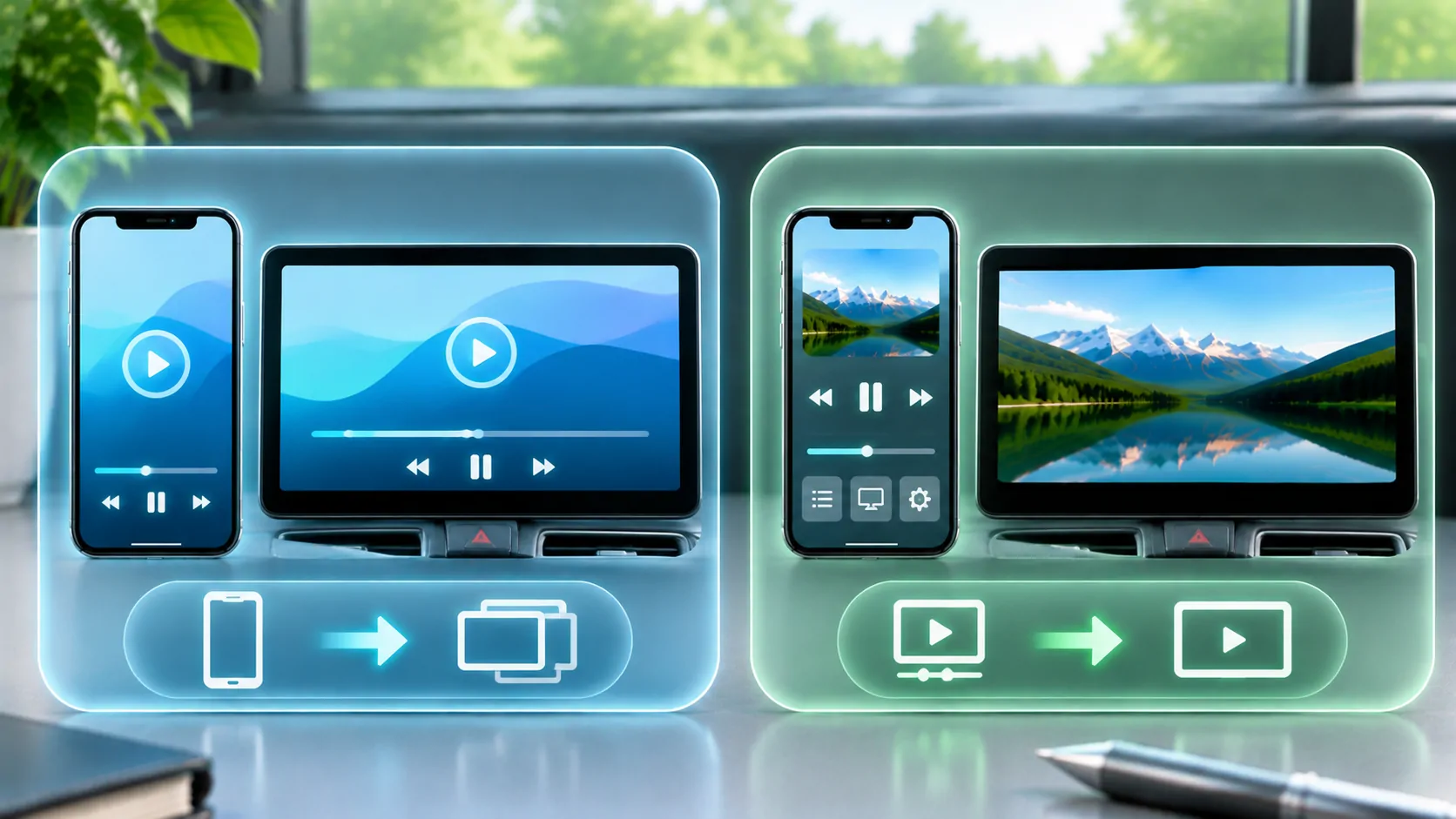
Apple's AirPlay guide explains supported video streaming and screen mirroring workflows. Direct media output and mirroring do not expose the same scope or necessarily use the same controls. A site may support one path while the broader device offers another.
Mirroring follows the phone's visible screen and can include notifications or surrounding interface. A direct media route can focus on the presentation, subject to the service and receiver. See mirroring versus direct playback before choosing a route just because its icon is visible.
The receiving device must support the intended method. Similar names such as wireless projection, CarPlay or casting do not establish interchangeable protocols. Check the receiver's documented input, software requirements and the actual source application's output support.
Check the Receiving Setup
Follow the supported network and pairing requirements for the selected AirPlay receiver. Confirm the intended device appears and verify it with harmless content. A receiver name alone does not prove the connection will support every media format, account or content-protection requirement.
If the receiver does not appear, investigate discovery and connection prerequisites before changing the video's codec. If it appears but refuses a session, record the exact response. If the session starts but one service is black, content or output restrictions become a separate question.
Use the same phone, receiver and stable connection for the initial comparison. Changing networks, adapters and websites simultaneously makes the result difficult to interpret. In a car, do not defeat factory restrictions to expose a video output that the system does not support in that state.
A Web Player May Restrict External Output
Some services require an official app, supported browser or particular receiver. DRM and account rules can limit capture or output. A missing AirPlay button may reflect the site's design or policy, while a blank protected image may be intentional. The symptom alone does not identify the reason.
Use the service's documented output method. Do not extract an internal stream URL or transfer session tokens to bypass a restricted interface. The fact that a video can be seen on the phone does not establish permission or technical support for every external presentation.
Apple's streaming resources describe HLS technology, but HLS support is only one part of a complete service. A receiver also needs compatible media, valid access and any required protection support. A filename is not a universal compatibility certificate.
Fullscreen Can Reveal a Layout Problem
A video that looks cropped or oddly proportioned in fullscreen may involve the source's shape, receiver scaling or page layout. Fullscreen does not necessarily mean every source pixel fills every display pixel without bars. Preserving proportions can leave empty space when the source and screen have different shapes.
Check whether the phone's own fullscreen presentation is correct before changing receiver settings. If the phone looks wrong too, focus on the source or page. If only the receiver differs, inspect its documented fit, fill and zoom modes.
Do not confuse black bars with a fully black protected video frame. The first can be normal geometry; the second may involve output restrictions or another failure. Record exactly which content remains visible, including controls and audio, rather than using black screen as a catch-all description.
Diagnose Missing or Unresponsive Controls
Reload the supported page on a stable connection and wait for the player to initialise. Check whether scripts or content blockers affect the page through the browser's documented controls. Avoid disabling protections broadly or installing an unknown helper merely to reveal an icon.
Compare the same authorised item in the service's supported full browser or official app. If controls exist there but not inside another app, the embedded environment may differ. See web video compatibility for codecs, APIs and authentication layers.
Record the browser or app version, source page, receiver and observed control state. A screenshot of harmless content can help, but redact account details. Do not report a successful or failed hardware test you have not actually performed.
Verify the Entire Session
After starting a supported route, check picture, sound, pause, seek and stopping. A successful connection prompt is only the beginning. Determine whether the phone remains necessary and what happens when you leave the page through the documented workflow.
End the session deliberately and confirm that the receiver no longer follows the phone or continues the presentation. On shared equipment, sign out of any separate receiver-side account. Closing a fullscreen view does not necessarily end AirPlay, and ending a mirror does not necessarily delete a website session.
Treat fullscreen, external playback and account access as separate capabilities. Once you identify which one is missing, you can consult the right documentation and choose a supported route without expecting one familiar icon to guarantee the whole experience.
Sources
Related reading
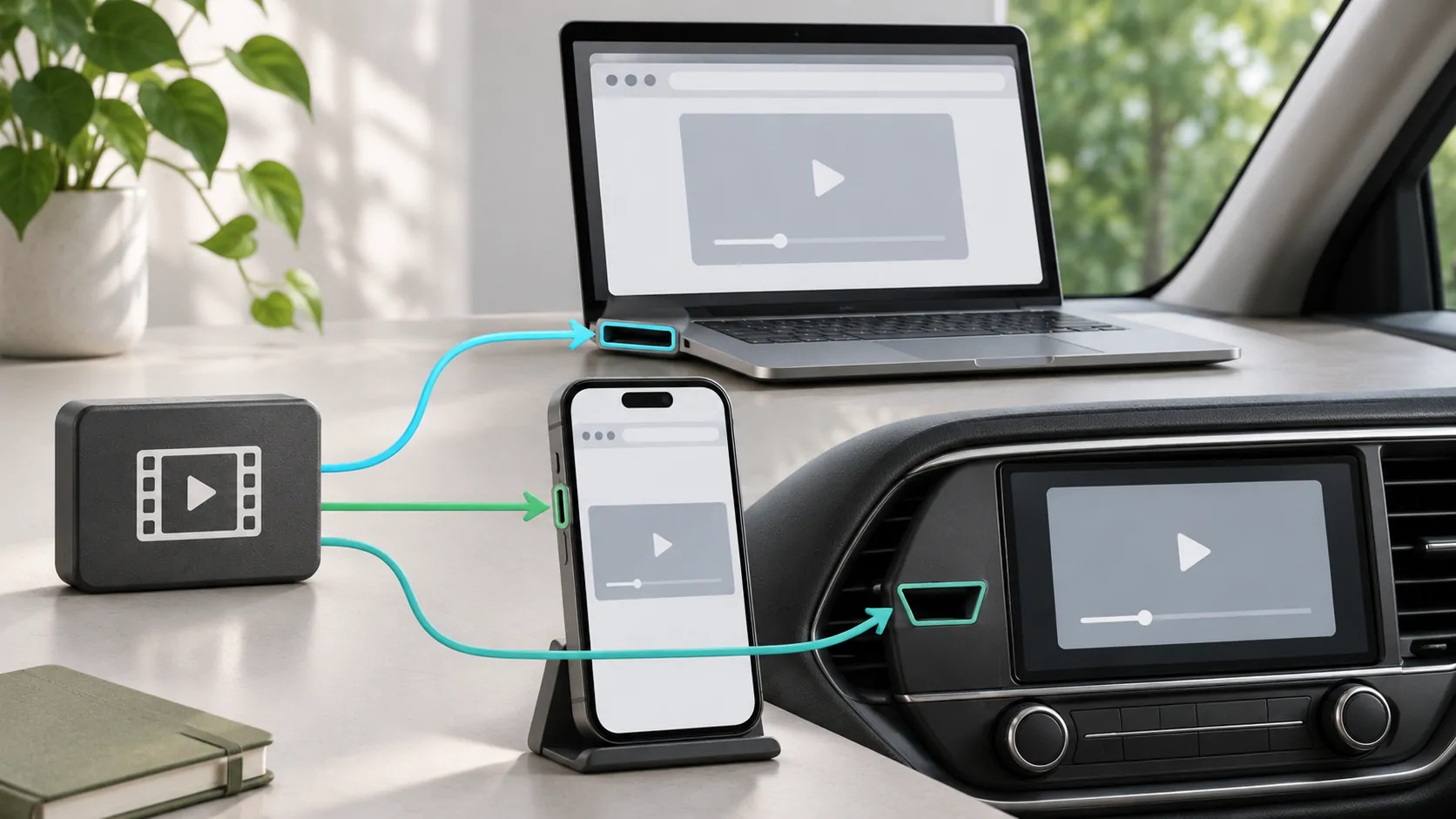
Bring your own media.
Explore CarCast for iPhone with your own authorized sources and supported display configurations.