Video & Casting
Troubleshooting Audio and Video Sync in a Media Setup
Diagnose audio/video sync by comparing the source, local phone playback and output route, and distinguishing constant offset from drift or buffering.
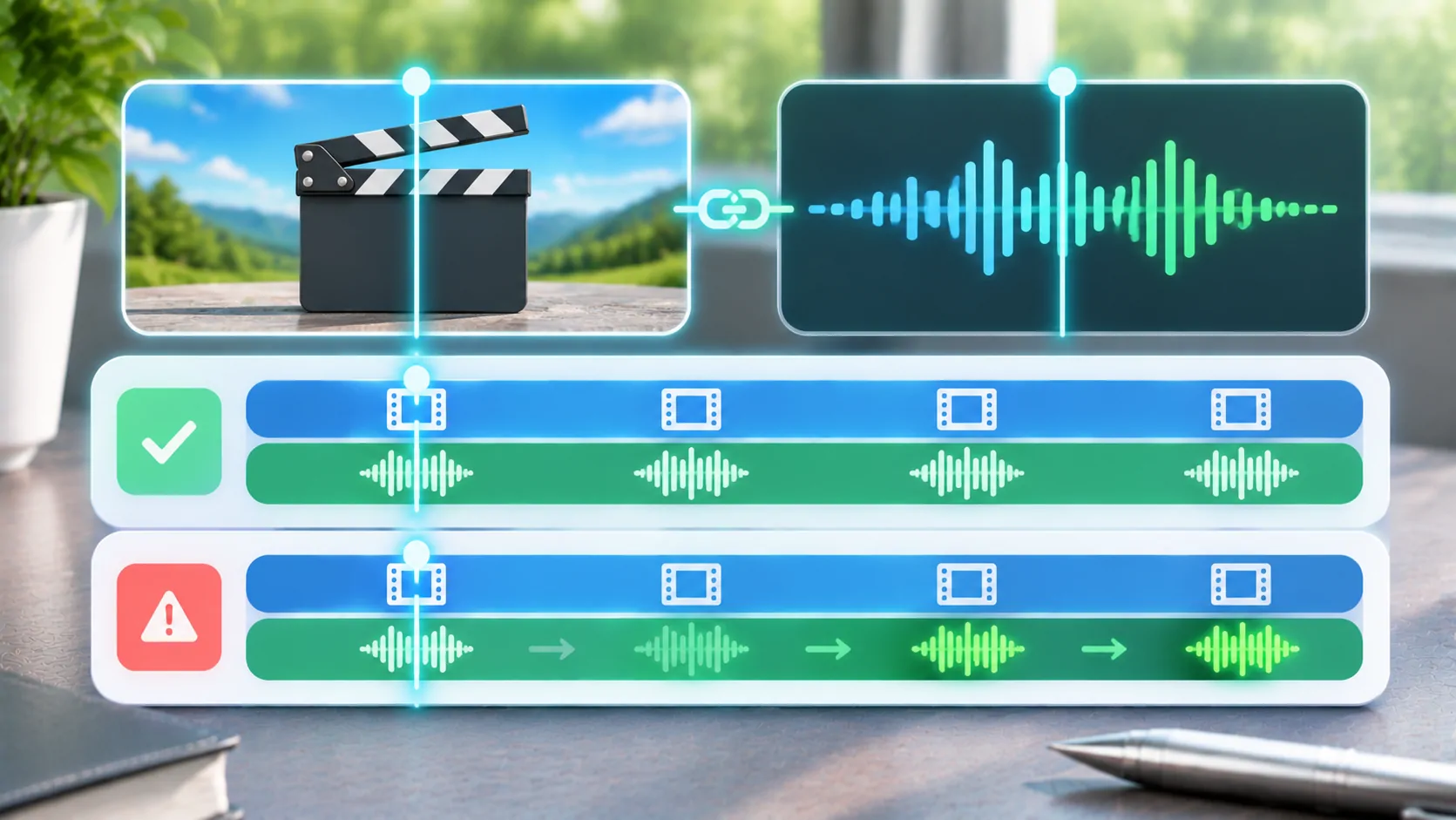
When audio and video are out of sync, first check whether the mismatch is already present in the source on the iPhone or appears only through an external output. A constant offset, growing drift and a temporary stall are different symptoms. Use a lawful reference clip and change one part of the playback path at a time.
Describe the mismatch accurately
Choose a section with a clear visual event and associated sound, such as visible speech or a clap in a personal recording. Note whether sound comes before the picture or after it.
Do not estimate a precise delay unless you have measured it with a suitable method. Saying that speech consistently leads lip movement is more honest and useful than inventing a millisecond value.
Distinguish relative synchronization from overall latency. A mirrored picture can arrive later than an action on the phone while its sound remains aligned. That delay is different from a person's voice no longer matching their lips.
Check the original source first
Play the same section directly on the phone, without the external display route. If the mismatch remains, inspect the source file, selected tracks or app before focusing on the vehicle.
A file can contain separate audio and video tracks with their own timing information. MDN's container guide explains how containers package multiple streams and metadata. The filename alone does not tell you whether their timing is correct.
If another trusted player shows the same offset at the same point, that supports investigating the source or export. It does not prove a specific encoding defect without further inspection.
Distinguish fixed offset from drift
A fixed offset stays approximately the same throughout playback. Growing drift becomes more noticeable as the programme continues. An abrupt change after a seek or stall is a third pattern.
Check the beginning, a middle section and a later section. Return to the same points after a normal restart. Record the pattern rather than repeatedly dragging the timeline at random.
A constant manual audio-delay setting, where the player documents one, may help with a consistent supported output offset. It is not a general cure for timing that changes throughout the file. Do not assume that every app provides such a control.
Compare a simple local reference
Use a short personal clip known to play correctly on the phone. Keep the player and output route the same as for the affected source. If the reference stays aligned, the original file or stream deserves closer attention.
If every clip becomes misaligned only through the same external arrangement, investigate that shared output path. Identify whether audio and picture are travelling to the same receiver or separate devices.
For example, an additional wireless audio accessory can introduce another path with its own behaviour. Simplify the setup through supported controls while parked rather than stacking more delay adjustments.
Separate network stalls from synchronization
A stream can pause both sound and picture to refill its buffer, then resume in sync. That is a delivery interruption rather than persistent lip-sync error.
MDN's buffering guide explains that downloaded and seekable ranges can differ. Jumping to a new position can trigger more data delivery, so test normal playback as well as seeking.
If only online sources fail and a local reference works, investigate the stream and network using buffering diagnosis. Do not assume that a larger buffer is always available or always the right solution.
Inspect track choices and conversions
Check whether the wrong alternate audio track is selected. A different language dub can have different timing characteristics from the original dialogue, and a separate audio file may not match the exact video edit.
If the file was converted, compare it with the preserved original. A cut, frame-rate conversion or separately exported audio track can change timing. Re-export only media you are authorised to modify, and verify a representative sample before processing everything.
The codec guide explains why container, video encoding and audio encoding need separate descriptions. Renaming an extension does not repair track timing.
Verify the external route and app support
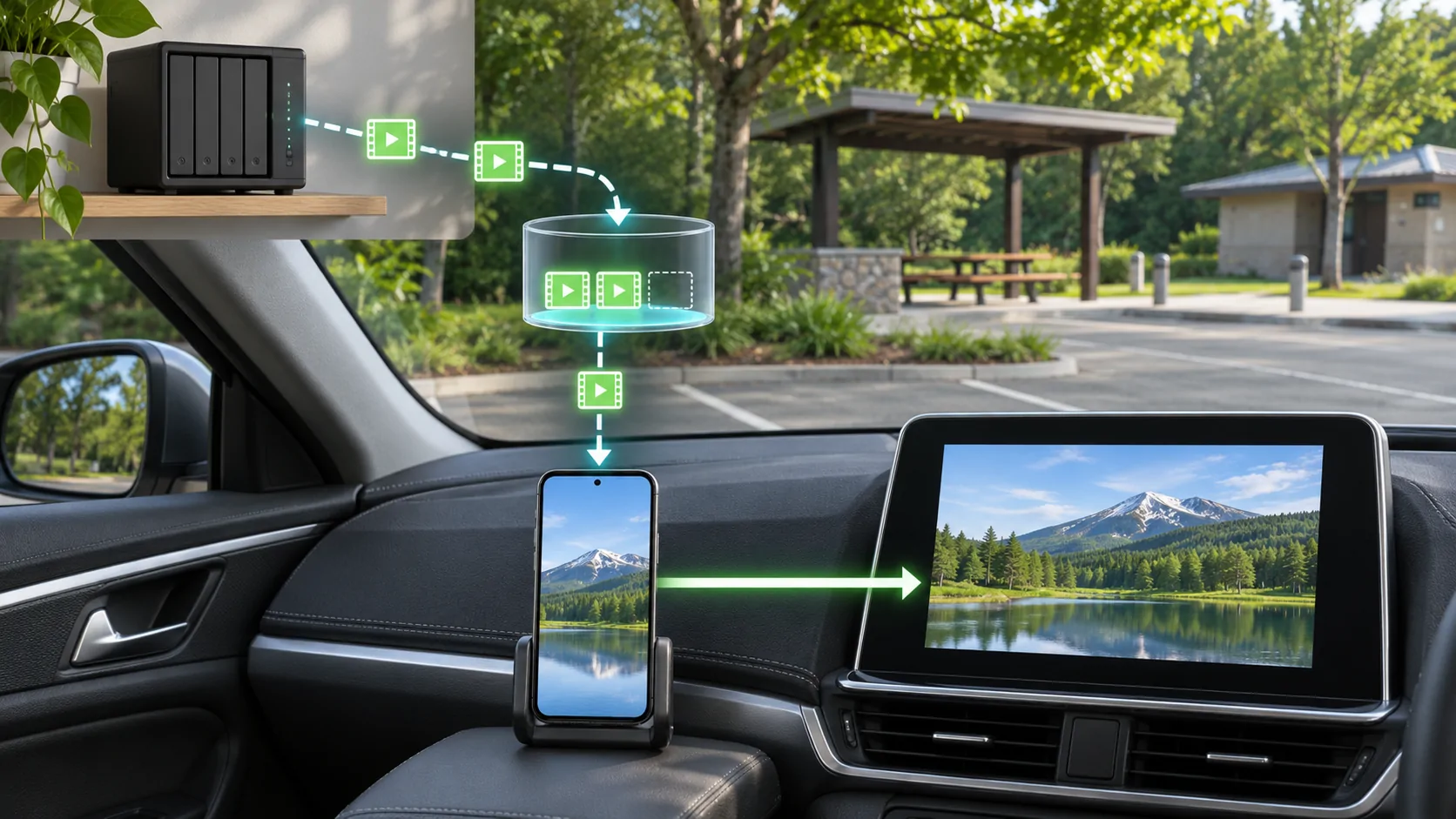
Apple's AirPlay guidance distinguishes selected-media streaming from screen mirroring and notes that app support can vary. Identify the route actually used rather than treating every external picture as the same process.
For a vehicle, confirm documented parked-video support independently. Ordinary CarPlay audio does not establish that the intended video output is supported. Do not bypass motion controls or content restrictions to continue a test.
Compare a supported direct or simpler output route only where the hardware and app permit it. A different result narrows the path involved but does not establish a universal defect in wireless playback.
Decide what a useful fix proves
After a change, repeat the same beginning, middle and later sections. Confirm that the result remains aligned after a normal seek and restart. A few seconds of correct playback is not enough to claim a long programme is repaired.
Record the file properties, app, phone, output route and whether audio used a separate accessory. Keep a note of any manual delay setting so it does not later distort an unrelated clip.
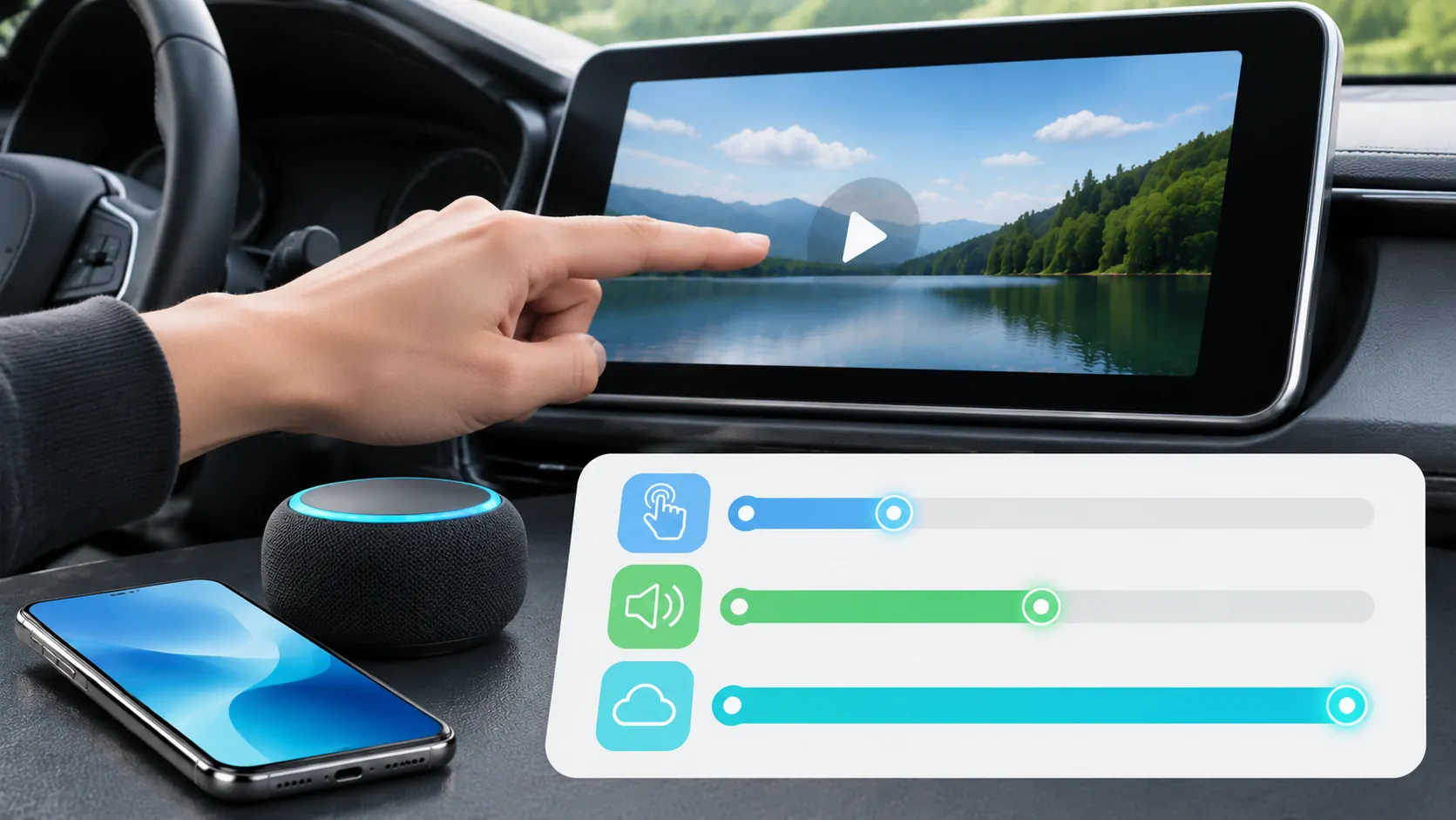
For delayed controls rather than a mismatch between sound and picture, use CarPlay latency checks. Seek source or app support when the evidence identifies a repeatable failing stage.
A good synchronization diagnosis preserves the difference between source timing, delivery stalls and output latency. That distinction makes a supported adjustment or clean export possible without promising that one player setting can correct every media and receiver combination.
Sources
Related reading
Bring your own media.
Explore CarCast for iPhone with your own authorized sources and supported display configurations.