CarCast Guide
Add your own M3U playlist.
Have your own playlist or a URL from an authorized provider ready. This guide follows the source concepts shown in the existing CarCast interface; exact control labels should be checked against your installed version.
Download for iPhone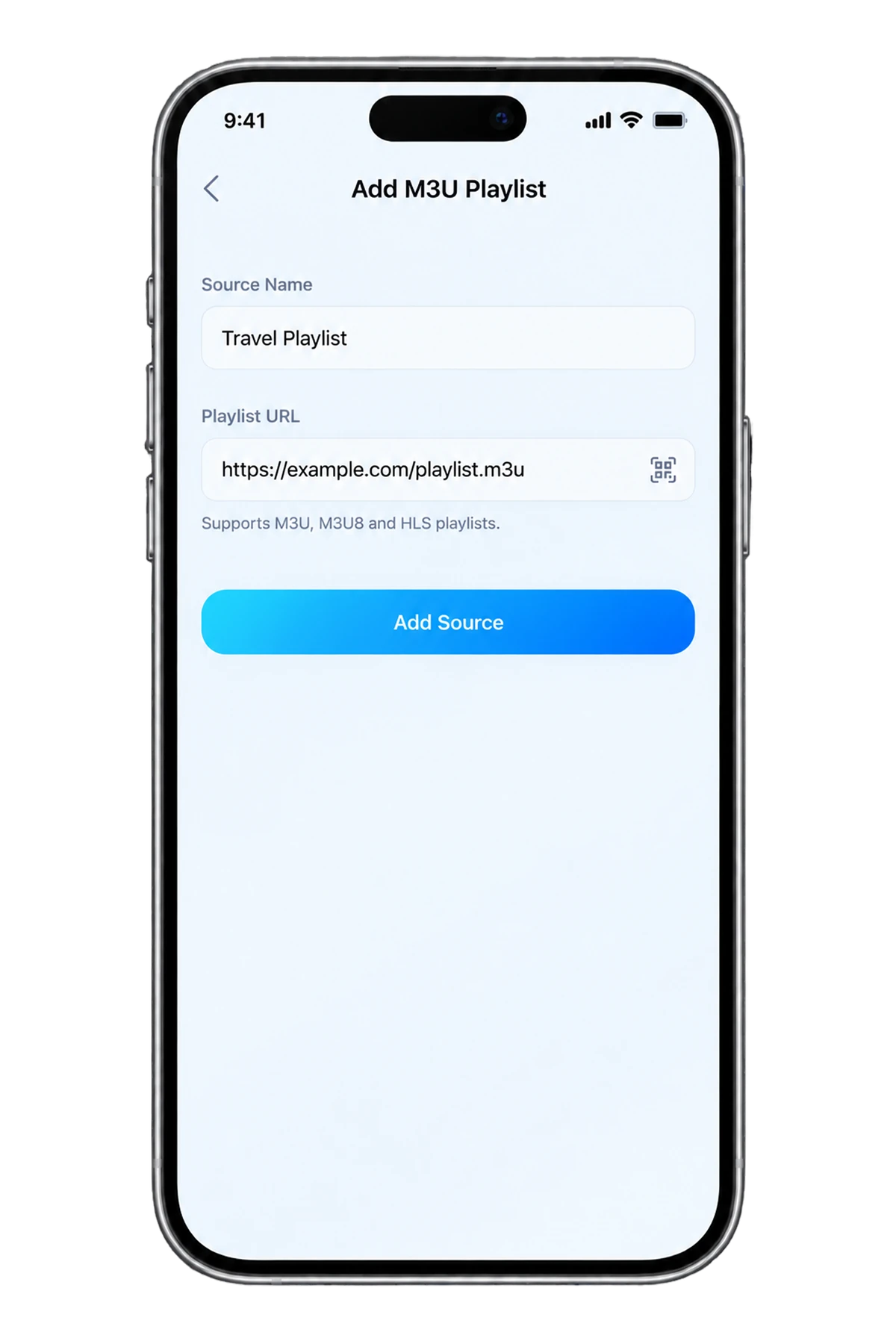
1. Prepare a valid source
Use a playlist you own or are permitted to access. For a URL source, obtain the full playlist address from the provider; a homepage, account portal or HTML download page is not necessarily the playlist itself.
Check whether the URL expires or includes an access token. Treat the entire address as a password when it can grant access. Keep the provider instructions nearby without publishing your credentials.
2. Open the playlist source controls
Open the CarCast source selector on iPhone and choose the M3U source option available in your version. The screenshot above is a real existing product asset; it may differ from a newer App Store build.
For a URL field, enter the complete playlist URL and give the source a recognizable name. Use a file import only if that option is available in your installed build. Complete the import using the current in-app controls.
If the expected source option is missing, check your app version or contact support. Do not substitute Xtream or a media-server login unless your provider supplies that connection type.
3. Confirm the import and play an item
Return to the source browser and check whether the expected categories or items appear. Play a known working authorized item on the iPhone before testing external display output.
If the list appears but a stream fails, the import may be correct while the stream, network or codec is the problem. Confirm provider access and try another permitted item. Live streams may also have account or simultaneous-playback limits.
4. Maintain or remove your source safely
If the provider changes the playlist, use the source update or refresh controls present in your version. Update an expired address using the provider current instructions rather than editing individual stream links at random.
Use the source management controls to remove a source you no longer need. Removing a source from the player does not cancel a separate provider subscription. For support, share the error category and app version, not the private address.
M3U or M3U8?
M3U8 usually identifies UTF-8 playlist text and is also the extension used for HLS manifests. A provider channel list and an individual HLS stream manifest serve different purposes, even when both end in .m3u8.
In-car output remains a separate compatibility check. Do not assume that importing a playlist enables video on every CarPlay display; use supported configurations while safely parked.
References
Your media, with CarCast.
Bring your own authorized sources. Check display compatibility before in-car use.