Video & Casting
Screen Capture Permissions and Broadcast Controls on iPhone
Understand iPhone screen recording and app broadcast controls, what capture consent covers, and how to verify that an active session has stopped.
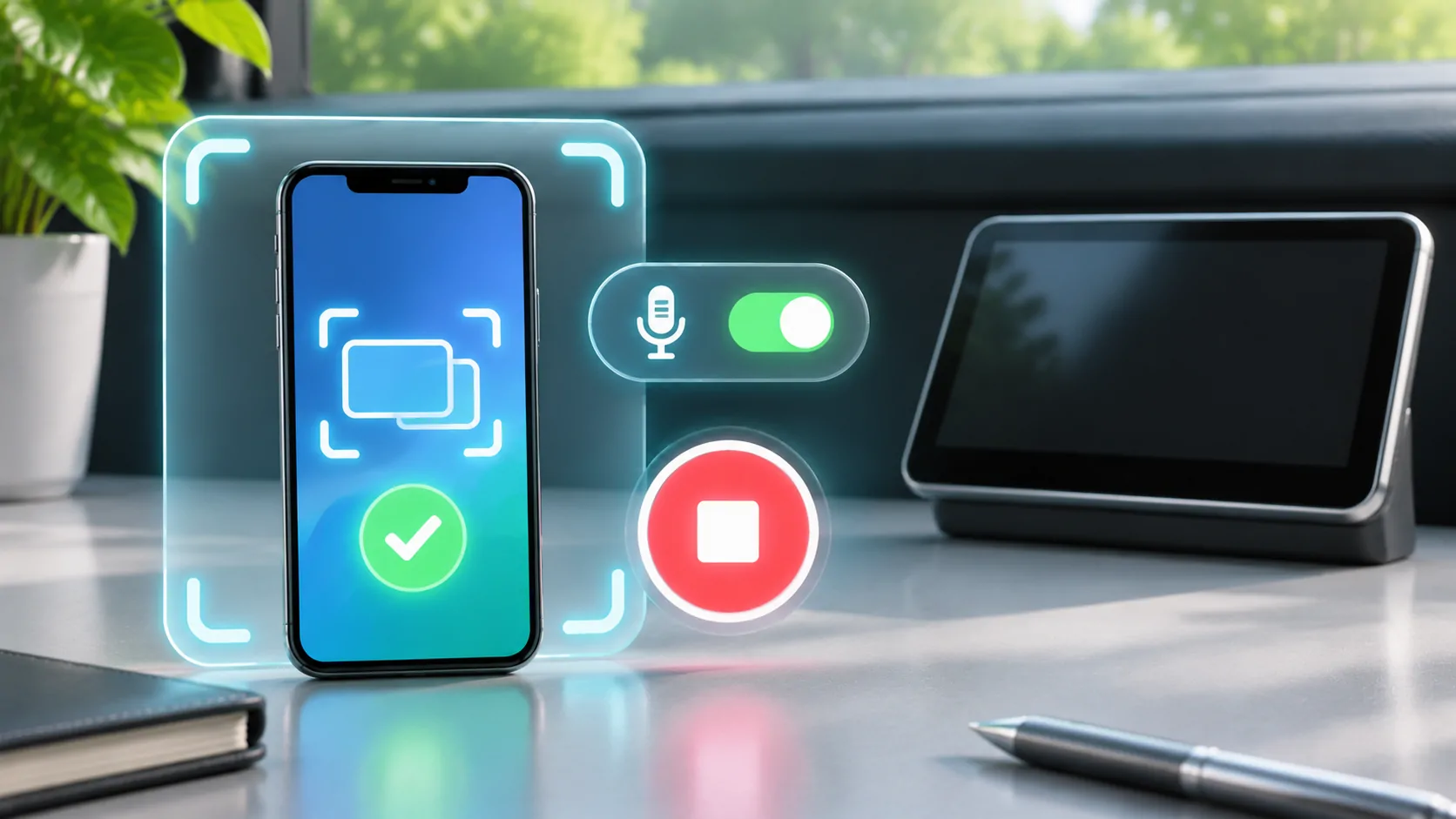
iPhone screen recording, screen mirroring and a third-party screen broadcast are related but different workflows. A system recording saves captured output, a mirror sends a live view to a compatible receiver, and an app broadcast can send captured media through an app-specific extension or destination. Check which workflow is active before granting access or troubleshooting it.
System capture consent does not grant copyright permission, remove DRM or guarantee that every app's content can be recorded. Use only authorised material and verify the receiving destination. In a vehicle, prepare and test any visual session while parked.
Identify the Capture Method
Apple's screen recording guide describes the built-in recording process and its controls. Its AirPlay guide separately describes streaming and mirroring to supported receivers. An app may add another broadcast workflow with its own destination and system-mediated start controls.
Do not treat these as interchangeable permissions. Successfully saving a local recording does not prove a third-party receiver can accept a live stream. Similarly, an AirPlay connection does not establish that an unrelated broadcast extension has started or that a recording file exists.
Use the actual labels and indicators visible on your current device. Operating-system presentation can change, so a copied sequence from an older screenshot may be misleading. Consult the current support instructions and the sender application's own documentation before changing settings.
Understand What ReplayKit Provides
Apple's ReplayKit documentation describes a framework for recording or broadcasting screen and audio content. Developers can build capture-related features around it, but the framework's existence is not evidence that a particular app implements every possible feature.
A broadcast may involve an app-specific extension, selected destination and system-controlled start or stop process. Check the selected service before starting. An app name appearing in a list is not a reason to choose it unless it is the destination you intended to use.
The application and receiver may impose their own compatibility requirements. Granting capture access does not configure a network, authenticate a media provider or turn a CarPlay-only connection into a generic screen receiver. Keep those responsibilities separate when a session fails to appear.
Review Audio as Well as Picture
Screen capture can involve app audio, microphone audio or both depending on the workflow and restrictions. A microphone setting can expose conversation around the phone, even if the displayed video contains no sensitive information. Review it deliberately before starting a shared session.
Do not assume a visible picture proves that audio is being transmitted or saved. Test with harmless content you own and check the actual result. If the intended use does not require ambient sound, avoid enabling microphone capture unnecessarily.
Audio routing can also differ from recording input. Sound playing through a Bluetooth speaker does not by itself identify what a broadcast is sending. If audio is absent, consult the workflow's supported capture behaviour rather than enabling unrelated permissions until something changes. Record the original settings so you can return to them.
Consent Has a Specific Scope
A capture approval permits a particular system-mediated action; it is not a blanket statement that all on-screen material is shareable. Protected content may remain unavailable or appear blank. A service may require its official app and restrict capture or external output under its terms.
Do not attempt to defeat those protections. Use a permitted direct playback route when available or choose content you own. A black frame during capture can be a restriction rather than a failure to grant enough permissions. Repeatedly approving the same request cannot establish a right the service has not granted.
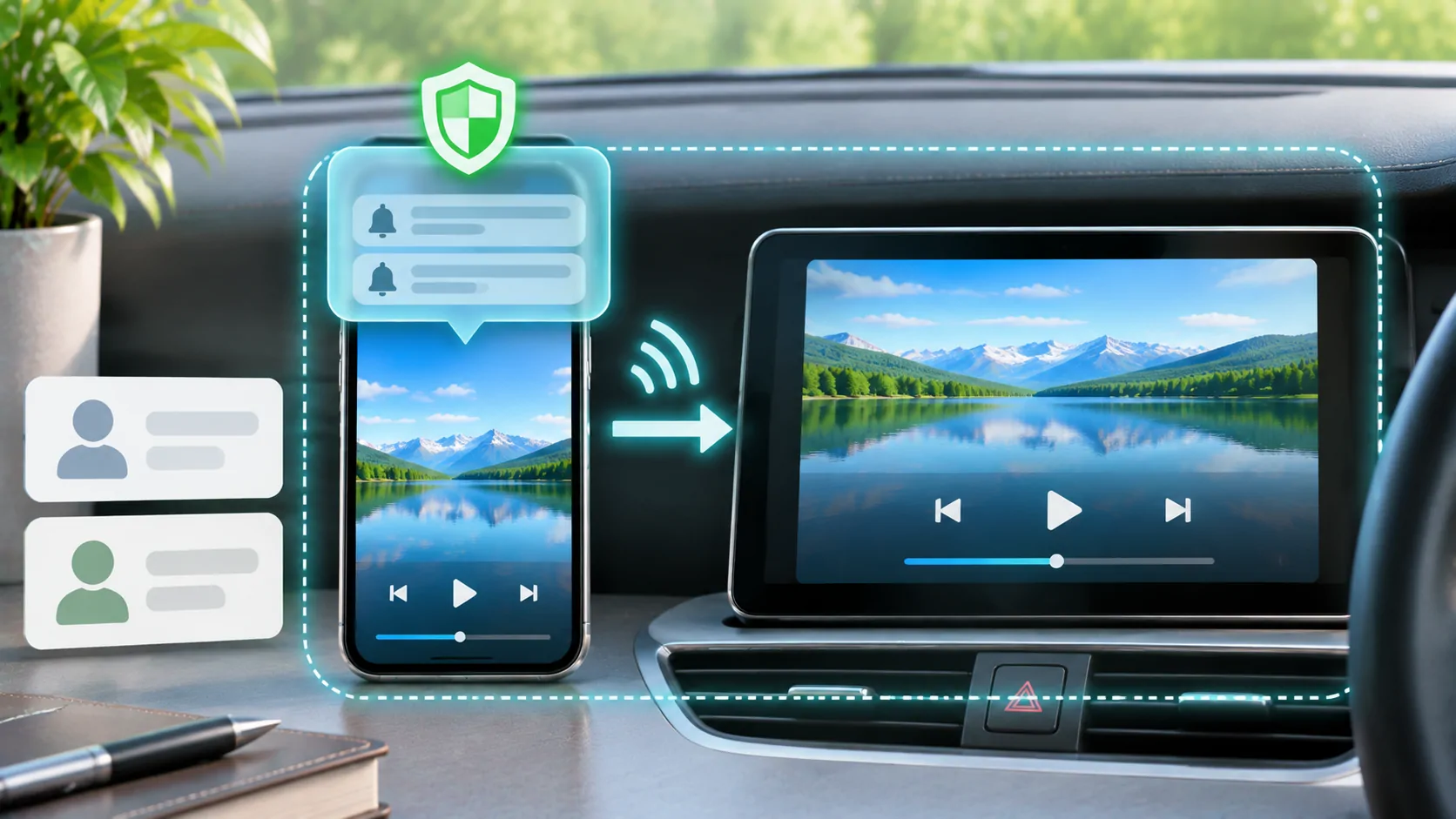
Also consider other people's information. Message previews, photographs and account screens can appear during a broad screen session. Review mirroring privacy before starting, including the screens you will pass through and the people who can see the receiver.
Diagnose a Session That Does Not Start
Confirm that the intended app and supported destination are installed or available. Follow the current documented start sequence and observe the system's response. Record whether the request was cancelled, denied, unavailable or started without visible output. Those are different outcomes.
Check the destination's connection requirements separately. A capture can begin locally while the receiving network path fails. Conversely, a receiver may be reachable while the source app does not permit the selected content to be captured. Use a harmless home-screen or personal test presentation to separate those cases where the workflow allows it.
Avoid deleting applications or resetting broad device settings before identifying the failure stage. Such changes can remove configuration and evidence. If support is needed, provide the app version, device version, selected method and exact system message without disclosing account credentials.
Confirm That the Session Has Ended
Use the documented stop control for the active recording, mirroring or broadcast method. Observe the device's capture indicator and the receiving display rather than assuming that returning to the home screen ends the session. Some workflows continue while you navigate elsewhere.
For a recording, check where the resulting file is saved and whether it contains unintended material before sharing it. For a broadcast, verify that the receiver no longer follows new phone activity. A frozen last frame may remain visible after live capture stops, so return shared equipment to a harmless screen if needed.
Only then open private messages or account settings. If the app created a separate remote session, sign out or end that session through its supported controls as well. Ending screen capture does not necessarily revoke every receiver login established during the activity.
Choose a Narrower Route When It Fits
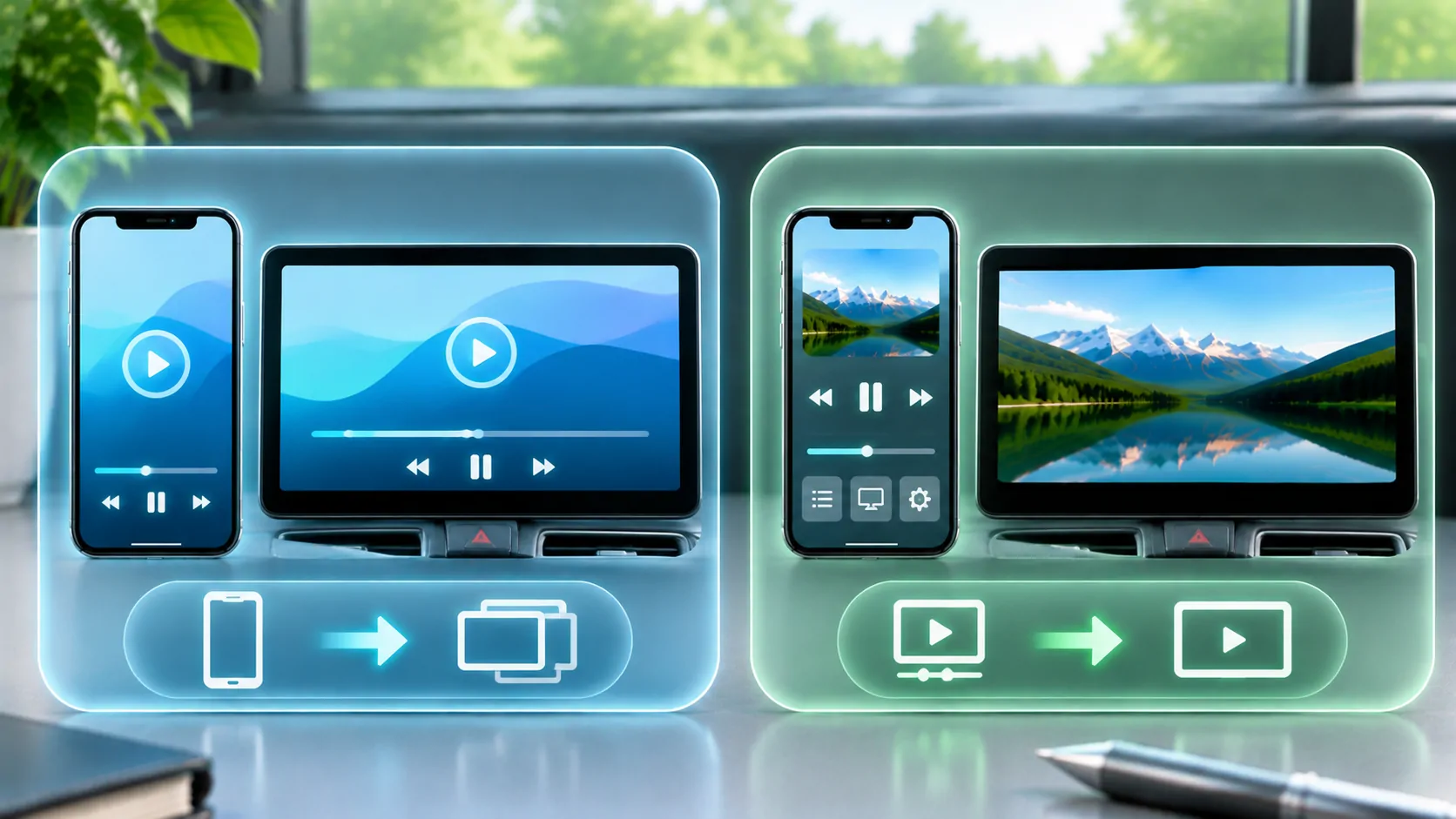
If the task is simply to watch one authorised video, a supported direct media route may expose less of the phone than a whole-screen broadcast. It can also have a different control and buffering model. Read mirroring versus direct playback before choosing the broadest available capture option.
Whatever route you choose, verify the start, audio, destination and stop behaviour with non-sensitive material. State only the behaviour you actually observed. A successful test on one phone and receiver does not establish compatibility with every vehicle or content service.
Clear capture controls are useful when you understand their scope. Treat system consent, content permission, network delivery and receiver compatibility as separate questions, and check each against the workflow you intend to use.
Sources
Related reading
Bring your own media.
Explore CarCast for iPhone with your own authorized sources and supported display configurations.