Compatibility
Toyota Multimedia and CarPlay: Match the Head Unit First
Match Toyota CarPlay instructions to the original market, multimedia head unit and exact manual before changing connection settings or seeking firmware.
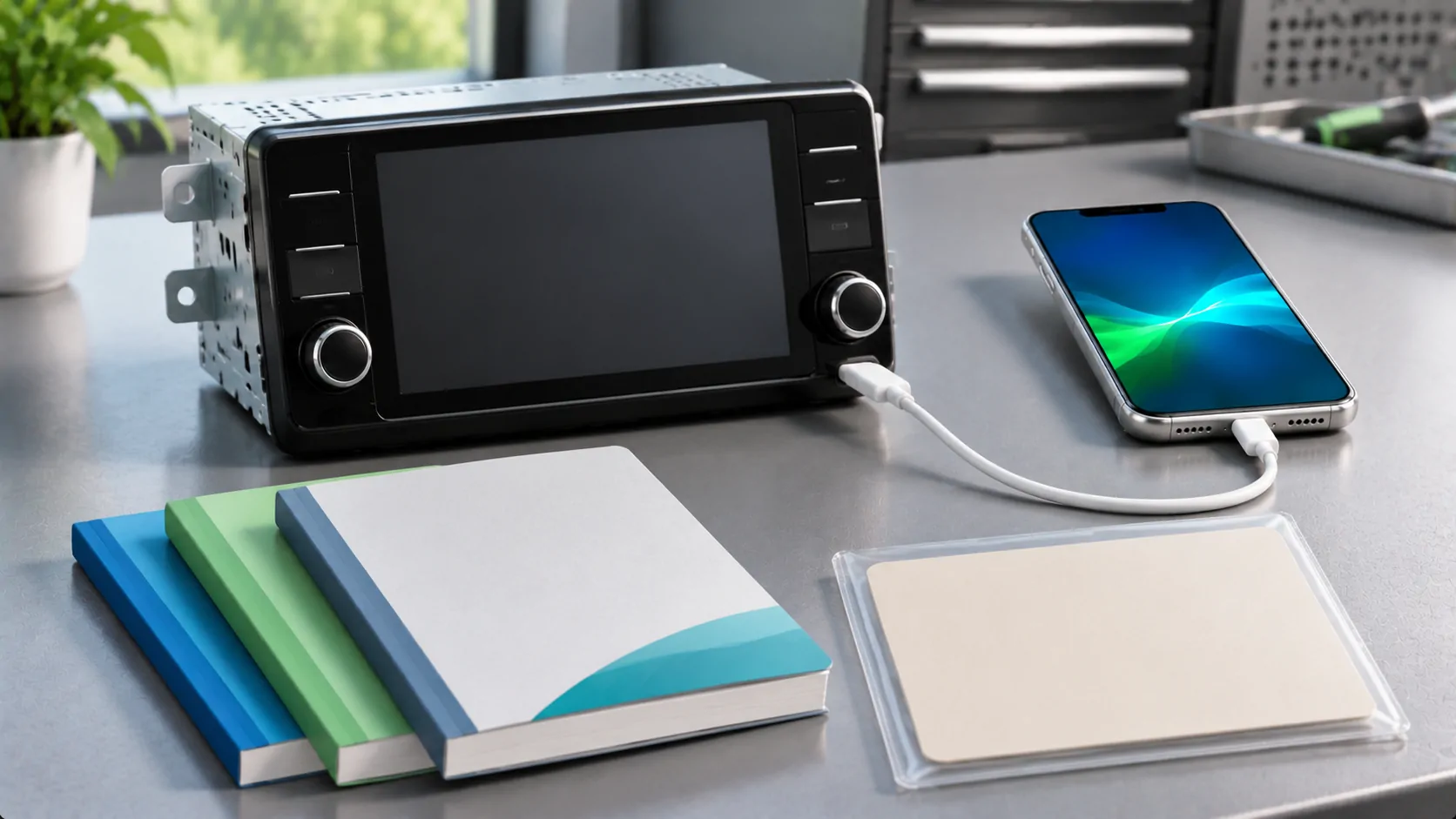
Toyota CarPlay setup should begin with the installed multimedia system and the vehicle's original market. Do not assume that instructions labelled Toyota Smart Connect apply to every Toyota screen or that the same model badge uses identical equipment worldwide. Match the exact head unit and manual first, then follow the documented wired or wireless procedure.
Record the car and screen as separate identities
Start with the vehicle model, model year, trim and original country of sale. Add the infotainment system name and any identifying information shown through its normal information screen or supplied documentation. Avoid disassembling the dashboard to find a label.
Check whether the receiver is factory equipment or a later installation. An imported car, replacement display or aftermarket integration can make a local model brochure an unreliable description of the system actually fitted.
Take a private reference photo of the screen's system information if useful, excluding personal accounts and saved destinations. The goal is to identify a documented configuration, not to infer compatibility from screen size or the appearance of its icons.
Choose the correct regional owner resource
Use the manufacturer resources for the market in which the vehicle was supplied. The Toyota USA manuals portal and Toyota UK manual page are regional lookup destinations. The actual selected manual must establish the instructions for the vehicle.
An owner now living in another country may still need documentation for the original equipment. Ask Toyota which regional resource applies when the vehicle has been imported or the system has been replaced.
Do not treat the availability of a public manual portal as proof that a particular Toyota supports CarPlay. Likewise, a guide from another country can explain a similar-looking system without establishing the ports, wireless capability or update process for yours.
Match the multimedia manual, not only the vehicle badge
Look for the applicable multimedia instructions as well as the general vehicle owner's manual. Search for Apple CarPlay, smartphone connection, USB and system information. Read any equipment qualifications or references to a separately supplied guide.
Compare the documented controls with the installed unit before following them. If a tutorial tells you to open a menu that does not exist, check the system identity and document edition. Repeatedly searching unrelated menus does not resolve a mismatch between two head units.
The phrase Smart Connect should be checked against the system's own documentation rather than applied to every Toyota multimedia installation. Keep the exact manual title, regional source and relevant section with your setup notes.
Resolve wired and wireless support explicitly
Find the connection method stated for the identified unit. A wireless charging pad does not prove wireless CarPlay, and a USB-C socket does not establish a wired data connection. Both features need confirmation in the applicable instructions.
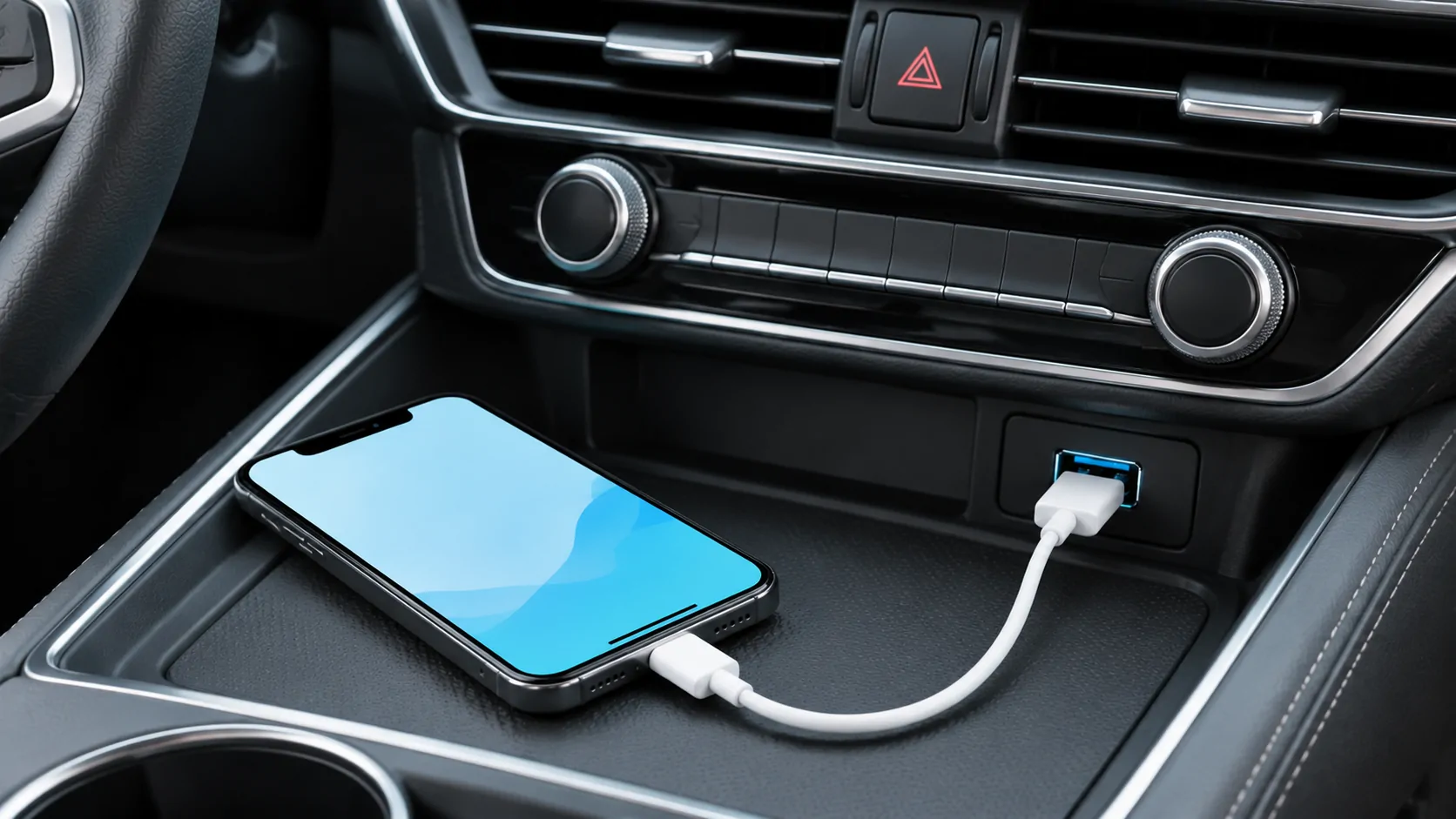
For a documented wired setup, identify the designated data port and a suitable cable for the iPhone. Connect directly for the initial check and accept the legitimate phone and vehicle prompts while parked. Our wired CarPlay guide explains the phone-side baseline.
For a documented wireless setup, follow the receiver's pairing route and enable Bluetooth and Wi-Fi on the phone. The wireless setup checklist covers general iPhone preparation but does not establish which Toyota units support that method.
Run a small baseline check
Apple's CarPlay setup guide provides the general iPhone process and directs owners to the car's documentation. Start with a compatible phone, Siri enabled and the connection method already confirmed for the unit.
Observe whether CarPlay itself appears. Bluetooth audio, a charging symbol or a vehicle-native navigation screen is not the same result. Once the interface opens, try a supported app and a short audio sample. Check voice interaction separately if needed.
Record the exact port or wireless route, cable and phone used. If the vehicle selects another saved phone, correct that through the documented device controls. Keep the car safely parked throughout the setup and remove private information from any support screenshots.
Keep firmware enquiries tied to the unit
If the manual and installed software do not appear to agree, record the current version and ask Toyota which instructions and updates apply. Describe the observed problem and the head-unit identity rather than requesting the newest file available online.
Do not install a package merely because another owner says it worked on the same vehicle badge. Similar model names can conceal different markets, suppliers or equipment. Follow the official process for the actual unit, including any service requirements and prerequisites.
An update should have an identified purpose and a supported route. A promise that firmware will add every missing feature is insufficient evidence. Ask the manufacturer to confirm eligibility before treating an update, paid service or replacement device as the solution.
Diagnose a changed setup without discarding its history
For a previously working CarPlay connection, note what changed: phone, cable, iOS, vehicle software or selected driver. Separate total connection loss from one app failing to stream. Those symptoms point to different checks.
Apple's troubleshooting guide covers normal steps such as checking Siri and restrictions, trying an appropriate cable, confirming wireless settings and recreating the saved CarPlay association. Use the relevant step rather than changing every setting together.
If a failure followed a phone update, keep the old working configuration in your notes. The timing is useful evidence, but it does not establish a universal Toyota compatibility change. Check current manufacturer information for the identified unit before drawing that conclusion.
Give support a complete configuration
A useful request includes original market, vehicle model year, installed multimedia identity, software version, iPhone model, connection method and the precise failure. Supply the VIN privately when an authorised support contact needs it.
Ask one concrete question at a time: which manual applies, whether this unit supports the intended method, which port carries data, or whether an official update addresses the reported symptom. These questions can produce a verifiable answer.
Keep the final conclusion limited to the documented system and observed result. Working CarPlay navigation does not establish video, unrestricted mirroring or another advanced display feature. Verify those separately, and use only supported interactions appropriate to a safely parked vehicle.
Sources
Related reading
Bring your own media.
Explore CarCast for iPhone with your own authorized sources and supported display configurations.