Guides
CarPlay Problems after an iOS Update
Investigate CarPlay problems after an iOS update without assuming causation, using version records, controlled tests and separate receiver checks.
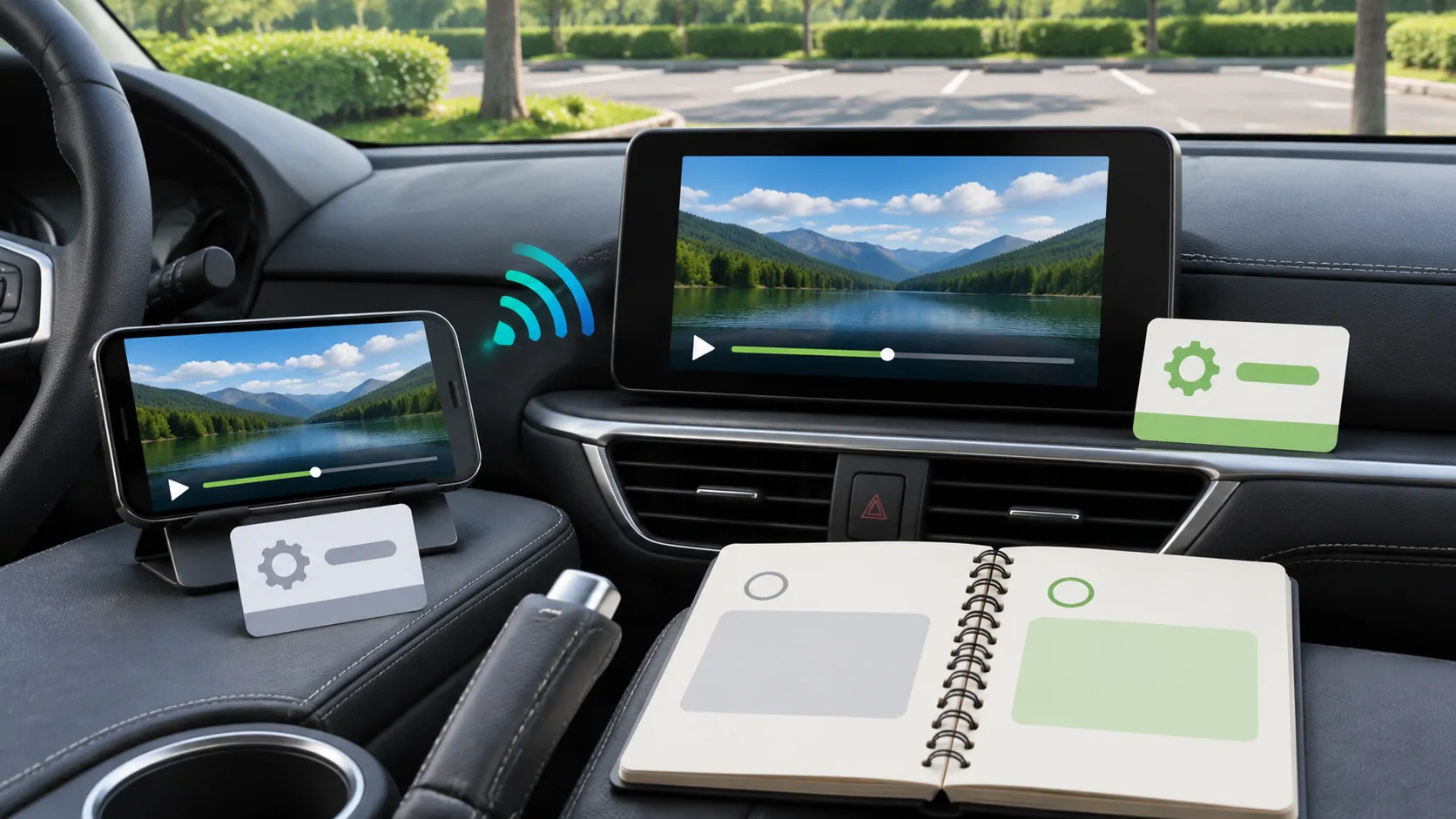
If CarPlay starts failing after an iOS update, record the exact update and symptom, then repeat basic connection and app tests before assuming the update caused a universal defect. The phone, receiver, cable, app and permissions form a system. Timing is useful evidence, but it does not identify which component changed or establish a guaranteed rollback solution.
Preserve the before-and-after facts
Write down the installed iPhone software version, phone model, receiver model and receiver firmware. Note the date the symptom first appeared and the last arrangement known to work.
Describe the failure precisely: no initial connection, repeated disconnects, black display, missing app, silent audio or a single online service failing. These categories lead to different tests. A report that only says CarPlay broke after updating is difficult to act on.
Include other changes around the same time. A new USB-C adapter, app update, restored phone or changed driver profile can matter. Avoid editing the account to make the update appear to be the only variable if it was not.
Re-establish the basic connection
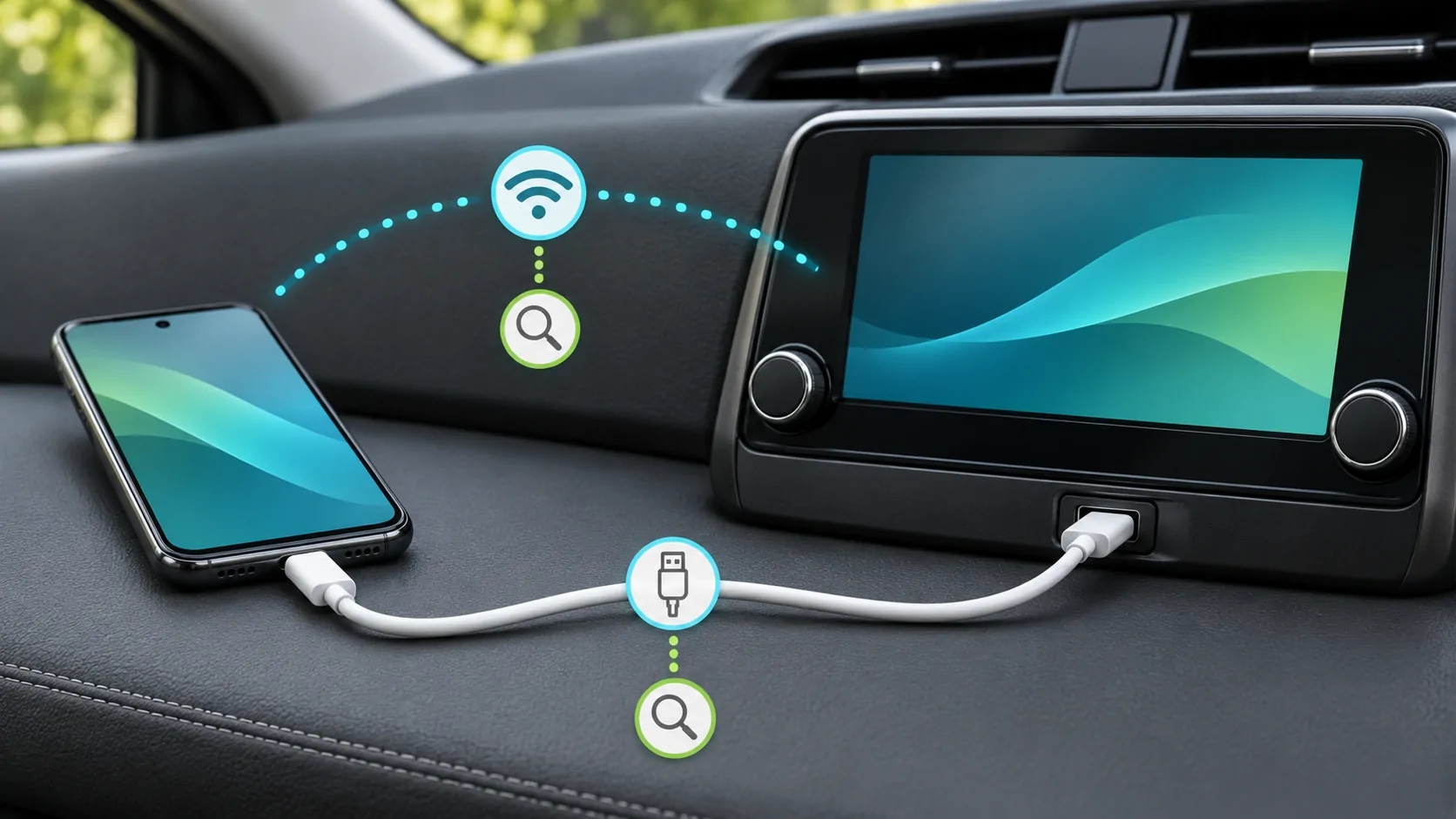
Follow the vehicle's documented connection route. For wired use, check the designated data port and a known suitable cable. For wireless use, check Bluetooth, Wi-Fi and Auto-Join for the CarPlay network.
Apple's connection checklist also recommends selecting CarPlay on the receiver when it does not open automatically, checking Siri and reviewing restrictions. A changed preference or incomplete startup can resemble a deeper compatibility failure.
Test while safely parked and keep the first task simple. Verify the CarPlay Home screen before introducing a complex app, protected media source or unusual navigation request.
Check whether settings or permissions changed
Review the relevant setting for the failed task. A navigation problem may involve location access; a third-party call may involve microphone permission; a missing message announcement may involve Focus or notification policy.
Do not assume that every update resets every permission. Inspect the actual state and record any difference you find. Conversely, do not ignore a new setup prompt merely because an older version did not ask for it.
Siri menus and available interactions vary with software and device, as Apple's Siri guidance explains. Use the controls present on the installed version rather than copying an obsolete screenshot literally.
Separate app failures from shared failures
Open more than one basic supported CarPlay app. If navigation and audio work but one app is missing or crashes, investigate that app's version, account and support information.
If the whole interface fails across apps, investigate the common connection and receiver path. A third-party app reinstall cannot be assumed to fix a receiver reboot or a USB port that only supplies power.
Check whether the affected task works directly on the phone after disconnecting. That comparison helps distinguish an app or account issue from a problem limited to the connected presentation.
Restart and re-pair with a record
Restart the phone and vehicle multimedia system using their documented procedures. Allow a normal shutdown rather than rapidly cycling the ignition or pulling fuses.
If necessary, use Settings, General, CarPlay, select the car and forget it, then set it up again as Apple describes. Record existing preferences first. Remove the matching receiver entry where the manual requires it.
Repeat the same test after each step. If re-pairing helps temporarily, note what happens before the next failure. Do not report one successful connection as proof that every post-update problem is resolved.
Check the receiver independently
Phone software updates do not automatically update the vehicle's multimedia firmware. Consult the vehicle or receiver manufacturer's official instructions for the exact installed system.
Two cars sold under the same model name may have different receivers, markets or firmware branches. Do not install a file intended for a different unit, and do not rely on an unofficial package merely because its name includes CarPlay.
Apple's setup documentation directs users to the vehicle manual for system-specific details. If the manufacturer recommends an update, keep the original and new versions in the support record so the comparison remains traceable.
Avoid unsupported rollback promises
Do not assume that a previous iOS version can be reinstalled or that downgrading preserves all data and compatibility. Supported installation paths, device requirements and backup compatibility can change.
A forum report from another phone or vehicle is a useful lead at most. It is not evidence that the same action is available, safe or effective for your configuration. Seek current official instructions before considering a disruptive change.
If the phone is essential for work or travel, retain a known working alternative such as the receiver's native navigation or a documented wired connection. An operational fallback is more useful than an unverified promise that one software change will solve everything.
Submit a focused issue report
Provide the exact versions, failure category and reproduction steps. Include whether another suitable cable, another compatible phone or a different supported connection method changed the result.
For missing applications, use app-availability checks. For complete drops, follow disconnection diagnosis. If the display itself is black, identify whether native receiver menus still work before continuing with black-screen checks.
Keep personal contacts, routes and account credentials out of screenshots. State clearly which comparisons were actually performed and which remain untested.
The strongest post-update diagnosis separates chronology from causation. It identifies a repeatable failing stage and preserves enough configuration detail for Apple, the app developer or the receiver manufacturer to investigate without inventing a current-version defect.
Sources
Related reading
Bring your own media.
Explore CarCast for iPhone with your own authorized sources and supported display configurations.