Guides
How to Set Up Wireless Apple CarPlay
Set up wireless CarPlay with a compatible receiver, Bluetooth and Wi-Fi, then distinguish pairing, reconnection and internet-access problems.
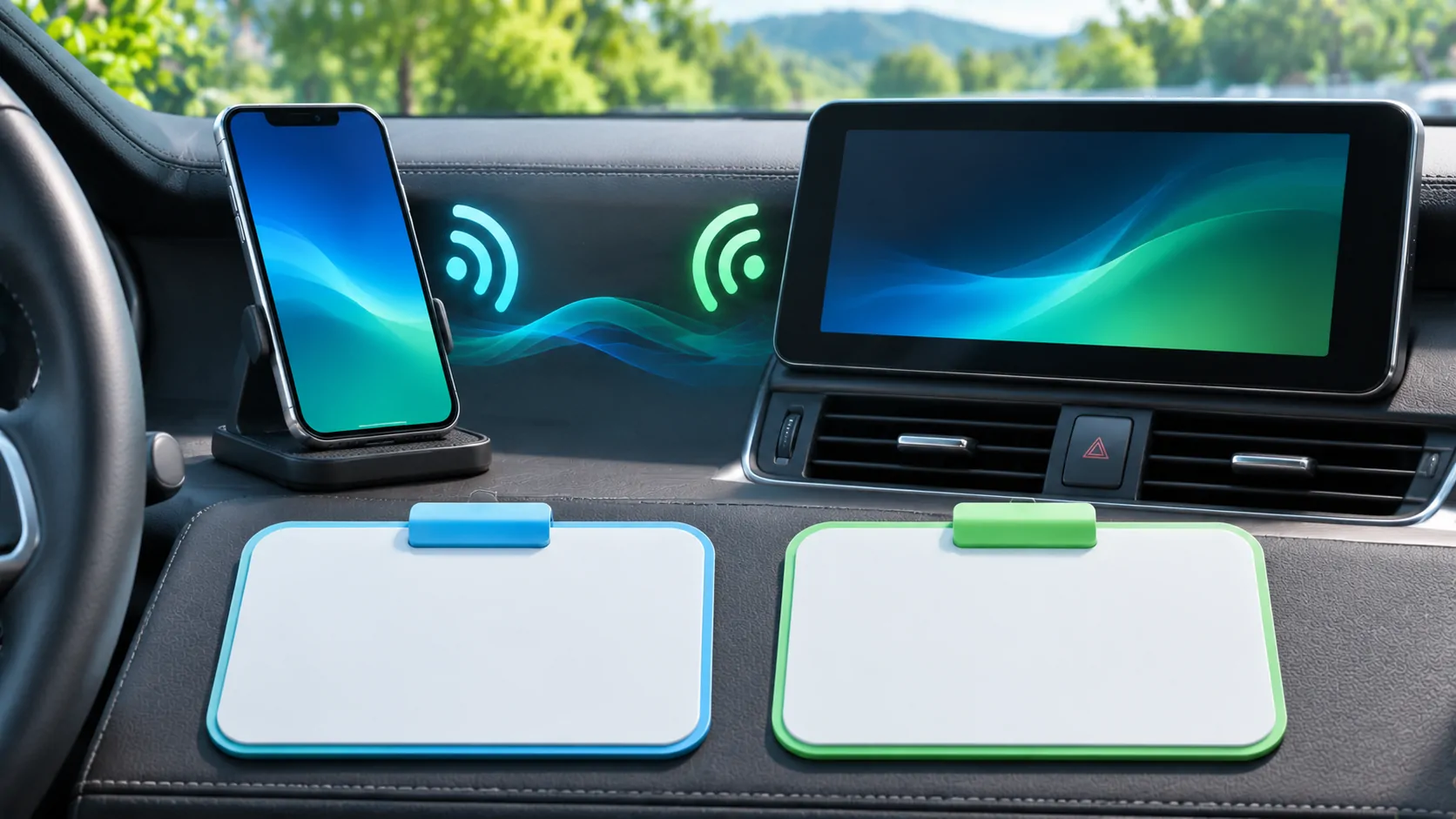
Wireless CarPlay requires a vehicle or receiver that explicitly supports it, plus the correct pairing process on the iPhone. Enable Bluetooth and Wi-Fi, put the receiver in its documented setup mode, and complete the prompts while parked. Ordinary Bluetooth pairing, a wireless charging pad and an active mobile hotspot do not independently prove wireless CarPlay support.
Identify which setup process the car uses
Some vehicles support both a USB connection and wireless CarPlay. Others begin wireless pairing through a steering-wheel voice button or a dedicated smartphone menu. Apple's CarPlay setup page describes these different starting points and directs owners to the vehicle manual for specific instructions.
Check the exact installed head unit rather than assuming that every trim or production year has the same connection hardware. If a dealer has replaced the receiver, its instructions may differ from those for the original equipment. A wireless adapter introduces another device with its own requirements, so use its documented procedure in addition to the car's instructions.
Before proceeding, decide which phone should connect. A passenger's previously paired iPhone can make a successful automatic connection look like a failure on the driver's phone. Keep other paired phones away from the setup or temporarily disable their connection using their owners' controls.
Prepare the phone and receiver
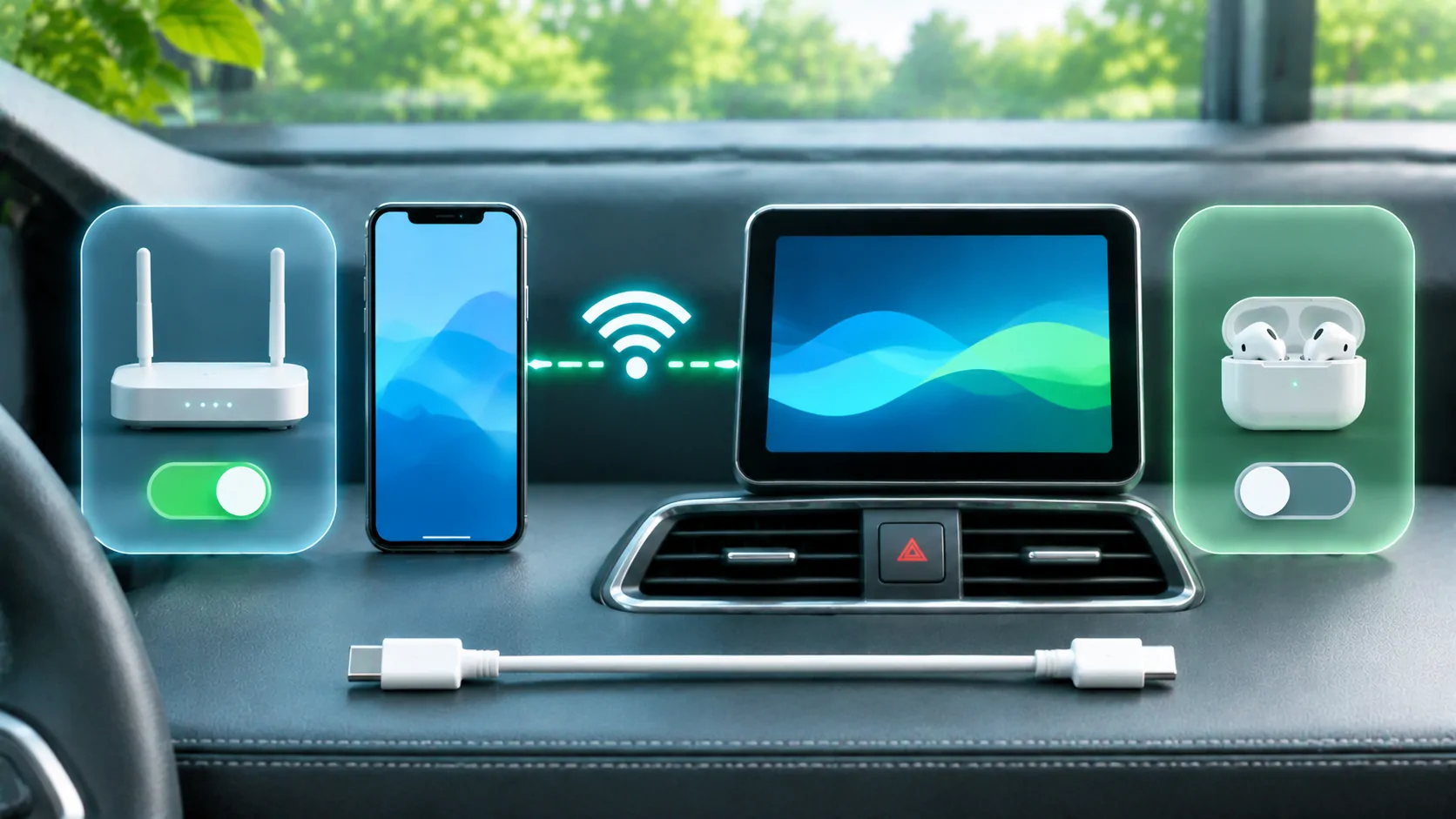
Park safely, turn on the multimedia system, and make sure Siri is enabled. On the iPhone, confirm that both Bluetooth and Wi-Fi are on in Settings. Follow the receiver's instruction for entering wireless CarPlay or Bluetooth setup mode; do not assume that its normal audio screen is already discoverable.
If the vehicle documentation says to hold the steering-wheel voice command button, distinguish a long press from a short press. The latter may invoke the vehicle's own assistant. When the phone offers a car to connect to, compare its name with the receiver's displayed identity before accepting.
There is no reason to disclose an Apple Account password to a stranger to pair CarPlay. If a prompt unexpectedly asks for unrelated credentials, stop and identify which system is asking. Permissions for contacts, calls or notifications should be considered separately from the basic connection.
Pair using the supported route
For a wireless-only setup, use the vehicle's instructed pairing process, then open Settings, General, CarPlay on the phone and select the appropriate car when available. Read the confirmation messages on both screens. A matching identifier or pairing code should agree before you approve it.
For a vehicle supporting both methods, Apple describes an initial USB connection that can offer wireless connection on later drives. Use that route when the receiver documents it. Disconnect only after the setup has finished, and check whether CarPlay remains available through the supported wireless connection.
Do not conclude that pairing has failed simply because the vehicle stays on its native home screen. Select the CarPlay icon if present. Conversely, a Bluetooth entry appearing in the phone's list is not enough: verify that the actual CarPlay interface opens.
Check automatic reconnection
Apple's connection troubleshooting recommends checking the CarPlay Wi-Fi network and ensuring Auto-Join is enabled. Keep Bluetooth enabled as well. A wireless arrangement depends on its local connection even when the phone obtains internet content through cellular data.
After a successful parked setup, turn the vehicle off using its normal procedure, allow the receiver to finish shutting down, and reconnect on the next normal start. Avoid rapid repeated power cycling that prevents the system from reaching a stable state. Observe which phone is selected and whether manual selection is needed.
If automatic connection consistently selects another saved phone, review the receiver's phone priority or active-device setting. This is a different problem from a radio link dropping after it has connected. The two-iPhone switching guide covers that distinction.
Separate the local link from internet access
A map interface can stay visible while an online search or music stream fails. In that case, CarPlay may still be connected; the missing component could be cellular service, an application account or the source server. Test a downloaded audio item while parked to reduce dependence on the mobile network.
If the entire CarPlay display closes and the receiver returns to its own menu, investigate the local connection and receiver state. If only one app shows a spinner, compare another supported app. These observations are more useful than describing every failure as a Wi-Fi problem.
Do not disable Wi-Fi as a general attempt to improve wireless CarPlay. That can remove a connection the feature needs. If another device or hotspot appears involved, change one variable during a parked comparison and record the outcome rather than permanently disabling unrelated services.
Recover from incomplete pairing
Restart the phone and vehicle multimedia system following their documented procedures. If the saved relationship appears corrupted, use Settings, General, CarPlay, select the car, and choose Forget This Car; then remove the corresponding phone entry from the receiver if its manual requires it. Re-pair using the same supported route.
Forgetting a device can change permissions or preferences, so note the working settings first. A broad network reset is more disruptive and can erase other saved network information. It should not be the first response to an incorrectly selected phone or an unsupported receiver.
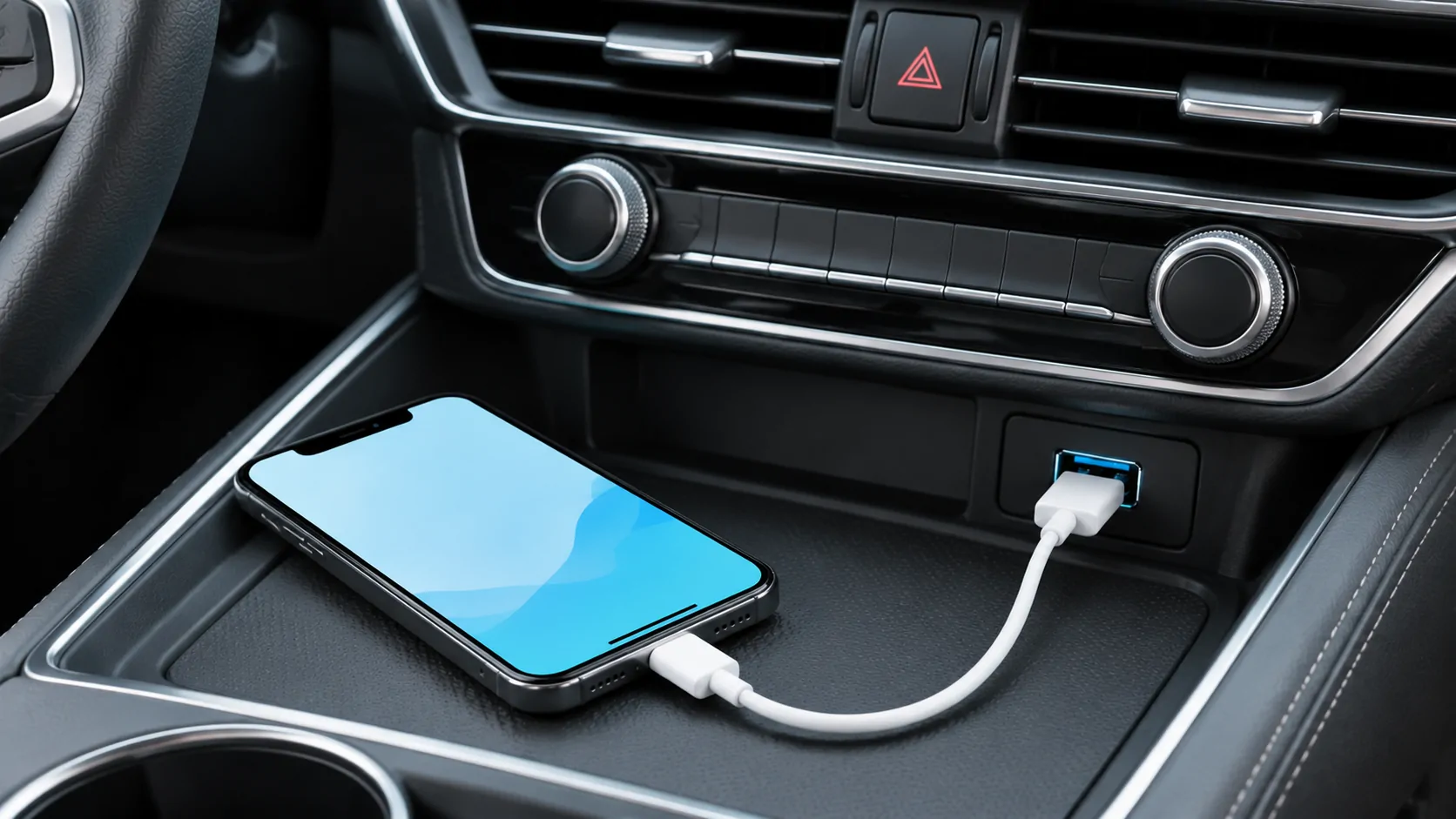
If a direct USB connection works but wireless pairing never completes, preserve the wired result as evidence. It confirms one supported route, not that the wireless hardware is necessarily present or healthy. Consult connection-method differences before purchasing an adapter.
Know when to escalate
Collect the iPhone model and software, receiver version, pairing steps, exact error text and the point where setup stops. State whether the result occurs with another compatible phone and whether wired CarPlay works. A manufacturer can use these facts to identify receiver-specific updates or limitations.
This procedure does not verify every vehicle, wireless adapter or radio environment. It also does not add video, mirroring or browser support. Those capabilities require their own documentation. A stable wireless CarPlay session should first deliver the basic interface, usable audio and predictable reconnection before you evaluate additional functions.
Sources
Related reading
Bring your own media.
Explore CarCast for iPhone with your own authorized sources and supported display configurations.