Guides
How to Connect Wired Apple CarPlay
Connect an iPhone to wired CarPlay using the correct USB data port, cable and permissions, then verify navigation, audio and reconnection.
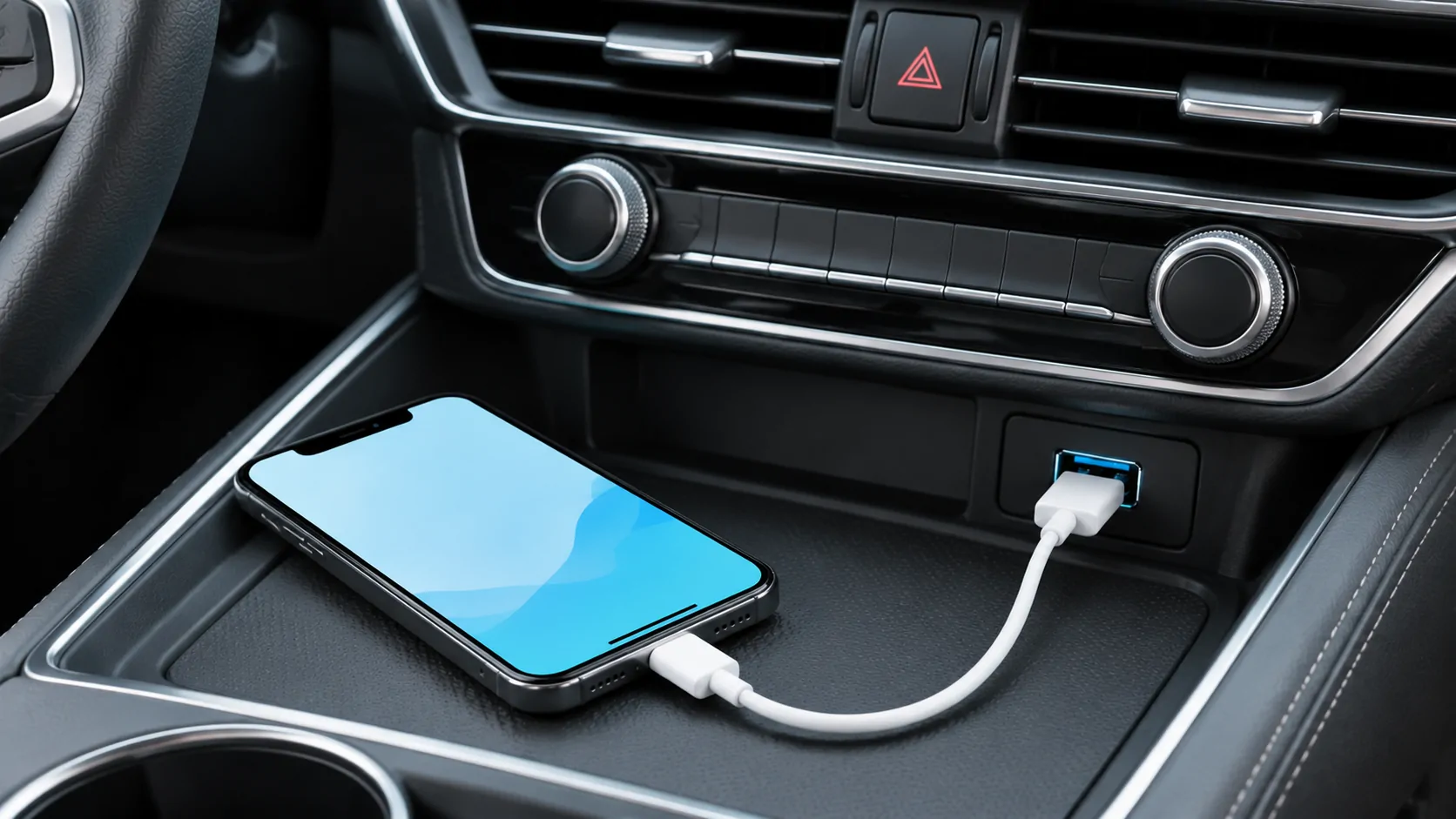
Wired Apple CarPlay starts by connecting a compatible iPhone to the vehicle's CarPlay-capable USB port with a suitable data cable. Turn on Siri, complete any setup prompts while parked, and select CarPlay on the receiver if it does not open automatically. Charging alone does not confirm that the connection carries data or that the chosen port supports CarPlay.
Check the vehicle before changing the phone
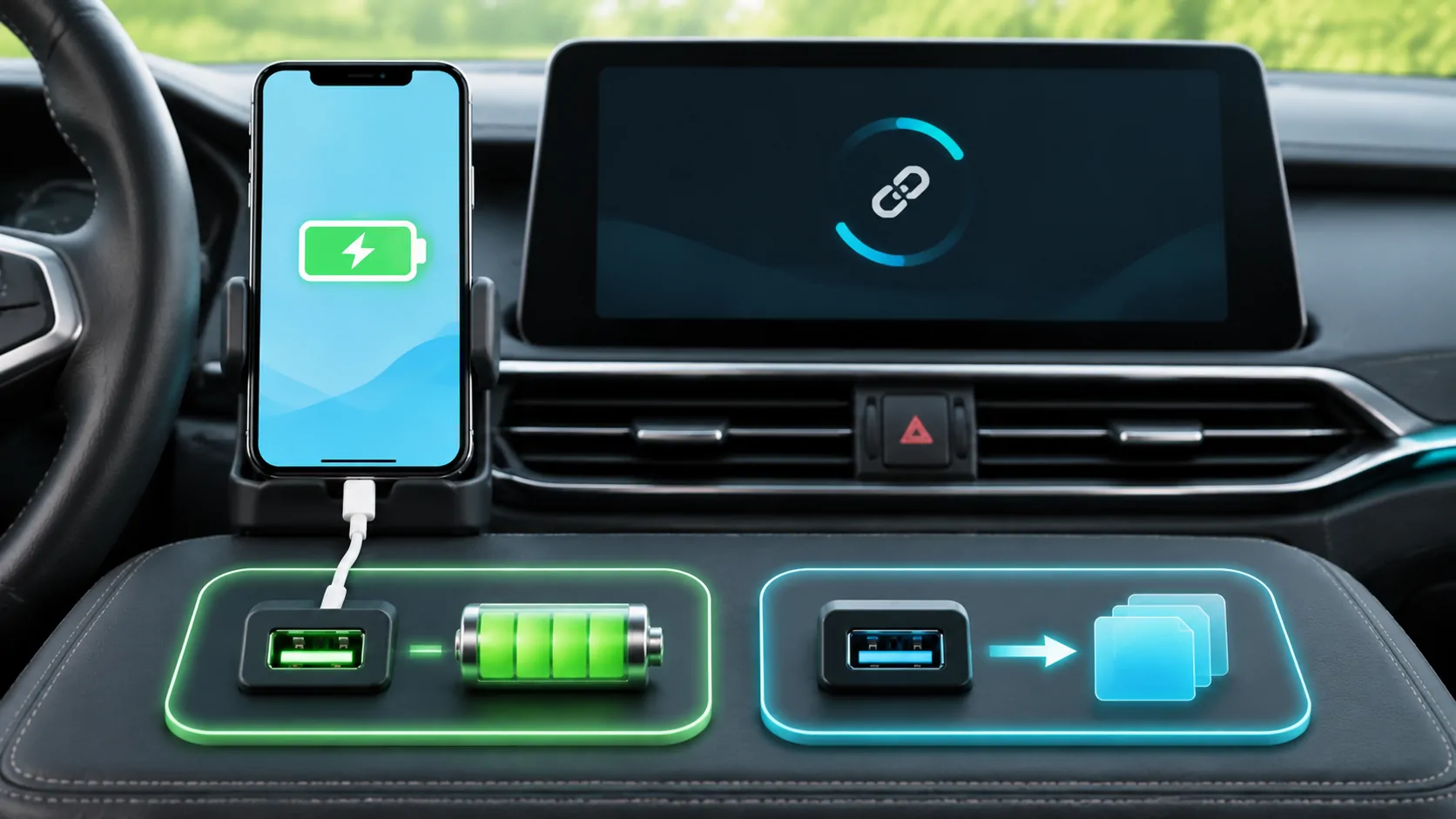
Look up the exact receiver fitted to the vehicle, including its model year, equipment package and market. A smartphone symbol near a socket is a useful clue, but the owner's manual is the authority on which port carries CarPlay data. Two adjacent USB sockets can have different functions. A rear-seat charging socket may never start the dashboard interface.
Apple's setup instructions distinguish vehicles that support wired connections, wireless connections, or both. Do not assume that a car with Bluetooth calling necessarily supports CarPlay. If the manual is ambiguous, give the manufacturer the vehicle identification details and ask about the installed receiver rather than relying on a generic model-name list.
Choose a direct data connection
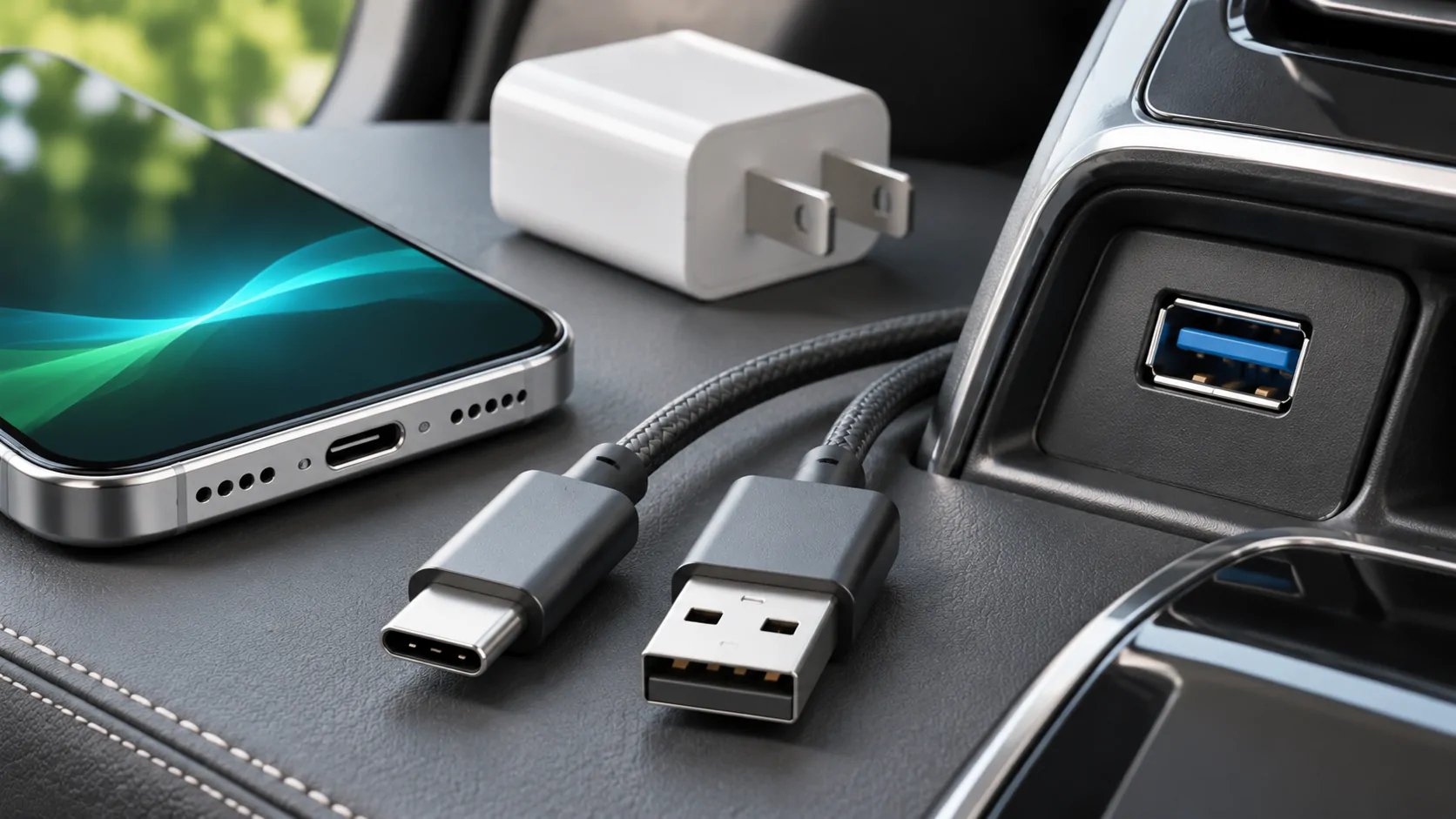
Match the cable to the actual ports at both ends. A USB-C iPhone and a vehicle with USB-A need a suitable USB-A-to-USB-C data cable; an older iPhone with Lightning requires its appropriate cable. Check the accessory specification for data support, inspect the connectors, and avoid adding a hub or extension during the first setup.
Apple notes that a USB-C-to-Lightning adapter works with wired CarPlay in most vehicles, but some combinations of adapter, cable and entertainment system can interrupt the connection. Its adapter guidance recommends a direct USB connection when that combination causes trouble. This is a compatibility consideration, not evidence that every adapter fails or every premium cable works better.
Use a cable long enough to reach a secure phone location without tension. A plug pulled sideways by the phone moving in a cup holder can make an otherwise suitable setup unreliable. Do not insert tools into a connector or force a plug that does not fit.
Complete the first connection while parked
With the vehicle safely parked and its multimedia system available, follow this sequence:
- Turn on the iPhone and confirm that Siri is enabled in its settings.
- Connect the cable to the designated CarPlay USB port.
- Unlock the phone if setup asks for access, and read the prompts on both screens.
- Accept only the CarPlay connection you intend to establish.
- If the receiver stays on its normal home screen, find and select its CarPlay logo.
Exact permission wording and menu names depend on the iPhone software and receiver. A fleet-managed or family-managed phone may also have restrictions. Do not change organisational controls without the device owner's permission. An initial unlock request is different from a claim that the phone must remain unlocked throughout every journey.
Verify the connection in separate stages
First confirm that the CarPlay home screen appears. Next open a supported navigation app and check that its interface responds. Then play a known audio item at a modest volume, and finally try a short Siri request. These checks distinguish basic display connectivity from a problem affecting one application, audio source or voice input.
A successful music test does not demonstrate video playback, screen mirroring or support for protected streaming services. Those are separate capabilities with their own vehicle, software and app conditions. Use the compatibility guide when evaluating a feature beyond ordinary navigation, calls and audio.
Finish by disconnecting and reconnecting once while parked. If the second connection works only after manually selecting CarPlay, check the receiver's startup preferences. That behaviour may be a selection setting rather than a failed USB connection.
Diagnose what the observed result means
If the phone does not charge, inspect the selected port, cable and vehicle power state first. If it charges but no CarPlay prompt appears, test another known data cable in the confirmed CarPlay port. Charging proves that power is present; it does not prove that the data path is working.
If CarPlay appears and immediately disappears, keep the car stationary and observe whether a gentle repositioning of the phone changes the result. Stop using a visibly damaged connector. If only one app fails after the interface opens, investigate that app before resetting the entire connection.
Apple's connection troubleshooting also recommends restarting the phone and car, checking Siri, reviewing CarPlay restrictions, forgetting the car and setting it up again, and checking manufacturer firmware. Work through these changes individually so you can identify which one affected the result.
Keep the working arrangement reproducible
Record the iPhone model, software version, receiver model, selected port and cable type. A photograph of the port label can be useful, but avoid sharing personal information displayed on the dashboard. This small record prevents a later comparison from silently changing several variables.
If a second compatible phone works through the same port and cable, the original phone's settings become a stronger suspect. If neither phone works, the cable, receiver configuration or vehicle firmware deserve attention. Neither result by itself proves a permanent hardware defect.
For a connection that charges successfully but never opens the interface, continue with wired USB diagnosis. If you are comparing connection methods, remember that wired and wireless CarPlay change the transport, not the list of capabilities guaranteed by the vehicle. Retain the known working cable as a reference before buying additional accessories.
Sources
Related reading
Bring your own media.
Explore CarCast for iPhone with your own authorized sources and supported display configurations.