Video & Casting
Fixing Rotation and Aspect Ratio Problems When Mirroring
Diagnose mirrored video that is sideways, stretched, cropped or surrounded by black bars by checking phone rotation, app layout and receiver scaling.
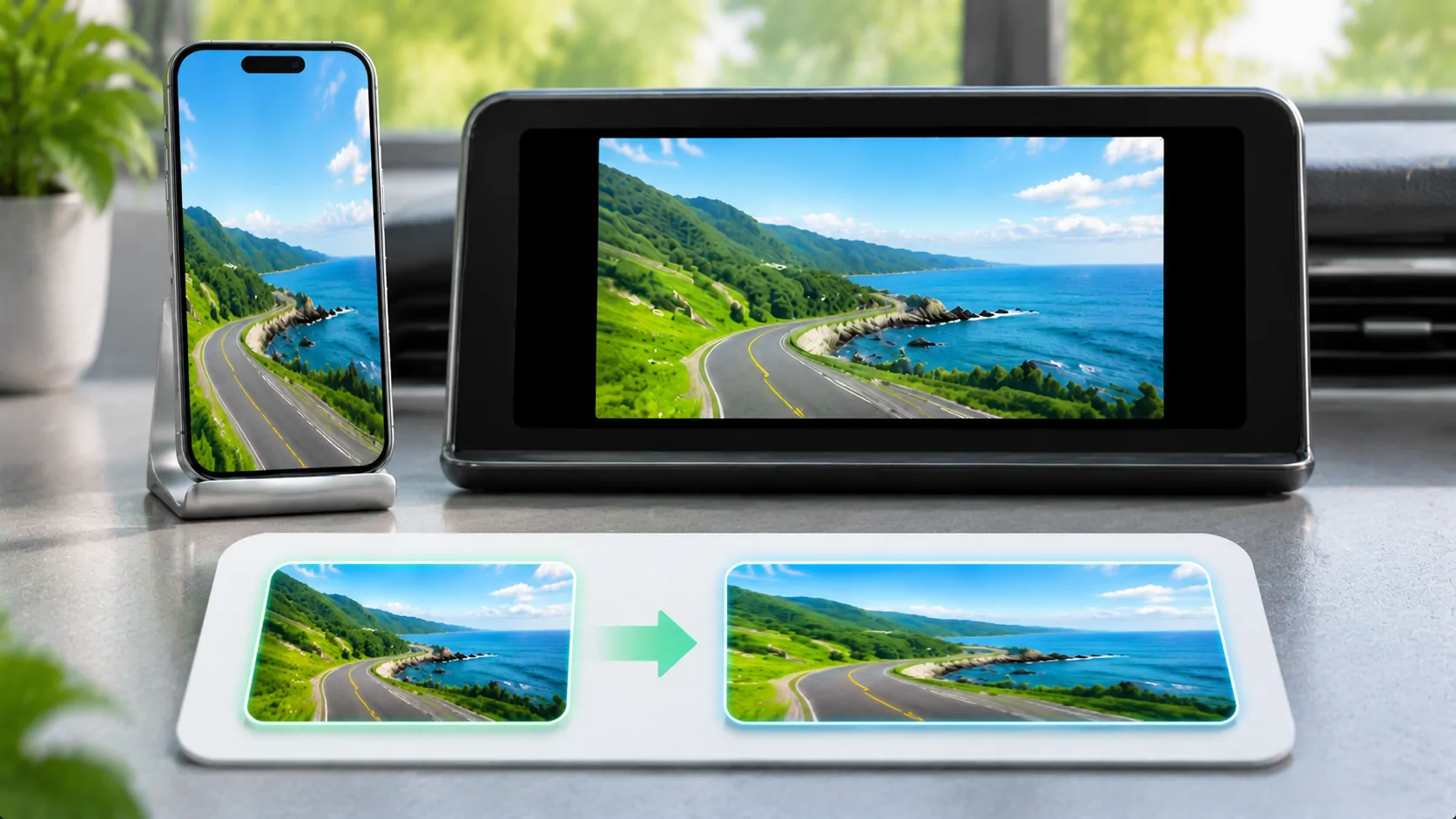
A mirrored image can be rotated, stretched, cropped or surrounded by black bars because the phone, source app and receiving display use different shapes and orientation rules. First identify which symptom you have. Black bars can be a correct way to preserve the original proportions, while stretching usually changes the geometry of the picture.
Test with content you own and keep the vehicle parked if the receiver is in a car. Do not change several scaling controls at once. Establish how the image looks on the phone before trying to correct the receiving display.
Separate Orientation from Shape
Orientation describes whether the source is portrait or landscape. Aspect ratio describes width relative to height. A portrait phone mirrored on a wide display naturally leaves unused horizontal space if the full image is preserved. Turning the receiver's zoom control cannot make that source a true landscape layout.
For example, a 16:9 video inside a portrait app can occupy only part of the phone screen. Mirroring the entire interface reproduces that composition, including surrounding controls and empty space. The receiver may be faithfully showing a source layout that was not designed for its shape.
Use a simple image with a circle or square to inspect distortion. A circle becoming an oval reveals stretching more clearly than a random video scene. Do not diagnose aspect ratio solely from a dramatic camera angle or a source that was already edited incorrectly.
Check Rotation on the Phone First
Apple's rotation guidance explains screen rotation and the role of orientation lock. Check the current lock state and use an app that actually supports landscape if that is the desired layout. Not every app or screen rotates when the phone is turned.
If the phone itself remains portrait, the receiver may simply mirror that result. If the phone rotates correctly but the receiver does not, focus on the capture and receiver path. Note whether the issue appears immediately or only after rotating during an active session.
Restart the supported mirroring session after setting the intended orientation if the product documentation suggests that workflow. Do not assume a universal rotation-refresh gesture. A receiver can maintain its own orientation or scaling state, and the source app may have fixed layout rules independent of the system lock.
Understand Fit, Fill and Stretch
A fit mode usually preserves the whole source and its proportions, allowing bars where shapes differ. A fill mode usually preserves proportions while cropping some content to occupy the available area. A stretch mode can fill the screen by changing width and height independently, distorting the source.
The exact labels vary by receiver. Read its documentation and check what each setting actually does. A setting called full screen may mean fill, stretch or a dedicated media mode. The label alone is not enough to choose correctly.
The web concept of aspect ratio describes the same width-to-height relationship, although browser layout controls do not directly configure every receiver. Preserve the shape first, then decide whether cropping is acceptable for the specific content. Subtitles and interface buttons near the edges are especially easy to cut off.
Inspect the Source Video and Its Container
Some videos already contain black bars inside the encoded picture. The phone and receiver may then add further space around that image. Zooming can remove visible bars, but it may crop real content if the source changes scenes or formats later.
A source file can also have rotation or display information that different playback paths interpret differently. If only one personal file appears sideways, test another file before changing global receiver settings. Where you control the media, correct its metadata or export a properly oriented version using a suitable editor.
Do not re-encode a protected service or attempt to bypass output restrictions. A black screen from DRM is a different symptom from black bars around a visible image. Geometry controls cannot make protected content available through an unsupported capture path.
Compare Mirroring with a Supported Media Route
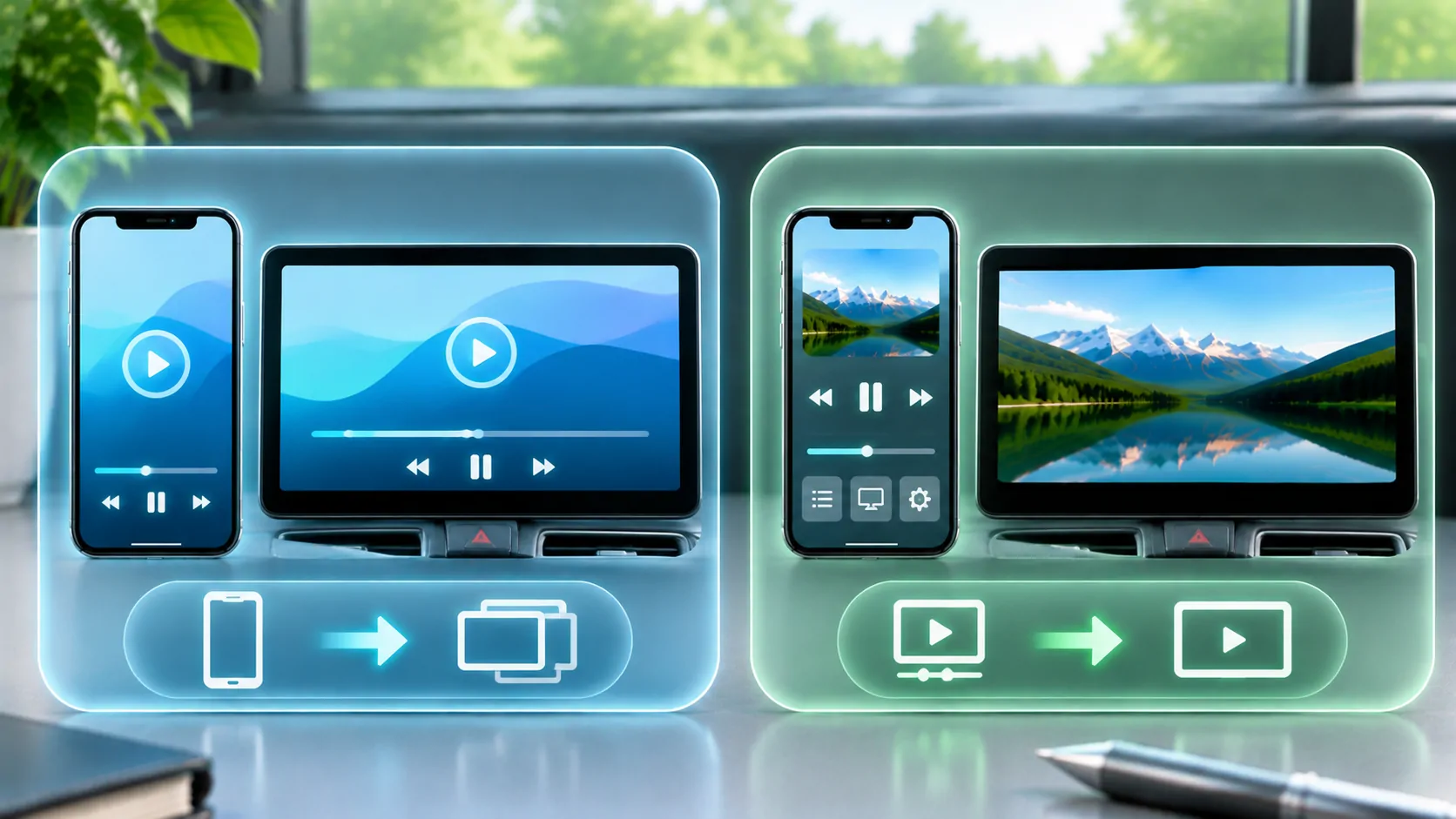
Apple's AirPlay guide distinguishes screen mirroring from streaming a video. A supported direct media workflow can let the presentation occupy the receiving display without reproducing the phone's entire portrait interface. Its availability depends on the app, receiver and content rules.
Read mirroring or direct playback when the main goal is video rather than showing the phone interface. Do not assume that a receiver accepting one mode supports the other, or that ordinary CarPlay supplies a generic mirror of every iPhone screen.
Compare the same authorised sample where both routes are documented. Note picture shape, edge visibility, controls and audio. A better result in one route does not establish universal support for every app, vehicle or video service.
Reset the Smallest Relevant Setting
Write down the current receiver mode, phone orientation and source app state. Change one setting, inspect the harmless test image, and restore it if the result worsens. This avoids accumulating compensating changes that make a second source look wrong.
If the picture is cropped, look for receiver zoom or overscan settings through the manufacturer's supported controls. If it is sideways, inspect source rotation and capture orientation first. If it is distorted, choose a proportion-preserving mode before adjusting any zoom. Match the correction to the symptom.
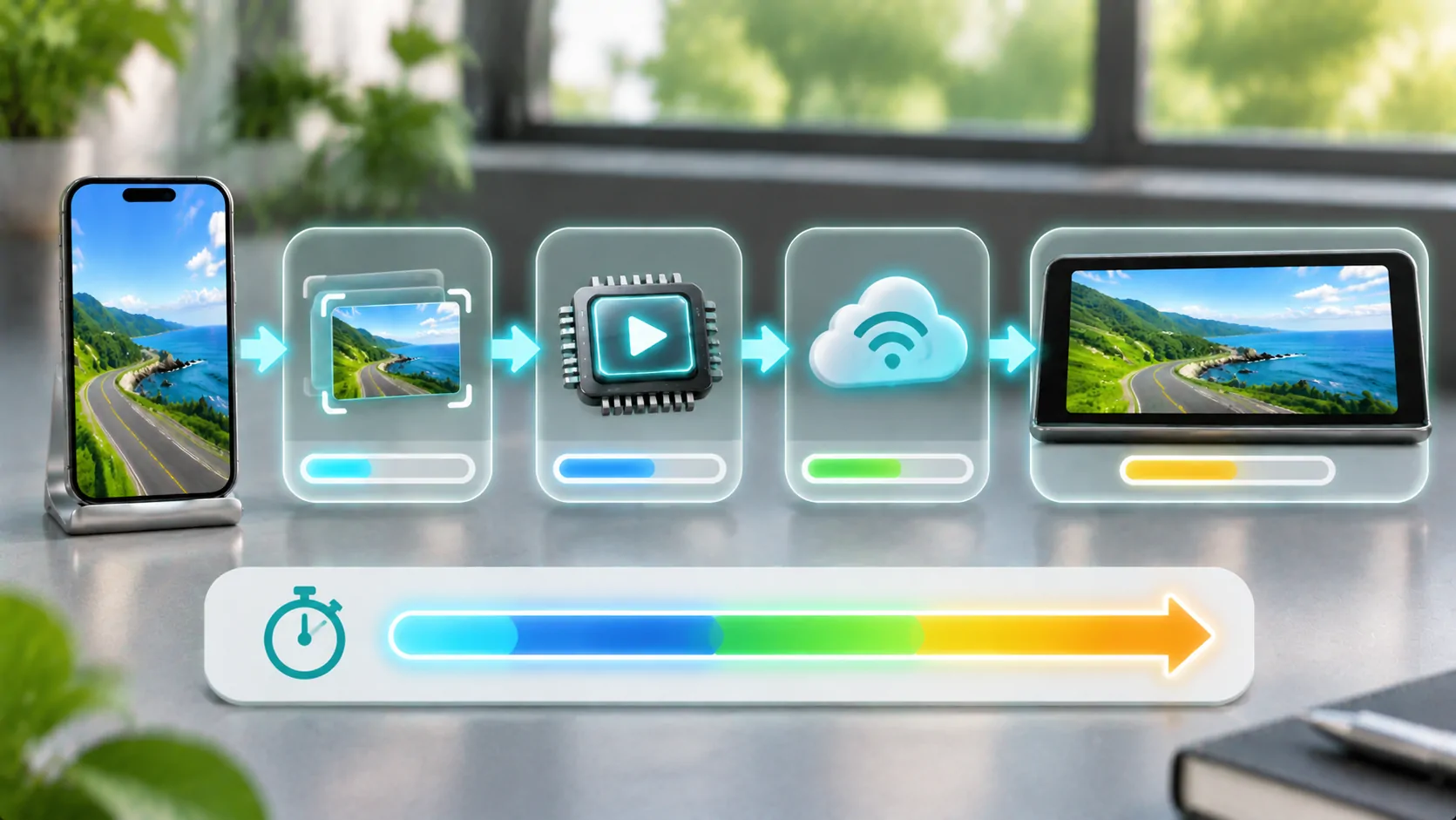
For motion that looks delayed or irregular despite correct geometry, use mirroring latency diagnostics. A slow stream and a stretched stream can coexist, but changing aspect ratio does not repair network delivery or frame timing.
Record a Clear Before-and-After Result
If you need support, state whether the source looks correct on the phone, which orientation is intended, and whether the receiver shows bars, distortion or cropping. Include the receiver model and the documented mode selected. A photograph of harmless geometric test content can communicate the issue without revealing private phone material.
Avoid claiming a hardware resolution or performance measurement you have not checked. What matters first is the visible relationship between the source rectangle and the display rectangle. That can be described accurately without inventing pixel dimensions.
Preserving proportions is usually the best baseline. Once the phone's layout, source orientation and receiver mode agree, any remaining unused space is an understandable consequence of different screen shapes rather than evidence that the mirroring connection failed.
Sources
Related reading
Bring your own media.
Explore CarCast for iPhone with your own authorized sources and supported display configurations.