Video & Casting
Why Screen Mirroring Has Latency
Understand the capture, encode, network and display stages behind screen-mirroring delay, and compare causes with a repeatable stationary test.
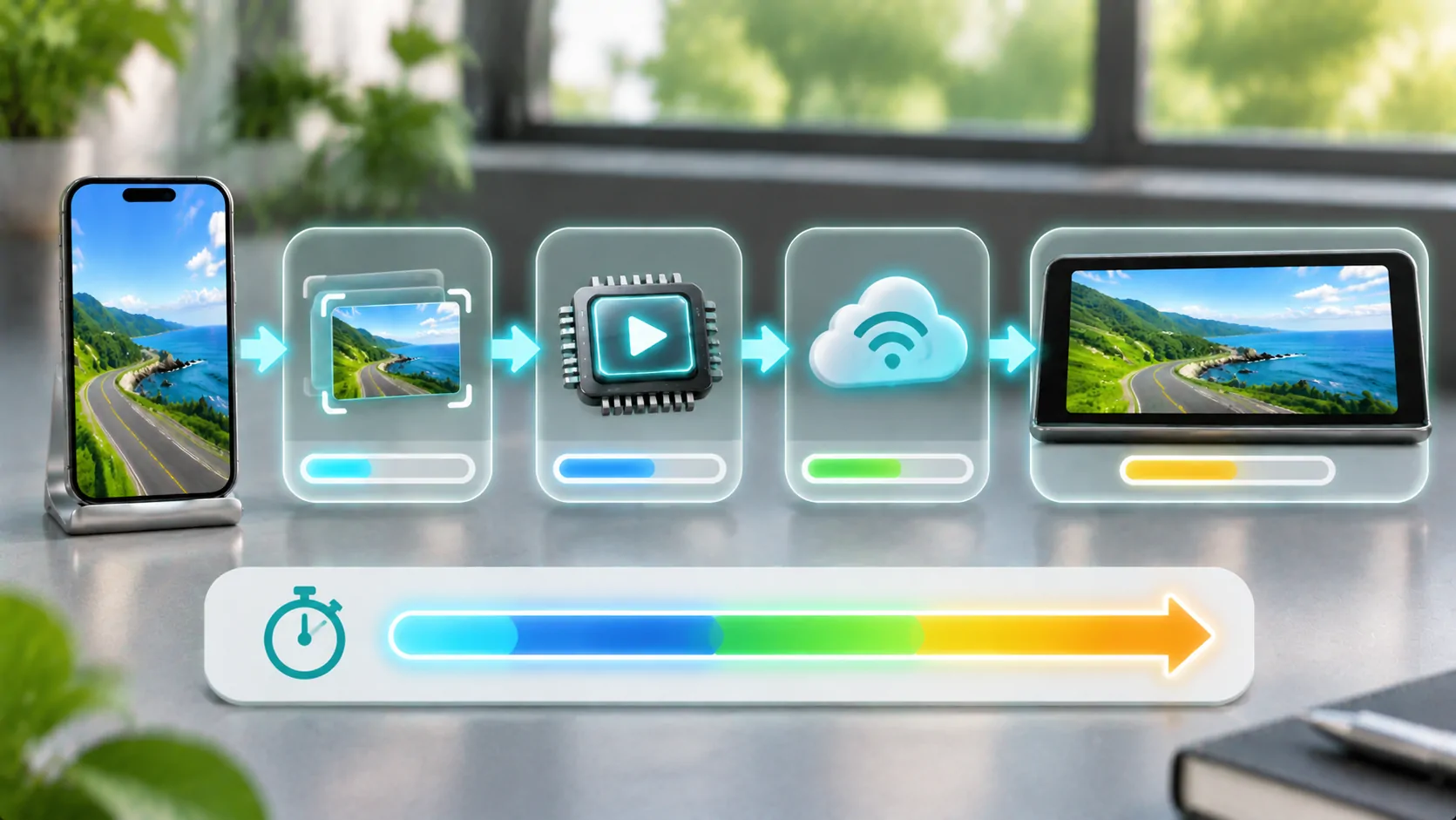
Screen mirroring has latency because the phone's visible output must pass through capture, processing, transport, decoding and display stages before you see it on another screen. Wireless conditions and receiver behaviour can add variation. A supported wired path may remove some wireless variables, but it does not make every stage instantaneous.
There is no single delay figure for all iPhones, apps and vehicle receivers. Diagnose the type of delay you observe and change one part of the setup at a time. Perform visual tests while parked; interactive mirroring is not an appropriate task for a driver in motion.
Follow the Picture Through the Pipeline
A mirroring implementation takes the source image, prepares it for transport and delivers it to a receiver that reconstructs and displays it. A third-party screen broadcast may use Apple's ReplayKit framework, while AirPlay has its own supported workflow. Do not assume every product uses an identical pipeline.
Each stage can require time or buffering. The phone may be busy rendering the original app; the sender may encode frames; the link may deliver them unevenly; the receiver may wait before presentation. The total visible delay is the accumulated result, not just radio travel time.
A dashboard or television can add image processing after the receiver has decoded the picture. A clear separation between phone, transport, receiver and display helps prevent you from blaming the network for a delay introduced elsewhere.
Distinguish Delay from Stutter and Drift
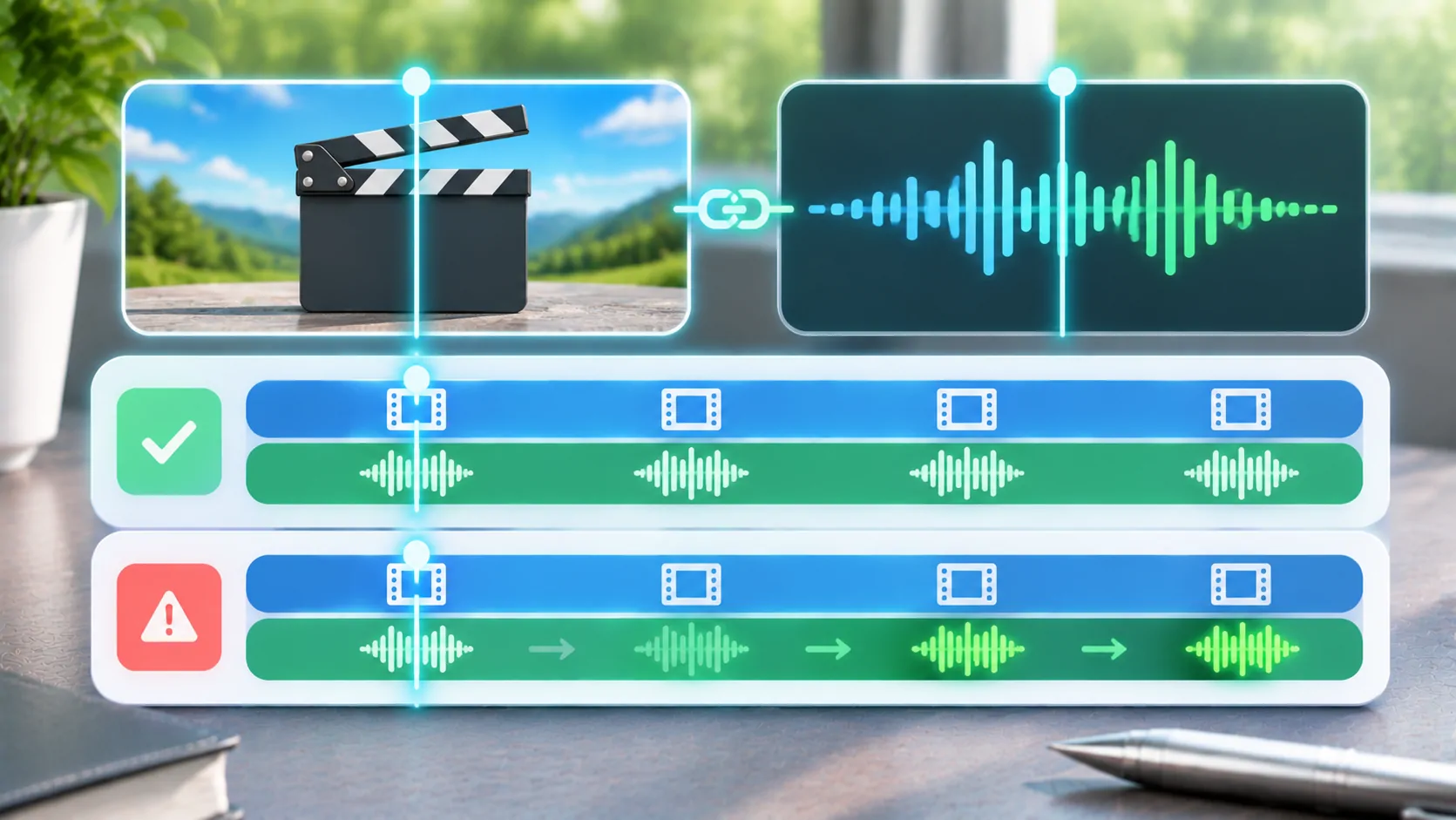
Constant latency means the receiver follows the phone by a fairly steady interval. Stutter means motion is irregular or frames are missed. Audio-video drift means sound and picture lose alignment over time. These symptoms can appear together, but they call for different evidence.
For a harmless test, use a visible clock or an animation you own and compare the phone with the receiver while stationary. Record the method and conditions if you intend to measure it. Looking at the screens can reveal an obvious delay, but it does not justify a precise millisecond claim without a suitable measurement process.
If the delay grows throughout a session, note when it begins and whether restarting the supported session resets it. If motion is jerky but the average delay stays similar, inspect frame delivery and processing load rather than calling every irregularity increased latency.
Check the Supported Connection First
Apple's AirPlay guide explains the supported setup for streaming or mirroring to compatible receivers. Follow the requirements for your specific route. A product described as wireless CarPlay does not automatically support generic screen mirroring, and an adapter's compatibility claim should be checked independently.
Keep the phone and receiver within the intended operating conditions. A shared hotspot, crowded wireless environment or poor placement may affect delivery. Apple's wireless interference guidance describes factors that can affect Wi-Fi and Bluetooth connections, though it does not establish a latency number for your setup.
If the hardware supports a documented wired alternative, compare it without changing the source content. A difference can narrow the cause. It does not prove that every wireless issue is interference or that an arbitrary cable supports the required video path.
Reduce Unnecessary Work Deliberately
Close unrelated heavy tasks where practical and avoid simultaneous downloads during a baseline test. A phone that is rendering a demanding application, recording and transmitting may behave differently from one displaying a simple static page. The receiver can also be a bottleneck.
If the application provides documented capture quality or frame-rate controls, compare a lower supported setting. Smaller frames or fewer frames may reduce processing and transport demand, but the tradeoff is less detail or motion smoothness. Do not promise a particular improvement without observing it.
Avoid changing several controls at once. Record the original values and the resulting symptom. Do not invent a CarCast latency mode or claim that all third-party apps expose the same settings. A system-level mirroring workflow may offer fewer controls than a specialised broadcast application.
Treat Audio Routing as a Separate Variable
Sound may follow the video receiver, the phone, a Bluetooth device or another selected route. Combining unrelated routes can introduce different delays. Check where audio is actually playing before diagnosing a visual stream as out of sync.
Use a simple authorised clip with an obvious sound-and-picture event if you need to compare alignment. Avoid drawing conclusions from speech alone when the source itself might be out of sync. Test the same clip on the phone first.
If sound and picture are aligned on the receiver but both follow the phone, that is ordinary end-to-end latency. If the receiver's sound and image diverge, inspect its output and synchronisation options through the documented controls. A larger playback buffer can sometimes improve stability while increasing delay, so faster and smoother are not always the same goal.
Choose a Workflow That Fits the Task
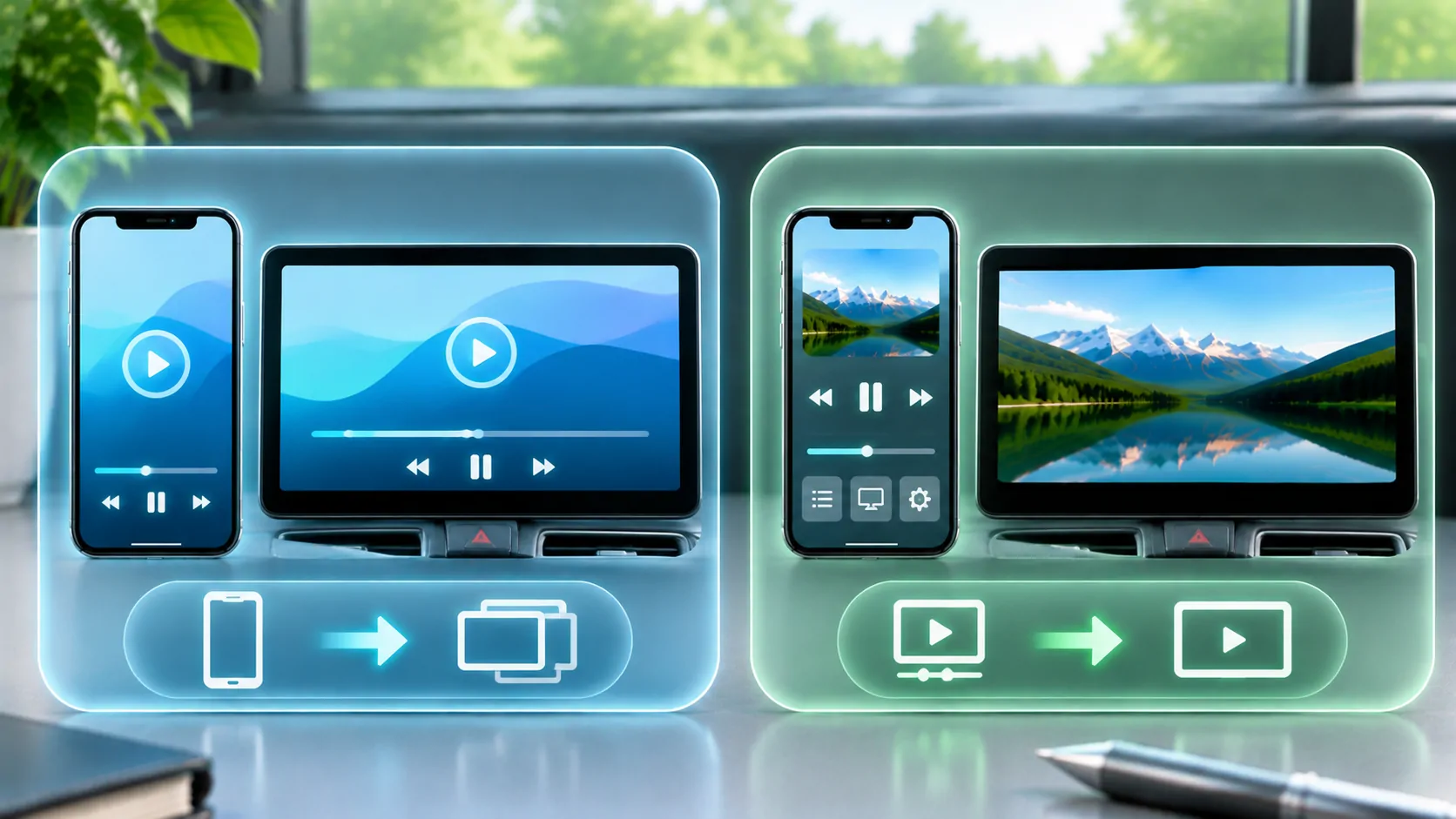
Watching a video tolerates a different kind of delay from touching a mirrored control and waiting for feedback. A direct media-output workflow can allow the receiving device to manage the presentation without reproducing every phone interface frame. It still has startup and buffering behaviour, but the experience may be better suited to passive viewing.
Read mirroring or direct playback before choosing a route. Neither approach removes DRM or guarantees vehicle compatibility. Use the supported method for the content and receiver.
For navigation and other driving functions, use the system's approved interface instead of expecting a generic mirrored screen to behave like a native CarPlay experience. Visual responsiveness is only one consideration; supported controls, layout and driver attention also matter.
Keep a Useful Comparison Record
Record the phone, operating system, sender app, receiver, connection type and source used. Note whether the symptom is constant delay, stutter or growing drift. If you measured timing, describe the method and report its limits rather than presenting an unqualified performance benchmark.
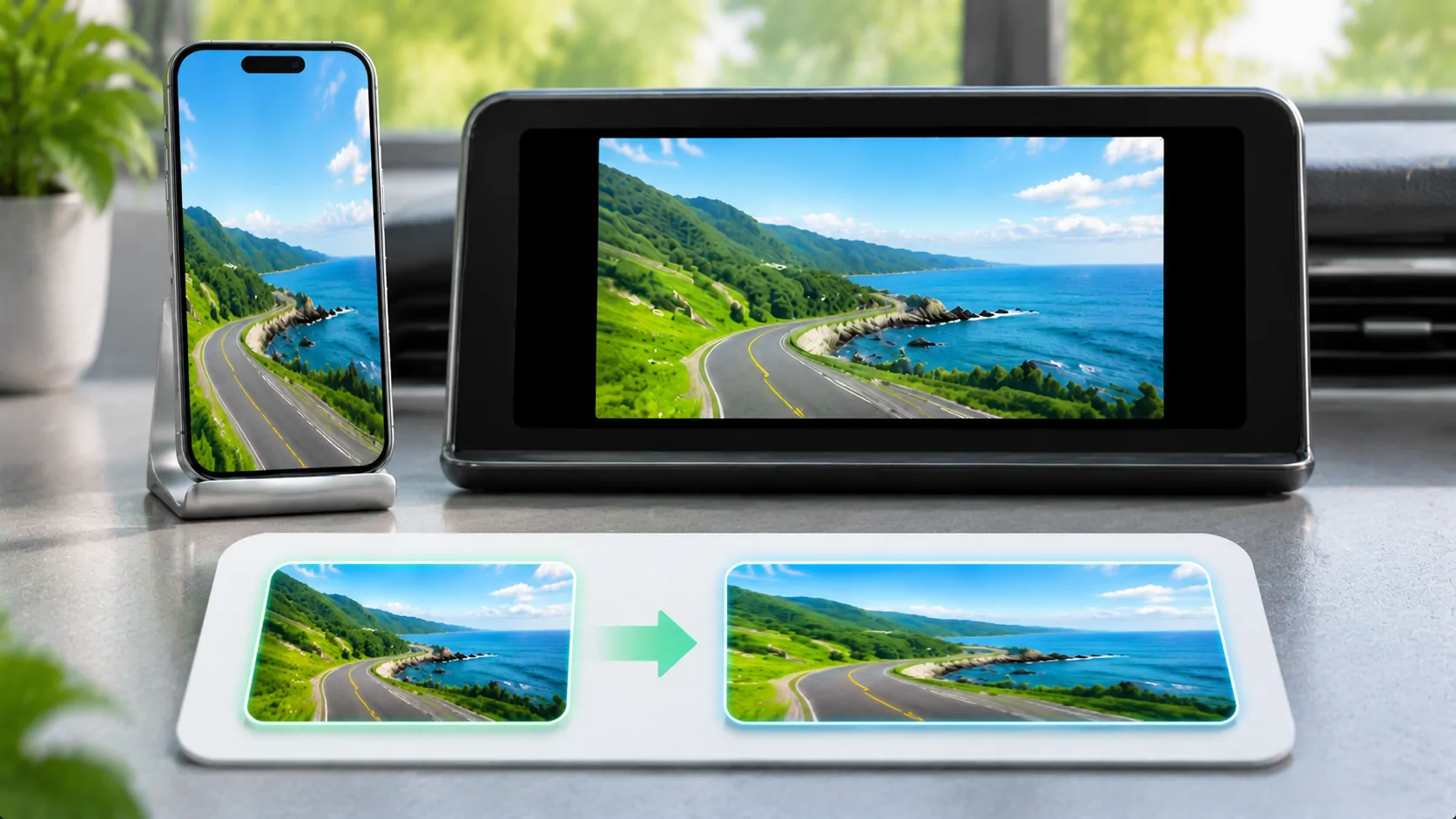
For stretched or rotated output, use the separate aspect-ratio diagnostic. A geometry problem can make motion look unusual without being a transport delay. Keeping those symptoms distinct makes support reports more actionable.
Latency is a property of the whole path. A repeatable stationary comparison can reveal which change helps your setup, while universal claims such as zero delay or a guaranteed wireless response time require evidence beyond a successful connection.
Sources
Related reading
Bring your own media.
Explore CarCast for iPhone with your own authorized sources and supported display configurations.