Compatibility
Hyundai and Kia Updates: Verify CarPlay by Head Unit
Use Hyundai and Kia’s official regional update portals to match VIN, head unit and software platform before expecting CarPlay changes.
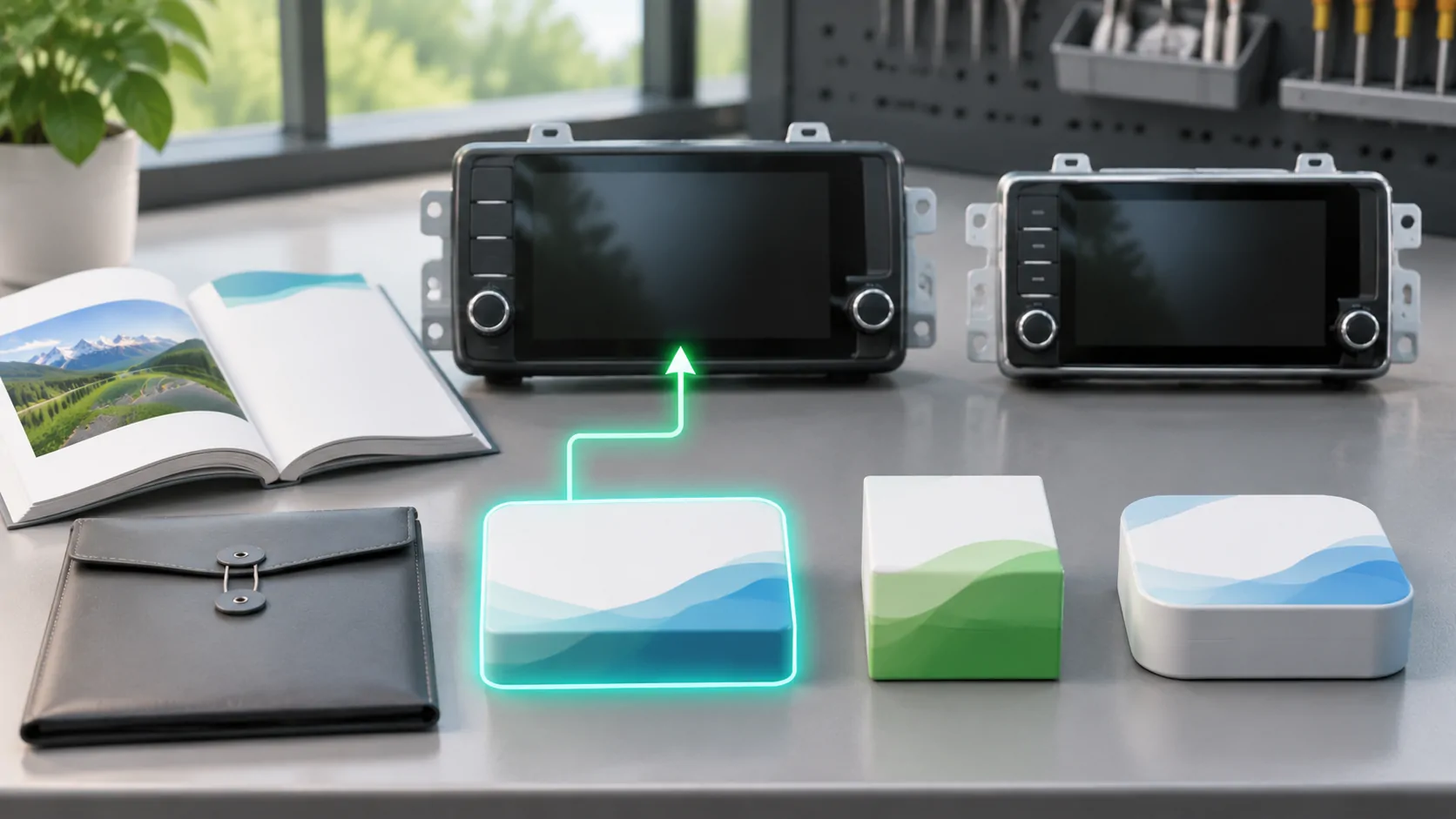
An update must match the actual head unit
For Hyundai or Kia, first identify the vehicle's region, model year and infotainment platform. An update for another head unit is not a general CarPlay upgrade. The fact that the two brands provide similar update tools does not make their packages interchangeable. Use the correct manufacturer's portal and confirm the applicable equipment before downloading or installing anything.
Hyundai's US update portal and Kia's US portal both provide vehicle or VIN-based lookup and distinguish update paths. Those are official US references. Owners in another market should use the appropriate regional site rather than assuming a US package or release note applies to their vehicle.
Separate navigation systems from Display Audio
The portals distinguish infotainment and Display Audio paths, including non-navigation equipment. This matters because the presence of a screen does not identify the platform or update package. A vehicle with built-in navigation can have different software from one that mainly displays a connected phone. Read the applicable instructions before choosing storage media or an update tool.
Do not identify the system solely by screen size or a trim badge. Compare the software information shown in the car with the platform expected by the portal. Keep a record of the original version. A downloadable map package may update navigation data without adding a smartphone capability, while a system update may address a different part of the receiver.
Use the portal's supported vehicle lookup
Select the correct brand, region and search method. The public portals offer VIN or vehicle-type lookup, with model and year selection. Enter private identifiers only through the official channel and avoid publishing them in a troubleshooting screenshot. If a lookup returns no applicable update, record that result and confirm the equipment rather than substituting the nearest-looking model.
The portals also provide instructions for locating the installed software information. In the captured US guidance, the example path uses Setup, General and SW Info/Update. Menu wording can differ by system, so treat that as the portal's example rather than a universal button sequence for every Hyundai or Kia. Match the exact vehicle instructions when the screen differs.
Read what the release actually changes
Look for an explicit statement about the function you want: a connection repair, smartphone support, map data or another system feature. A new release date alone does not establish wireless CarPlay, parked video or CarPlay Ultra. Do not rely on a forum summary when the applicable official release notes describe a narrower change.
Separate an announced feature from a released package and from a successful installation on your configuration. If the notes do not mention the capability, ask support before expecting it. A manufacturer commitment to future technology is not proof that an update for an existing head unit enables that technology. Keeping those evidence states distinct prevents a routine update from becoming an unsupported compatibility promise.
Prepare installation according to the system guide
Follow the exact portal instructions for downloading, preparing supported media and installing the package. The captured guidance describes checking software on a computer, obtaining the correct version and using supported USB or SD media where applicable. The actual method and power requirements depend on the equipment. Read the full instructions before beginning rather than extrapolating from another owner's video.
Allow sufficient time and use the manufacturer's specified power conditions. Do not interrupt installation to start a CarPlay test or remove the media early. If the system requests service assistance, follow that supported route. Keep the package identity and installed version so a later support request can establish exactly what changed and whether the update completed successfully.
Preserve a phone-side connection baseline
Before updating, test the supported CarPlay connection while parked using the designated port or documented wireless route. Note the iPhone model, iOS version, cable and relevant apps. If the car only documents wired CarPlay, Bluetooth audio success does not establish native wireless support. An added adapter should be identified separately rather than folded into the factory feature list.
Use Apple's setup guide for the phone-side path and troubleshooting guidance for a documented failure check. After the vehicle update, repeat the same tasks before changing other components. That preserves the value of the comparison and avoids attributing a new result to the wrong software layer.
Treat recovery and new features separately
Do not assume a phone restore can reverse a car update or that a vehicle package can undo an iOS change. Ask the applicable manufacturer about its supported recovery procedure. Never install an unofficial archive merely because another owner says it restores a preferred version. The available recovery path is specific to the head unit and release.
Likewise, successful ordinary CarPlay after updating does not prove video support. App authorization, vehicle implementation, content rights and parked-use conditions remain independent. Automaker firmware versus iOS explains these boundaries. Check a desired new capability explicitly rather than treating the update as an unrestricted expansion of the receiver.
Send support a platform-specific record
If the problem remains, report the brand, region, model year, head unit or platform, old and new software, phone version and exact connection route. Include the update source and a reproducible symptom. Keep Hyundai and Kia package references distinct, even when the websites look similar. A support team needs the applicable equipment details, not simply the latest update label.
Use the compatibility record to retain the facts. The useful outcome is a correctly matched update and a verified connection result. Where the desired capability is unsupported or still unverified, say so directly. That is a clearer next step than repeating installations or expecting every regional head unit to receive the same CarPlay features at the same time.
Sources
Related reading
Bring your own media.
Explore CarCast for iPhone with your own authorized sources and supported display configurations.