Compatibility
How to Read a CarPlay Compatibility Claim Before You Download
A supported-model list is a starting point. It is not a guarantee for every app, trim or video feature.
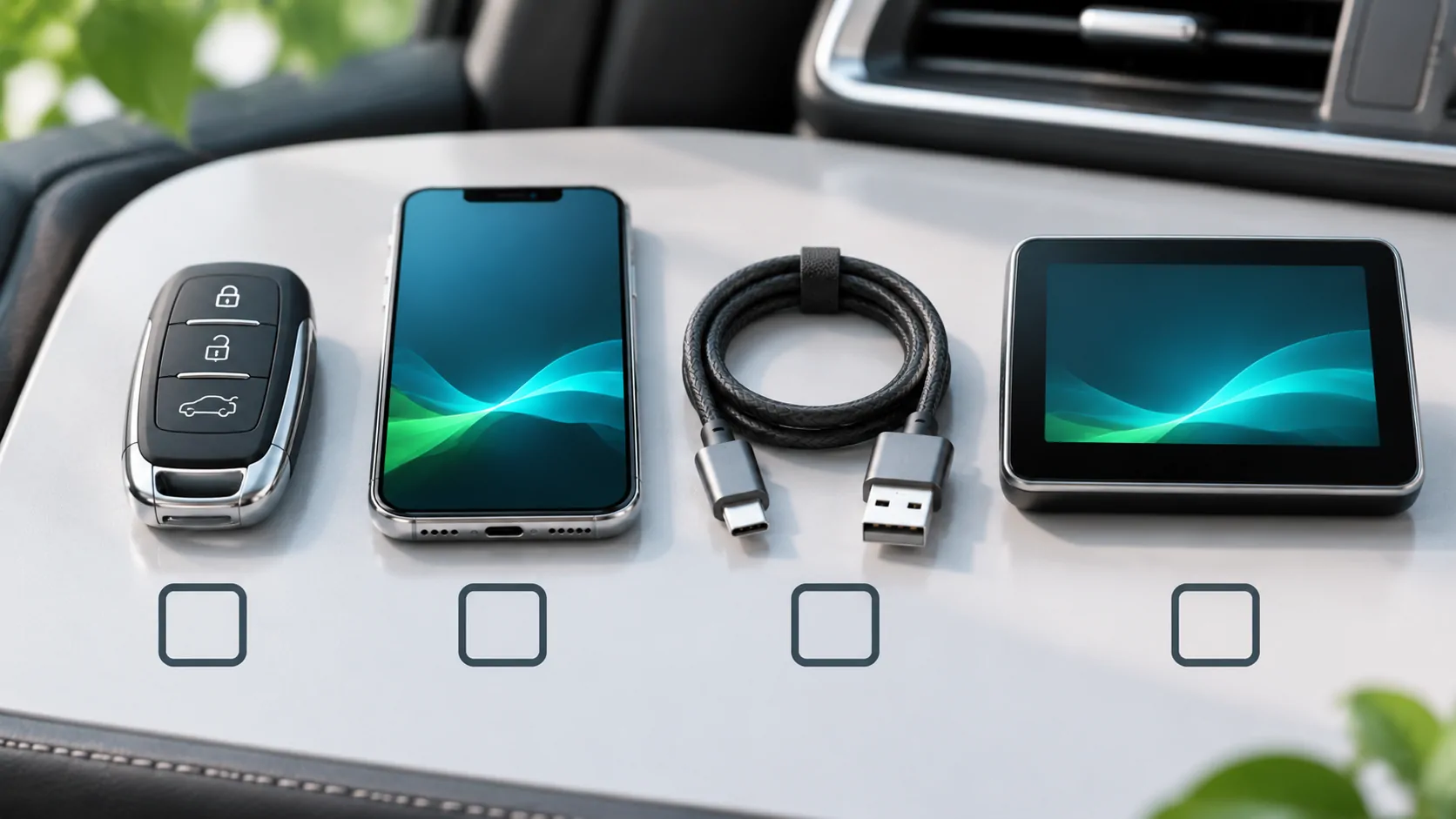
Start with the vehicle, not the app advertisement
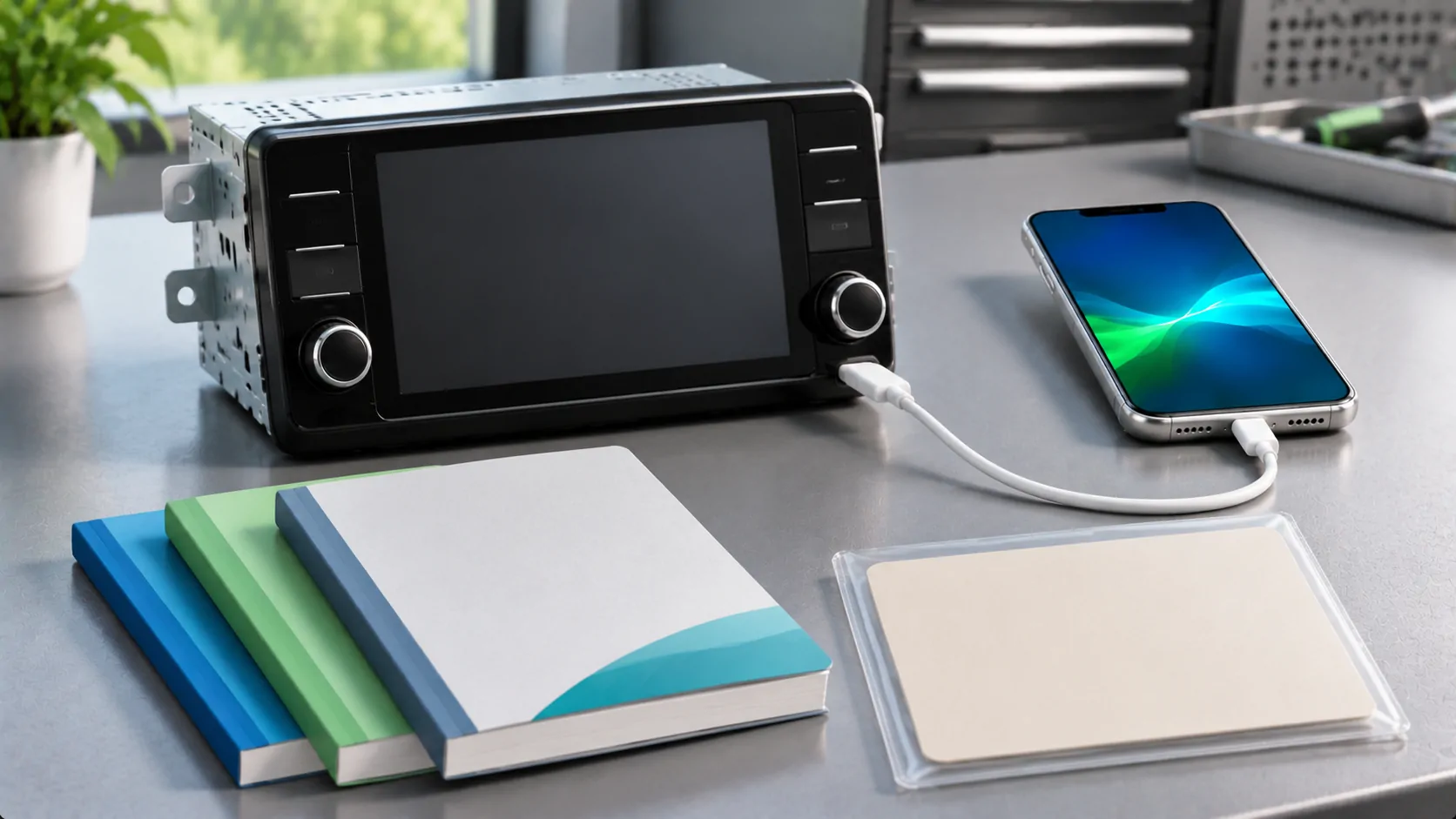
Apple's available-models page is a useful first reference for CarPlay support. Check the model and relevant year, then confirm the equipment fitted to the actual vehicle. A used car may have an aftermarket receiver, and equipment can differ by trim, market or installed option.
Apple's CarPlay support guide directs owners to their vehicle manufacturer if support is uncertain. A dealer or manufacturer can answer questions about the actual head unit, required software and supported connection method more precisely than a generic list of car brands.
Keep four questions separate
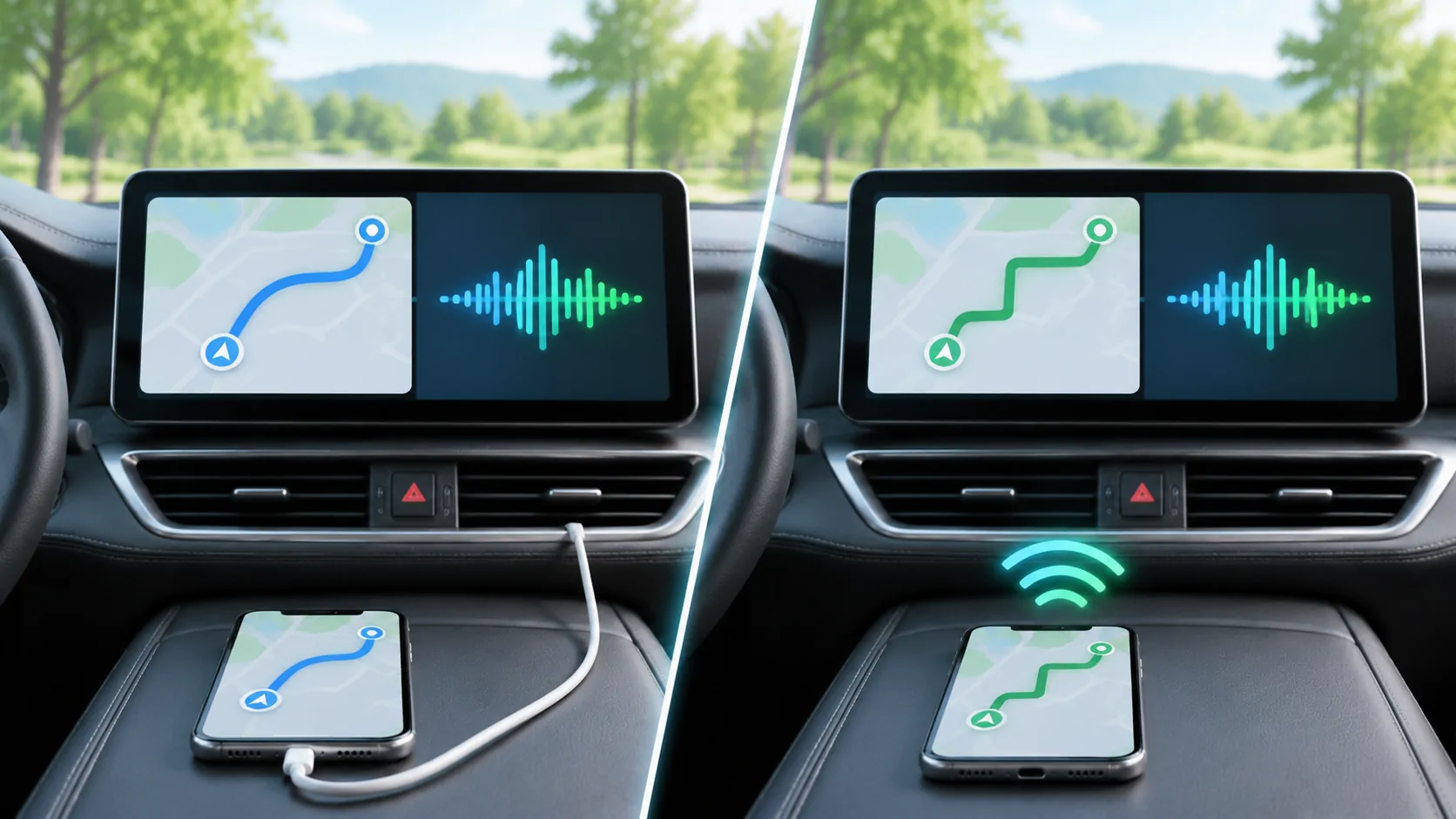
First, does the vehicle support CarPlay at all? Second, is the connection wired, wireless or both? Third, does the app offer the particular CarPlay experience being discussed? Fourth, does the vehicle support that experience under the required conditions?
These questions form a sequence rather than interchangeable yes-or-no labels. Working navigation proves that the basic CarPlay connection is functioning. It does not prove that a video feature, screen mirroring or every installed phone app is available on the car display.
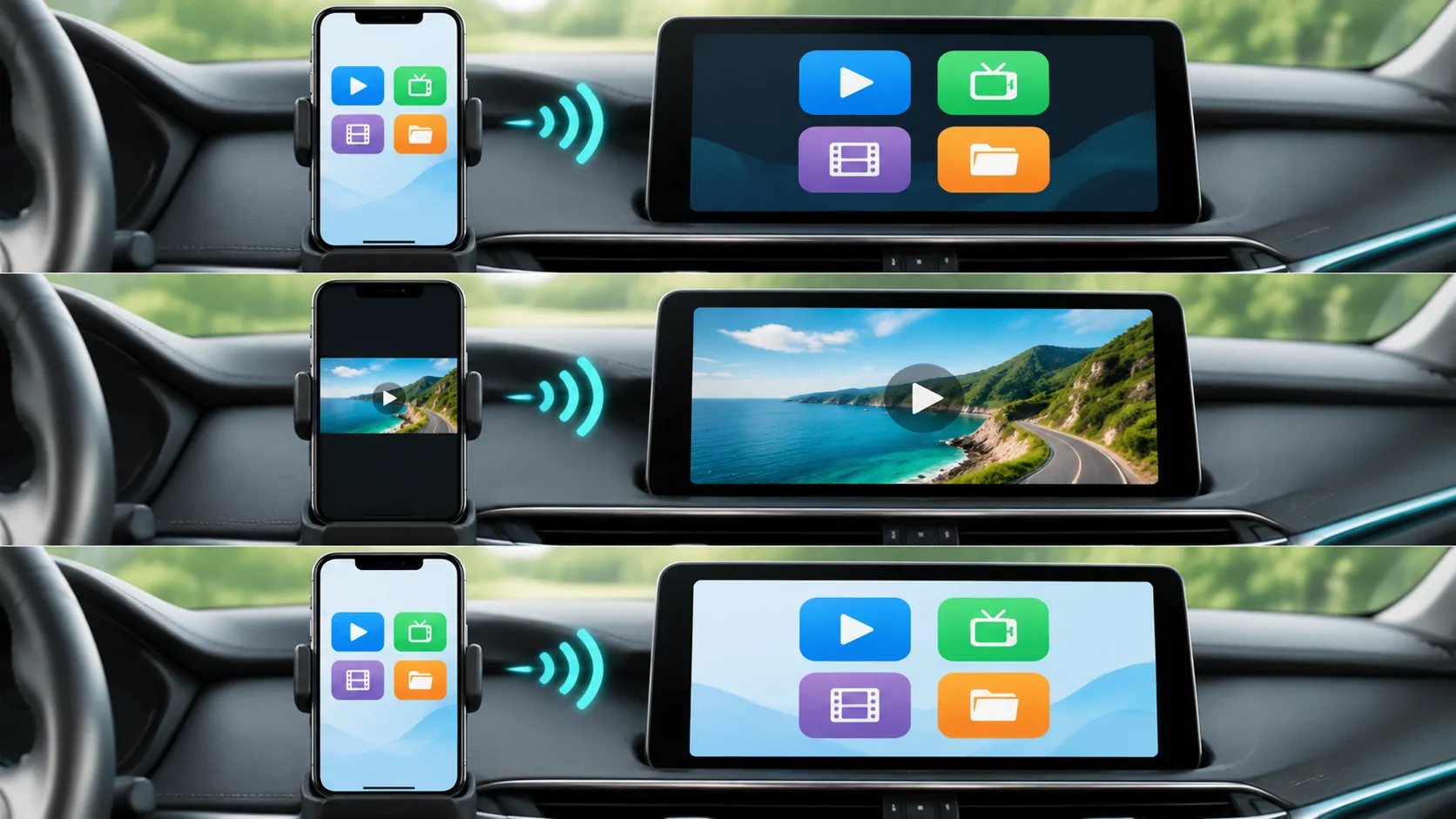
Treat video as an additional capability
Apple's developer overview describes video apps for supported cars when parked. It separately describes automaker integration for AirPlay video. Those qualifications matter: ordinary CarPlay support is not an all-vehicle video compatibility guarantee.
A useful test record names the iPhone model, iOS version, app version, vehicle or receiver model, vehicle software, connection method and the specific action tested. It also records whether the vehicle was parked and whether the content was authorised and unprotected. Without that context, a demonstration is difficult to reproduce.
A checklist for evaluating a claim
- Look for the exact feature, not just the phrase "works with CarPlay".
- Check whether the evidence identifies the receiver and software versions.
- Distinguish a phone screenshot from a verified vehicle-display result.
- Check whether the source is personal media or a protected subscription service.
- Ask what happens when the vehicle or content does not support the feature.
Do not infer support for your car from another trim, an older video or an unrelated adapter. Also avoid treating an app store listing as a vehicle-by-vehicle laboratory report. Listings explain the product; they rarely resolve every hardware combination.
Where CarCast fits
The CarCast compatibility page describes the boundaries of its media and display experiences. It does not publish a verified all-model vehicle matrix. Check those conditions before downloading for a specific in-car task, and use support when you need help identifying the failing part of a setup.
If the basic CarPlay connection has not been established, resolve that first. If only a particular source or display feature fails, report that distinction with redacted technical details. Never include server passwords, complete signed playlist links or private media in a public request. Set up and test only while safely parked.
Sources
Related reading
Bring your own media.
Explore CarCast for iPhone with your own authorized sources and supported display configurations.