Compatibility
Mercedes-Benz MBUX: Checking Smartphone Integration
Check Mercedes-Benz MBUX smartphone integration, identify the correct data port and separate charging, Bluetooth and CarPlay results while parked.
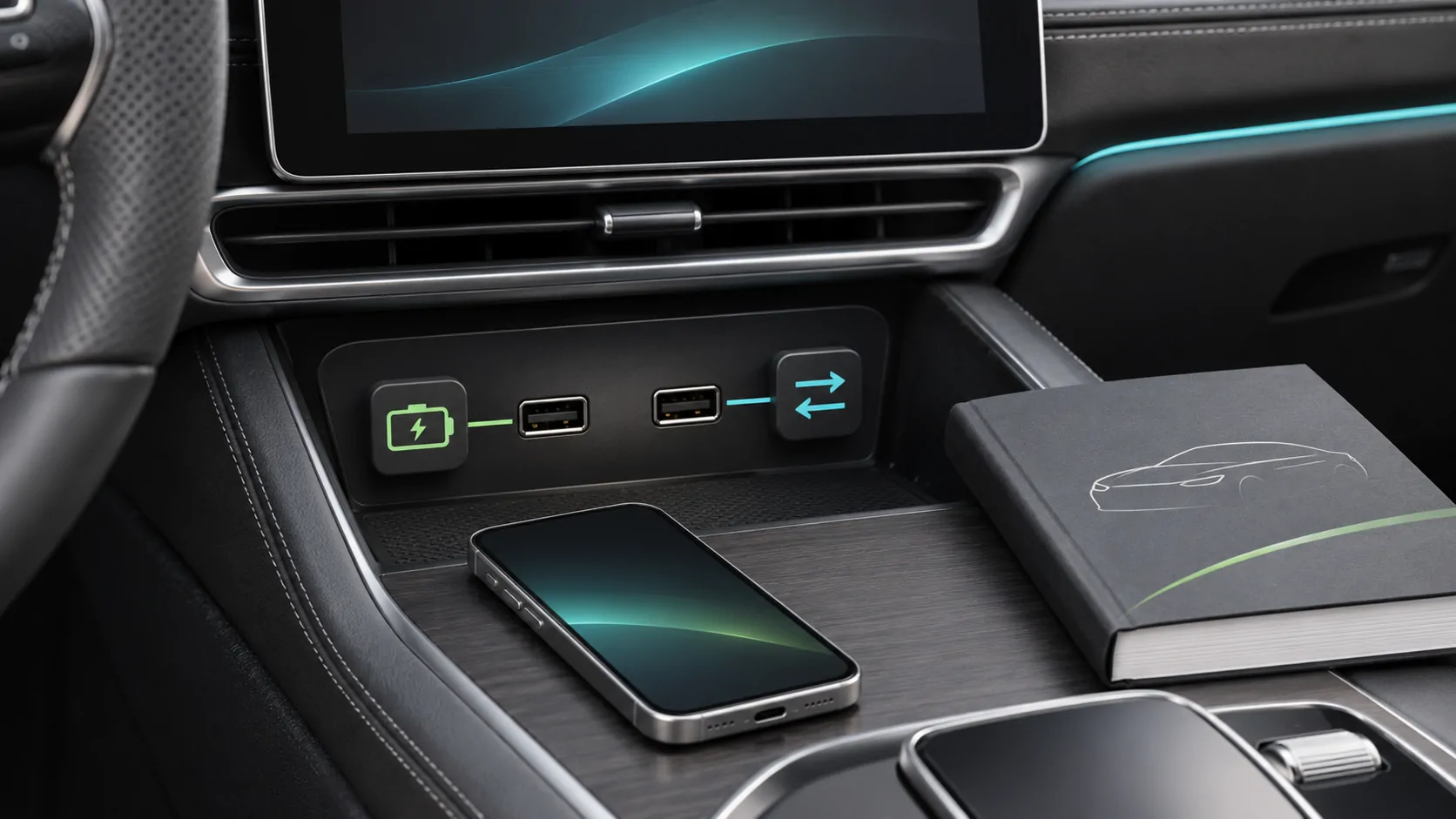
To check Mercedes-Benz MBUX CarPlay support, confirm that the individual vehicle has the applicable smartphone-integration function and identify its documented connection method. For a wired connection, locate the designated data port rather than selecting any socket that charges an iPhone. MBUX branding alone does not answer those equipment and port questions.
Identify the system before following a tutorial
Record the vehicle's model year, sales market and installed infotainment system. Note whether the display or phone-integration equipment has been changed. An online video showing another Mercedes-Benz dashboard can be visually convincing while describing different hardware or software.
Find the vehicle's exact operating instructions through the regional manufacturer owner resources. The Mercedes-Benz USA manual portal is a lookup destination; the selected manual and equipment record must supply the vehicle-specific evidence.
Search that documentation for Apple CarPlay, smartphone integration and USB connections. Note any optional-equipment wording. If the documented screen or connector differs from the actual car, resolve the mismatch before trying a sequence of unfamiliar menu commands.
Verify integration separately from phone pairing
A successful Bluetooth call demonstrates a phone-audio connection. It does not show that the CarPlay interface is available. Similarly, a phone listed in a device manager can have a different connection role from the one you intended.
Ask which documented command launches CarPlay and whether a separate smartphone-integration option is installed. If a dealer proposes activation, ask for the exact VIN-specific requirement and current written terms. Do not infer a paid requirement from a missing icon or assume that unrelated connected services control CarPlay.
The useful result is the supported CarPlay screen appearing on this vehicle. Generic phrases such as phone compatible, wireless ready or smartphone package need clarification before they become a purchasing decision.
Map the physical ports while parked
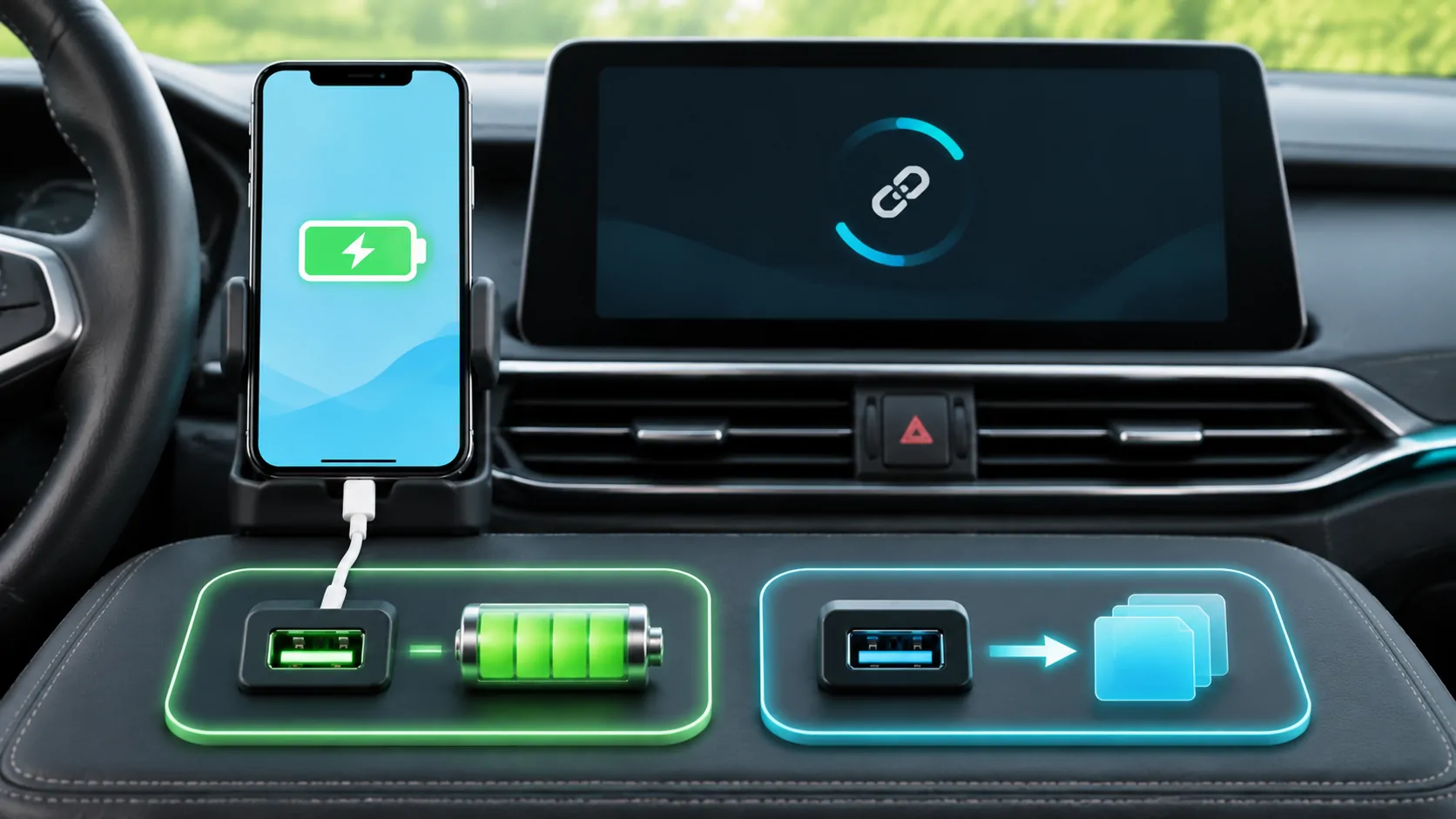
Inspect the available sockets and compare their locations and symbols with the applicable manual. Vehicles can have more than one connector, and the connector shape alone does not identify the expected data function. A front-console port and a rear passenger charging outlet should not be assumed to have the same role.
Make a simple note of the documented CarPlay port's location. When the manual uses an illustration, confirm that its orientation matches the actual console. Never probe a socket with metal tools or try to force an incompatible connector.
If the port is damaged, loose or obstructed, arrange appropriate service. Repeatedly pushing a cable into a damaged connection can make an intermittent problem harder to diagnose and may damage the phone or vehicle connector.
Build a direct wired baseline
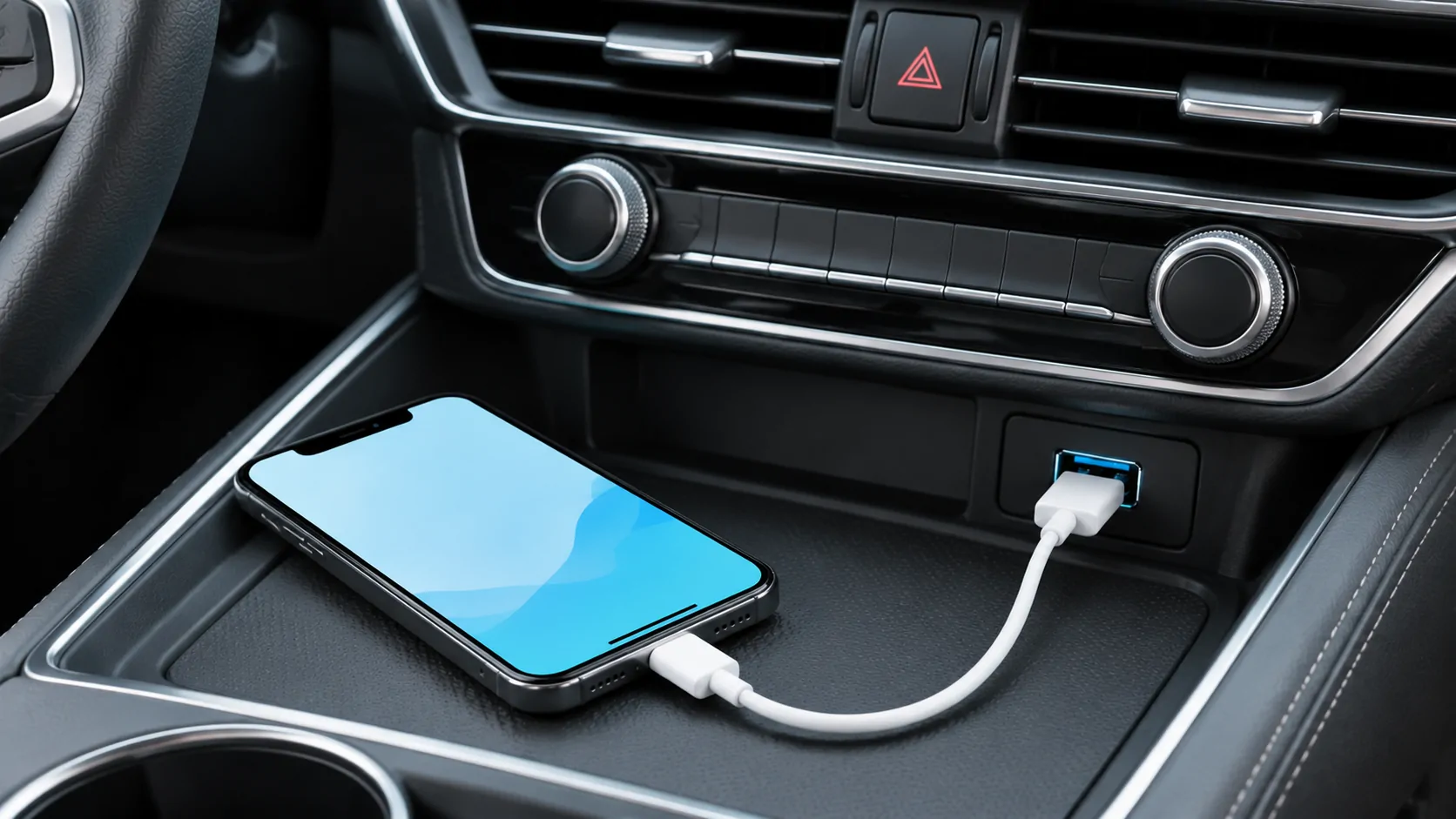
If the car's documentation specifies wired CarPlay, connect a compatible iPhone directly to the designated port with a data-capable cable. Unlock the phone and respond to the legitimate connection prompts while the vehicle is safely parked.
Apple's setup instructions describe the general connection process and explain that the car's USB port may carry a CarPlay or smartphone symbol. The vehicle manual determines which port applies to this MBUX installation.
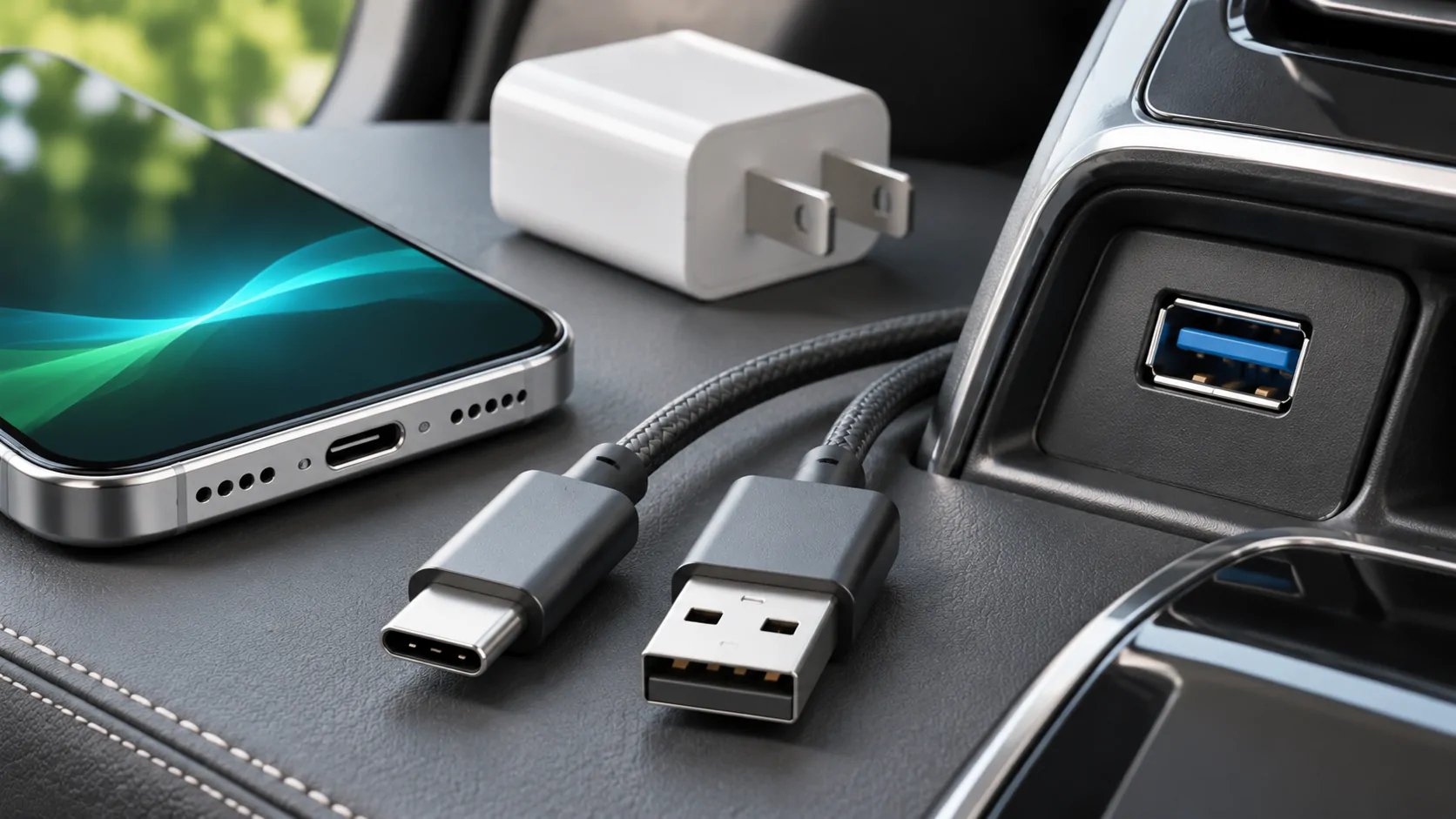
Avoid adding a hub, wireless adapter or chain of connectors during the first check. Apple's USB-C adapter guidance notes that some combinations of adapters, cables and vehicle systems can disrupt CarPlay and recommends a direct cable in those cases. Our cable guide helps identify the relevant connection pieces.
Interpret charging without overclaiming
A charging symbol means that electrical power is reaching the phone. It does not confirm that the port carries the required data, that the cable supports the intended connection, or that the receiver has accepted CarPlay.
If charging works but the interface never appears, keep the same phone and documented port and try a known suitable direct cable. Then check the phone prompts and the selected integration function. Changing the phone, port and adapter together produces an ambiguous result.
If the phone does not charge, inspect the cable and connector condition without disassembly. A lack of power is useful information for service, but it does not by itself prove that the vehicle lacks smartphone integration.
Handle wireless instructions as a separate branch
Only attempt wireless CarPlay when the applicable vehicle documentation confirms it. A wireless charging pad provides power and is not evidence of wireless phone projection. A previously successful Bluetooth connection is also insufficient.
For a supported wireless setup, use the vehicle's documented pairing control and keep Bluetooth and Wi-Fi enabled on the iPhone. Confirm that prompts refer to the intended vehicle and phone. Check that another saved driver's phone has not become the selected CarPlay device.
When comparing wired and wireless behaviour, write down which method was actually used. A phone can be plugged in for power while the CarPlay session uses a wireless path, so the presence of a cable can be misleading.
Use a short functional check
Once CarPlay opens, try a supported app, a short audio sample and a simple voice interaction. Confirm that navigation sound, media and call audio behave as expected rather than concluding everything works from a single icon.
Allow the phone's normal privacy prompts only for the intended functions. Set up contacts and messages with the owner present; do not inspect a previous driver's personal data.
If the interface fails completely, follow the wired setup guide for a structured baseline and consult Apple's troubleshooting checklist. Record whether the failure is discovery, launch, repeated disconnection or only one app.
Prepare an actionable support request
Give support the vehicle model and market, installed system, phone model, software versions, exact port location and connection method. Include the cable type and the visible error. Share a VIN only through an appropriate private service channel.
Explain the evidence in concrete terms: the phone charges at the documented port but CarPlay never launches, or wireless pairing succeeds while one app has no audio. Those descriptions are more useful than saying MBUX does not work.
Seek manufacturer confirmation when equipment availability remains uncertain. A third-party media app cannot add missing smartphone-integration hardware or repair a defective USB port, and ordinary CarPlay operation does not establish video or unrestricted mirroring support.
Sources
Related reading
Bring your own media.
Explore CarCast for iPhone with your own authorized sources and supported display configurations.