CarPlay News
iOS Updates and Automaker Firmware Are Separate
Identify whether a CarPlay problem belongs to iOS, an app, automaker firmware or an adapter, then choose the correct official update and verification path.
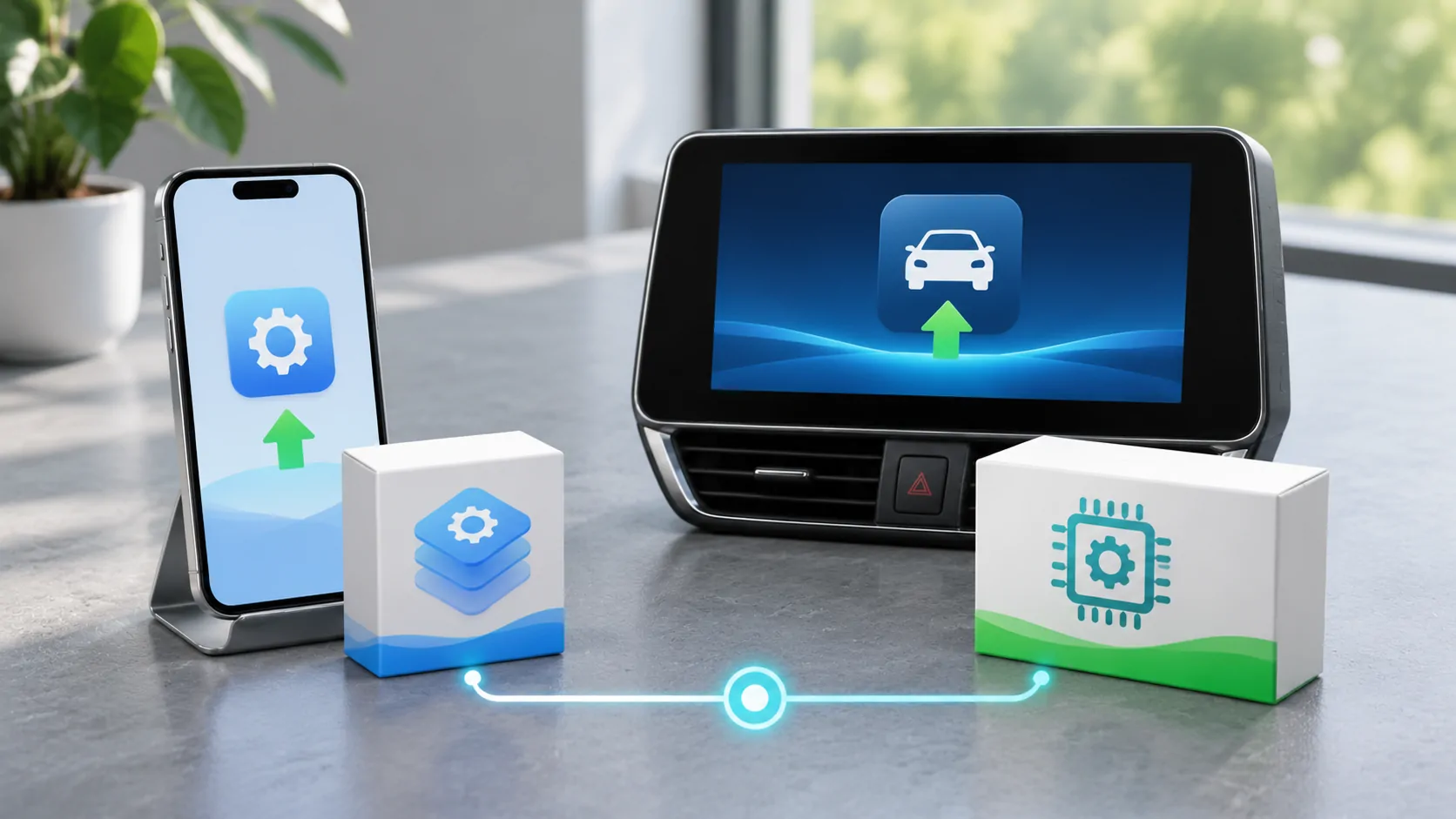
Treat the phone and receiver as separate systems
iOS runs on the iPhone, while the vehicle's infotainment firmware runs on its receiver and related hardware. CarPlay depends on their interaction. Updating one side does not automatically replace the other side's software, and a new version number on the phone does not prove the car has received an automaker update.
An individual app and an optional wireless adapter add further layers. The first troubleshooting task is to identify which components are present and which changed. Write a short inventory before downloading anything. A precise description such as interface missing after a receiver update is more useful than saying CarPlay needs an update without identifying whose software is involved.
Build a version inventory for the actual equipment
Record the iPhone model and iOS version, vehicle year and market, infotainment system name and software version, plus relevant app versions. If a replacement receiver is installed, use its manufacturer and model instead of assuming the factory system remains. Include a wireless adapter's model, hardware revision and firmware when applicable.
Find software information through the owner's manual and supported system menus. Do not install packages merely to discover which receiver you own. Keep personal identifiers private when sharing a screenshot. The inventory should make it possible for an authorized support team to identify the correct configuration without exposing a VIN, account password, navigation history or live media token publicly.
Match the symptom to a layer
If the CarPlay interface never appears, investigate connection support, designated data ports, wireless settings, permissions and receiver behavior. If CarPlay appears but only one app fails, examine that app's account and version. If an adapter fails while a direct wired connection works, preserve that difference. These observations narrow the investigation without claiming a final cause too early.
Apple's setup guide and troubleshooting guide provide the phone-side starting point. Use the vehicle manufacturer's documentation for native settings and firmware. A source that explains one component should not be treated as authority for flashing another component, even when both refer to CarPlay.
Distinguish maps from infotainment software
An update portal can provide map data, system software or several separate packages. Read the release notes and applicability statement. New map data may improve native navigation without changing CarPlay connectivity. A connectivity fix may not update the map database. The presence of an update file is not evidence that it addresses your specific symptom.
For example, Hyundai's official update portal and Kia's portal distinguish system paths and offer vehicle or VIN-based selection. Their existence does not mean every model gains wireless CarPlay or video through an update. Choose the exact region, vehicle and head unit, and verify what the applicable release actually changes.
Follow the correct installation owner
The automaker or receiver manufacturer should specify how its update is delivered and installed. Possible workflows include an in-vehicle process, supported storage media or service assistance. Follow the actual instructions for the eligible equipment. Power conditions, file preparation and interruption recovery can differ, so advice for a similar dashboard is not enough.
Phone updates follow Apple's supported process, and app updates follow their distribution channel. Adapter updates follow the adapter vendor. Keep package identification and installed versions in the record. Do not combine unrelated updates simply to maximize the chance that something changes; that approach makes both a successful repair and a new regression harder to attribute.
Preserve a known baseline when possible
Before updating, perform a parked test of the tasks that matter: initial connection, navigation, audio and supported calls. If an extra adapter is present, retain a direct wired baseline when the car supports it. Note the exact port and working cable. A reliable baseline helps distinguish a new component issue from an existing weakness in the receiver or phone setup.
After each planned update, repeat the same tasks before changing more settings. Record whether the original issue improved, remained or changed. If the official procedure requires re-pairing, note that step. Avoid a full reset of every component as the first test, because it can erase settings and evidence without showing which part of the system required attention.
Understand independent recovery limits
An iPhone restore does not roll back vehicle firmware. A vehicle update does not restore an older app version. An adapter may have its own supported recovery route or none that the user can perform. Confirm those limits with the responsible supplier before installing an update that matters to daily navigation or communication.
iOS rollback limits explains the phone's public-release and beta distinction. Ask the vehicle or accessory manufacturer separately about its supported recovery process. Do not rely on an unofficial file archive or a seller's broad claim that any update can be undone. A current supported configuration is often the practical target even when a historical version cannot be restored.
Keep feature availability separate from bug fixes
A firmware update can repair a connection without adding new categories, screens or media capabilities. Likewise, an iOS release can expose software support while the vehicle lacks the necessary implementation. Treat wireless, Ultra and parked video as explicit features requiring their own documentation, not inevitable benefits of installing the newest package.
Use how CarPlay updates arrive to plan the correct sequence. When requesting support, include component versions, exact steps and a bounded observation. The useful result is a verified change on the relevant layer, with a clear owner for unresolved issues, rather than a universal statement that either the phone or the car is always responsible.
Sources
Related reading
Bring your own media.
Explore CarCast for iPhone with your own authorized sources and supported display configurations.