Video & Casting
Subtitles for Personal Videos on iPhone
Prepare readable, correctly timed subtitles for personal iPhone videos and check embedded, sidecar and external-display behaviour separately.
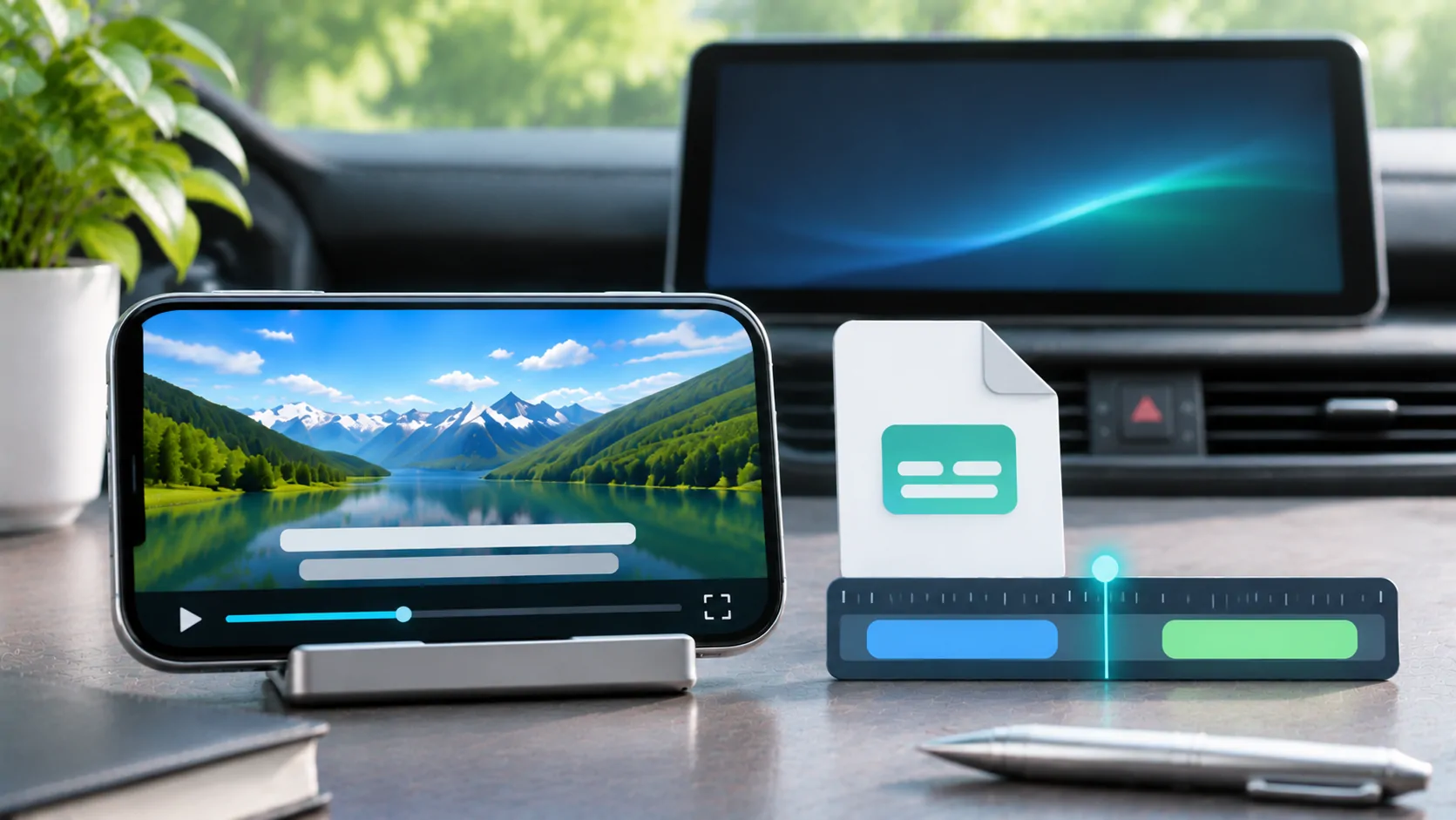
For personal videos on iPhone, use a subtitle track or sidecar format supported by the chosen player, select the correct language and verify timing in several parts of the file. Captions visible on the phone are not automatically guaranteed on every external display. Prepare and test them before a trip, using only media and subtitle material you are authorised to use.
Identify how the subtitles are stored
Subtitles can be embedded as selectable tracks, stored in a separate file or permanently burned into the picture. These are different formats of delivery, not interchangeable switches.
A selectable track can often be turned on, changed or hidden by a supported player. A sidecar file needs the player to find and interpret it. Burned-in text is part of the video image and cannot simply be disabled through a subtitle menu.
MDN's container guide explains that media files can package subtitle information alongside audio and video. The container's ability to hold a format does not guarantee that every app renders it.
Check the player's actual format support
Read the current player documentation for embedded and external subtitle formats. A desktop application accepting a subtitle file does not establish that the iPhone app accepts it through the same import process.
For web-based playback, MDN's WebVTT overview describes timed text cues and language-labelled tracks. That is a useful explanation of the format, not a promise that every native player supports every WebVTT feature.
If a subtitle file must share a folder or base filename with the video, follow the player's documented convention exactly. Avoid changing extensions as a substitute for a real format conversion.
Select the intended language and type
Open the lawful personal video while parked and inspect the available subtitle or caption menu. Confirm the chosen language rather than relying on a default track.
Subtitles translating dialogue and accessibility captions describing speech and sound effects serve different needs. Apple's caption guidance discusses supported subtitle and closed-caption options, including accessible caption preferences.
Automatic or generated caption features can depend on the device, software, language and app. Do not assume they exist for every file or use them as proof that a reviewed human subtitle track is unnecessary.
Verify timing at multiple points
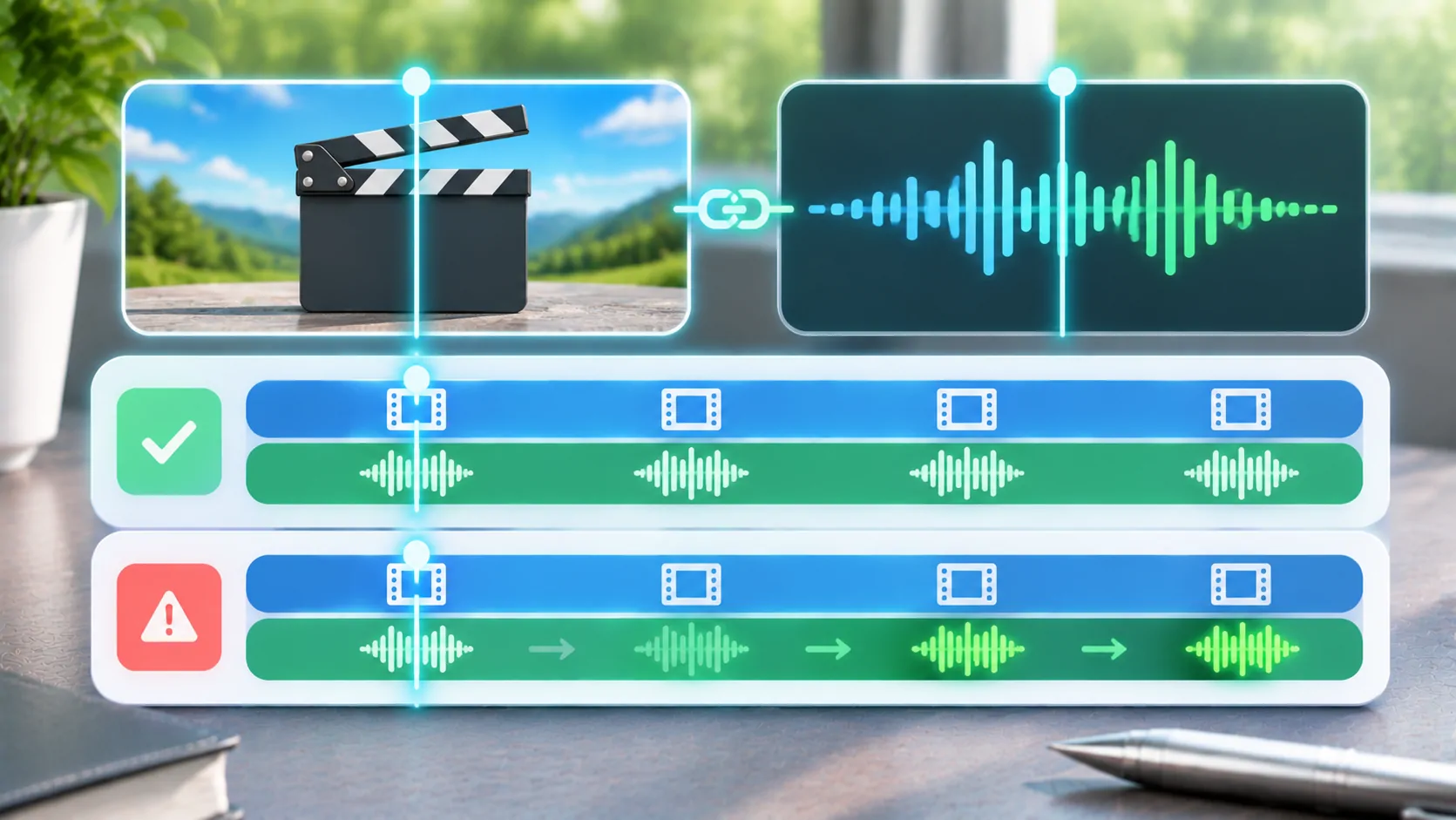
Check an early dialogue scene, a middle section and a later section. A subtitle can appear correctly at the beginning but drift later if it was prepared for a different edit or timing basis.
If the offset stays constant, a documented subtitle-delay control may help in a player that offers it. If the mismatch grows, a single fixed delay is unlikely to correct the entire file.
Confirm that the subtitle belongs to the exact video version. An introduction, advertisement break or alternate cut can change later cue times. Do not repeatedly adjust the player to compensate for a fundamentally different edit.
Test readability on the real screen
Use the actual phone and, where supported, the intended parked display. Check whether text fits within the picture, remains legible against bright scenes and avoids covering important content.
Apple describes caption style preferences for supported apps, including font, size, colour and background choices. A third-party player may use its own controls or implement only some system preferences.
Choose a readable style rather than the smallest possible text. Long lines and multiple simultaneous cues can be difficult to follow on a small screen even when the file is technically valid.
Separate subtitle problems from audio/video sync
If spoken words and lip movement are aligned but the text appears late, investigate subtitle timing. If lips and sound are misaligned too, investigate the media tracks or output route.
A subtitle that disappears after seeking may involve track loading or player behaviour rather than the picture decoder. Repeat the same seek on the phone without external output to narrow the issue.
The synchronization guide provides a comparison method. Keep text timing, sound timing and general playback latency as separate observations so a support request identifies the actual problem.
Prepare the complete offline set
For a sidecar arrangement, copy both the video and subtitle file to the intended accessible location. Verify that the app can reopen them after a normal close and that no cloud-only file remains missing.
Test without internet access while safely parked and disconnected from the vehicle if necessary. Restore normal connectivity afterward. A subtitle thumbnail or a recent successful online session does not prove that every required file is stored locally.
Use the offline preparation checklist to check the complete video as well. Preserve the originals before converting, merging or burning captions into an authorised compatibility copy.
Verify the external-display result separately
A supported output route can handle tracks and styling differently from local phone playback. Check that the selected text remains visible, correctly timed and fully within the external picture.
Do not assume that ordinary CarPlay supports arbitrary video because a subtitle works on the phone. The vehicle, app and media route need their own compatibility evidence, and viewing should remain within documented parked conditions.
If a conversion is necessary for personal media, use the codec and container guide to identify which component needs changing. Burning text into the picture reduces later language and accessibility flexibility, so preserve a selectable original when possible.
A useful subtitle setup is not merely a file with the right extension. It is the correct language, matched to the exact video, readable on the intended screen and verified throughout playback. That preparation makes personal media more accessible without inventing app capabilities or relying on an untested external-display assumption.
Sources
Related reading
Bring your own media.
Explore CarCast for iPhone with your own authorized sources and supported display configurations.