Video & Casting
Preparing Personal Videos for an Offline Car Trip
Prepare lawful personal videos for offline travel by verifying complete local files, compatible formats, subtitles and a supported parked viewing route.
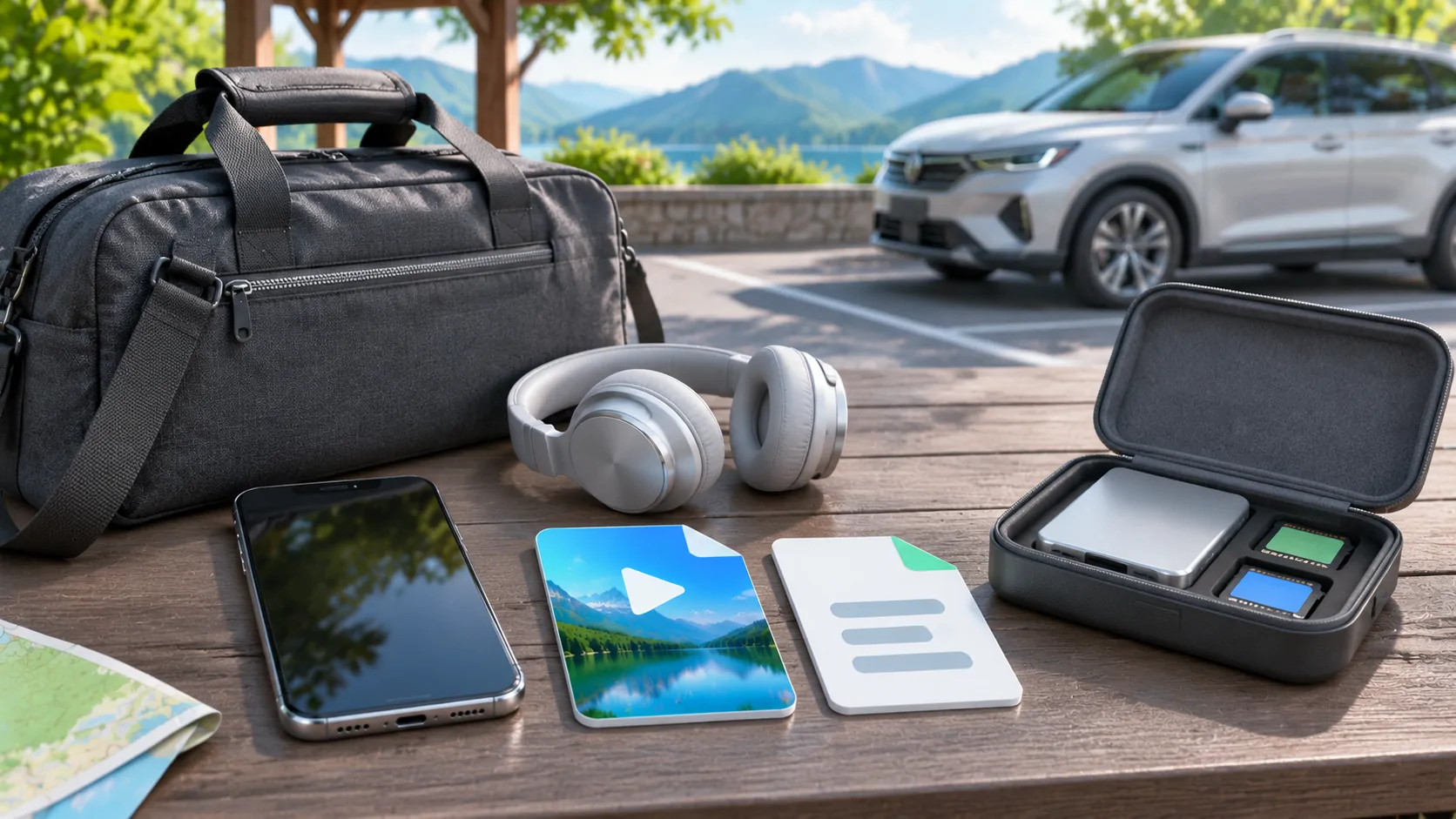
For an offline car trip, store complete lawful video files on the phone, verify playback without internet access while parked, and check sound, seeking and subtitles before departure. A playlist link, cloud thumbnail or recently streamed video is not proof that the full media is available offline. Vehicle display support remains a separate requirement.
Decide what offline means for the source
A personal file copied to the device differs from a subscription service's authorised download. The latter may have app, account, expiry or periodic verification conditions. Follow that service's documented offline procedure rather than treating its downloads as ordinary transferable files.
A remote M3U playlist can contain addresses pointing to online media. Saving the text playlist does not save the video behind each address. Similarly, a cloud library can show a cover image while the full file remains remote.
Identify the actual source and storage location. If the app offers a download status, wait for completion and inspect it before leaving the connection that supplies the media.
Choose lawful files and keep the originals
Use videos you own or are authorised to store and view. Do not copy protected subscription streams through an unofficial downloader or assume that offline preparation removes copyright or service restrictions.
Keep an original copy on another trusted device or storage location before converting or editing. A failed export or accidental overwrite should not destroy the only version of a personal recording.
Use descriptive filenames that help you identify the clip, language and version. Avoid putting private account details or sensitive personal information in filenames that may later appear on a shared screen.
Check the complete local copy
Open the file from the intended app and confirm its duration. Play the beginning, seek to the middle and near the end, then inspect whether sound and picture remain present.
A file that starts successfully can still be incomplete or damaged later. A thumbnail and a few seconds of cached playback are especially weak evidence of a complete offline copy.
While safely parked and disconnected from the vehicle if necessary, test without internet access using a method appropriate to the app. Restore normal connectivity afterward. Do not change required wireless CarPlay settings during a connected test and then interpret the lost link as an offline-media failure.
Verify codecs and file structure
The extension is only part of compatibility. A file can contain video, audio and subtitle tracks with different encoding requirements. A player may show the picture but fail to decode a particular audio track.
Apple's HEVC guidance explains that support can depend on device capability, resolution and frame rate, and describes exporting to a more compatible format for authorised media. Do not assume every file labelled MP4 has identical contents.
Use the codec and container guide to record the file's actual properties. Test the intended copy on the actual phone rather than relying solely on a successful desktop preview.
Prepare subtitles and alternate audio
If subtitles are separate files, confirm that the player supports their format and knows which video they belong to. Keep the filename and folder relationship consistent with the player's documented import method.
Select the desired subtitle and audio language before the trip. Check a section with dialogue, a quiet section and a later point after seeking. A track that is present but offset can be less useful than no subtitle at all.
The subtitle guide covers timing and display checks. Do not assume that an external screen reproduces every caption style or track choice exactly as the phone does.
Estimate storage with room for normal use
Check available device storage before copying a large library. Leave space for normal phone operation, navigation downloads and any app requirements. Avoid deleting unrelated personal data in a hurry just to fit one more video.
Keep only the versions you need for the journey. Several large exports of the same clip can waste storage and make selection confusing. Label a compatibility copy clearly so you do not mistake it for the preserved original.
Verify that the app still sees the files after a normal close and reopen. If access relies on a temporary location or removable storage, confirm that the intended arrangement remains available during the trip.
Test the permitted display route separately
A video working offline on the iPhone does not prove that a car can display it. Apple's developer information describes supported parked-video capabilities, and the vehicle must meet the relevant conditions.
Apple's AirPlay guide also distinguishes streaming selected media from mirroring and notes that some apps do not support AirPlay. Use the documented vehicle route rather than copying a home-TV procedure blindly.
For CarCast or another personal-media app, verify the actual import and playback workflow in the current version. Do not claim that installing the app adds video support to every CarPlay receiver.
Pack a simple fallback and a stop routine
Keep a shorter known working clip as a reference. If a long file fails during a stop, that reference can distinguish a source problem from the whole playback setup without a lengthy troubleshooting session.
Plan a fallback that does not require unsupported vehicle output, such as viewing on a permitted personal device while safely parked. End playback and secure devices and cables before moving.
Use the parked-session checklist for the transition back to driving. Offline availability solves one dependency, not every practical condition.
A prepared library is complete, lawful, locally accessible and tested in the intended app. Confirming those facts before departure is more useful than relying on a remembered streaming session or a folder full of unverified download icons.
Sources
Related reading
Bring your own media.
Explore CarCast for iPhone with your own authorized sources and supported display configurations.