Video & Casting
Video Codecs, Containers and iPhone Playback
Understand video containers, codecs, profiles, audio tracks and device limits before converting a lawful personal file for iPhone playback.
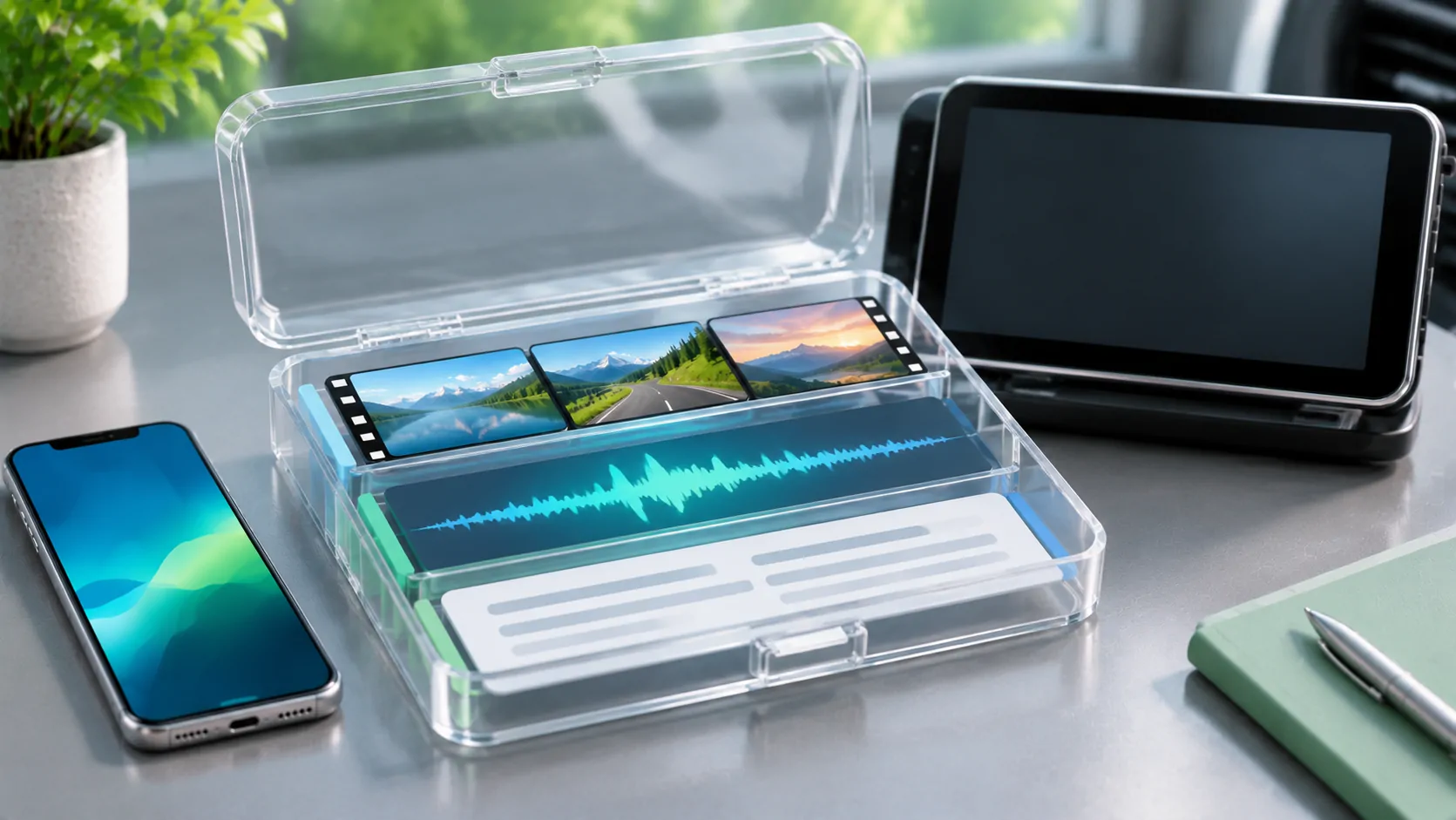
A video filename does not tell you everything needed for iPhone playback. The container holds tracks, the video and audio codecs describe how those tracks are encoded, and properties such as resolution, profile and frame rate affect compatibility. Inspect the actual file and test it in the intended app before converting an entire personal library.
Separate the box from its contents
A container such as MP4 packages video, audio, subtitles and metadata. The codecs inside determine how each media track must be decoded. Two files ending in the same extension can therefore behave differently.
MDN's container-format guide explains this separation and warns that container support does not imply support for every codec combination. This is why renaming an unsupported file to end in MP4 is not a conversion.
For a useful report, record both the container and the tracks. Saying that an MP4 does not work leaves out whether the player rejected its picture, audio, subtitles or overall file structure.
Identify the video encoding properties
Use a trusted media-information tool to inspect a lawful personal file. Record the video codec, resolution, frame rate, bit depth and profile when available. Do not assume that every export using the same codec has identical decoding requirements.
Apple's HEVC support guidance notes that older-device compatibility can depend on resolution and frame rate. It also describes H.264 as a more broadly compatible capture or export choice in relevant workflows.
That does not make H.264 a universal guarantee or HEVC inherently unsuitable. Choose according to the actual phone, app and output requirements, then verify the result rather than relying on a codec name alone.
Check audio as its own track
A file can show a correct picture while producing no sound because the audio track is unsupported, missing or not selected. Multiple audio tracks can also make the wrong language appear to be the only available one.
Inspect the audio codec, channel layout and track labels. In the player, check which track is selected and whether another documented track works. Do not immediately re-encode the video picture to solve an audio-only problem.
If the same file is silent on both the phone and another trusted player, investigate the source or export. If it is audible on the phone but silent only through the car, investigate the output route separately.
Understand resolution, bitrate and frame rate
Resolution is the picture's pixel dimensions. Frame rate concerns how often frames are presented. Bitrate describes the amount of encoded data per unit of time. These properties are related through encoding choices but are not interchangeable.
MDN's video-codec guide explains how source detail, motion, noise and codec settings affect quality and file size. A higher resolution at an insufficient bitrate can look worse than a well-encoded lower-resolution copy.
For a small supported display, test a practical compatibility copy rather than automatically using the largest master file. Preserve the master separately so a convenience export does not become the only surviving version.
Inspect subtitles and other tracks
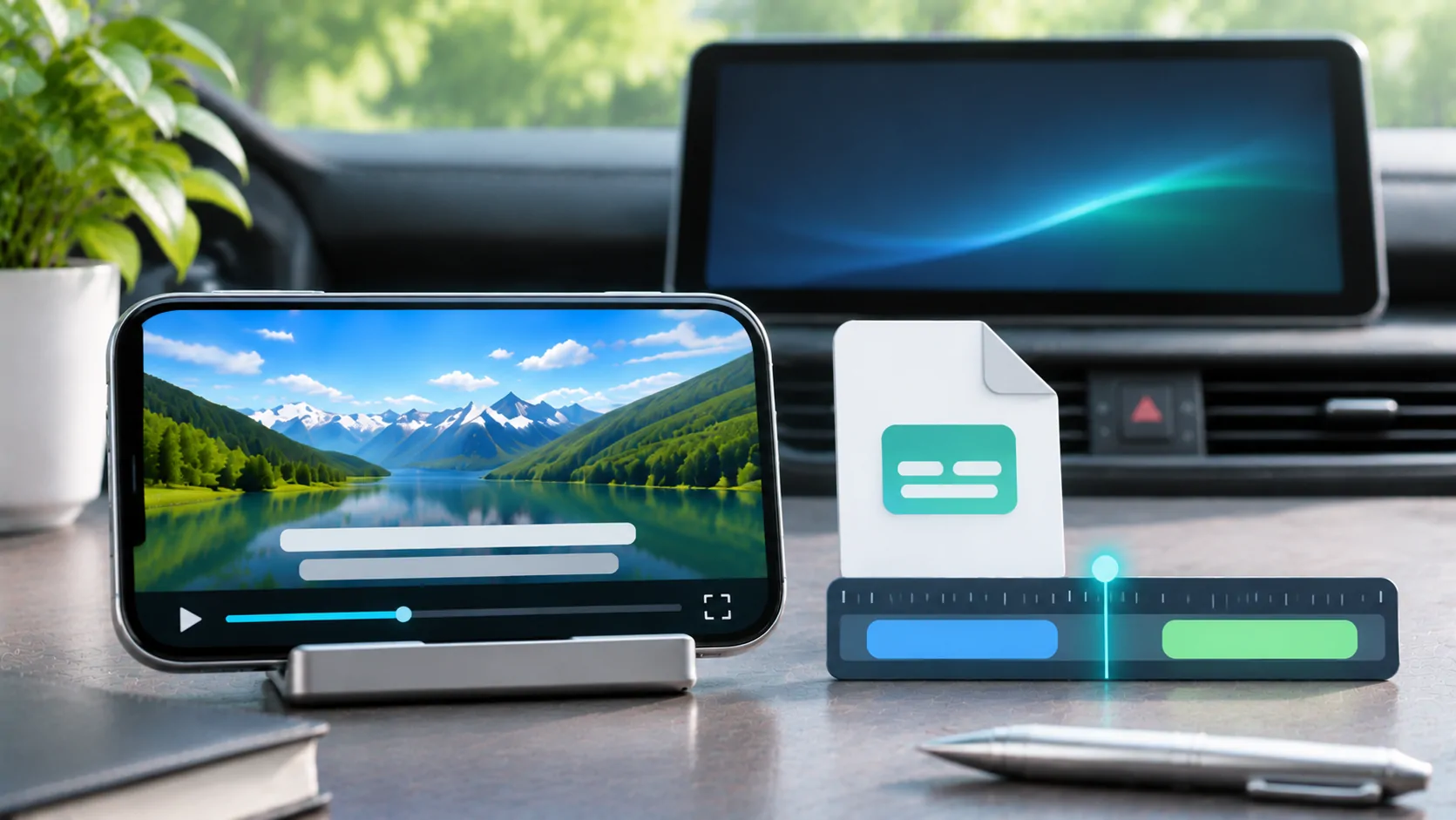
Subtitles may be embedded as a selectable track, stored in a separate sidecar file or burned into the picture. Each route has different player requirements. A container able to hold a subtitle format does not prove the intended app can render it.
Check the desired subtitle language and timing after seeking. An audio track can be correct while captions drift or fail to load. Do not diagnose that as a video-decoder failure.
Use the subtitle guide for practical checks. Keep the media and sidecar relationship consistent with the player's documented import method.
Convert only the part that needs changing
For authorised personal media, a tool may be able to repackage compatible tracks into another container without re-encoding. Other cases require changing the video or audio encoding. These are different operations with different time and quality consequences.
Do not promise lossless conversion when the process actually re-encodes the picture. Export a short representative sample first, using a legitimate tool and a documented preset suitable for the target device.
Compare the sample's picture, sound, duration and subtitles in the intended app. Check a scene with motion or fine detail, not only a still opening frame. Keep the original unchanged until the new copy is verified.
Test phone playback before the vehicle route
First confirm that the complete file plays locally on the iPhone. Seek to the middle and near the end, switch the intended tracks and inspect whether playback remains stable.
Then evaluate the documented external-display route while parked. A file working on the phone does not establish that the vehicle supports video or that the app permits that output. Keep those compatibility questions separate.
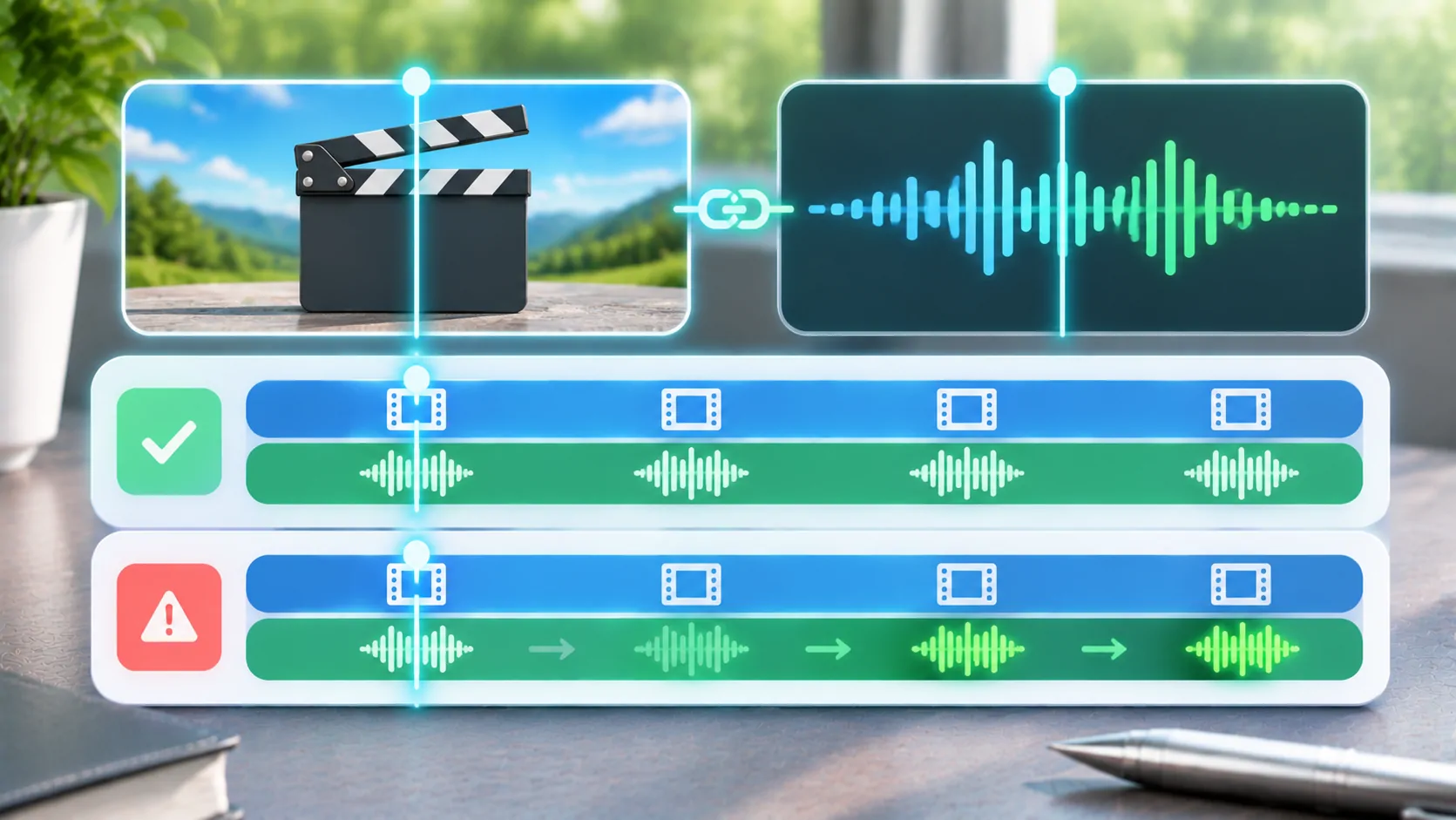
The offline preparation guide helps verify that the file is actually local. If picture and sound arrive at different times, continue with synchronization diagnosis.
Record a useful compatibility result
Keep the file's inspected properties, the app version, phone model and observed result. If a converted sample works, record the export settings rather than merely calling it a smaller MP4.
A successful sample supports that tested arrangement, not every file using the same extension. A failure likewise does not prove that the entire codec is unsupported across all iPhones.
For CarCast or another personal-media app, compare the actual current documentation with the file's properties. Do not claim that a player can bypass DRM or decode every possible track combination.
The practical approach is to inspect, change the minimum necessary component and test the real target. That produces a reliable personal copy while preserving the original and avoiding unsupported compatibility promises.
Sources
Related reading
Bring your own media.
Explore CarCast for iPhone with your own authorized sources and supported display configurations.