CarPlay News
How CarPlay Updates Actually Reach Your Car
Understand the separate iPhone, app and vehicle updates behind CarPlay, identify your installed versions and verify changes safely after updating.
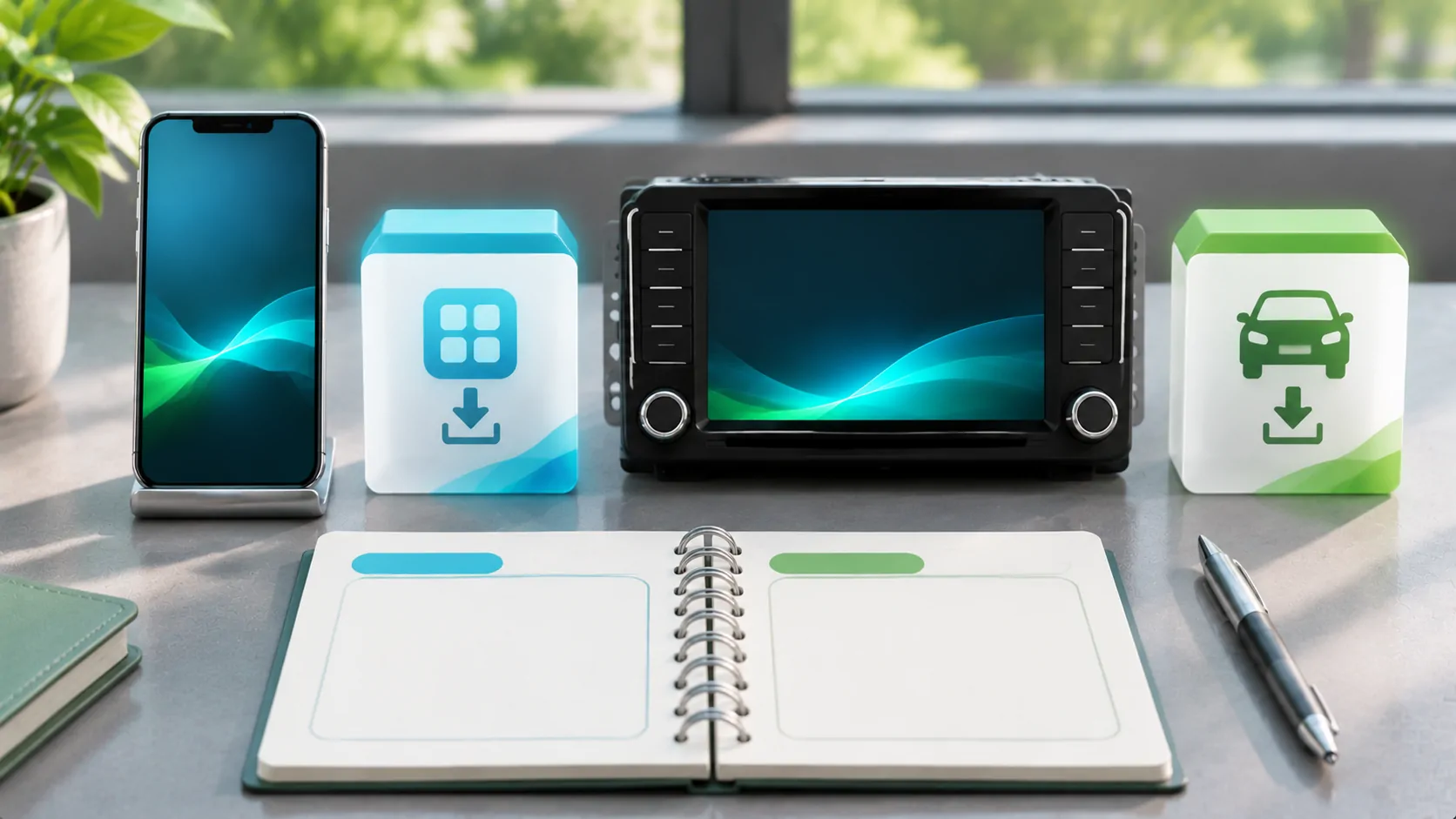
There is no universal CarPlay updater for every car
CarPlay changes can arrive through the iPhone's iOS update, an individual app update or the vehicle receiver's firmware. These are separate layers maintained by different parties. Updating the phone does not automatically install every automaker firmware package, and updating a car's map database does not necessarily change its CarPlay implementation.
Start by identifying the problem or feature you want to address. Is the phone missing an app update, the receiver failing to connect or a manufacturer announcing a capability for a specific system? That question determines the relevant update path. Avoid installing a beta or an unrelated firmware package merely because an online post calls it a CarPlay update.
Record the versions before changing anything
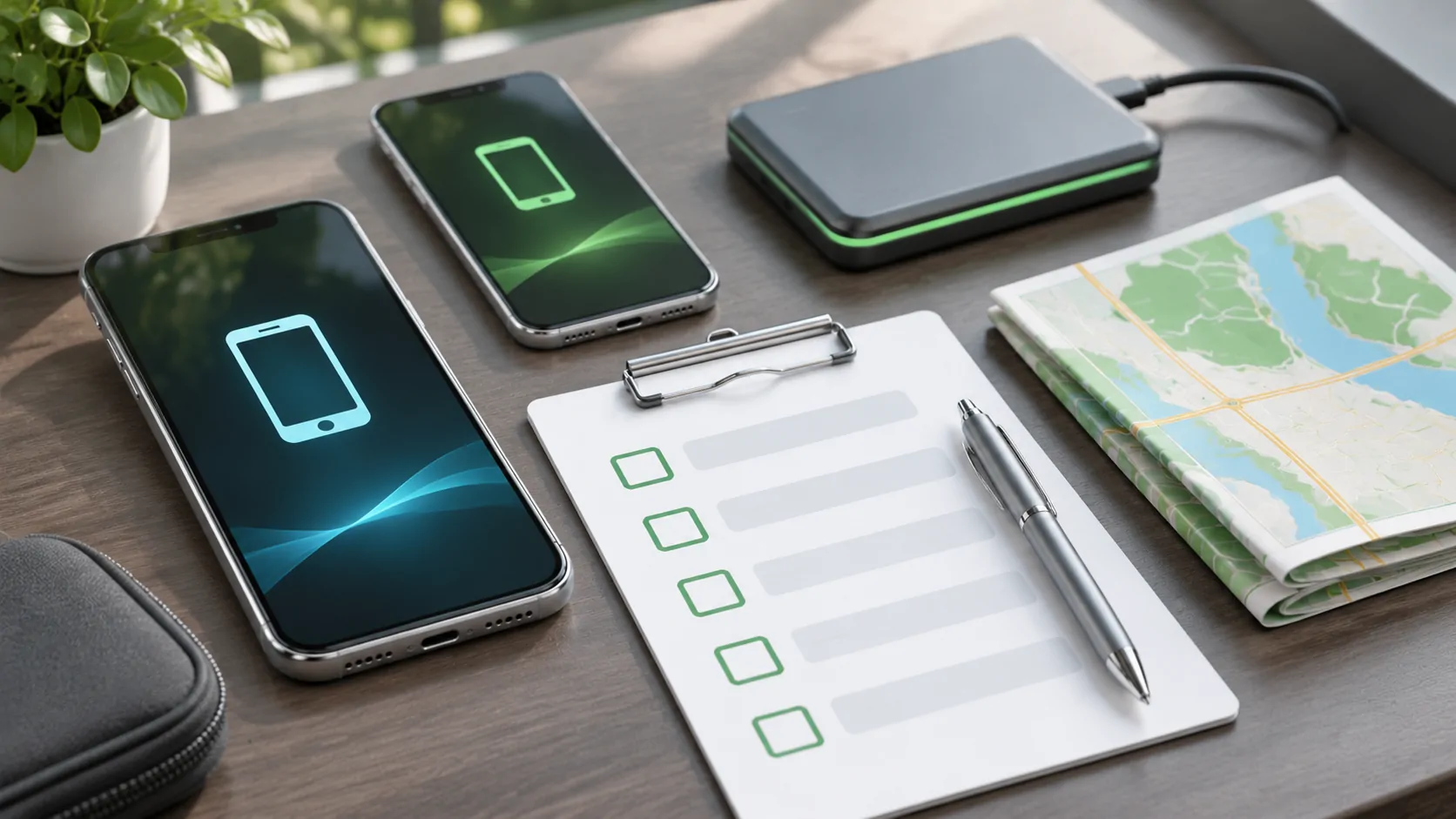
Note the iPhone model, exact iOS version, relevant app version, vehicle model year, market and receiver software. Include an adapter model and firmware if one sits between the phone and the vehicle. Take private screenshots where useful, but remove identifiers and account details before sharing them. A concise record helps support teams compare like configurations.
Also describe the current behavior: no interface, slow connection, a missing app, interrupted audio or another specific symptom. Successful charging is not the same as a working data connection. If the system currently works, record a short baseline for startup, navigation and calls. That makes it easier to tell whether an update changed something instead of relying on memory.
Check the public iOS release channel
Use the iPhone's supported software update controls and Apple's security release page to check the public software available for your device. Consult its developer release listing separately for beta releases. Release numbers and availability change; this guide does not claim that a particular version is currently the latest or recommend installing beta software.
Check again before updating because releases change. Read applicable compatibility and backup guidance, ensure suitable power and connectivity, and allow time for the update to finish. A beta is a testing channel with different expectations from a public release. Its higher version number does not make it the appropriate repair for a daily-use navigation phone.
Update the relevant application separately
If one supported app behaves differently while CarPlay itself connects, check that app's current release and support information. An app update may alter its vehicle interface, account requirements or bug fixes. It does not automatically add Apple authorization for an unsupported category or turn every phone function into a CarPlay feature.
Confirm the app works on the iPhone before testing the vehicle route. Check sign-in, source access and any permissions required for the task. If only one app fails, preserve that distinction in your report. Reinstalling every app or resetting the receiver may be unnecessary and can remove downloaded data or settings that were not related to the original problem.
Find the automaker's exact firmware route
Use the manufacturer's official manual, owner portal or service channel for your VIN, region and head unit. Some updates may be delivered by the car, others through supported media or a dealer. Follow the exact instructions for power, storage media and installation time. Do not substitute a package from a similarly named receiver or another market.
Read the update description to confirm whether it concerns connectivity, navigation data or another component. An available map update is not proof of a CarPlay improvement. Likewise, a general software update does not establish new video or wireless support unless the manufacturer says so for the relevant configuration. Keep the downloaded package identification and the previous software version in your record.
Include adapters and replacement receivers
An aftermarket receiver follows its manufacturer's update process rather than the original vehicle's infotainment process. A wireless adapter adds another independent component. Identify each actual device before seeking support. A car badge on the steering wheel does not tell you who maintains a replacement screen installed by a previous owner.
Check the exact hardware revision and recovery instructions before updating an adapter or receiver. Avoid unofficial firmware offered as a shortcut to extra features. If possible, retain a known working direct connection for comparison. Adapter versus native wireless CarPlay explains why connection converters should be evaluated as an additional layer rather than part of iOS.
Verify the result with a small parked test
After the update completes, test the same tasks used for the baseline while safely parked. Confirm initial connection, a supported navigation app, audio and a stationary call where appropriate. Record the new version and whether the original symptom changed. Do not change every pairing and setting at once unless the official procedure requires it.
If connection fails, use Apple's CarPlay troubleshooting steps and the vehicle manual. Check the appropriate cable or wireless settings, restrictions and pairing process. A documented re-pairing step can be useful, but a full vehicle reset should not be the default response to every update. Preserve enough information to identify which layer is failing.
Keep new capabilities separate from repair claims
A new public release can improve software without enabling every advertised capability on every vehicle. Video, advanced display integration and CarPlay Ultra have their own app and automaker dependencies. Do not infer them from the iOS number alone. A working ordinary CarPlay home screen establishes ordinary connectivity, not authorization for every display use.
Use phone versus automaker firmware to decide who owns a missing change. If the update does not fix the issue, send support a focused record of versions, connection method and reproducible steps. The useful outcome is an identified, supported update path and verified behavior, rather than a collection of unrelated upgrades installed under the same CarPlay label.
Sources
Related reading
Bring your own media.
Explore CarCast for iPhone with your own authorized sources and supported display configurations.