CarPlay News
CarPlay Problems and iOS Rollback Limits
Understand why turning off iOS beta updates, restoring current public software and downgrading to a chosen older release are different actions.
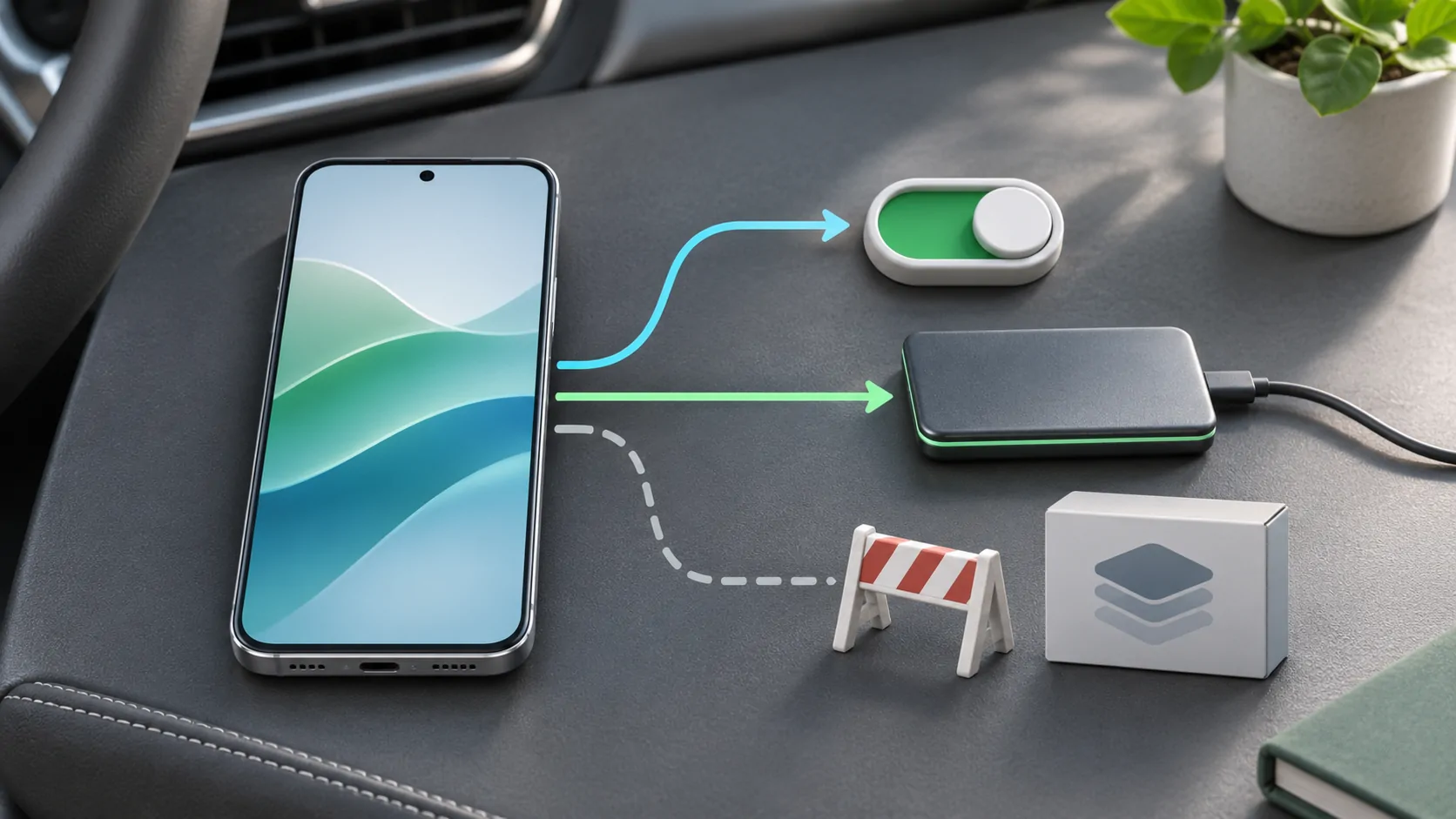
A rollback is not a CarPlay setting
CarPlay depends partly on the iPhone's operating system, but it has no universal switch that restores an earlier iOS implementation. Turning off beta updates, restoring a phone to current public software and installing a chosen historical version are different actions. Do not treat them as interchangeable solutions to a connection problem.
Start by identifying what changed and whether the phone is actually on beta software. A public update can coincide with an app, receiver or adapter change. Record versions and reproduce the symptom before deciding that erasing the phone is necessary. Apple's CarPlay troubleshooting guide provides supported connection checks that may narrow the issue first.
Turning off betas changes future updates
Apple's beta removal guidance explains the supported options. Turning off beta updates prevents the phone from receiving future beta releases through that channel. It does not immediately replace the software currently installed. Depending on release timing, waiting for an appropriate public update can be a different path from restoring immediately.
Check Apple's current instructions and security release information when acting, and use its developer release listing to distinguish beta software from public releases. Availability varies over time and by supported device; this guide does not assert a current version number. A saved article cannot establish which public release your phone will be offered months later.
Immediate beta removal can erase the phone
Apple states that immediate beta removal can involve erasing and restoring the device to current public software using the documented computer-based process. That is a recovery operation with consequences for local data, settings and account access. Read the complete instructions and prepare the required equipment, power and time before beginning.
Do not start a restore immediately before a journey that depends on the phone. Confirm how important data is backed up or synchronized and how to sign in again. Some locally stored application content may need to be downloaded again. Recovery planning should include the actual applications and credentials required afterwards, rather than stopping at the operating-system installation.
Check backup compatibility before relying on it
A backup made while using a beta may require that beta or a later compatible system. Apple warns that it may not restore onto an earlier public version. This matters when someone has allowed a newer backup to replace the only copy from before the beta. A recent backup is not automatically a usable restore source for every destination version.
Review Apple's current guidance for preserving and selecting backups. Keep the distinction between restoring a device backup and data that is independently synchronized through a service. Do not assume every application stores information the same way. If a critical app has its own export or recovery process, confirm that process before erasing the phone.
Do not promise an arbitrary older iOS version
The official beta-removal workflow is not a guarantee that any historical iOS release can be installed. Availability, device compatibility and Apple's current restore mechanisms constrain the actual options. A file advertised online as old firmware is not sufficient proof that a supported downgrade is possible or appropriate for your device.
Avoid tools or instructions that depend on bypassing platform security or making unsupported promises. Check Apple's current release information and support instructions instead. If the desired older version is not available through a supported process, treat that as a limit and pursue troubleshooting or the next supported update rather than planning around an assumed rollback.
Remember the vehicle has separate software
Restoring the iPhone does not reverse a car firmware update or an adapter update. The receiver may still contain the change that coincided with the problem. Similarly, reverting a receiver where officially supported does not restore phone apps or iOS. Keep a version inventory for each component and ask its manufacturer about its own documented recovery path.
This separation is especially important with aftermarket receivers and wireless adapters. A direct wired comparison can help identify whether the extra component is involved, when that connection is supported. Automaker firmware and iOS explains the different responsibilities. Do not use a successful phone restore as evidence that every other layer has returned to an earlier state.
Choose the least disruptive supported next step
When the phone is on public software, begin with a focused failure record and documented checks. When it is on beta, decide between waiting with beta updates disabled and following Apple's immediate removal process, based on your actual need and recovery readiness. Neither route guarantees that a separate vehicle issue disappears.
After any recovery, verify connection, navigation, audio and necessary calls while parked. Record the resulting versions and behavior. A useful outcome is a dependable supported configuration and an understood limit, rather than the assumption that every CarPlay regression can be solved by installing the exact operating-system version you remember working before.
Sources
Related reading
Bring your own media.
Explore CarCast for iPhone with your own authorized sources and supported display configurations.