Video & Casting
AirPlay Video in a Car: What Must Be Supported
Check the vehicle, receiver, app and parked-use requirements for AirPlay video in a car without confusing it with ordinary wireless CarPlay.
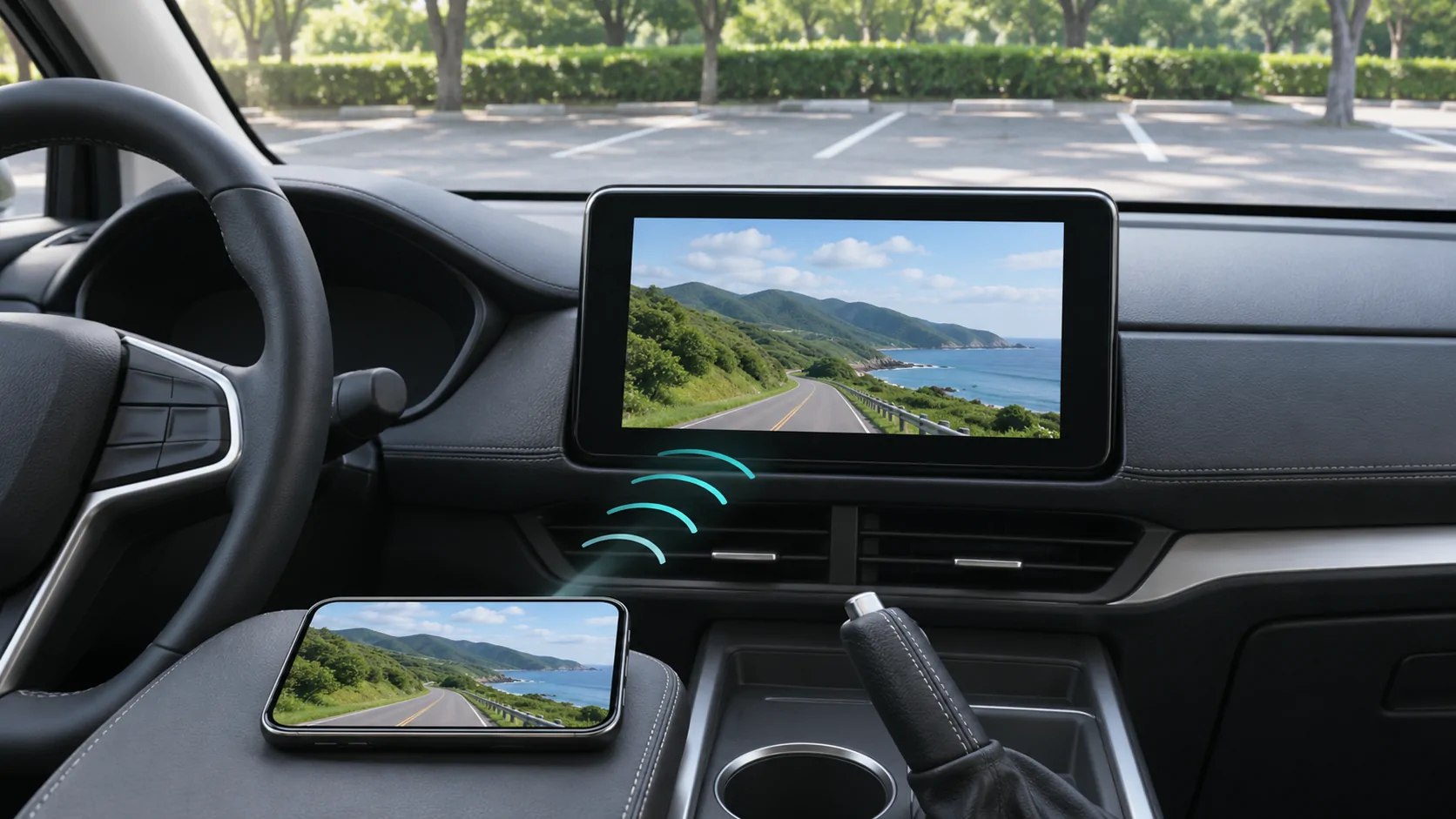
AirPlay video in a car requires a vehicle system that explicitly supports that feature, an appropriate phone and app setup, and permitted content, with the vehicle in the required parked condition. Ordinary wireless CarPlay is not proof of AirPlay video support. Follow the automaker's documented procedure rather than applying a television setup guide to every dashboard.
Identify the receiver capability explicitly
Apple's CarPlay developer page describes AirPlay video in the car as a capability automakers can integrate. That establishes an official route, but it does not identify every existing vehicle as compatible.
Look for the exact feature in the vehicle or receiver documentation. Include the installed head unit, market and software version in the check. A broad statement about smartphone integration or wireless CarPlay is insufficient.
If a dealer or seller claims support, ask for the manufacturer's instructions and the required operating conditions. Do not substitute an unrelated demonstration from a different receiver or model year.
Distinguish streaming from mirroring
Apple's AirPlay support guide separates streaming a selected video from mirroring the phone's whole screen. These routes can have different controls, app support and privacy implications.
Streaming selected media may keep the phone interface separate from the picture being shown. Mirroring can expose notifications and other onscreen information. The presence of one control does not prove that every app supports both routes.
For a car, use the route named in the automaker's documentation. A television appearing in Screen Mirroring at home does not establish how the vehicle should be discovered or paired.
Confirm the phone and software requirements
Check the current feature requirements from the relevant manufacturers. Do not assume a software version mentioned in an old article is the current minimum, or that a phone update alone upgrades the vehicle.
Record the actual phone model and installed software before testing. If the receiver requires a firmware update, use the official package and instructions for the exact unit.
Apple's ordinary CarPlay setup page remains useful for distinguishing basic wired and wireless connectivity, but it is not a complete AirPlay-video compatibility list. Treat each documented requirement as belonging to its specific feature.
Establish the documented parked state
Complete the setup in a safe parking location and follow the vehicle's instructions for power and parking conditions. Do not equate a temporary stop in traffic with permission to view driver-facing video.
If the feature is unavailable outside the documented state, respect that limitation. Do not defeat motion controls or use an unofficial tool to make the vehicle report a different state.
Plan how to end the session before moving. A clear stop action and a return to appropriate driving information matter as much as starting playback.
Select a suitable reference video
Begin with a short personal clip you own or are authorised to use. Play it on the phone first and confirm the picture, sound and duration. This removes uncertainty about a corrupt or inaccessible source.
Then open the supported output controls and select only the intended receiver. If the receiver is not offered, record that discovery failure separately from a receiver that appears but cannot start playback.
Do not use a protected subscription video as the sole test. Apple notes that some video apps may not support AirPlay, so a service-specific refusal is not a clean test of the whole vehicle feature.
Diagnose the stage that fails
If the receiver is absent, verify its feature availability, operating state and documented discovery process. If it appears but connection fails, inspect the pairing or network requirements specified by the automaker.
If connection succeeds but only one video fails, investigate the source format, account and output permissions. If every personal clip fails but audio works, do not assume that audio compatibility proves video compatibility.
The audio-versus-video explanation provides a layer-by-layer checklist. For a protected black video rectangle, use DRM-related diagnosis without attempting to bypass restrictions.
Protect information shown during the session
Before mirroring, review notifications and close sensitive material on the phone. A calendar alert, message preview or account page can appear unexpectedly if the whole screen is reproduced.
Check who can see and hear the display. A shared vehicle can include passengers who should not receive private messages or confidential work information. Prefer the supported route that exposes only what the session needs.
After viewing, stop output using the app or system control and confirm the phone is no longer connected to the external display. Do not assume that locking the phone necessarily ends every supported streaming route.
For a borrowed or rental vehicle, review the saved connection when the session is over. Remove the temporary phone relationship through the documented controls where appropriate. Disconnecting output and removing a remembered device are different actions, so check both if you do not intend to use that receiver again.
Record a reproducible compatibility result
A useful result names the phone, software, receiver, firmware, app, output method and media type. State whether the vehicle was in its documented parked condition and whether the test used personal or protected content.
One success confirms that observed arrangement; it does not prove support for every app, vehicle trim or future update. One failure should likewise be described narrowly until the missing requirement is identified.
Consult the general video support guide when the claimed route is unclear. For CarCast or another media app, check the app's actual output documentation alongside the vehicle's requirements.
AirPlay video can be a supported parked-media option where the complete system permits it. Reliable planning begins with explicit vehicle evidence and a lawful reference file, rather than the assumption that an ordinary wireless CarPlay connection makes every dashboard an unrestricted AirPlay display.
Sources
Related reading
Bring your own media.
Explore CarCast for iPhone with your own authorized sources and supported display configurations.