Video & Casting
Why CarPlay Audio Support Does Not Prove Video Support
Explain why working CarPlay audio does not prove video support, with separate checks for app interfaces, vehicle output and content restrictions.
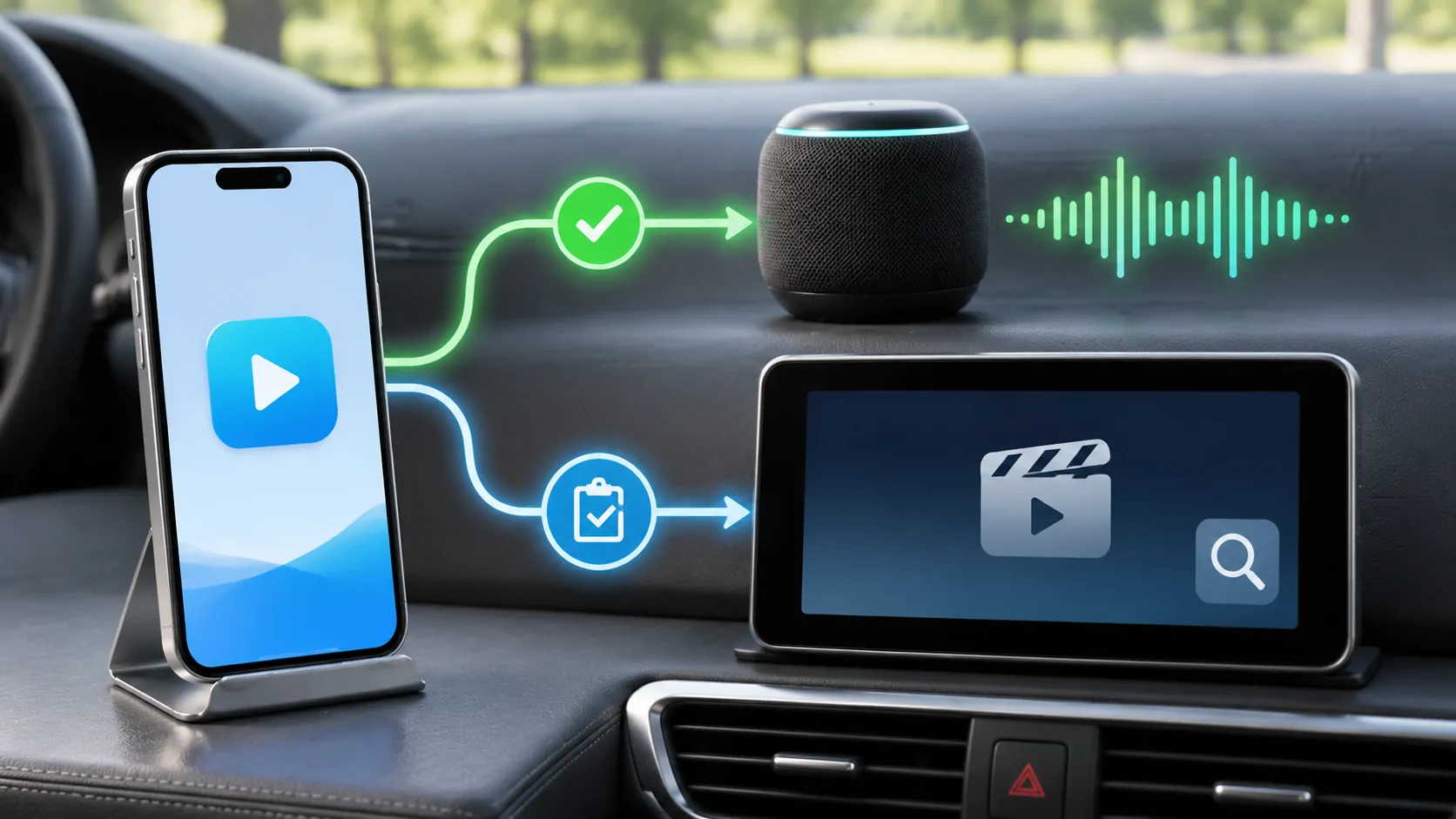
Working audio in CarPlay proves that a supported audio path is functioning; it does not prove that the car can display video from the same app. Audio apps, parked video apps, AirPlay video and screen mirroring involve different interfaces and conditions. Evaluate each capability separately instead of using a song or podcast as a universal compatibility test.
Understand what an audio success establishes
If a supported app plays sound through the vehicle, you have useful evidence about that app, phone, connection and audio route. You may also see metadata and playback controls on the screen.
That result does not establish video decoding on the receiver, a permitted video interface, external-display rights or a supported mirroring route. A still image or album cover is not the same as continuous video playback.
Record the success narrowly: the named app played the selected audio item through the observed setup. Avoid turning that into a claim that every media format or display mode is supported.
Compare the different presentation routes
A native CarPlay audio interface is designed around supported in-car controls. A video app in a supported parked environment presents a different kind of content. AirPlay can stream selected media to an appropriate receiver, while screen mirroring can reproduce a phone display through a supported route.
Apple's developer overview discusses audio apps and supported parked video apps separately, along with automaker support for AirPlay video. That separation is a strong reason to ask more precise questions.
The same app name can appear in more than one context without making the capabilities identical. A phone interface, CarPlay audio view and vehicle video experience may expose different controls and restrictions.
Use a capability checklist instead of one yes-or-no label
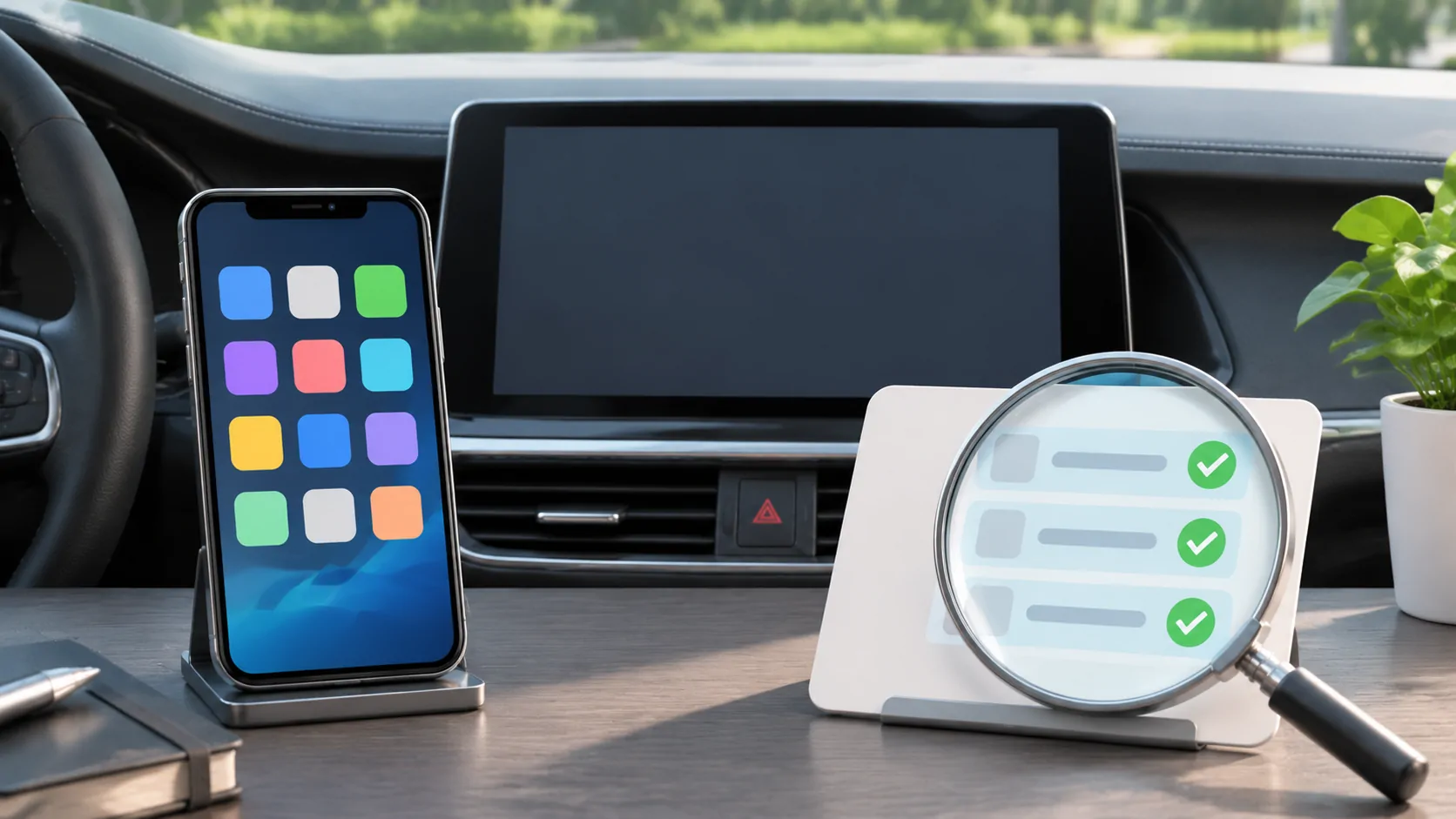
For each setup, ask whether ordinary CarPlay connects, whether supported audio works, whether the intended app appears, whether the car documents parked video, and whether the specific output route is allowed.
Then ask whether the chosen media plays locally and whether its service permits external output. These questions separate connection, application, receiver and content layers.
A simple written checklist can show which items are confirmed and which are unknown. Unknown is a useful status; it prevents a partial success from silently becoming a broad compatibility claim.
Recognise misleading demonstrations
A video showing music controls on a dashboard establishes an audio interface, not video output. A phone playing a video beside a car screen may not show where the picture is actually rendered.
Similarly, a rear-seat screen or the vehicle's native entertainment system can be separate from CarPlay. Identify the active source and receiver in a demonstration before using it to decide what your own car supports.
No demonstration should be assumed fraudulent merely because details are missing. Treat it as incomplete evidence and request the configuration, route and operating conditions needed to interpret it.
Check vehicle support before changing accessories
Apple's CarPlay setup guide describes supported wired and wireless connections for ordinary CarPlay tasks. Switching between those methods does not by itself establish a new parked-video capability.
A cable can solve a data-connection problem, but it cannot be assumed to grant an app a different interface or add undocumented vehicle integration. The same caution applies to a wireless adapter.
Use the video support guide to identify the required layers. Ask the receiver manufacturer about the exact video route rather than asking only whether the product supports CarPlay.
Test personal media without confusing DRM
A lawful, unprotected personal clip is a useful reference because it reduces service-account and DRM variables. Verify the picture and sound on the phone first, then use the documented output route while parked.
If audio is heard but the picture is absent, record whether the app interface remains visible. This can indicate a different failure from the entire CarPlay screen closing. Do not jump directly to a codec, cable or protection diagnosis without that observation.
Apple's AirPlay guidance explicitly notes that some video apps may not support AirPlay. Phone playback is therefore not proof of output permission, even on an otherwise compatible receiver.
Describe CarCast and similar apps accurately
CarCast can be considered for managing and playing users' own media sources on iPhone, with relevant car-display functions subject to supported equipment and conditions. Its presence on a phone does not certify a particular vehicle's video integration.
When reading the video feature information, distinguish the app's media inputs from the output route available in your installation. Supporting M3U, a personal server or a local file is not the same claim as supporting every dashboard.
If an expected icon is missing, use app-availability checks. Do not claim that a media app can repair ordinary CarPlay pairing or bypass another service's restrictions.
Keep the conclusion as specific as the test
A complete report should identify the receiver, phone software, app version, connection, output method and media type. State separately what was audible, what was visible and whether the car was in the documented parked condition.
A successful personal video test should not become a promise about a protected subscription service. A failed protected video should not become proof that all personal media is impossible. Each conclusion needs evidence matching its scope.
The useful distinction is straightforward: audio support answers an audio question. Video support needs its own vehicle, application and content evidence. Keeping those questions separate reduces wasted accessory purchases and produces compatibility descriptions that another person can actually reproduce.
Sources
Related reading
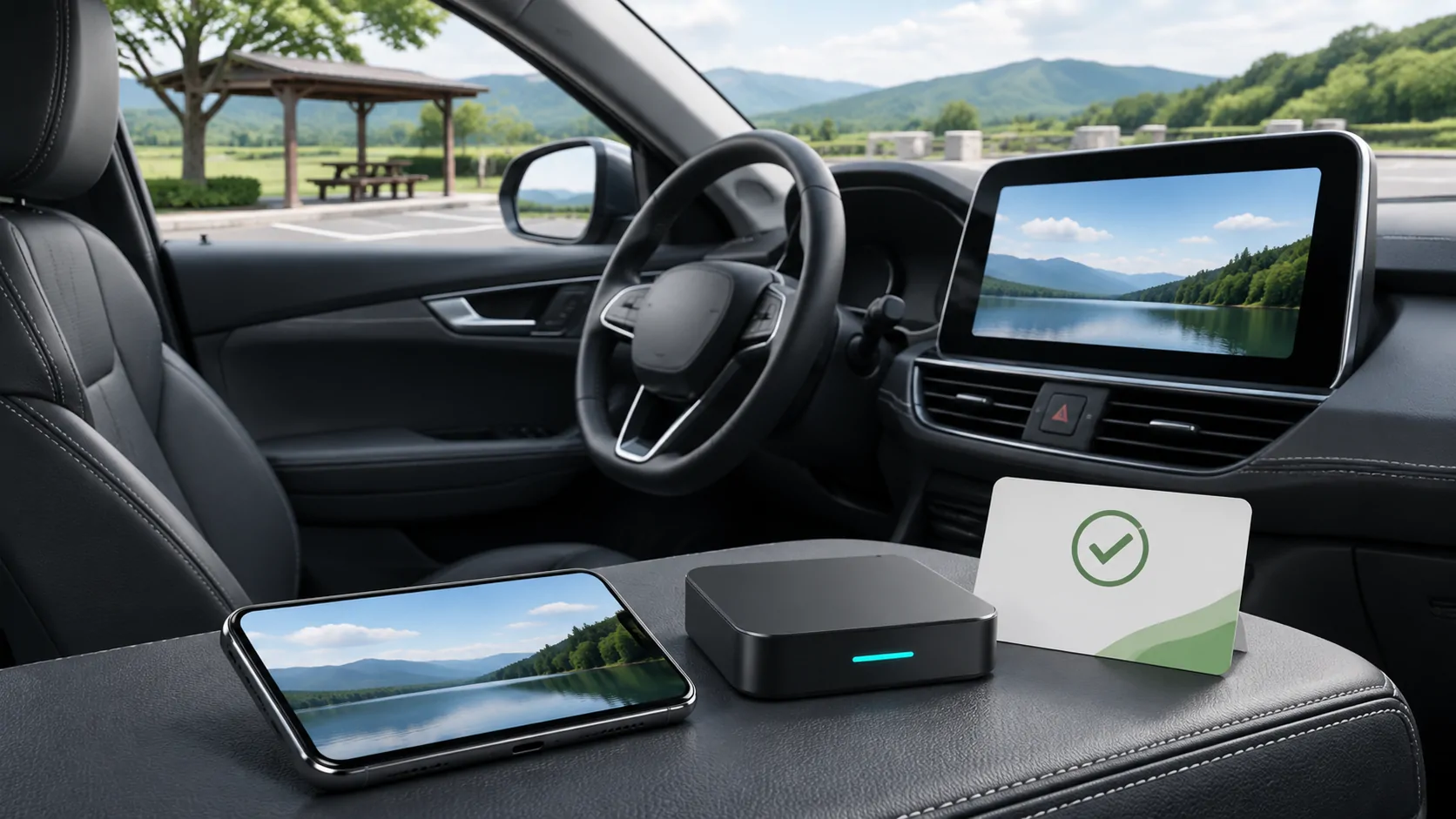
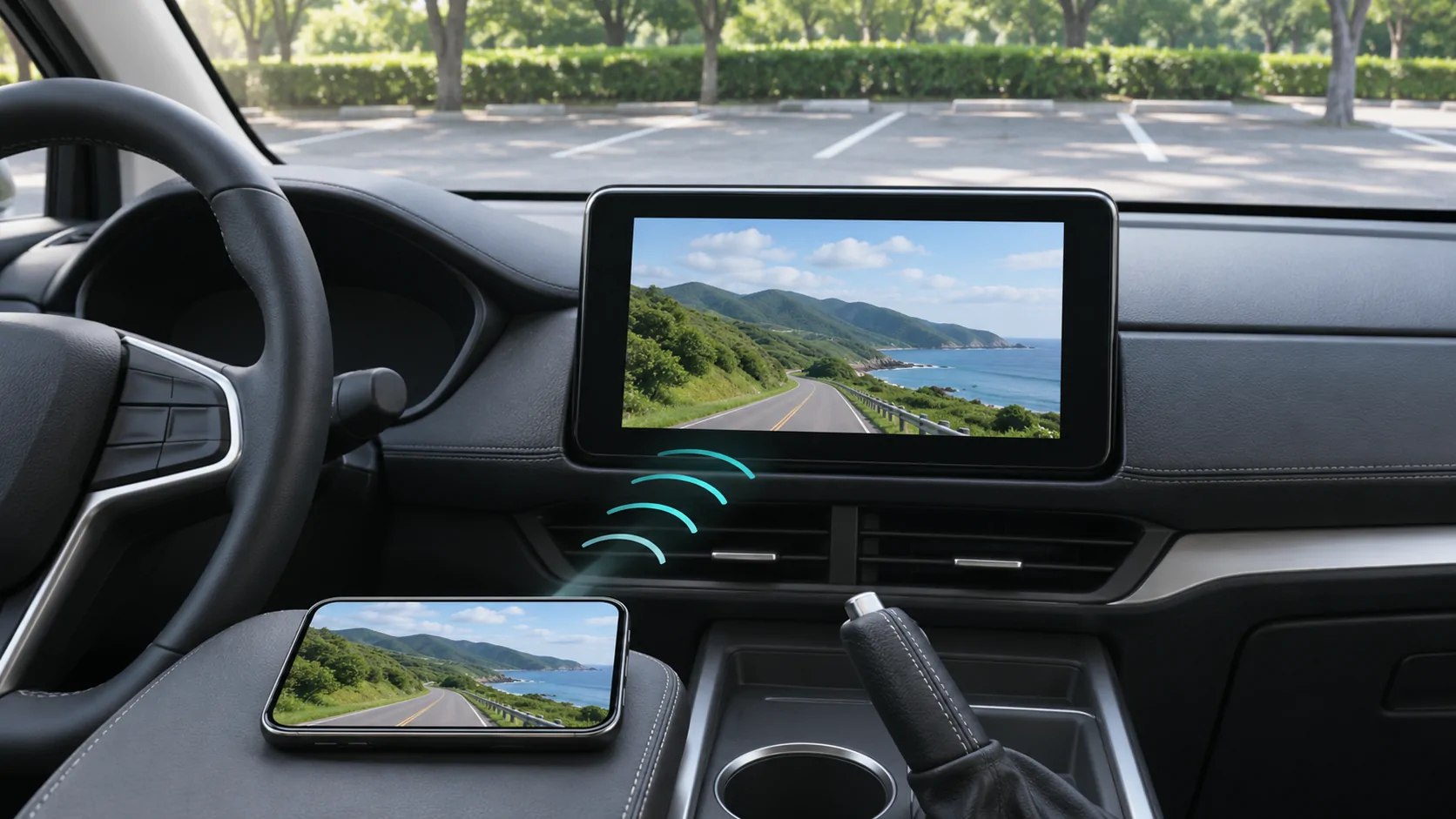
Bring your own media.
Explore CarCast for iPhone with your own authorized sources and supported display configurations.