Video & Casting
Why Protected Video Can Turn Black When Cast
Understand protected-video black screens by separating DRM and app output policy from connection, codec and receiver failures.
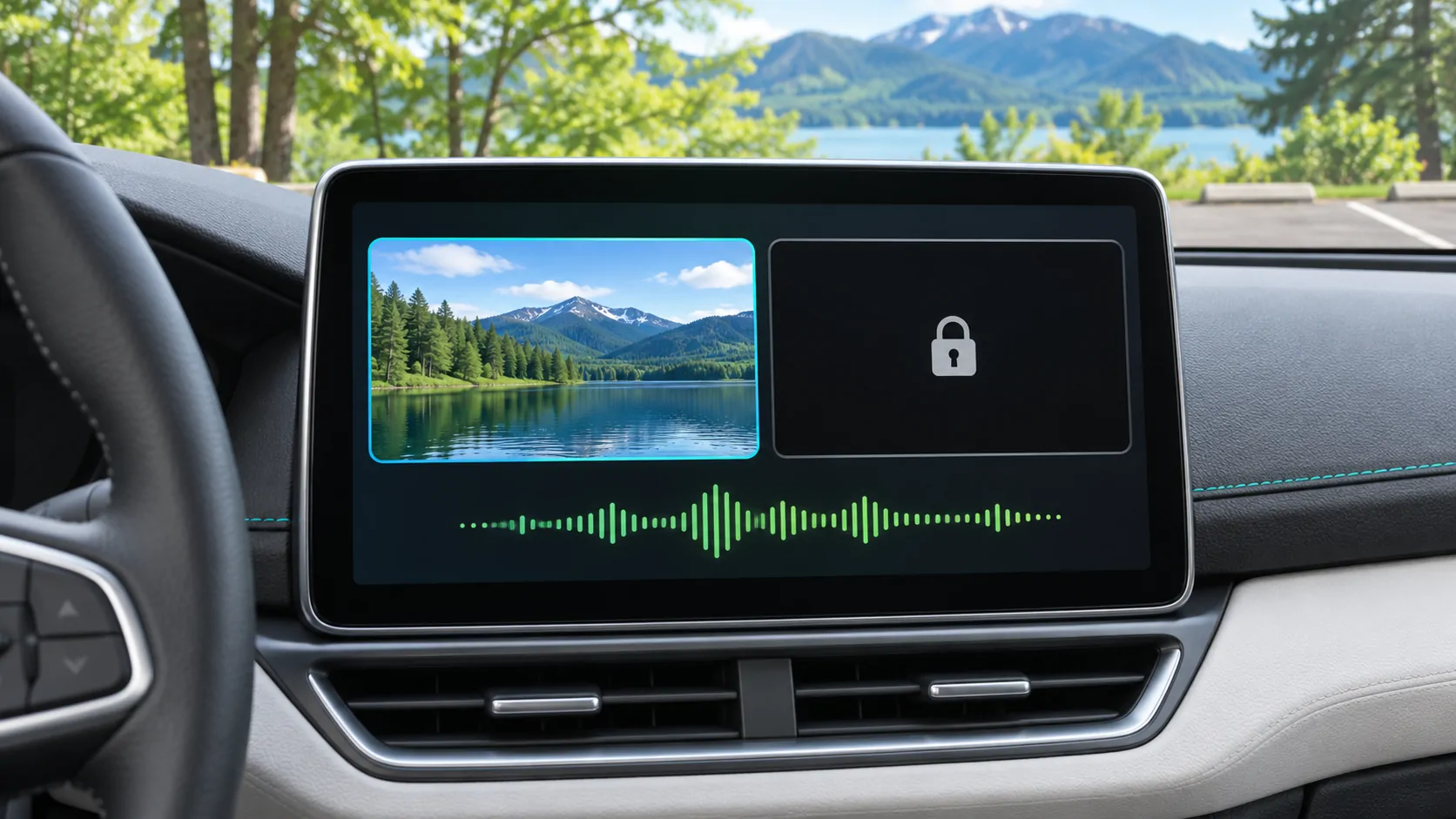
A protected video can appear black on an external display even when the phone interface and audio still work. The cause may be the service's output policy, DRM requirements or an unsupported playback route, rather than a broken CarPlay connection. Compare a lawful personal reference clip and the service's official instructions; do not attempt to bypass protection.
Identify what remains visible
If the entire receiver is black and its native menus do not work, investigate the receiver first. If CarPlay closes completely, investigate the connection. Neither symptom specifically identifies DRM.
A different situation occurs when menus, subtitles or player controls remain visible but the video rectangle is black. That narrower observation can be consistent with protected-content restrictions, but it is not proof by itself.
Record whether sound continues, whether an error appears and whether the same content plays on the phone. Keep these observations separate from a proposed cause.
Understand what DRM controls
Digital rights management can govern access to encrypted media and the conditions under which it plays. Apple's FairPlay Streaming overview describes encrypted content delivery and secure key exchange on Apple platforms.
That description does not mean every black screen uses FairPlay or that every protected service allows the same outputs. Different providers, apps, accounts and devices can impose different requirements.
A valid subscription is not automatically permission to use every display, capture method or third-party player. Consult the service's current terms and support information for the intended route.
Separate casting, mirroring and native playback
Streaming selected media through a supported output can differ from capturing or mirroring the whole phone screen. A service may permit one route and restrict another.
Apple's AirPlay guide explicitly notes that some video apps might not support AirPlay. A video playing normally on the phone therefore does not prove that the app allows output to a particular receiver.
A vehicle's native app can also have different support from an iPhone app. Do not assume that a service available on a smart TV, rear-seat screen or home receiver is necessarily available through a CarPlay-related route.
Use a clean personal-media comparison
Select a short video you own or are authorised to use and verify that it plays on the phone. Use a format documented by the chosen player and avoid an account-protected download for the reference.
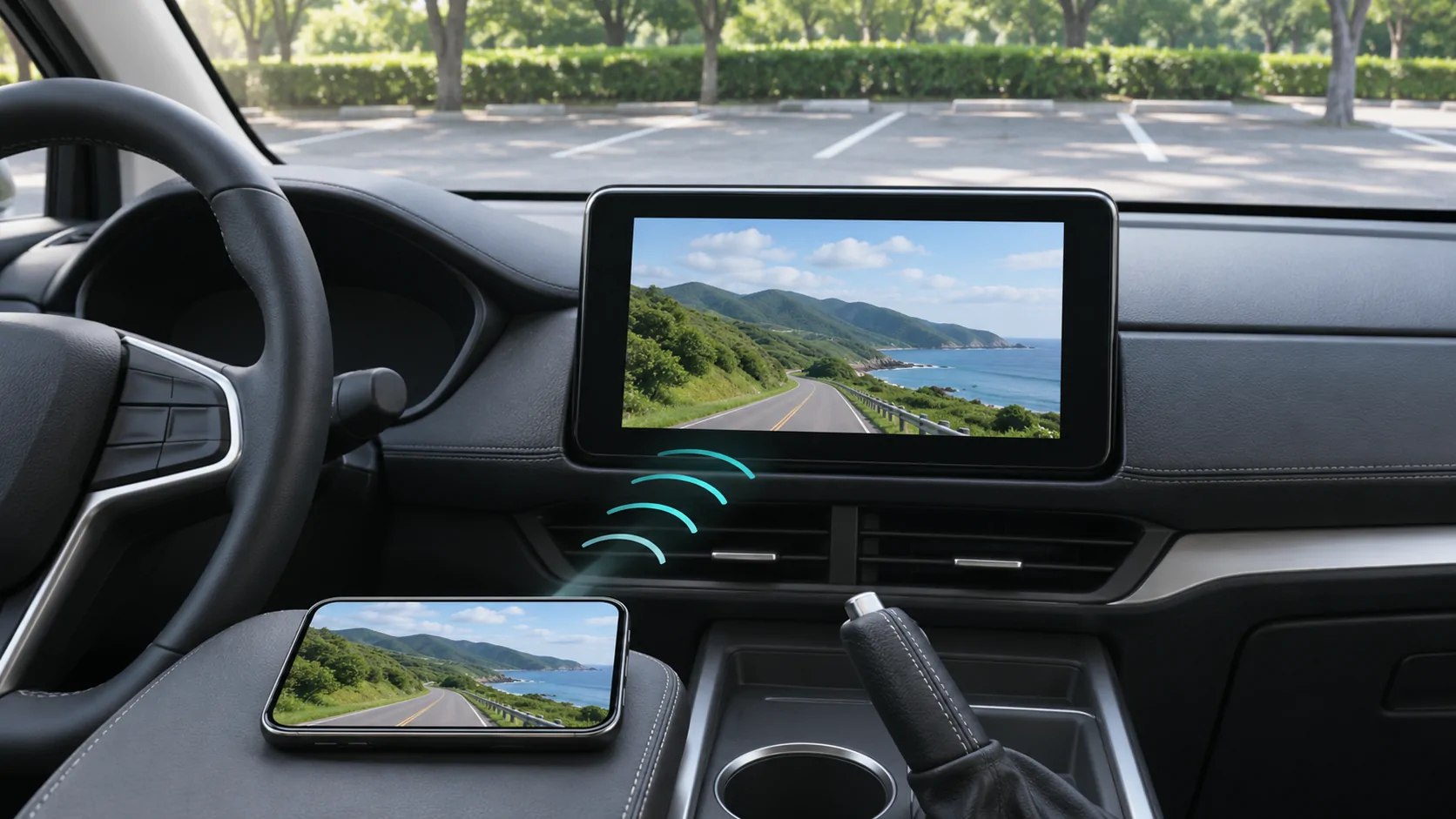
Then test the same supported vehicle output while parked. If the personal clip works but one protected service does not, the evidence points toward a source-specific or policy difference rather than a complete display failure.
The comparison does not prove DRM is the only possible cause. App implementation, account state and codec differences can still matter. Record which variable changed instead of declaring a universal diagnosis.
Keep the reference file, player and receiver route consistent across attempts. If you change the application at the same time as the content, a successful result could reflect the new application's output support rather than protection alone. A careful comparison can narrow the possibilities without requiring access to encrypted data or any attempt to inspect a service's private licence exchange.
Check service and account requirements
Open the affected service directly on the phone while parked. Confirm that the account is signed in, the subscription is active where required and the title is available in the current region.
Look for the service's documented external-output options. If an official app or supported receiver is required, use that route rather than expecting a generic browser or media player to reproduce the same rights.
Do not publish working media URLs, session cookies, account credentials or licence data in a support request. A title, app version and error message are usually more appropriate diagnostic details.
Verify the car's video capability independently
Apple's CarPlay developer page describes parked video in supported cars and separate automaker support for AirPlay video. Ordinary navigation or audio compatibility does not establish that the required video route exists.
If a receiver has no documented support for the intended route, changing the source account cannot add it. Conversely, a supported vehicle route does not override a service's content restrictions.
Use in-car AirPlay checks to identify receiver requirements. Keep the vehicle support question separate from the protected service's output policy.
Consider formats without confusing them with protection
An unprotected file can fail because its container, video codec, audio codec or subtitle format is unsupported. A protected stream can fail even when those basic formats are supported.
Renaming a file extension does not change its encoding or remove protection. Re-encoding should be considered only for media you are authorised to convert, using legitimate tools and an appropriate target format.
The codec and container guide explains how to describe a personal file accurately. Do not use format conversion as a euphemism for circumventing a service's DRM.
Use supported alternatives and report the limit
If the service disallows the desired output, use a documented native app or view on a permitted device while safely parked. Do not install tools promising to remove a black screen by disabling security or vehicle controls.
For support, state whether the failure affects only protected content, whether a lawful personal clip works, which route was used and the exact app, phone and receiver versions. Do not claim that a third-party player guarantees every subscription service.
For a broader display failure, follow black-screen diagnosis. For a source-specific failure, contact the service or app developer with the narrow evidence.
A useful conclusion may be a documented limitation rather than a repair. Correctly identifying an unsupported output avoids repeated cable purchases and risky workarounds, while preserving the distinction between a functioning display and content that is not authorised for that route.
Sources
Related reading
Bring your own media.
Explore CarCast for iPhone with your own authorized sources and supported display configurations.