Video & Casting
Can You Watch Video on Apple CarPlay?
Understand when CarPlay video is supported, how parked video apps differ from AirPlay and mirroring, and what to verify for a particular car.
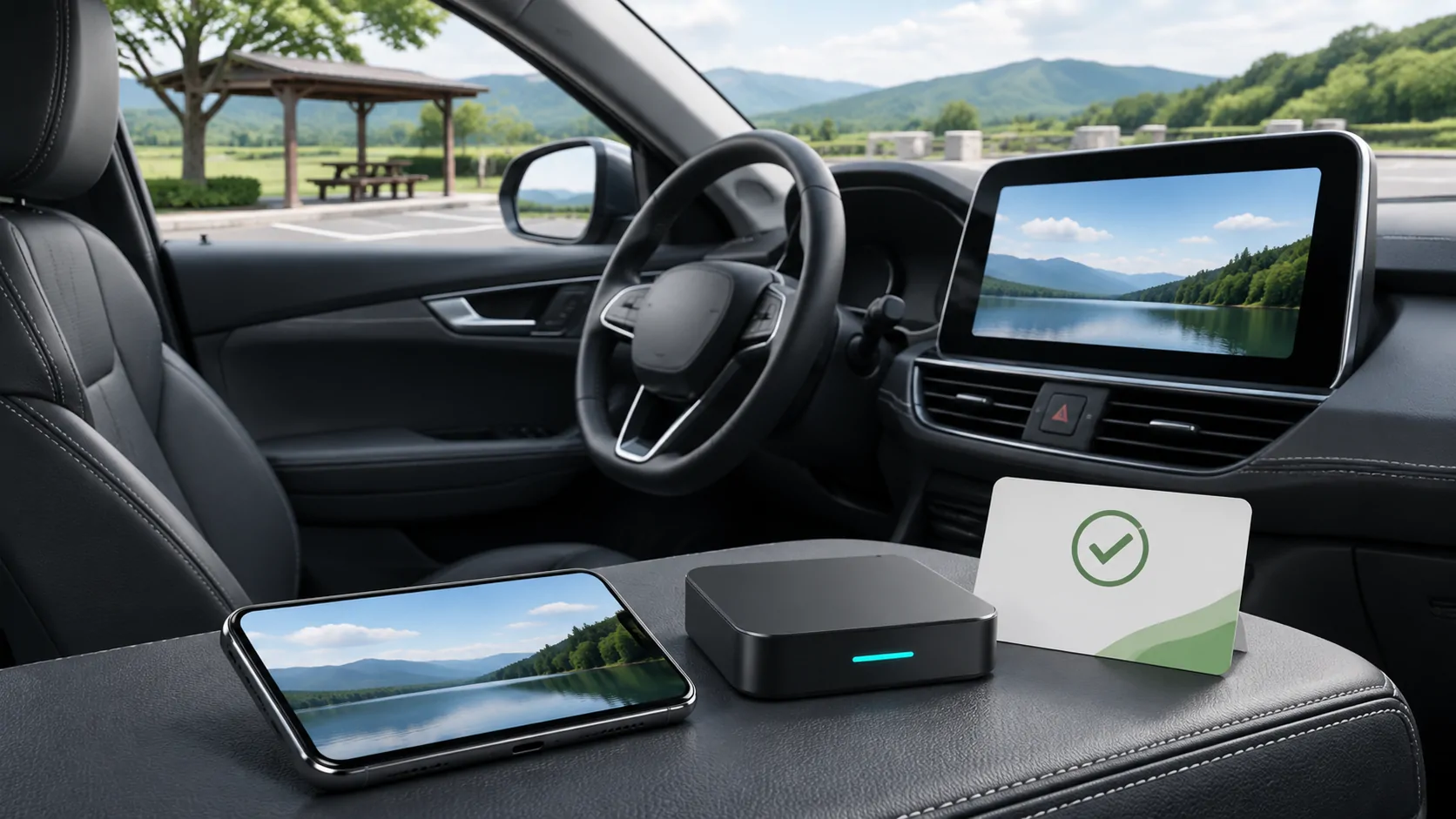
You can watch video through supported CarPlay-related experiences only when the particular vehicle, software, app and content permit it, with parked-use conditions. It is inaccurate to say either that CarPlay can never support video or that every CarPlay car can now show any video. Apple's current developer information describes supported parked video apps and a separate vehicle integration for AirPlay video.
Begin with the exact capability
There are several questions hidden inside the phrase watching video on CarPlay. Do you mean a supported video app on the car display, AirPlay video from the phone, full-screen mirroring, or a separate rear-seat entertainment system?
These routes are not interchangeable. A vehicle can support ordinary navigation and audio without supporting the video route you want. A phone media app can play a file locally without proving that the same picture can appear on the dashboard.
Identify the desired route before buying accessories or changing settings. That turns a vague compatibility question into a specific requirement that the app and vehicle manufacturers can answer.
Read Apple's current conditional description
Apple's CarPlay developer overview describes video apps that let people watch content in supported cars when parked. The same page separately describes automaker integration for AirPlay video in the car.
The important words are supported cars and parked. The page is not a compatibility certificate for every existing vehicle, receiver or installed app. It also does not establish that a phone software update alone adds the necessary vehicle integration.
Check the current official information for the actual receiver. A press announcement, simulator demonstration or developer capability can precede availability in a particular car, market or software configuration.
Verify four layers of support
First identify the vehicle or receiver and its documented video capability. Include model year, equipment package, region and firmware where relevant. A generic brand name is not enough.
Second identify the phone and software requirements stated by the relevant feature documentation. Third check that the app supports the intended output route in its current version. Fourth check that the content is permitted on that route.
A failure at any layer can prevent playback. A successful ordinary CarPlay connection only confirms some shared foundations. It does not skip the app, vehicle or content checks.
Distinguish AirPlay from screen mirroring
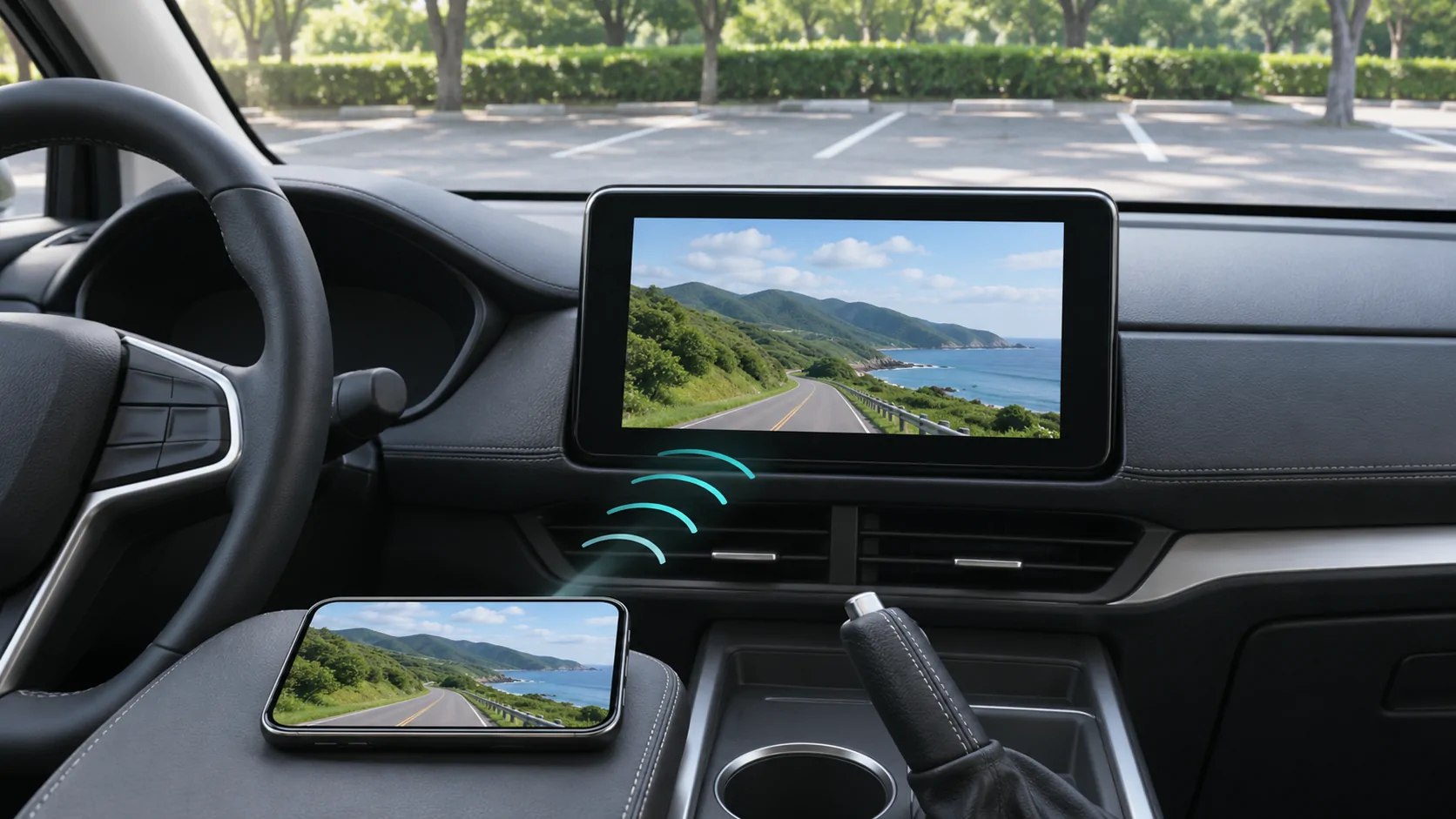
Apple's AirPlay support guide distinguishes streaming selected media from mirroring the phone's screen. It also notes that some video apps may not support AirPlay.
That guide describes supported TVs, Macs and related receivers; its home-device procedure should not be copied as a universal vehicle setup. For a car, follow the automaker's instructions for the documented feature.
The in-car AirPlay guide explains what to confirm before expecting a receiver to appear. A familiar AirPlay icon on the phone does not prove that an ordinary CarPlay receiver accepts video.
Use a lawful personal-media reference
For troubleshooting, choose a short video you own or are authorised to use. Verify that it plays correctly on the phone, including sound and duration. Avoid a protected subscription service as the first reference because output restrictions can obscure basic compatibility.
Then test only the documented vehicle route while safely parked. Note whether the app appears, the receiver is discoverable, playback starts and sound remains aligned. A single successful file establishes that observed configuration, not support for every file or service.
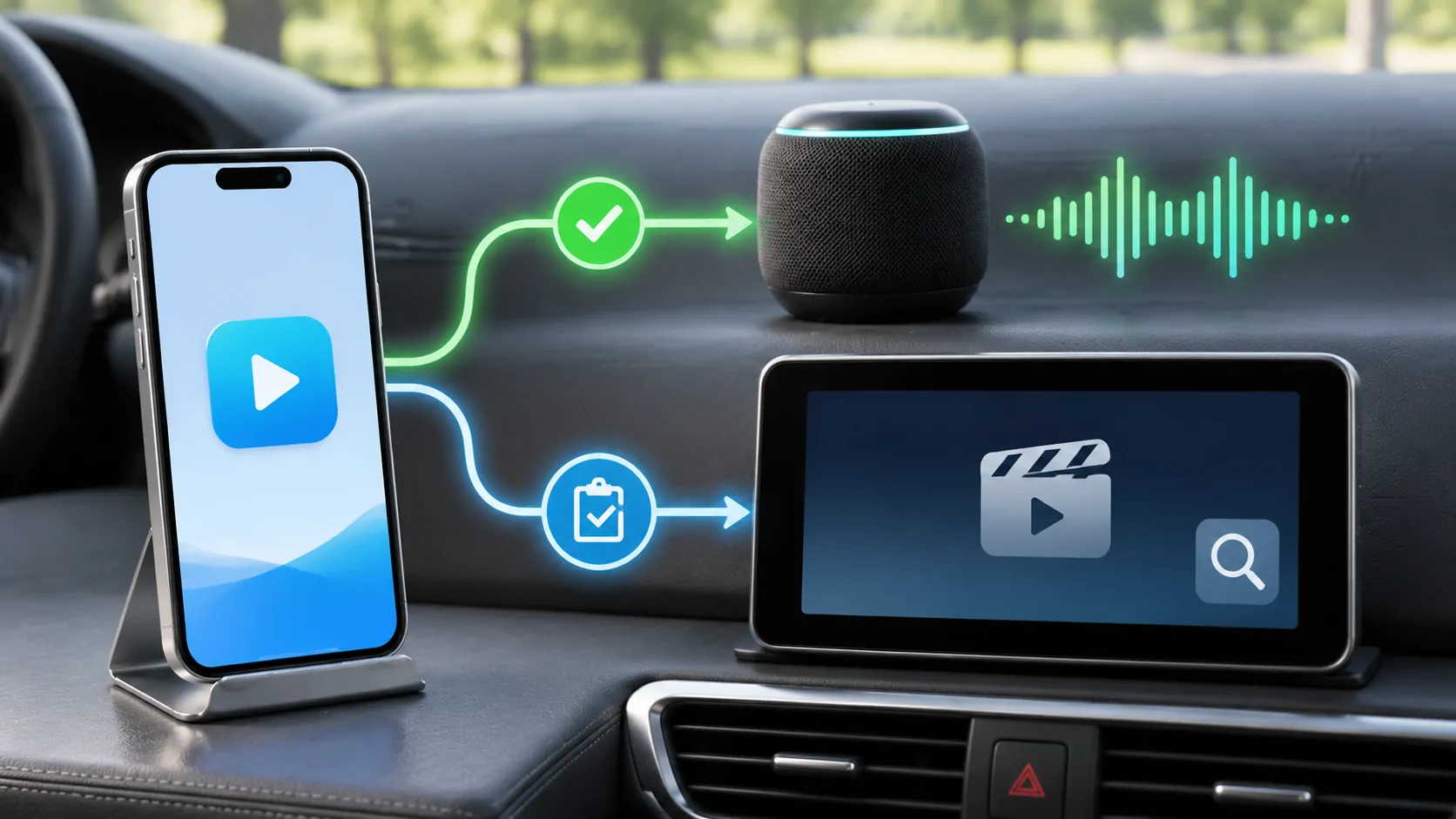
CarCast is an independent iPhone media app for users' own sources, with car-display features subject to compatible hardware and applicable conditions. Review the video feature information and the official App Store listing rather than assuming installation upgrades every vehicle.
Understand protected-content failures
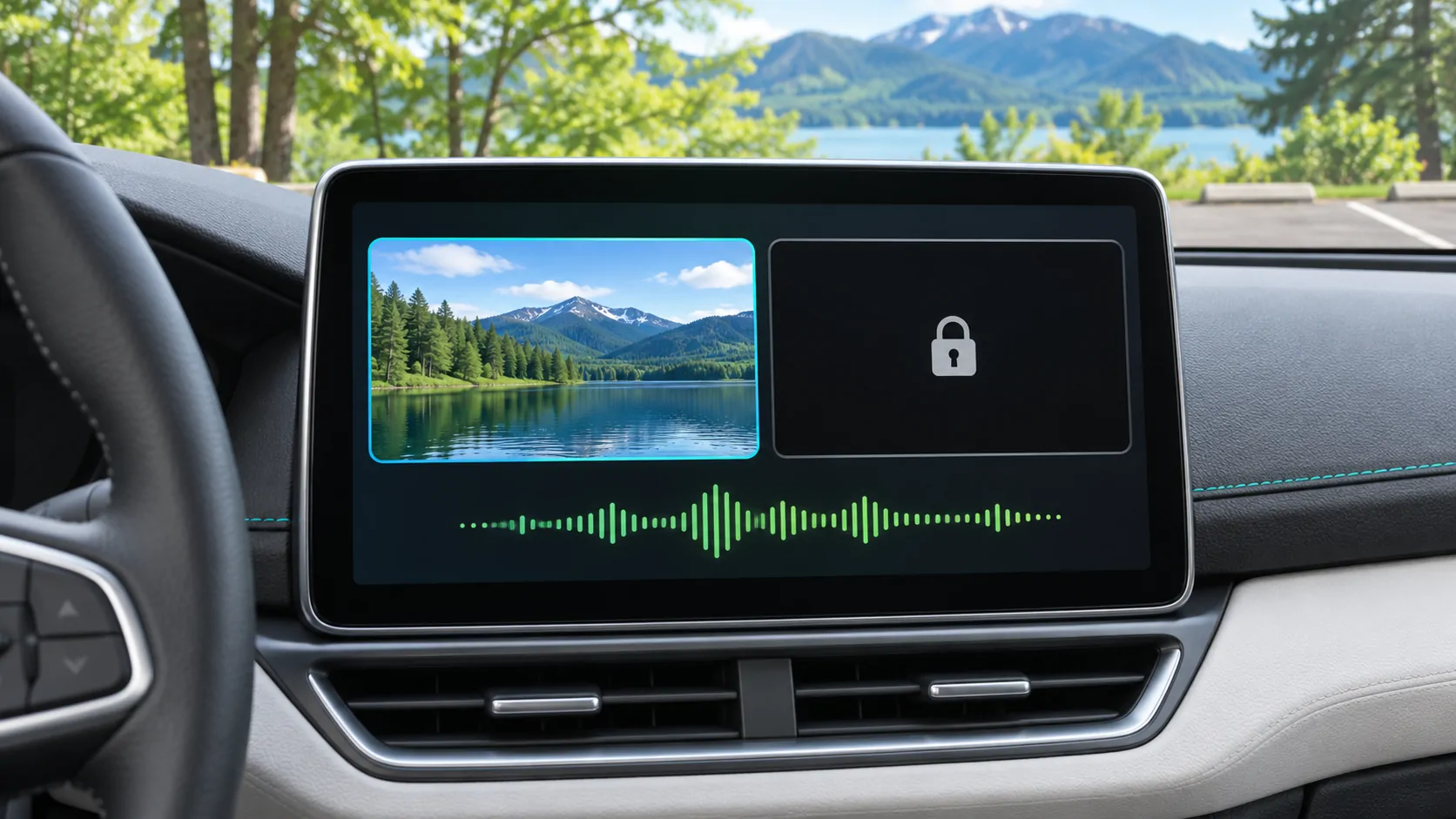
A service may allow playback on the phone but restrict a particular external display or capture route. The interface can appear while the protected video area remains black. That is different from the entire receiver display failing.
Account state, subscription terms, DRM and app support can all matter. Do not promise YouTube, Netflix or any other service merely because a personal test file works.
Use protected-video diagnosis when only the video area is black. Do not attempt to bypass DRM, vehicle motion controls or operating-system restrictions.
Prepare the parked session separately from driving
Complete setup before viewing, with the car safely parked in a suitable place. Follow vehicle instructions for the relevant power state and any parking conditions. Do not assume that being stopped briefly in traffic is equivalent to a permitted parked session.
Keep the screen and audio from creating a distraction when driving resumes. End playback through the supported controls and restore navigation or other appropriate tasks before moving.
A rear-seat screen may have different rules and capabilities from a driver-facing display. Verify that system independently instead of transferring a dashboard conclusion to every screen in the cabin.
Ask for evidence that matches your car
A useful compatibility answer names the vehicle or receiver, software, app version, output method and tested media type. A marketing claim such as works with CarPlay is too broad to establish every video function.
If evidence is missing, label the setup unverified and ask the manufacturer or developer a specific question. Do not interpret the absence of a test as proof of universal failure, and do not treat a successful demonstration in another car as proof of yours.
The practical answer is conditional but testable: use a supported parked-video route, verify each layer and respect content restrictions. That provides a more durable basis for choosing an app or planning a session than either an outdated blanket prohibition or an unrestricted playback promise.
Sources
Related reading
Bring your own media.
Explore CarCast for iPhone with your own authorized sources and supported display configurations.