Compatibility
Honda Display Audio: Checking CarPlay Connection Options
Find the right Honda owner and multimedia instructions before choosing a CarPlay USB port, testing wireless support or changing Display Audio settings.
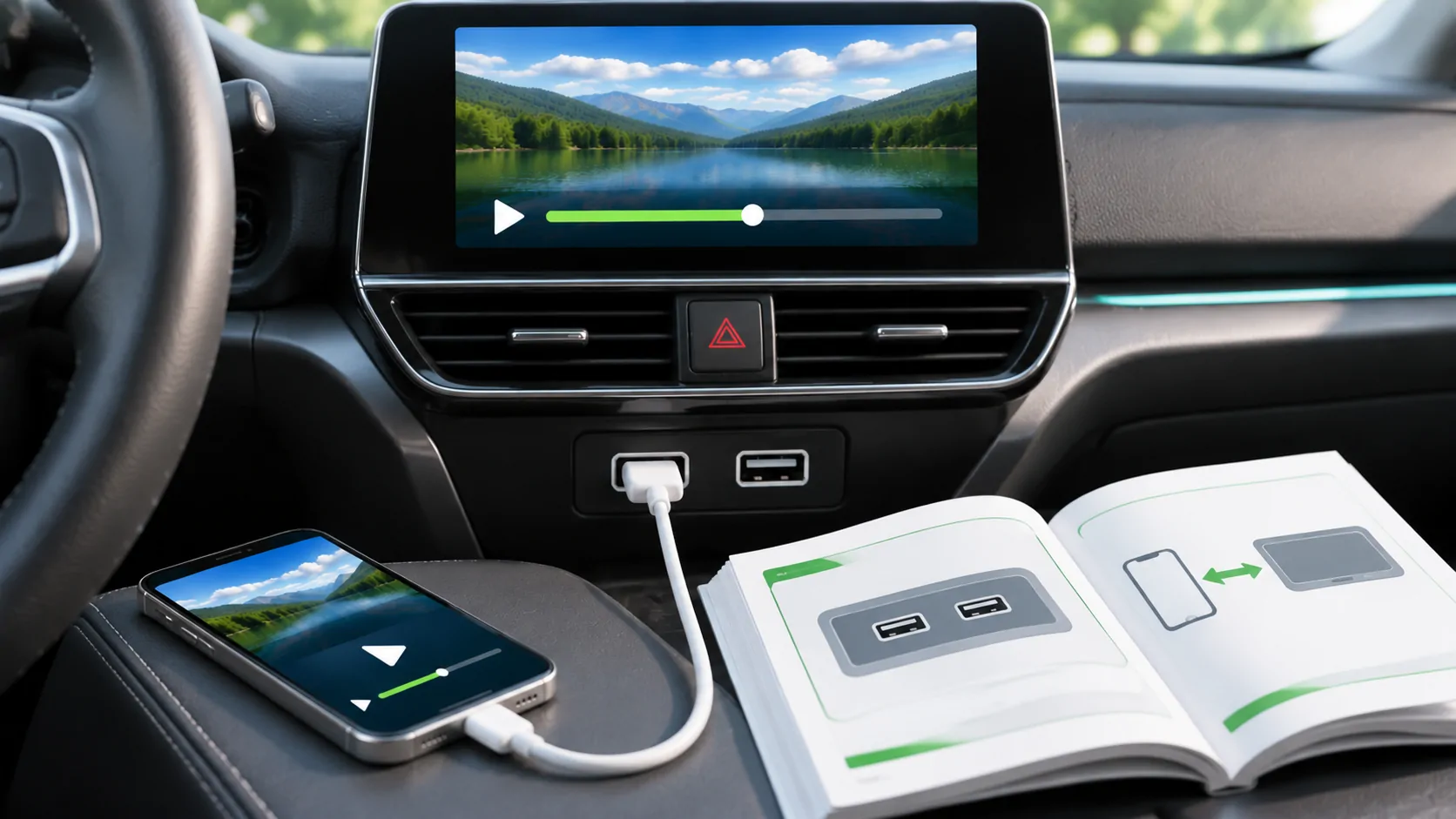
Match the Honda and its documentation first
To check CarPlay in a Honda, identify the model year, market and installed audio system before choosing a connection method. Display Audio is not enough information to establish every port or wireless feature. Use the instructions for the actual equipment in the car, especially when a model name spans several generations or an aftermarket receiver has replaced the original unit.
Honda UK's official manual library is organized by model and model year, with separate owner and navigation documents for relevant vehicles. That structure provides a useful starting point for UK owners. It is not proof that the same year or trim in another country has identical hardware or CarPlay capability.
Distinguish the owner manual from navigation material
Honda's library lists owner manuals and, for some models, navigation manuals or interactive instructions separately. Select the correct year before searching for Apple CarPlay, smartphone connection, USB or audio settings. A navigation document can describe the built-in map system without answering every smartphone connection question. Keep both references when your equipment has separate documentation.
For a used car, compare the manual's diagrams with the actual dashboard and system information. If the screen or controls differ, determine whether the wrong regional manual was selected or the receiver was changed. Do not continue with instructions for a look-alike display merely because both are called Display Audio. A precise system match is more valuable than a long list of generic pairing steps.
Identify the data-capable connection port
Find the port designated for smartphone integration in the applicable manual. Vehicles may have more than one USB connection, and a port that charges the phone does not automatically support the required data path. Note the location and marking rather than relying on which socket is easiest to reach. If a hub or extension is installed, remove that extra variable for the baseline test where appropriate.
Use a known working data cable compatible with the iPhone and supported receiver. Follow Apple's wired setup guidance as well as Honda's instructions. Record whether the phone only charges, whether a permission prompt appears and whether the CarPlay interface opens. Those are separate observations and help distinguish power, data and authorization problems.
Verify wireless support instead of inferring it
Bluetooth calling or wireless audio does not prove native wireless CarPlay. Check the exact manual and equipment specification for the supported projection connection. A car that supports only a wired route should not be described as defective because wireless pairing does not produce CarPlay. Likewise, a feature shown on a newer trim is not evidence for an older or differently equipped vehicle.
If native wireless is documented, use its specified pairing controls and confirm the intended phone is selected. If an adapter converts wired CarPlay, record it as a separate device with its own compatibility requirements. Wireless adapters versus native wireless explains why that arrangement adds another support and firmware layer rather than changing Honda's factory specification.
Review saved devices and permissions
Check the receiver's saved-phone list and relevant smartphone integration settings. Distinguish deleting a Bluetooth pairing from removing a CarPlay association when the interface provides separate controls. Use Honda's documented process for the actual system. On the phone, follow Apple's guidance for permissions and restrictions rather than granting unrelated access in an attempt to make every icon appear.
With several household phones, test which one connects after startup and how to switch while parked. A passenger's phone becoming active can look like a failure when the receiver is simply following its selection rules. Record the supported switching method before resetting everything. For rental or shared use, also learn how to remove your phone and personal information when the session ends.
Diagnose the observed failure narrowly
If no interface appears over a documented wired route, compare the designated port and a known good cable before changing unrelated settings. If CarPlay appears but one app fails, examine that app on the iPhone and check its current release. If calls work but music does not, record the audio source and routing rather than labeling the whole system disconnected.
Apple's troubleshooting guide provides documented phone-side checks, including reconnection and relevant settings. Pair it with Honda's receiver instructions. Record iOS, app and vehicle software versions before updates. Do not treat an available native navigation update as proof that it changes CarPlay or adds wireless support; the applicable release notes need to establish that connection.
Keep media capabilities independent
Successful Honda CarPlay navigation or audio does not establish dashboard video support. Apple currently describes video in supported cars when parked, but that category is not a blanket capability for all Display Audio systems. A local video playing on the iPhone proves only the phone playback path. App approval, receiver support and content rights remain separate requirements.
Before evaluating a media application, obtain current vehicle-specific guidance and identify the exact display route. Perform supported video checks only while safely parked and do not bypass motion restrictions. The same caution applies to aftermarket boxes: their independent operating system or mirroring claim should not be presented as a standard Honda CarPlay capability.
Prepare a focused Honda support request
Provide model year, market, audio system identification, installed software, iPhone model, iOS version, cable or adapter and the exact port used. State the steps and observed result. Reference the manual section you followed and whether the diagram matches your equipment. Keep VINs and account credentials out of public messages; share identifiers only through appropriate official channels when required.
Use the compatibility checklist to keep the record together. A useful conclusion is documented wired support, documented wireless support or a specific unresolved equipment question. That gives Honda or the receiver manufacturer something concrete to investigate without assuming every Display Audio installation has the same features or that a general software reset will add an unsupported capability.
Sources
Related reading
Bring your own media.
Explore CarCast for iPhone with your own authorized sources and supported display configurations.