Compatibility
CarPlay and Bluetooth Audio Compared
Compare CarPlay with ordinary Bluetooth audio for navigation, calls, music, controls, charging, privacy and reliable fallback use.
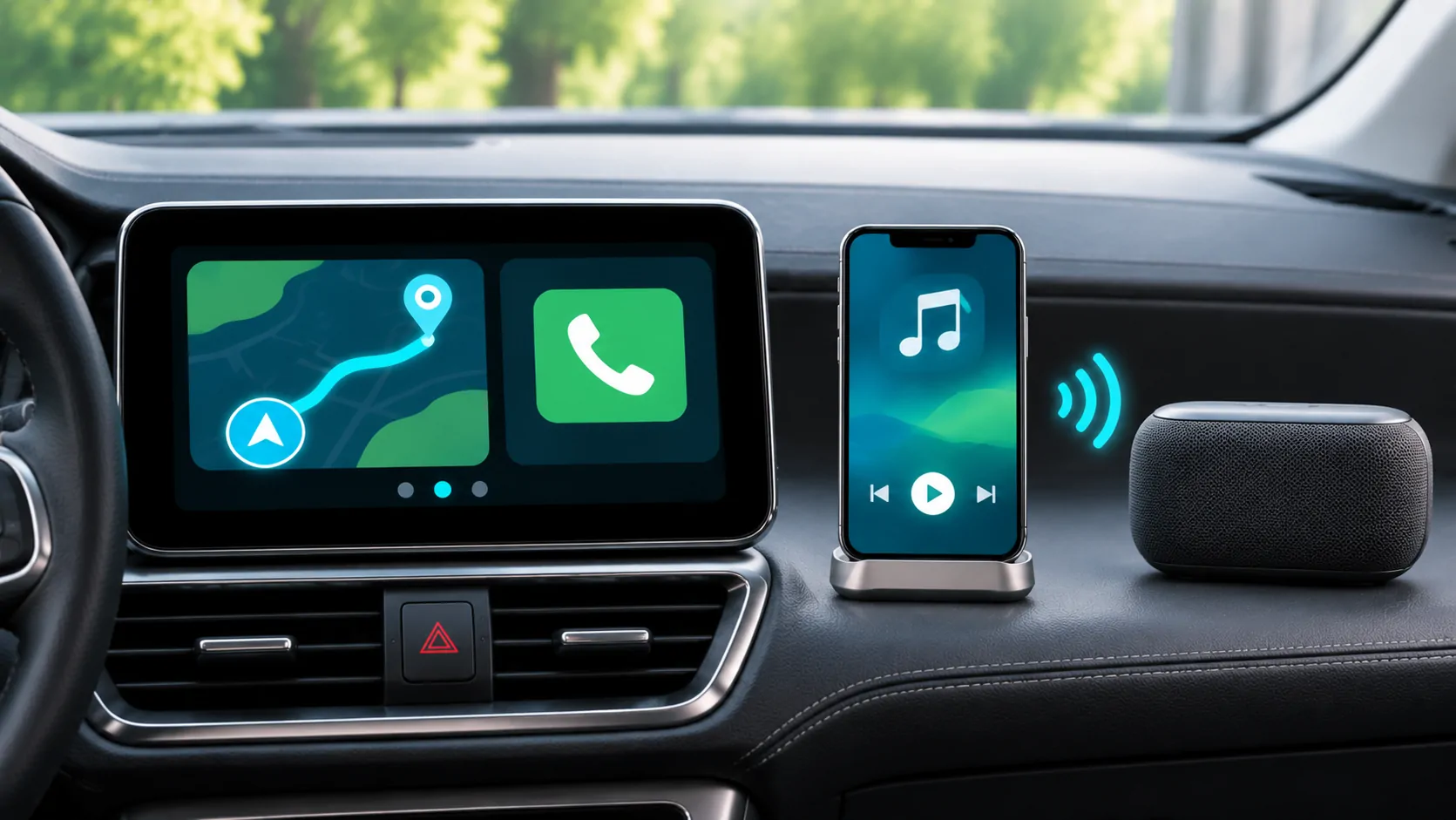
Choose the interface your task needs
Bluetooth audio can be enough when you want to hear a phone's supported audio through the car and use the vehicle's available call or media controls. CarPlay adds a supported iPhone interface on a compatible vehicle display, with navigation and other approved app categories. The best choice depends on the interaction you need, rather than a universal claim that one connection always sounds better.
Treat ordinary Bluetooth audio and wireless CarPlay as different experiences. Wireless CarPlay can involve Bluetooth during setup, but it is not simply the vehicle's standard Bluetooth music mode with a different name. Follow Apple's connection instructions and the vehicle manual for the supported link, and identify which mode is actually active before diagnosing it.
Compare what appears on the display
In Bluetooth audio mode, the vehicle may show track information and basic media controls, depending on the phone, receiver and supported profiles. The phone's full navigation interface does not automatically appear because audio is paired. A vehicle can have its own native navigation screen alongside Bluetooth, but that is a separate system rather than a projected iPhone map.
CarPlay presents supported apps through a car-oriented interface. The available categories and controls are constrained by Apple's framework and the app's implementation. Apple's developer overview explains that scope. A phone app being installed does not guarantee it appears in CarPlay, and successful Bluetooth playback does not establish that the same app has a vehicle interface.
Decide how you will follow navigation
If you only need spoken directions, a properly configured audio route may meet your needs without a projected map. Verify how the phone's navigation instructions interact with music and calls in your vehicle. The receiver's behavior can vary, so a route that speaks through the phone speaker in one mode may need another supported setting to use the car speakers.
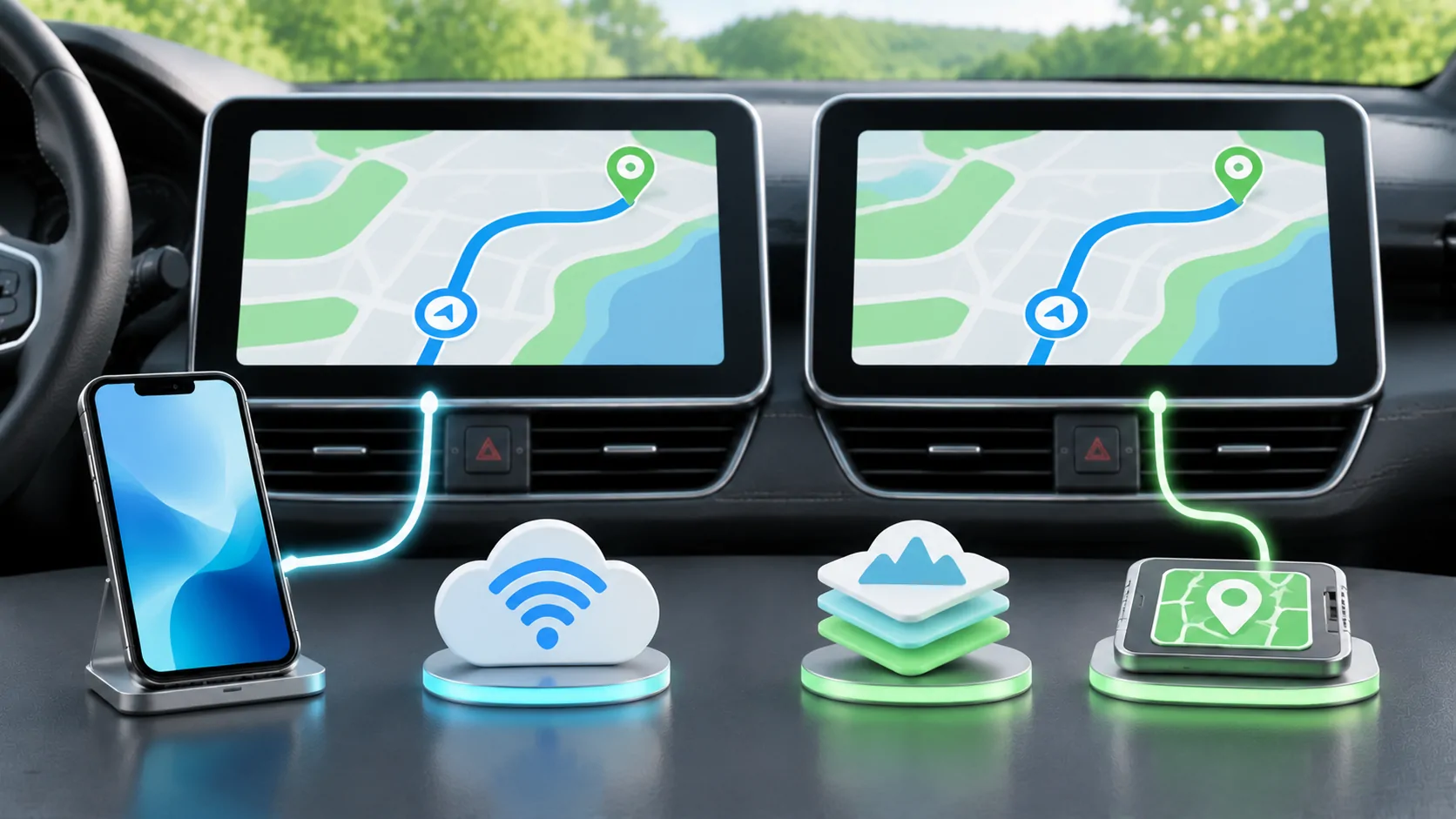
When you need a map on the vehicle display, a supported CarPlay navigation app can be more convenient than handling the phone. Check readability, route guidance and available controls while parked. Do not assume navigation information also appears in the instrument cluster or head-up display; that depends on the specific car and app. Compare the actual displays you use rather than a platform's maximum capability.
Evaluate call controls separately
Both arrangements can support calling in appropriate configurations, but microphone routing, contact synchronization, call controls and handoff behavior are vehicle-specific. Test a stationary call with the intended phone and account. Ask the other person about clarity and check that ending or transferring the call behaves as expected. A successful music session is not a complete call test.
Review what permissions the vehicle requests for contacts and messages. Grant the access needed for the intended workflow, then confirm what can be removed when pairing ends. In shared or rental vehicles, avoid treating a quick connection as consequence-free. Stored contacts and pairing records can outlive the trip unless you use the manufacturer's deletion process.
Compare audio with a fair setup
Audio quality depends on source material, codec path, receiver processing, speakers, volume settings and connection stability. Avoid declaring every wired connection superior to every wireless one without identifying those variables. A quieter source can sound worse simply because its playback level differs. Compare at safe listening levels and with consistent tone and sound-processing settings.
Use the same authorized track or spoken sample in each mode, noting any interruptions or delay. If the source service changes quality automatically, account for that behavior. The result describes your phone, receiver and source at that time, not all Bluetooth or CarPlay systems. For most daily decisions, reliable controls and uninterrupted playback can matter more than an unverified codec specification.
Check charging and battery use
Wired CarPlay normally uses a supported data connection that can also supply power, subject to the vehicle and cable. Bluetooth audio leaves charging as a separate question. Wireless CarPlay likewise does not remove the need to manage phone power during navigation or a long trip. Compare the complete arrangement, including a charging pad or additional cable if used.
Observe whether the phone becomes hot, loses charge or repeatedly disconnects while charging. These are conditions to document rather than reasons to assume an entire connection type is defective. Keep the phone in an appropriate location according to its temperature guidance. A charge-only cable may work for power but cannot establish the wired CarPlay data path, so label known working cables clearly.
Compare startup and reconnection
For frequent short journeys, reconnection behavior may determine which mode feels more dependable. Test starting the car, leaving briefly and returning, and switching between two authorized phones. Record whether the expected source starts and whether manual selection is needed. Vehicle priorities can differ between Bluetooth, native wireless CarPlay and an aftermarket adapter.
Do not solve a multi-phone selection problem by deleting every pairing before recording what happened. First identify the active phone and selected source. Then use the documented vehicle controls to adjust priority or reconnect. Wireless adapters and native wireless CarPlay describes another layer that can affect startup when a converter is installed between phone and receiver.
Keep troubleshooting specific to the mode
If the CarPlay interface is missing, inspect CarPlay support, its designated data port or wireless setup, phone permissions and vehicle firmware. If Bluetooth audio is silent, check pairing, selected audio source and volume routing. A phone can remain paired for one function while another route fails. Describing both as connected can obscure the actual problem.
Apple's CarPlay troubleshooting guide is the starting point for the CarPlay path. Use the manufacturer's Bluetooth instructions for the native audio mode. Change one item at a time and preserve a known working baseline. Resetting the phone or entire infotainment system too early can erase useful settings without identifying whether the failure was a cable, source or pairing choice.
Do not infer video support from audio
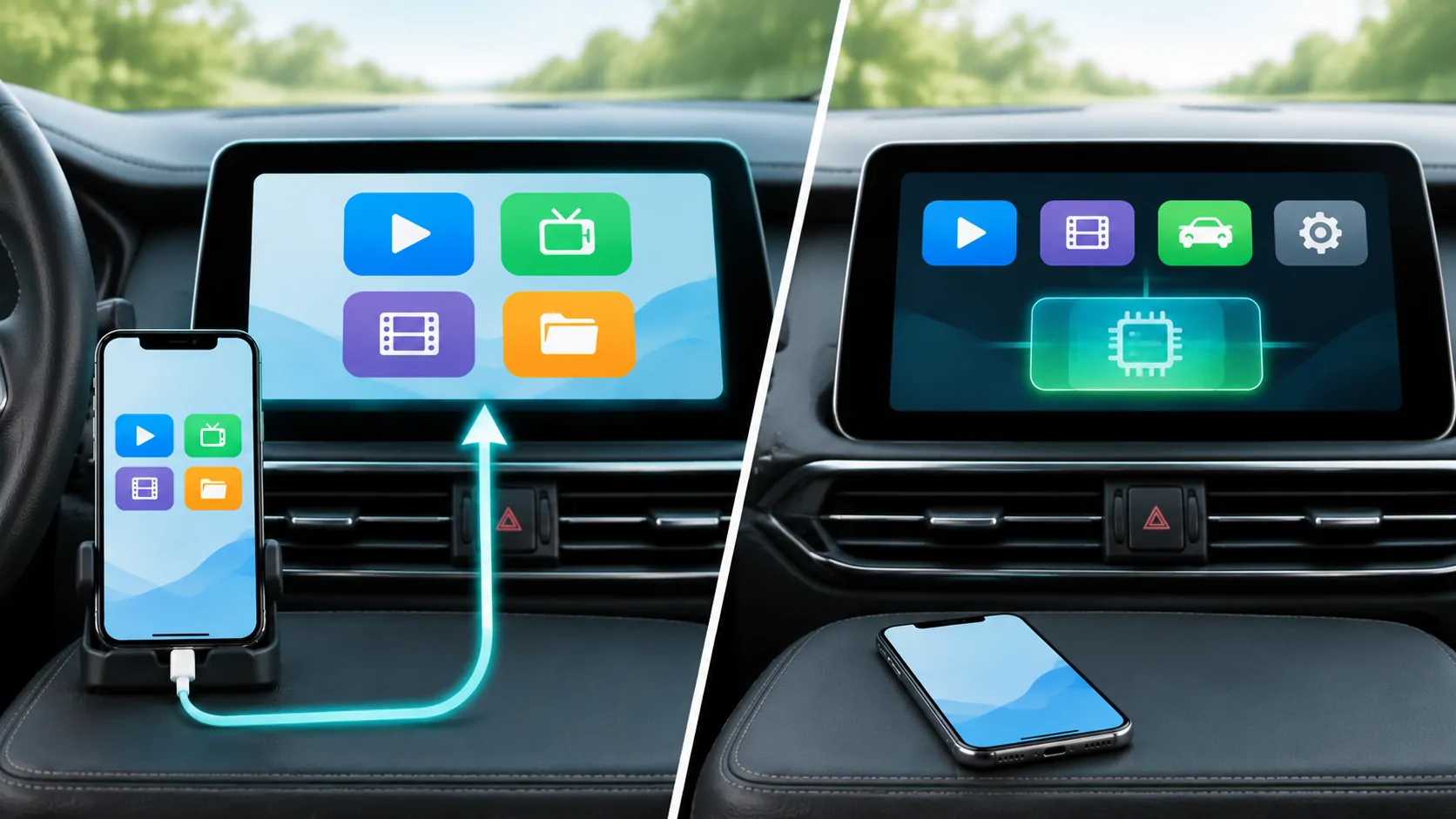
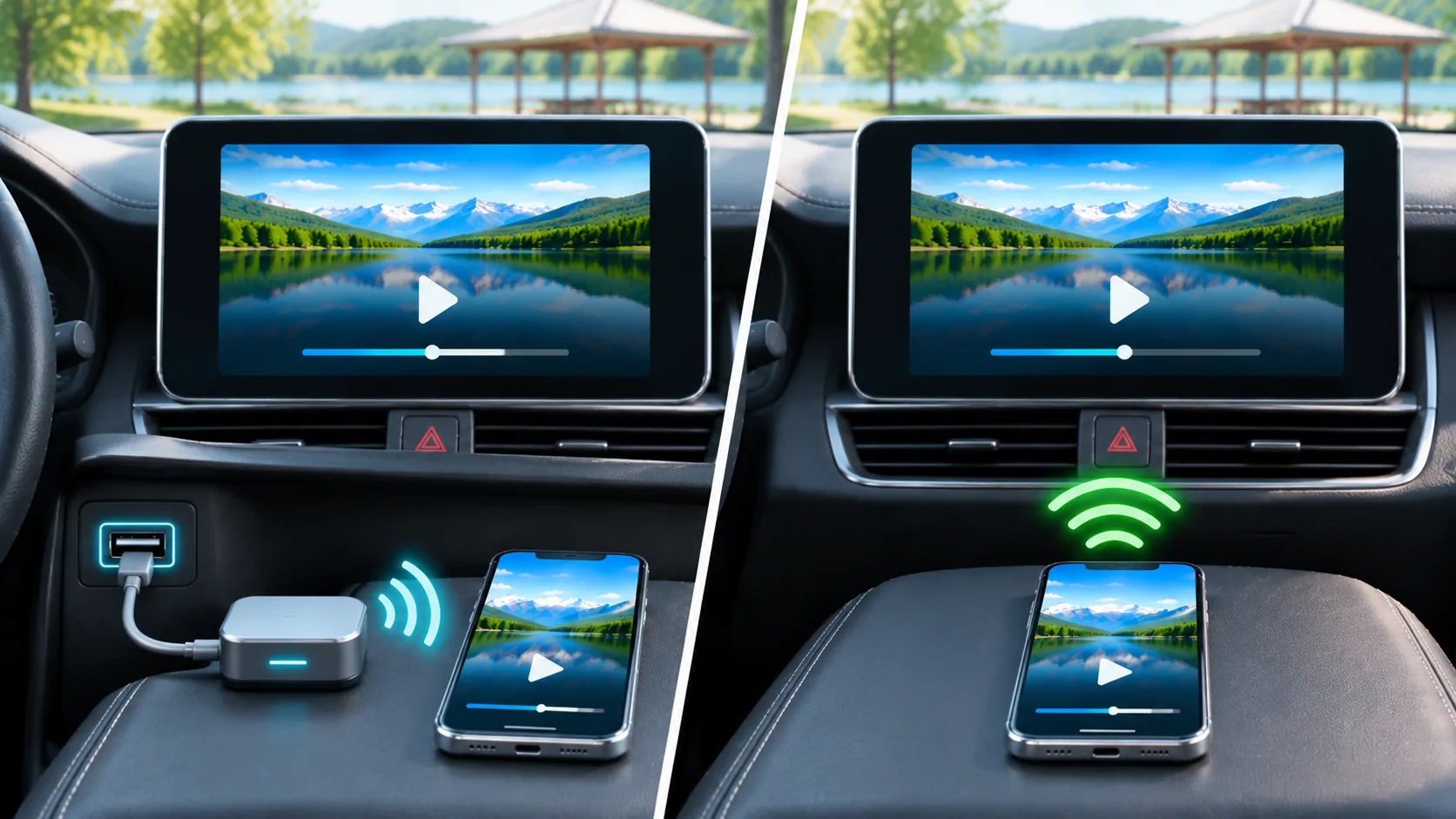
Neither hearing movie audio over Bluetooth nor seeing an ordinary CarPlay home screen proves that the vehicle supports dashboard video. Apple currently documents video apps in supported cars when parked, with separate automaker integration for AirPlay video. Those requirements go beyond an audio connection. Content protection and the source app can add further limits.
Keep any supported video use to safe parking and follow the vehicle's restrictions. Do not buy an adapter on the assumption that it turns Bluetooth audio into authorized video projection. If that is your intended task, use a separate compatibility check with the exact app, car, version and display route rather than extending an audio test result.
Maintain a practical fallback
CarPlay is a strong fit when you need a supported map and app controls on the car's display. Bluetooth audio can be a useful fallback when the receiver lacks CarPlay or when straightforward audio is the main requirement. Neither choice needs to be permanent: the same car may support both, with different setup and privacy considerations.
Prepare the fallback while stopped, including how to select its source and restore normal volume. Keep a working data cable available when appropriate, and know how to remove saved information after shared use. The useful comparison ends with a reliable routine for navigation, calls and audio on your actual vehicle, with clear limits on what the connection does and does not establish.
Sources
Related reading
Bring your own media.
Explore CarCast for iPhone with your own authorized sources and supported display configurations.