Guides
Wired vs Wireless CarPlay: What Changes in the Connection
Changing how the phone connects does not automatically change what the vehicle display supports.
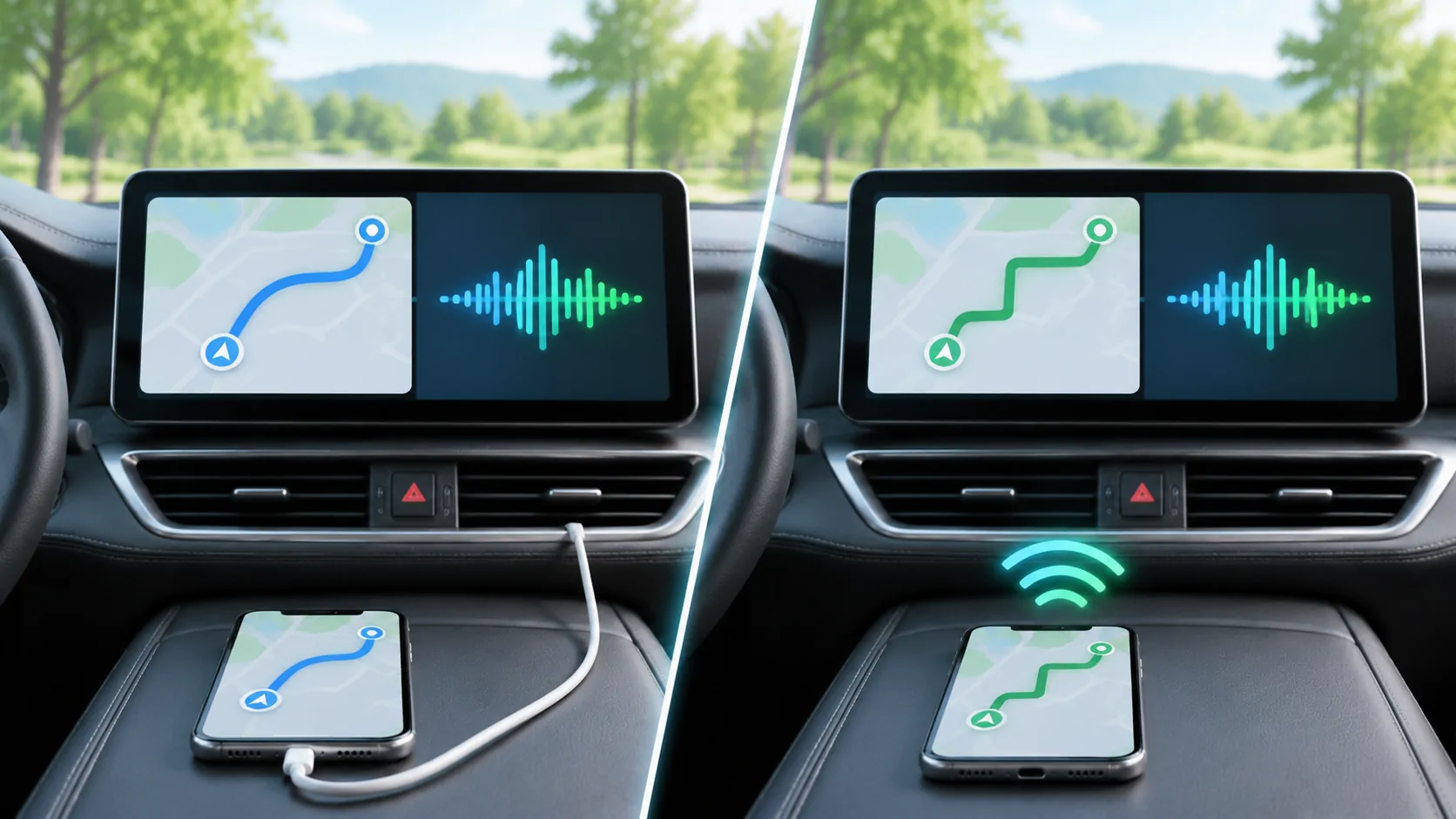
The vehicle determines the available connection
A vehicle can support CarPlay over USB, wirelessly, or through both methods. Apple's setup instructions describe these as different cases and direct owners to the vehicle manual for the exact procedure. Wireless support is a property of a compatible vehicle or receiver setup; installing an iPhone media app does not add it to unsupported hardware.
Before buying an accessory or changing software, identify the head unit fitted to the car and check its manual. Two vehicles with similar dashboard designs may have different receivers, equipment packages or software requirements.
Wired setup uses the CarPlay USB connection
For a vehicle supporting wired CarPlay, connect the iPhone to the appropriate USB port using a suitable data cable. The vehicle may identify the port with a CarPlay or smartphone symbol. A charging port is not necessarily a data port supporting CarPlay, and a cable that charges successfully has not necessarily established a working data connection.
Start with the manufacturer's recommended port and a known working cable. If the iPhone uses a different connector from an older example in a guide, follow the current Apple and vehicle instructions for that phone and receiver. Do not force a connector or assume that every cable-and-adapter combination behaves identically.
Wireless setup uses the receiver's pairing process
Apple's guide describes starting wireless setup using supported vehicle controls and checking that Wi-Fi is enabled on the phone. Depending on the vehicle, the receiver must be in its wireless or Bluetooth setup mode. Some cars supporting both connection methods offer wireless setup after the first USB connection.
The exact menus, button presses and supported methods vary. Complete pairing while safely parked, and confirm that the displayed vehicle is the one you intend to use. A phone paired for ordinary Bluetooth calling has not necessarily completed CarPlay setup.
Connectivity does not define app capability
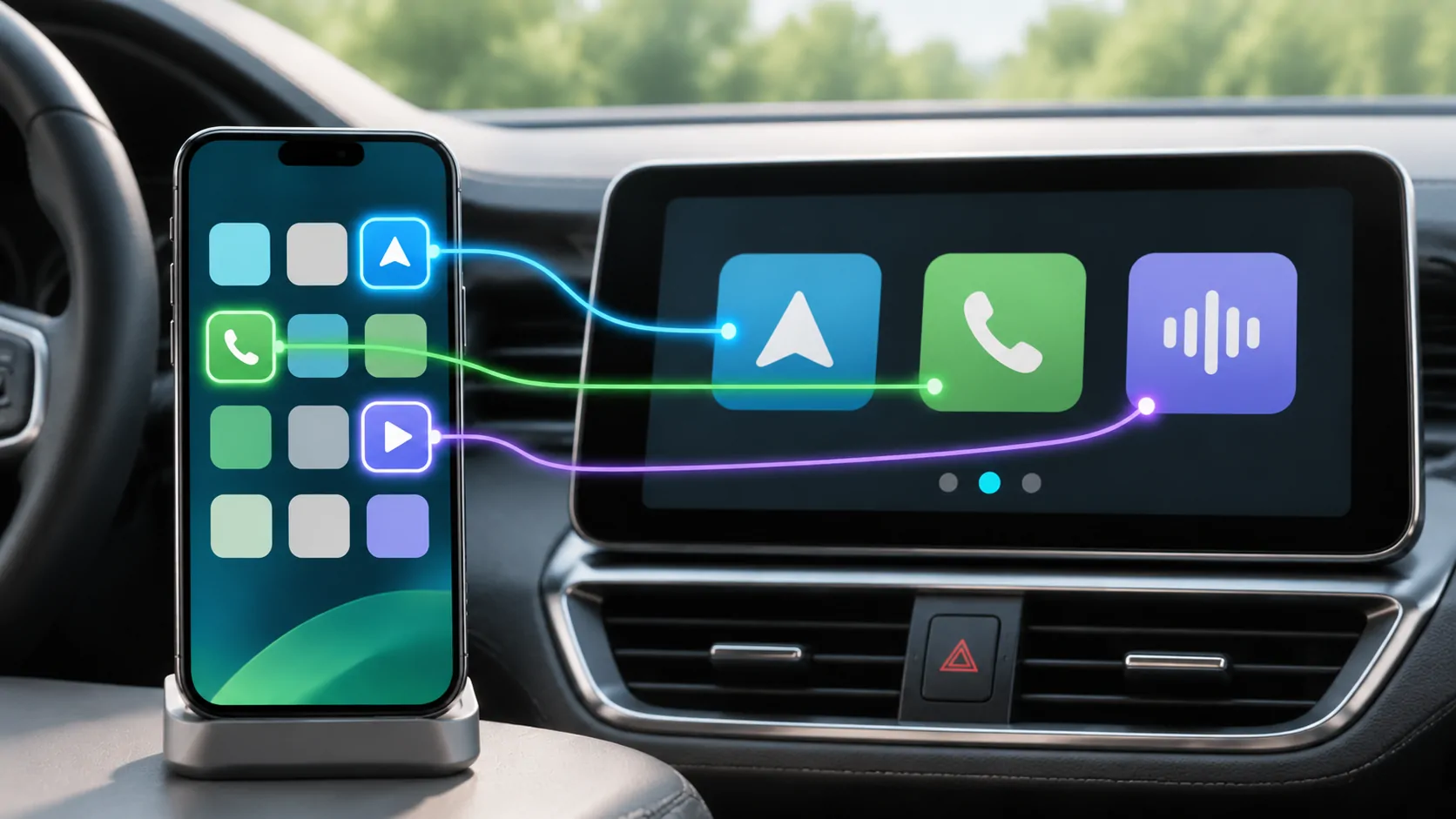
Once the basic connection works, supported CarPlay apps can appear through the vehicle interface. Switching from USB to wireless is not evidence that a different class of app, arbitrary web browsing or video output is available. Apple describes supported app experiences and additional vehicle capabilities separately on its CarPlay developer page.
For the same reason, a wireless adapter should be evaluated as hardware with its own compatibility and support requirements. This article does not recommend an adapter or claim that an accessory unlocks a vehicle's unsupported functions.
Test one layer at a time
Confirm the basic CarPlay connection with an existing supported function first. Then test the app and source you intend to use. Record whether a problem affects the whole connection, one app or one media item; that distinction helps avoid replacing hardware for a source-specific issue.
CarCast's compatibility guidance explains the separate limits of media and in-car display experiences. For connection problems, continue to support and the vehicle manufacturer's instructions. Any permitted in-car video use remains limited to supported conditions while parked, regardless of whether the phone is connected by cable or wirelessly.
Sources
Related reading
Bring your own media.
Explore CarCast for iPhone with your own authorized sources and supported display configurations.