Guides
Using the CarPlay Dashboard without Losing Your Route
Use CarPlay Dashboard to keep navigation and audio in view, distinguish view changes from task changes, and diagnose disappearing route information.
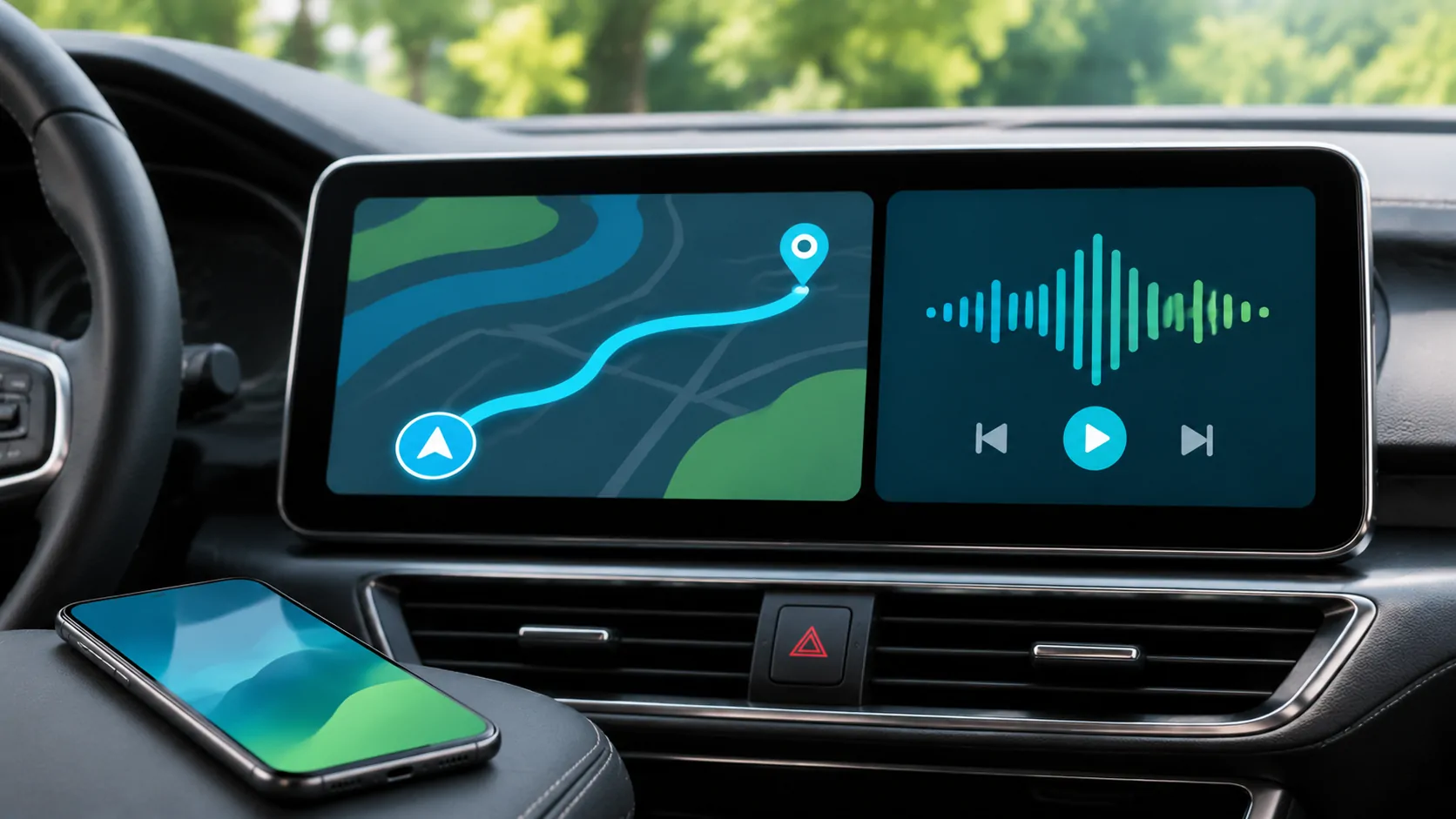
CarPlay Dashboard provides a combined view of supported navigation, audio controls and contextual information. Switching between Dashboard and a full app generally changes what is visible, but you should verify the active route or playback state rather than assuming the task stopped. The exact panels and controls depend on the vehicle display, software and app integrations.
Know the difference between Dashboard and Home
The CarPlay Home screen is the grid of available apps. Dashboard is a summary view intended to keep useful information together. A smaller map in Dashboard is not a second independent navigation session, and rearranging the app grid does not necessarily rearrange every Dashboard element.
Apple's CarPlay guide describes Dashboard as a place for Maps, audio controls and Siri Suggestions. That description establishes its purpose, but not a promise that every third-party app or every screen format presents identical information.
While parked, identify the control that switches between Home, Dashboard and the current app in your receiver. A touchscreen icon and a physical controller may reach the same view through different actions.
Start the important task before changing views
Plan the destination in the chosen navigation app, verify the address and begin the intended guidance. Then switch to Dashboard and check that the route is still represented. This sequence is clearer than opening several apps and trying to infer which one owns the current route.
For audio, select a known source and start playback before returning to Dashboard. Confirm the displayed title or source name. If a different source appears, investigate the active audio application rather than assuming the navigation task replaced it.
Do not start two navigation routes in different apps just to compare layouts during a journey. Decide which app should guide the trip while parked, and end the unwanted route if the app requires it.
Use full-screen views when detail matters
Dashboard is useful for a quick overview, but a junction, route choice or destination search may need the navigation app's full interface. Use the supported control to open the map, then return to Dashboard when appropriate.
The same principle applies to audio browsing. A compact playback panel may offer pause or skip without showing a complete library. Open the supported app for selection before departure instead of expecting every library control in the summary view.
This is a limitation of the view, not necessarily a malfunction. Apple's developer overview describes category-specific interfaces and supported integrations, rather than unrestricted duplication of an iPhone screen.
Interpret a missing map carefully
If the Dashboard map is absent, first open the navigation app directly. Check whether the route is still active and whether the app itself displays a position. If the full app has no route, the issue is different from a route that exists but is not represented in Dashboard.
If the route works in the full app but the summary information differs, check that app's current CarPlay support and the receiver's available display modes. Do not conclude that a missing compact panel proves a broken GPS receiver.
For an incorrect position or persistent route problem, continue with navigation planning and location checks. Record which view shows the error so the report distinguishes app data from Dashboard presentation.
Keep audio prompts and playback distinct
Navigation instructions can temporarily change the audio experience. A prompt may lower music, interrupt it or use a separately configured volume, depending on the system. That does not necessarily mean playback has stopped or the connection has failed.
While parked, test a known audio item and a navigation preview or supported prompt. Observe whether the audio resumes and whether the source remains selected. Adjust the receiver's relevant volume at the appropriate time rather than turning the music level up indiscriminately.
If the entire CarPlay interface closes, investigate the connection. If only audio is silent while the map remains responsive, investigate output routing or application settings first.
Treat suggestions as suggestions
Dashboard may surface contextual information such as a possible destination or supported accessory action. A suggestion is not confirmation that the destination is correct or that the action is appropriate for the current situation.
Inspect a suggested place before beginning navigation. Calendar information can be incomplete, outdated or associated with an online meeting rather than a physical destination. A familiar business name can still point to the wrong branch.
If suggestions expose information you would rather not show passengers, review the relevant phone and app settings. Do not assume that changing the app-grid order controls every contextual item visible on Dashboard.
Prepare the layout for the actual controls
A small display operated with a rotary controller can require a different interaction pattern from a large touchscreen. Learn how focus moves between panels, how to return to navigation and how to activate Siri while parked.
Use Home-screen organization to make important apps easy to find. Keep the layout reasonably stable so that returning from Dashboard does not require scanning several pages.
If a touch appears delayed, avoid tapping repeatedly. Wait to see which action was registered, then use the lag diagnostic to distinguish slow interface response from a map waiting for network data.
Verify recovery after an interruption
After a phone call, connection restart or app switch, inspect the active navigation and audio state. A task can resume differently depending on the app and interruption. Do not assume that the presence of a map proves the previous destination is still active.
If something repeatedly fails to resume, record the exact sequence: which app was active, which interruption occurred, which view appeared afterward and whether the route or playback actually stopped. This is more actionable than saying that multitasking is unreliable.
A useful Dashboard setup keeps the next navigation instruction and basic audio state understandable without demanding repeated interaction. It does not add unsupported apps, duplicate every phone function or remove the need to prepare complex tasks before driving.
Sources
Related reading
Bring your own media.
Explore CarCast for iPhone with your own authorized sources and supported display configurations.