Guides
CarPlay Lag: Separating Touch, Audio and Network Delay
Separate CarPlay touch lag, delayed audio, map loading and video latency so each symptom can be tested against the relevant connection or app.
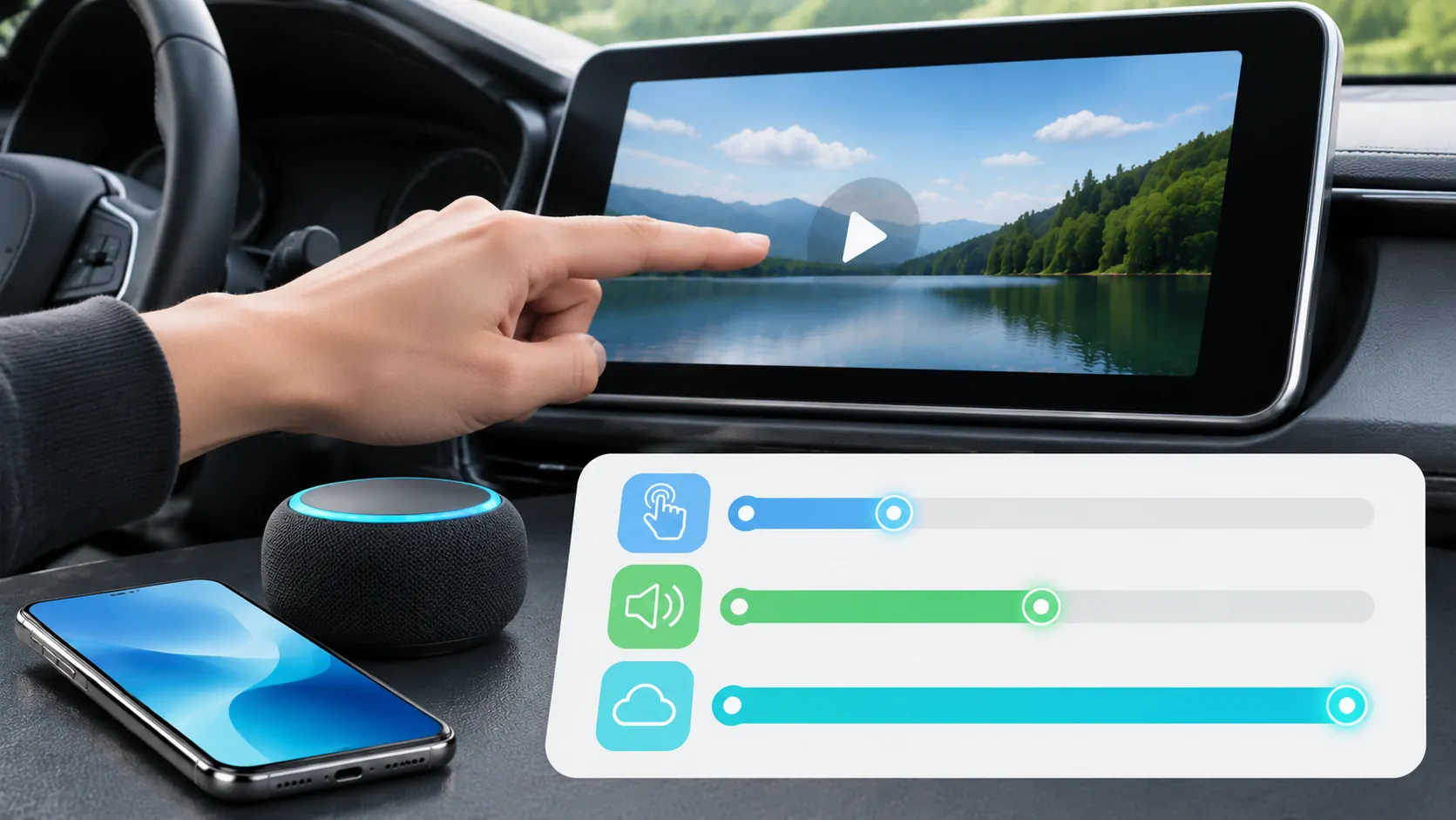
CarPlay lag can refer to slow touch response, delayed audio, a map waiting for data or a media picture arriving behind its sound. Identify the delayed action before changing settings. These symptoms involve different parts of the system, and switching from wireless to wired cannot be assumed to fix every one of them.
Describe the delay in observable terms
Choose a simple parked test and state what happens first and what follows. For example, a button highlights immediately but a stream starts later, or a volume change takes effect after a noticeable pause.
A delayed network response differs from a slow local interface. If the app acknowledges a tap promptly but waits for content, the transport to the receiver may not be the main bottleneck.
Avoid inventing a millisecond measurement from an impression. If you have not measured it with a suitable method, describe the delay as observed and compare repeatable actions under the same conditions.
Test basic interface response
While parked, switch between Home and a basic supported app. Observe whether controls respond without relying on a remote search or streaming source. Do not tap repeatedly while waiting; queued actions can make the interface appear to jump unpredictably.
If every local control is slow, note whether the receiver's native menus are also slow. A sluggish native system suggests a broader receiver state than one CarPlay app.
If only one app reacts slowly, check its account, content and current version. A shared phone connection does not make every app equally responsive.
Separate audio startup from audio routing
An online track taking time to begin can involve source availability, buffering or mobile data. Compare a known downloaded item in a supported app to reduce those variables.
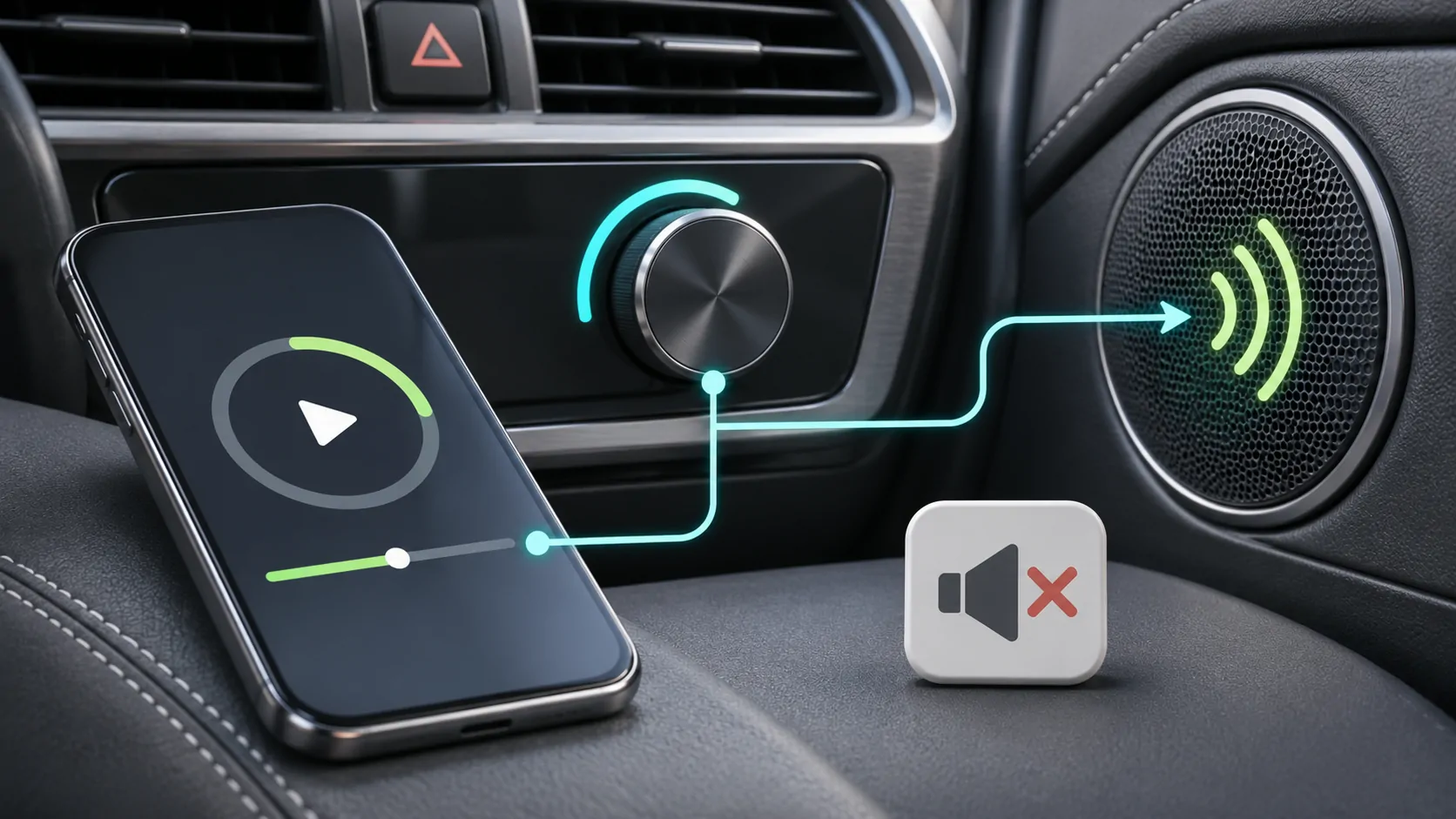
A volume or pause command taking effect late is a different symptom from a stream initially filling its buffer. Record whether the interface acknowledges the command before the sound changes.
If sound is absent rather than late, follow audio-output checks. Increasing volume does not correct a timing problem and can create a sudden loud result when playback finally starts.
Check navigation data and position independently
A map can respond to controls while online place search or traffic data loads slowly. Test a known saved destination and inspect whether the position marker updates. Do not call every delayed map tile a GPS failure.
If the position is wrong, inspect location access and signal conditions. If the position is correct but remote information arrives slowly, investigate connectivity and the navigation app's service.
Apple's CarPlay overview describes navigation and Dashboard functions, but it does not promise identical response times across apps, networks or receiver hardware.
Compare supported connection methods
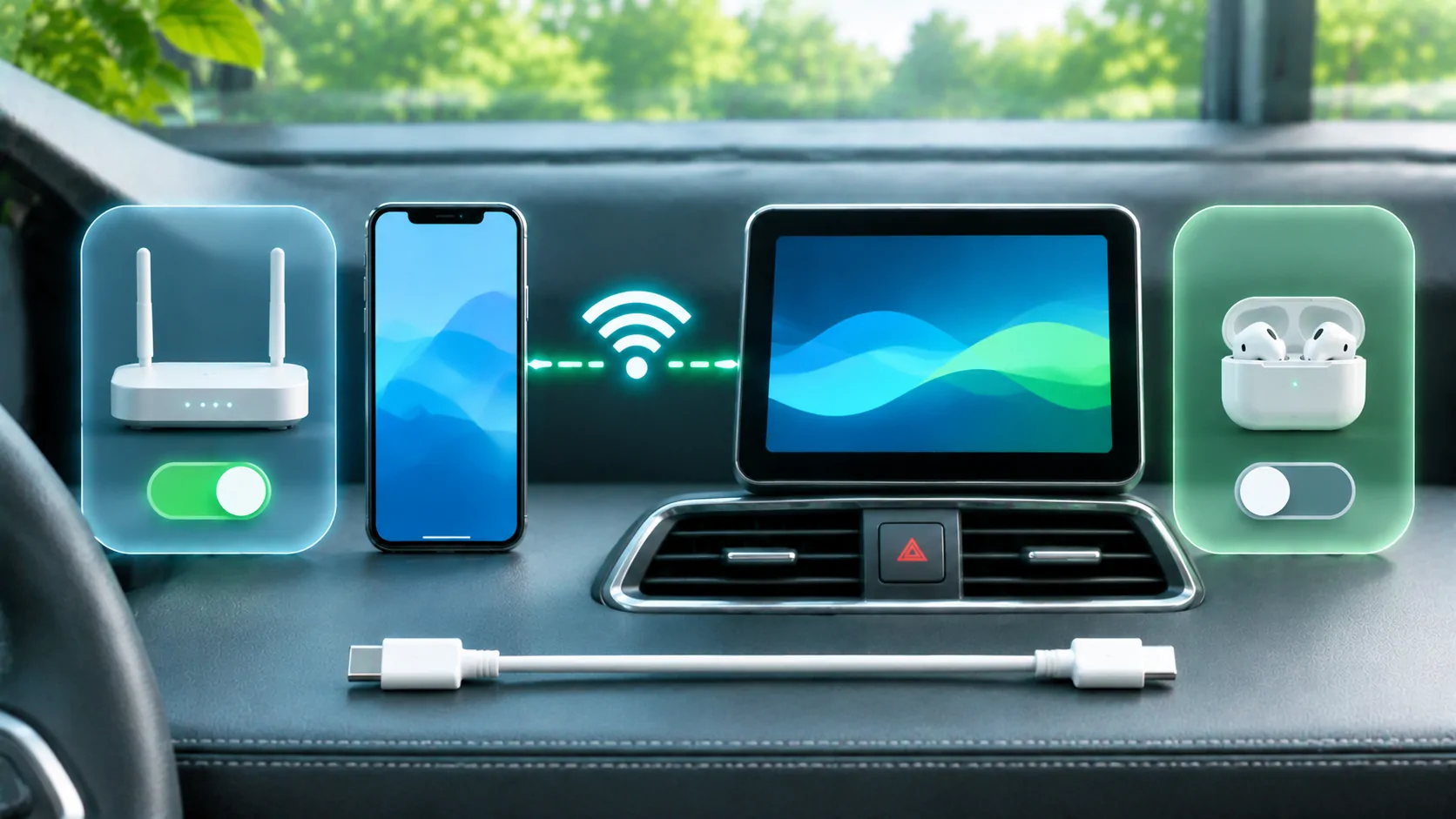
If the receiver supports both wired and wireless CarPlay, compare the same phone, app and test item through each. Use a suitable direct data cable and the documented port for the wired reference.
A difference between methods is useful evidence, but it does not prove a specific radio or USB defect. The receiver may use different processing or settings, and an app can behave differently after reconnecting.
For wireless use, keep Bluetooth and Wi-Fi enabled as Apple's troubleshooting guide instructs. Use the wireless diagnostic if the whole session becomes unstable rather than merely slow.
Look for resource and thermal clues cautiously
Record whether the phone or receiver is unusually warm, whether the issue begins immediately or after prolonged use, and whether a restart changes it. These are observations that can guide support, not proof of a particular thermal mechanism.
Keep the phone in a secure, ventilated location consistent with its manufacturer's guidance. Do not cool it with ice or expose it to condensation. Avoid running unnecessary demanding tasks during a controlled comparison.
If the problem appears only with a particular media source or complex app screen, preserve that detail. A simpler reference task can show that the basic interface remains responsive even when one workflow is slow.
Distinguish video latency from synchronization error
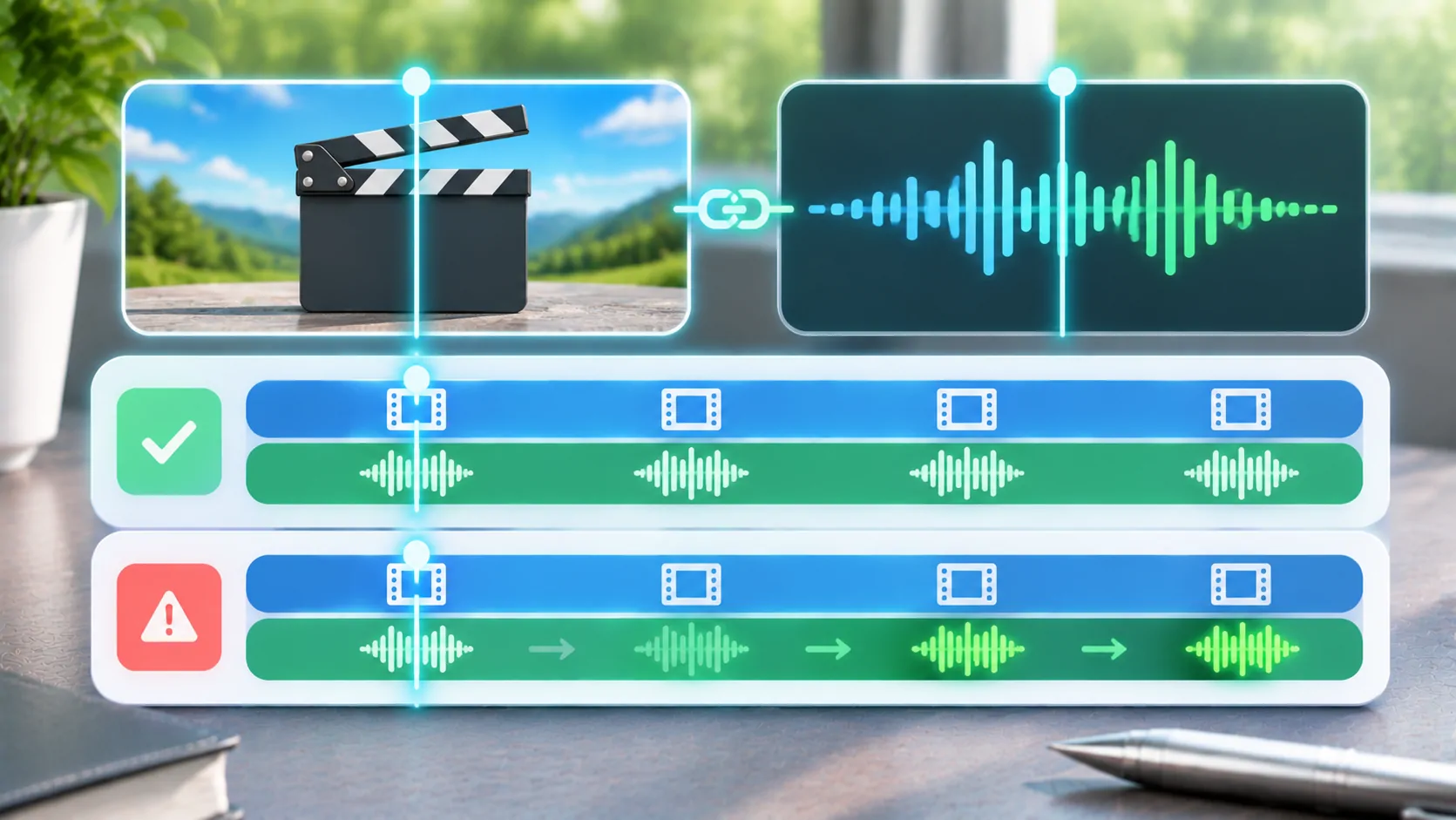
A mirrored screen can arrive later than an action on the phone, while audio and video remain aligned with each other. That is end-to-end latency. A person's lips moving before or after their voice is an audio/video synchronization problem.
The two require different tests. A source that buffers before starting may be slow to begin but perfectly synchronized afterward. A recording can contain an offset even when every control responds immediately.
Use audio/video synchronization diagnosis for personal media. Do not infer support for vehicle video merely because ordinary CarPlay audio and navigation work.
Collect a useful comparison record
Write down the phone, software, receiver, connection method, app and exact action. State whether the content was local or streamed and whether native receiver controls were also affected.
Repeat the same parked action after one documented change, such as a normal restart or an official update. Avoid changing several apps, radio settings and cables together; a better result would then be difficult to explain.
A short comparison table can be enough: action, conditions, observed delay and result after the change. Keep private media addresses and account details out of it.
If you record a demonstration, show the action and response in the same shot where practical. Separately recorded clips can introduce editing offsets that exaggerate or hide delay. A recording still needs context about the task and connection; it should not be presented as a calibrated benchmark unless the method supports that conclusion.
The practical aim is to identify the stage that waits. An accurate description of touch response, network loading, audio control or media synchronization leads to a more useful next step than treating every delay as one generic CarPlay performance fault.
Sources
Related reading
Bring your own media.
Explore CarCast for iPhone with your own authorized sources and supported display configurations.