IPTV & Media
Planning Offline Access to a Personal Media Library
Plan authorized offline access to a personal media library by checking client downloads, storage, codecs, subtitles and real airplane-mode playback.
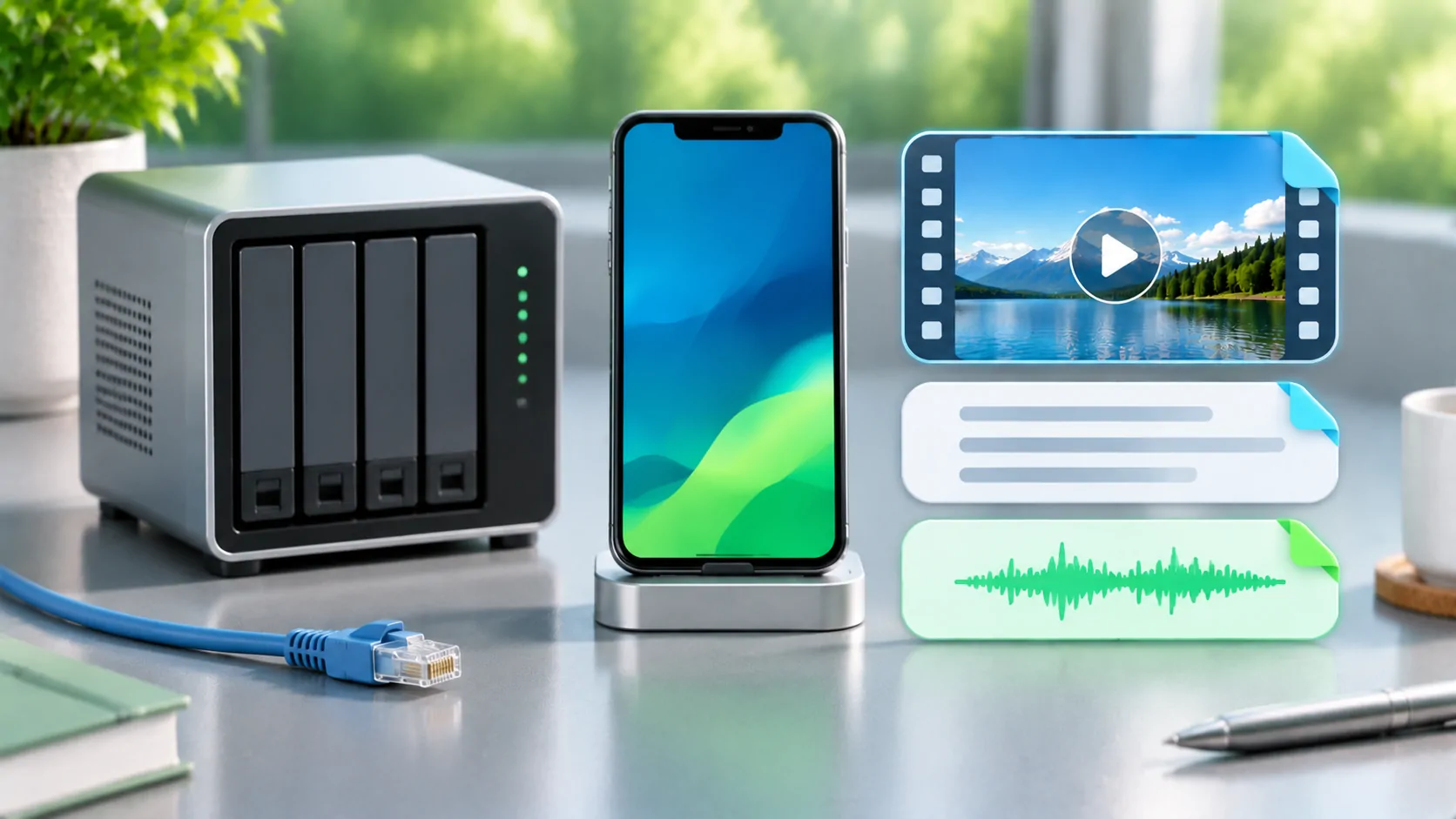
Confirm what offline means in your client
Offline access requires the actual media to be available on the playback device through a supported workflow. A visible library, poster image or recently played entry does not prove that the video is stored locally. Before a trip, identify whether the particular app and account support downloads, direct file import or another documented offline method.
Do not assume that a server feature automatically exists in every third-party client. Server permissions, subscriptions, platform rules and app versions can all affect availability. This guide provides a preparation process rather than claiming that any named CarPlay app has a download feature. When the client does not document offline access, use a supported local-media workflow for files you are entitled to copy.
Choose media you are allowed to store
Separate personal files and authorized downloads from streams that are licensed only for online playback. Ownership of a server does not grant permission to copy every source it can display. A protected service may restrict downloads to its own app, impose expiration or disallow an external screen. Preserve those restrictions when choosing your travel library.
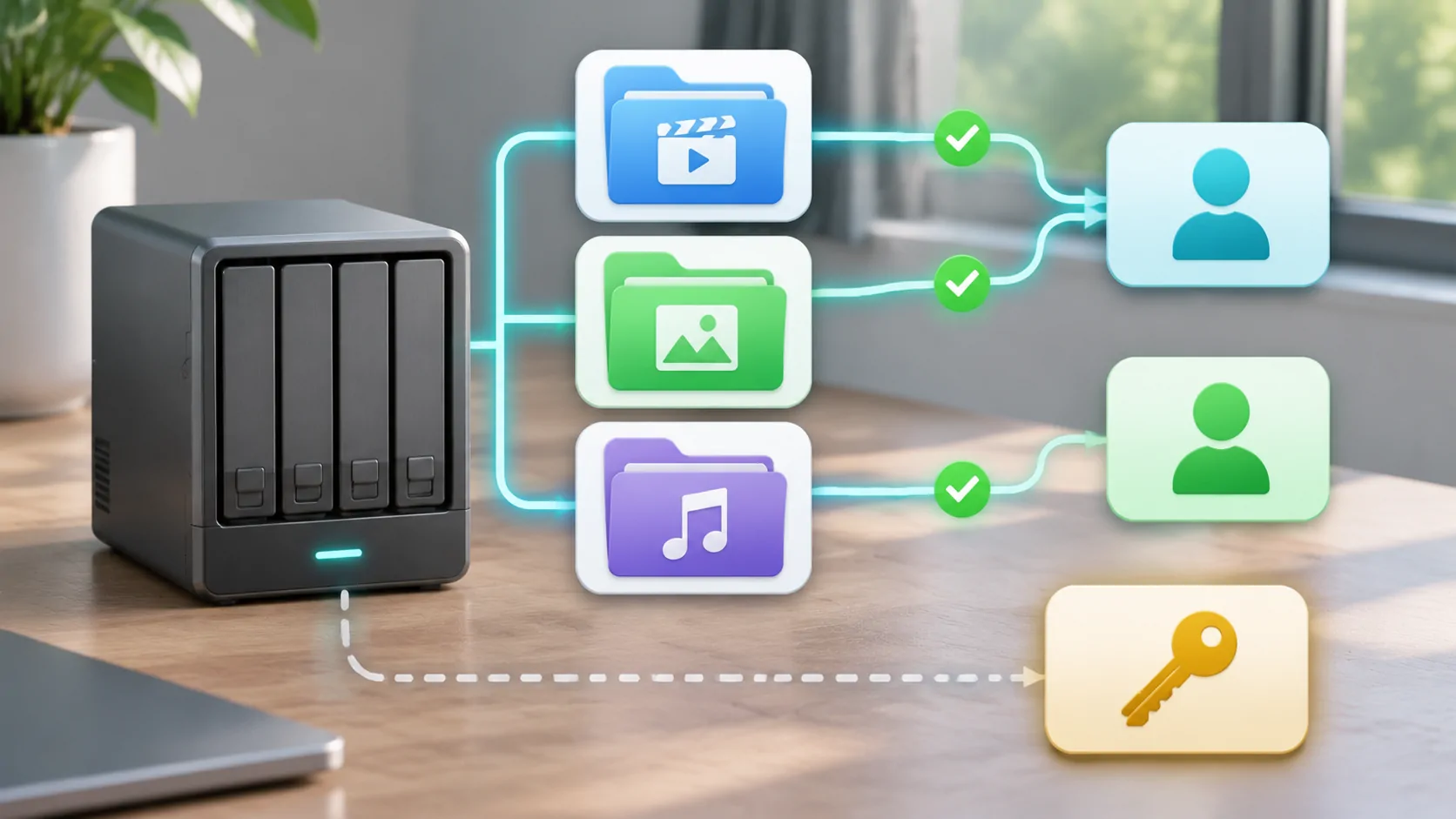
For household servers, review which account can see and download each library. Emby's user documentation is a useful example of why individual user settings matter. Check the current server and client's instructions for the exact permission; access to browsing or streaming is not necessarily permission to create an offline copy.
Calculate storage before selecting titles
Start with free space on the phone, then reserve capacity for the operating system, photos, navigation and other applications. Calculate the size of the copies you intend to store rather than using the original library total. A lower-bitrate authorized copy can be more practical than transferring a very large source that the screen cannot use fully.
For an estimate, a two-hour file averaging 4 Mbps of combined media payload is about 3.6 GB in decimal units. Containers and additional tracks add some space, while variable bitrate changes the exact result. Inspect the resulting file size or the client's download estimate before filling the device. Do not confuse gigabits used for transmission rates with gigabytes used for storage.
Select a compatible format in advance
A locally stored file can still fail because of codec, profile, audio or subtitle limitations. Check a representative title using the exact client that will be used offline. An MKV or MP4 extension alone is not enough information: each is a container that can hold different streams. A file that requires server conversion online may not work when the server is unreachable.
Jellyfin's transcoding documentation explains how client capabilities influence playback output. The practical offline consequence is to obtain a compatible copy before leaving, using only authorized tools and sources. Preserve an original and validate the prepared copy. Do not wait until a weak connection reveals that every selected title requires live conversion.
Test audio, subtitles and resume behavior
Open more than the first few seconds. Select the intended language, enable needed subtitles, seek to another scene and resume after closing the app. Text and image-based subtitles can behave differently, and tracks that work in one client may be absent from another. Include accessibility requirements in the selection process instead of treating them as optional finishing touches.
Check whether the download includes all required tracks or only the ones selected at preparation time. Some clients manage copies internally, while others read an imported file. Record which workflow you used so a missing track can be corrected at home. Avoid assuming a successful server stream means an offline copy has identical content or settings.
Perform a real disconnected playback check
After the transfer completes, disable the network connections needed to reach the server and start the downloaded title from its offline location. Verify that playback continues after seeking and reopening the app. Do this while stationary, and restore normal connectivity afterwards. A test that begins online can briefly succeed from a buffer without proving complete offline availability.
Also consider account validation and expiry. If the app or licensed source requires periodic authentication, confirm that the expected travel duration fits its documented rules. Do not manipulate device dates or bypass authorization checks. Reconnect before departure to refresh any legitimate entitlement that the client requires, then repeat a short disconnected check if the library has changed.
Plan the destination screen independently
The phone is the first playback destination to verify. A vehicle display can add a separate app category, entitlement, receiver capability and parked-state requirement. Ordinary CarPlay connectivity is not proof that a stored movie can appear on the dashboard. Use the compatibility checklist to record the exact phone, app, vehicle and connection route.
If no supported dashboard video route is established, plan an appropriate alternative screen for passengers or a safe parked stop. Never use an offline preparation workflow to bypass vehicle motion restrictions or a media service's protection. A good fallback is something already tested, not a cable, adapter or mirroring promise purchased on the way to the trip.
Maintain a small departure checklist
Before leaving, confirm free space, completed transfers, selected languages, offline start, expiration rules and charging arrangements. Keep a modest selection that is known to work instead of a large unverified queue. After watching, remove copies through the client so storage accounting remains accurate. Do not delete originals from the server merely to clear the phone.
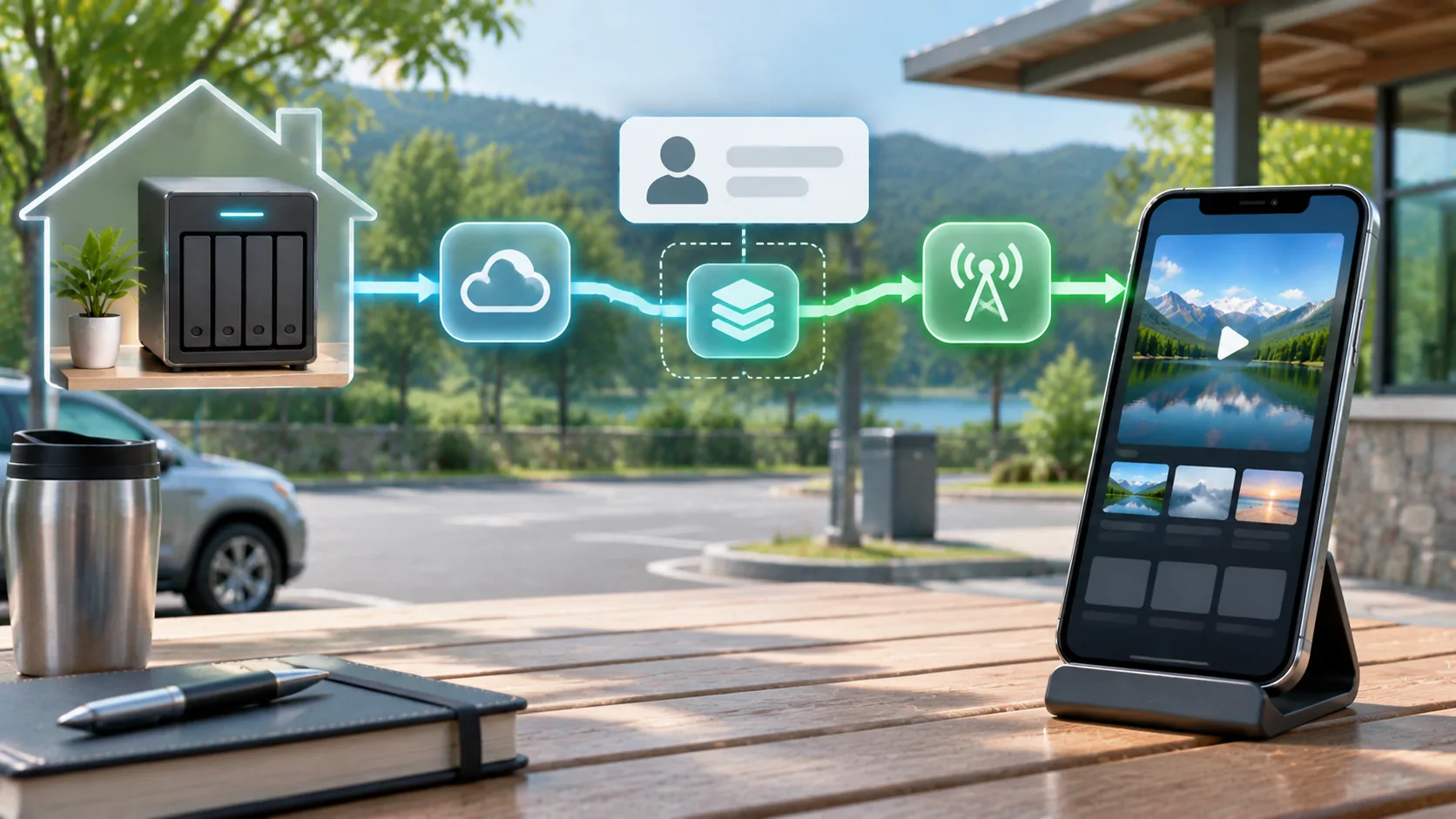
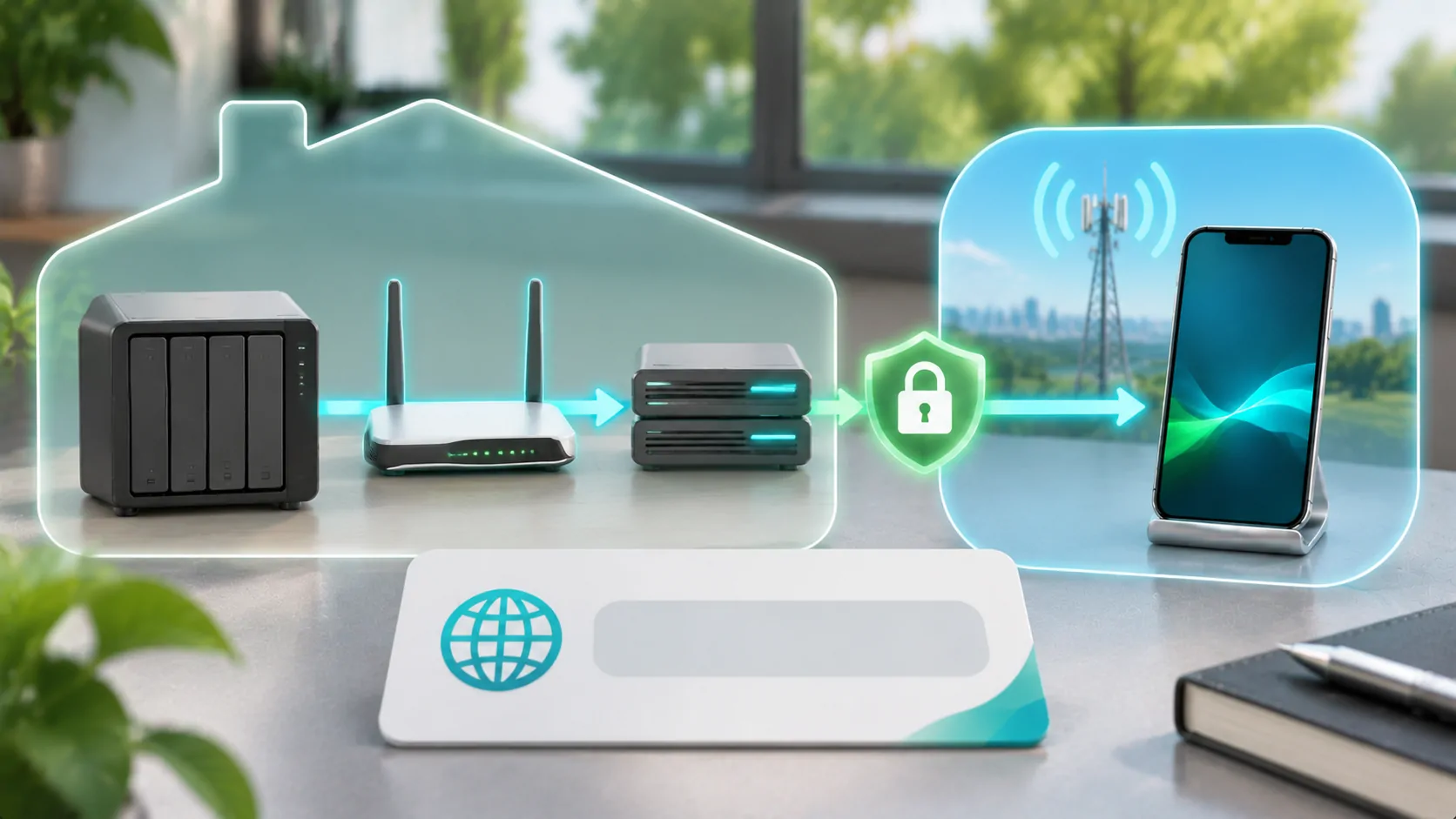
For remote access as a secondary option, prepare a conservative quality setting and check home upload capacity. Offline and online delivery solve different problems and can complement one another. The useful outcome is predictable access to lawful media under the actual travel conditions, with a verified fallback when the server, network or destination display is unavailable.
Sources
Related reading
Bring your own media.
Explore CarCast for iPhone with your own authorized sources and supported display configurations.