Guides
CarPlay Black Screen: A Diagnostic Guide
Diagnose a black CarPlay display by distinguishing an inactive source, frozen interface, receiver failure and a single protected-video problem.
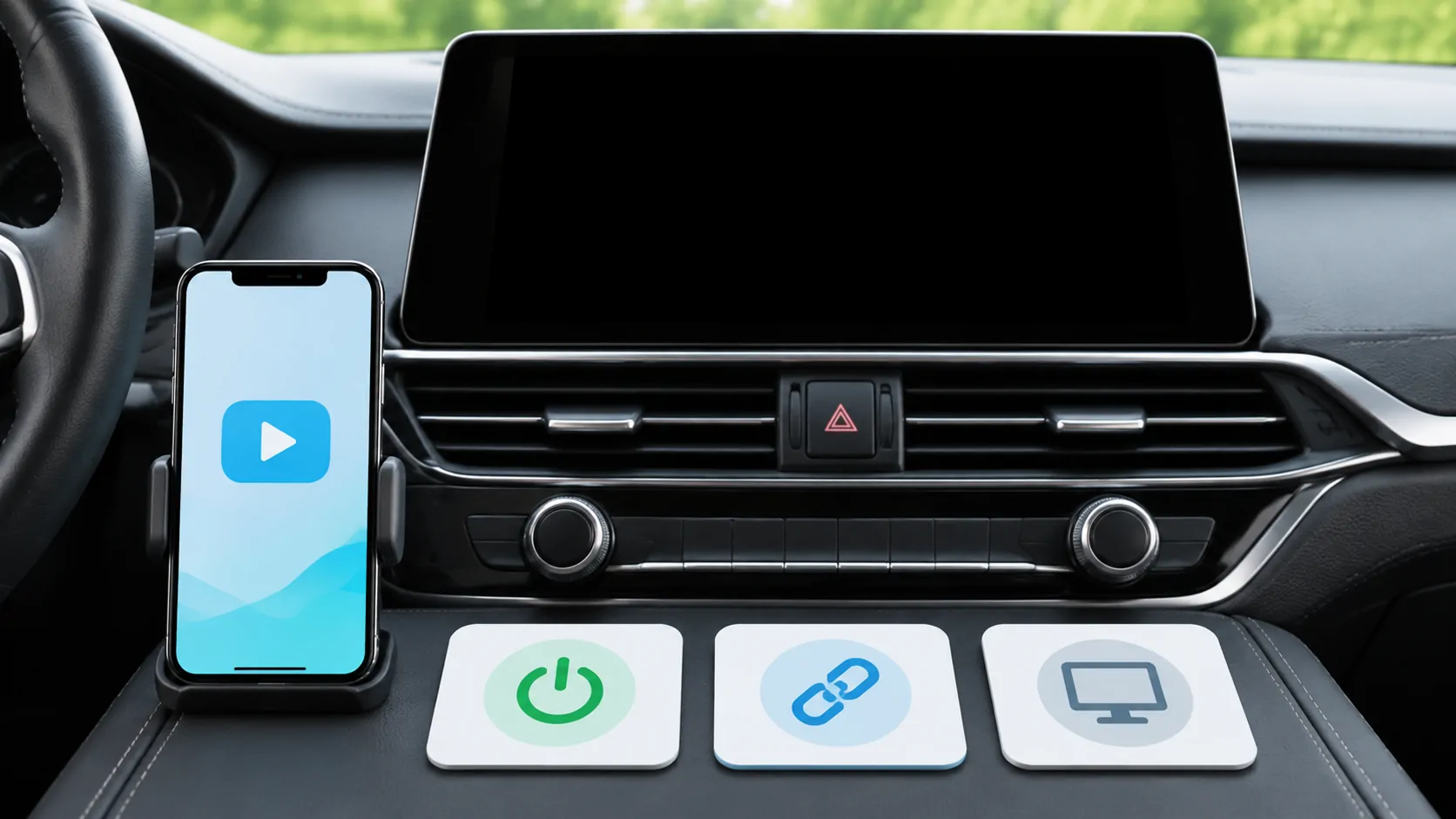
A black CarPlay screen can mean the receiver has not selected CarPlay, the interface has stalled, the connection has dropped, or a particular media item cannot display. Start by checking whether the vehicle's own menus still work and whether any CarPlay audio or controls remain active. Do not treat every black image as the same fault.
Identify which part of the display is black
A completely dark receiver, a visible CarPlay frame with empty content and a black video rectangle inside an otherwise working app are different observations. Record which one you see while safely parked.
If the vehicle's native menus are also unavailable, investigate the receiver's power, brightness and documented display settings. That is broader than a CarPlay app problem. Follow the owner's manual rather than disconnecting vehicle electrical components yourself.
If native menus work but CarPlay is absent, return to the smartphone integration controls and select the CarPlay source. Apple's troubleshooting guide explicitly recommends selecting the CarPlay logo if it does not activate automatically.
Check whether the connection actually completed
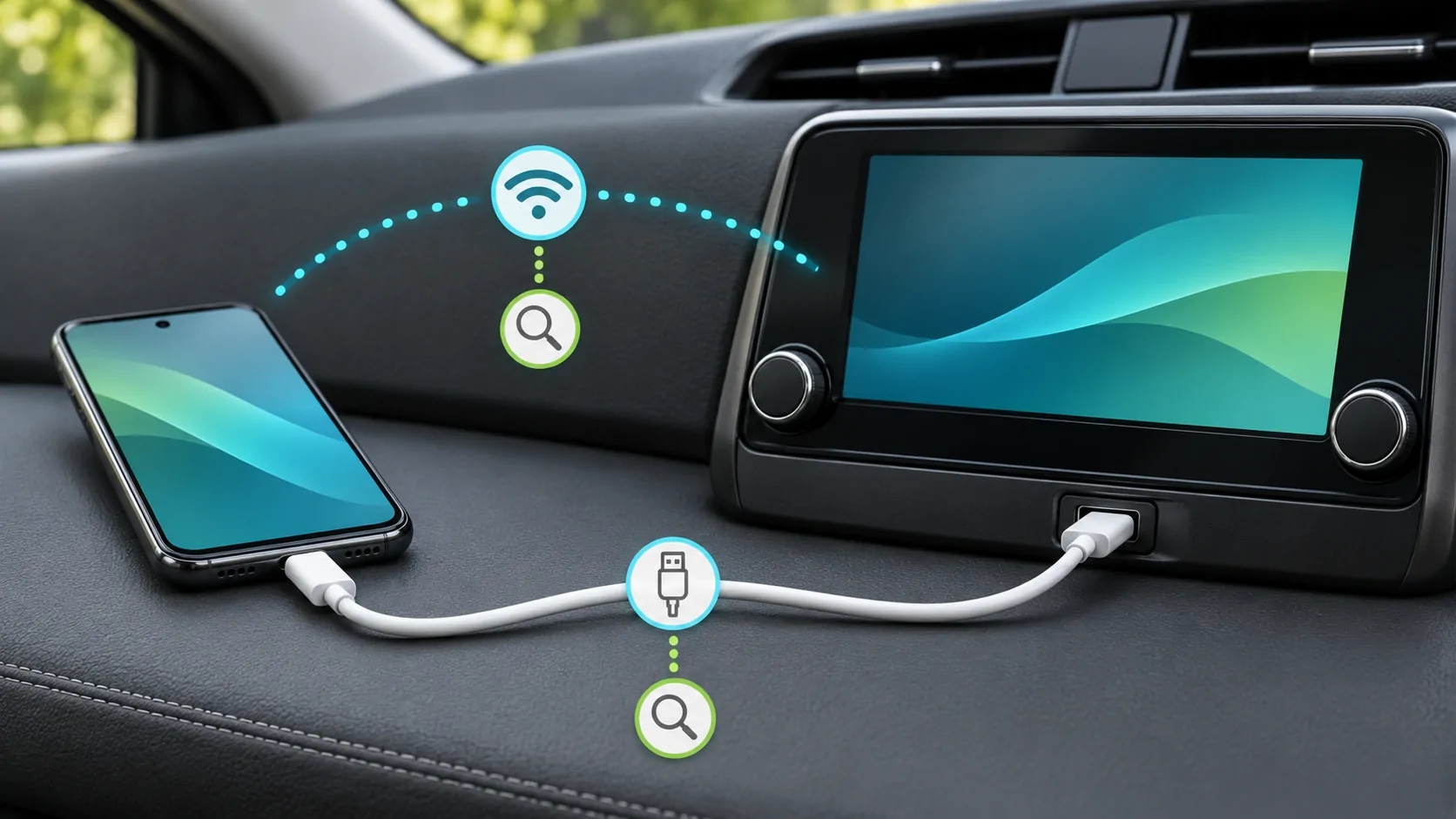
For a wired setup, verify the designated data port and a suitable cable. The phone charging does not establish that CarPlay completed its data connection. Compare a known working cable before changing several software settings.
For wireless use, confirm Bluetooth, Wi-Fi and the saved CarPlay network's Auto-Join setting. Check that the intended phone is selected; a receiver waiting for another saved device can leave the expected interface unavailable.
Apple's setup instructions describe different connection routes depending on vehicle support. Use the route documented for the installed receiver rather than assuming that every car starts wirelessly or uses the same pairing menu.
Test a basic supported task
If a partial CarPlay interface is visible, open a basic supported app such as navigation or audio. Check whether buttons respond and whether the app's ordinary interface appears. This helps distinguish a system-wide display problem from one app failing to render content.
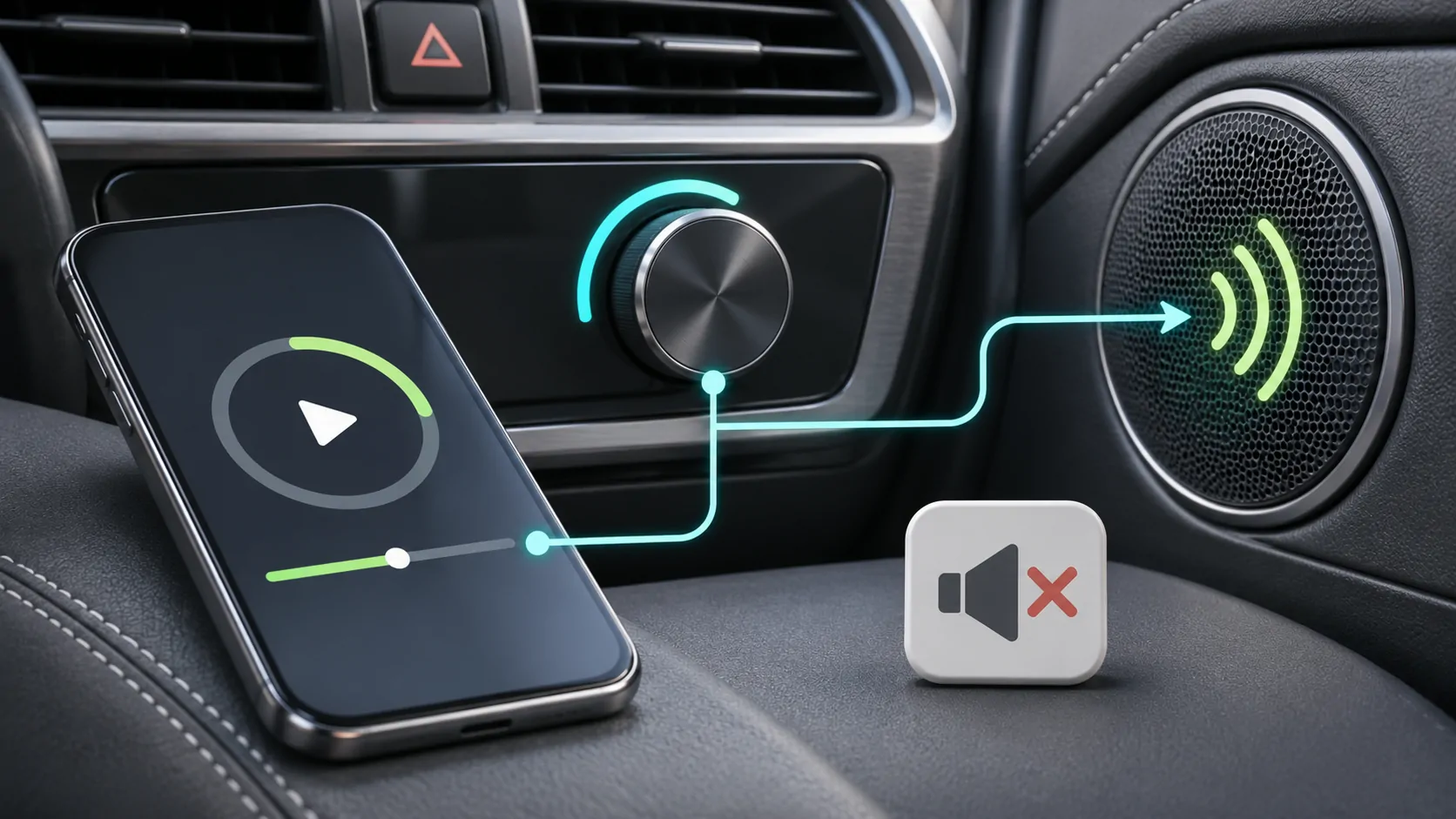
If audio continues but the whole interface is frozen, note that difference. A working audio path does not prove that display updates are healthy. Conversely, a visible responsive map with a silent music app is primarily an audio or source issue.
Do not begin the diagnosis with a streaming video service. Video support has separate conditions, and a protected black video frame can obscure whether ordinary CarPlay is functioning normally.
Compare app-specific and system-wide failures
If one app is black but others display correctly, close or restart that app through its documented process while parked. Check its account and current support information. A single-app failure does not justify declaring the receiver incompatible with all CarPlay functions.
If every CarPlay app is affected, focus on the shared connection, phone settings and receiver software. Record whether the problem occurs immediately or after a particular action such as answering a call.
For a black media rectangle inside an otherwise functioning interface, use protected-video diagnosis. Do not interpret that symptom as evidence that an unofficial workaround can enable unsupported playback.
Restart using the documented controls
Restart the iPhone and the vehicle multimedia system, then repeat the same basic connection test. Allow the receiver to complete its normal shutdown. Some systems retain power briefly after the vehicle is turned off, so follow the manual's procedure.
Avoid pulling fuses or disconnecting a vehicle battery as a general internet troubleshooting step. Those actions can affect other systems and may require manufacturer-specific precautions. A receiver fault belongs with the vehicle manufacturer or qualified installer.
If restarting restores the display temporarily, record how long it remains usable and what action precedes the next failure. Temporary recovery narrows the investigation but does not identify the root cause.
Review restrictions and software state
Apple recommends checking Siri, CarPlay restrictions in Screen Time, the saved car relationship and manufacturer firmware. Inspect these settings when the interface does not establish properly, especially after a phone migration or settings change.
Record the actual phone and receiver versions before updating. A phone update is separate from a vehicle firmware update, and neither should be described as a guaranteed fix. Use official release and support instructions.
If appropriate, forget the car and set up the relationship again. Keep a note of preferences first, and remove the corresponding receiver entry where the manual requires it. Re-pairing is more useful after basic source and cable checks than before them.
Avoid drawing video conclusions from ordinary connectivity
Apple's developer information describes video apps in supported cars when parked and separate automaker support for AirPlay video. An ordinary CarPlay connection does not establish that those capabilities are present.
A black picture from a protected streaming source can involve the source app, content protection or unsupported output. It is not evidence that changing a USB cable will bypass restrictions. Do not disable vehicle motion controls or attempt to defeat DRM.
For legitimate personal media, verify phone playback and documented display support separately. Keep that investigation distinct from a receiver that cannot show the ordinary CarPlay Home screen at all.
Prepare an actionable support report
Write down whether native vehicle menus worked, whether CarPlay audio continued, which apps were affected, the connection method and any visible error. Include the phone model, receiver identity and exact software versions.
A short parked reproduction sequence is valuable: connect, select CarPlay, open a named app, then observe the black area. A photograph can help if it does not expose personal information. Do not claim a vehicle was compatibility-tested based on one recovered screen.
Continue with disconnection checks if the interface repeatedly vanishes, or audio checks if the display works but sound does not. The correct next step follows the observed failing stage, rather than the colour of the screen alone.
Sources
Related reading
Bring your own media.
Explore CarCast for iPhone with your own authorized sources and supported display configurations.