Guides
Organizing the CarPlay Home Screen
Arrange supported CarPlay apps through iPhone settings, verify the next connection, and understand why customization cannot add unsupported apps.
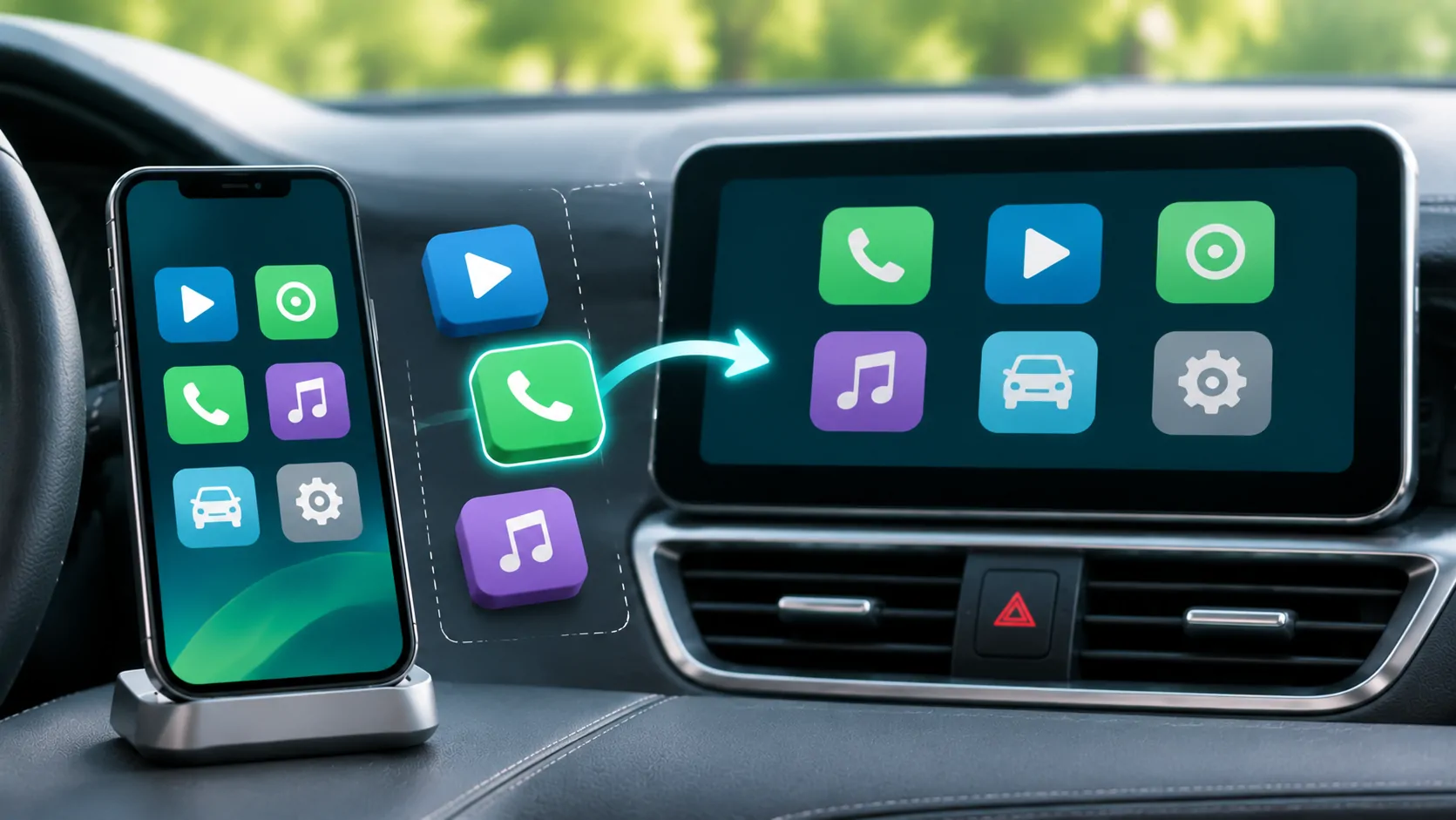
To organize the CarPlay app grid, open Settings, General, CarPlay on the iPhone, select the car and choose Customize. Add, remove or reorder the available apps, then reconnect and check the vehicle display. Customization changes the arrangement of supported apps; it does not turn an ordinary iPhone app into a CarPlay app.
Identify the correct car profile
CarPlay settings can contain more than one saved vehicle. Select the receiver you are about to use rather than another car with a similar name. A change to the wrong profile can make the next connection appear to ignore your preferences.
If you share a vehicle, remember that each person's phone has its own installed apps and settings. One driver's carefully arranged grid does not necessarily become the layout for another iPhone. Confirm the active phone before troubleshooting a supposedly missing change.
Apple's setup and use guide provides the Customize route. Menu wording can vary over time, so look for the car-specific app arrangement controls rather than assuming an old screenshot represents every current phone.
Put frequent tasks within easy reach
Choose a small group of apps you actually need in the car. Navigation, calls, messages and audio generally deserve more attention than a long list of rarely used services. Place the most useful supported apps where they are easy to find on your receiver.
Consider the physical controls. A touchscreen, rotary controller and touchpad can make the same grid feel different. Test navigation through the layout while parked instead of judging it only by a phone screenshot.
Avoid rearranging the grid before every trip. A stable arrangement helps you remember where essential controls are. If an app is useful only occasionally, leave it on a later page rather than making the first page difficult to scan.
Add and remove only the available options
In Customize, use the available add or remove controls and drag supported apps into the desired order. Some system controls may not be removable in the same way as third-party entries. Follow the options actually presented rather than trying to reproduce a screenshot exactly.
Removing an app from the CarPlay layout is different from uninstalling it from the iPhone. Likewise, moving an icon does not change that app's account, subscription or saved content. Make those changes within the appropriate app only when needed.
If an expected app is absent from the customization list, first check whether its developer supports CarPlay in the installed version. Do not search for a universal switch that exposes every phone app; no such conclusion follows from the customization feature.
Reconnect and verify the result
After saving the arrangement, reconnect the iPhone to the intended car. Apple says the revised order should appear the next time the phone connects. If you are already connected and the display has not changed, a normal disconnect and reconnect while parked is a useful next check.
Look at the actual app grid rather than the Dashboard's compact panels. Dashboard and Home are related views with different purposes. An app can be available in the grid without occupying a particular Dashboard panel.
If the layout still differs, confirm the active phone and selected car profile again. Restarting or re-pairing should come after those simple identity checks. Record which changes were retained and which were ignored so that a support request describes a repeatable problem.
Understand why some apps never appear
CarPlay uses supported app categories and vehicle-appropriate interfaces. Apple's developer overview explains that app developers support the relevant CarPlay framework and capabilities. Merely installing an iPhone app does not establish that it has an interface available in your car.
Availability can also depend on app version, region, account or vehicle support. A media app's phone interface, audio support and parked-video features should be evaluated separately. An icon not appearing does not prove that the developer has failed to support every possible in-car route.
Use the missing-app guide when the supported status is unclear. Avoid installing unofficial configuration tools solely because they promise to reveal unsupported apps.
Keep Dashboard expectations separate
CarPlay Dashboard combines information such as maps and audio controls. Reordering the Home screen does not guarantee that Dashboard will display a specific app or duplicate its complete interface. The available information depends on the navigation, media and other integrations in the current setup.
If you want a larger map, return to the navigation app using its normal control. If you want a particular audio source, start or select that source through the supported app. A different panel arrangement is not automatically a failed icon customization.
The Dashboard guide explains the distinction between switching views and changing an active task. Understanding that distinction prevents unnecessary app reinstalls.
Review the layout after a phone or app change
A replacement phone, restored backup or newly installed app can change what is available. Recheck the grid after the migration rather than assuming that every receiver preference and app permission transferred identically.
If an app disappears after an update, note its installed version and whether it still appears on the phone. Check the developer's current support information before deleting data. A reinstall can remove downloads or local settings, so it should not be the first step merely to reorder an icon.
In a shared vehicle, give each phone an identifiable device name and a simple connection routine. The two-phone guide can help when a different user's grid keeps appearing.
Favor predictability over a decorative layout
A useful CarPlay Home screen makes frequent tasks easy to locate without adding complexity. Prepare it while parked, keep important apps recognizable, and verify the result with the same receiver you will use.
There is no single ideal order for every driver or display size. The practical test is whether you can reach the supported navigation, communication and audio controls predictably. Customization improves that arrangement; it is not a compatibility upgrade or evidence that a particular app can bypass vehicle and operating-system limits.
Sources
Related reading
Bring your own media.
Explore CarCast for iPhone with your own authorized sources and supported display configurations.