Guides
Planning Routes with CarPlay Navigation Apps
Plan a CarPlay route by checking the destination, app, connection and offline limitations before departure, then verify guidance safely.
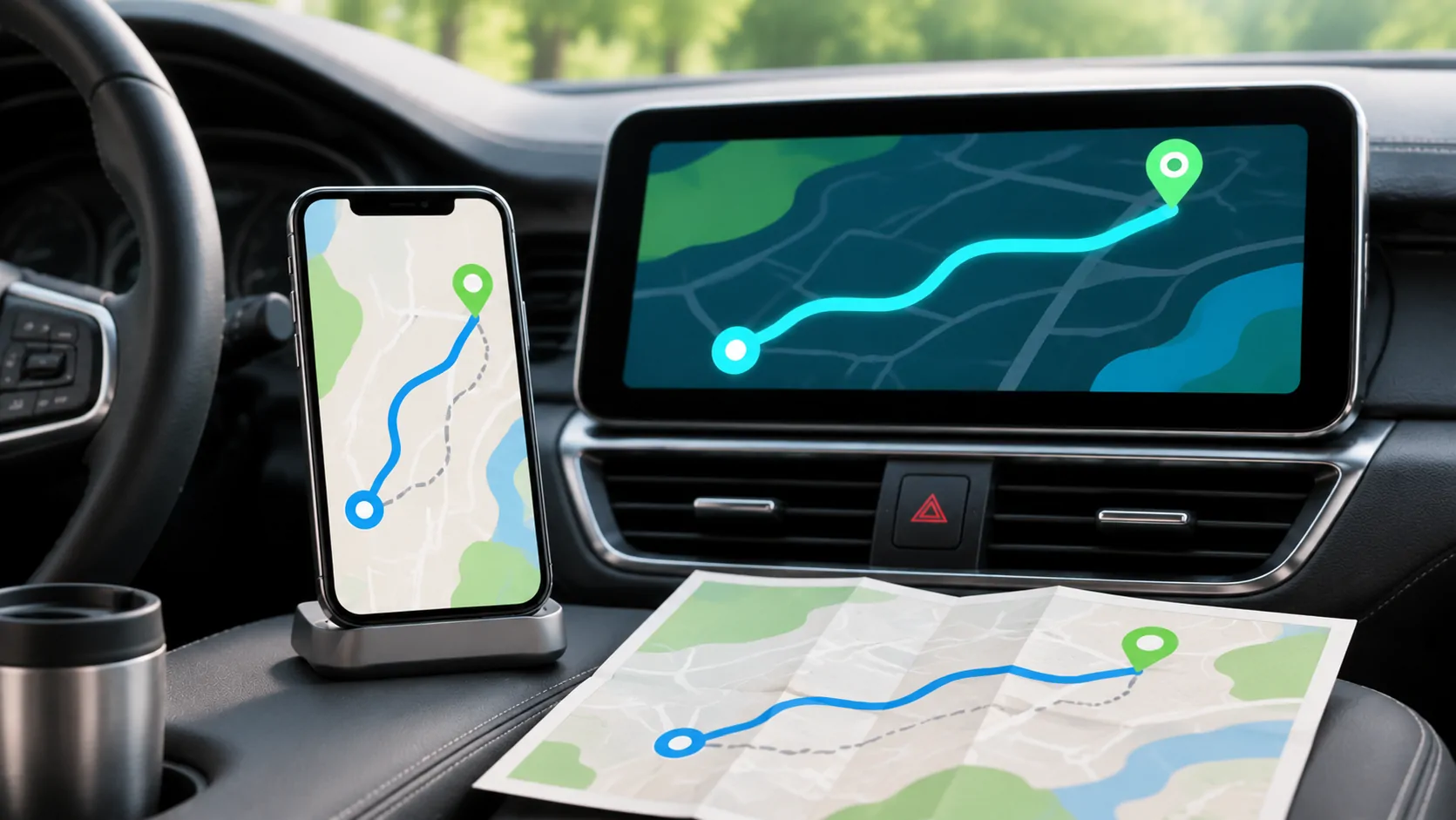
Plan a CarPlay route in a supported navigation app before departure, confirm the exact destination and access point, and check whether the journey depends on mobile data. CarPlay displays the navigation app's supported interface; it does not make every map, traffic feed or offline feature identical across apps. Route guidance also never overrides road signs or actual conditions.
Choose the app before choosing the route
First identify which navigation app you intend to use and whether its current iPhone version supports your CarPlay setup. A map link received in a message may open a different app from the one you normally use. Check the displayed app name rather than assuming that every destination link will use the same routing service.
Apple's CarPlay overview describes turn-by-turn directions and the Dashboard view. It does not establish that every third-party app has the same controls, subscriptions or offline coverage. Consult the chosen app's current documentation for features that matter on your route.
Keep an alternative available where practical, such as a written address or the vehicle's built-in navigation. The point is to retain useful destination information if a connection fails, not to operate two competing navigation systems at once.
Verify the destination at street level
Search for the destination while parked, then inspect its full address, city and map position. Businesses can have multiple branches with nearly identical names. A result for a nearby office may not be the entrance for deliveries, parking or an accessible drop-off point.
For a hotel, airport or large venue, confirm the intended entrance using the venue's own instructions. A route to the centre of a property can end on a different road from the public entrance. Coordinates supplied by a trusted host can help, but they still need to be checked against access restrictions.
If a contact's saved address is wrong, correct the underlying contact information rather than repeatedly selecting the same misleading suggestion. An accurate destination is more important than a fast search result.
Review the proposed journey
Before starting, check the broad route, estimated duration and any visible toll, ferry or road restrictions. Available route preferences vary by application and region. A standard car route should not be assumed suitable for a vehicle with unusual height, weight or access requirements.
Consider where you can stop safely if the journey needs further planning. An EV charging stop also needs current charger information, compatible connectors and a realistic backup. A map icon alone does not confirm that a charger is working or available.
Do not change several route preferences without inspecting the result. Avoiding tolls, for example, can produce a different route rather than simply removing a fee from the original journey. Verify the proposed roads again after making a meaningful change.
Prepare for weak connectivity
Distinguish a functioning CarPlay connection from internet availability. A wired or wireless interface can remain active when cellular coverage is weak. Conversely, a phone with strong cellular reception can still lose its local connection to the receiver.
If the navigation app supports offline maps, download the required area using its documented procedure and verify that it covers the intended journey. Offline coverage, search, rerouting and traffic information are separate capabilities. Do not assume that downloading one city provides all information needed for a long regional trip.
While parked, test a known destination under the expected conditions. Keep enough phone storage and power for the trip. A cached route preview is not necessarily the same as a complete offline map.
Check position and spoken guidance separately
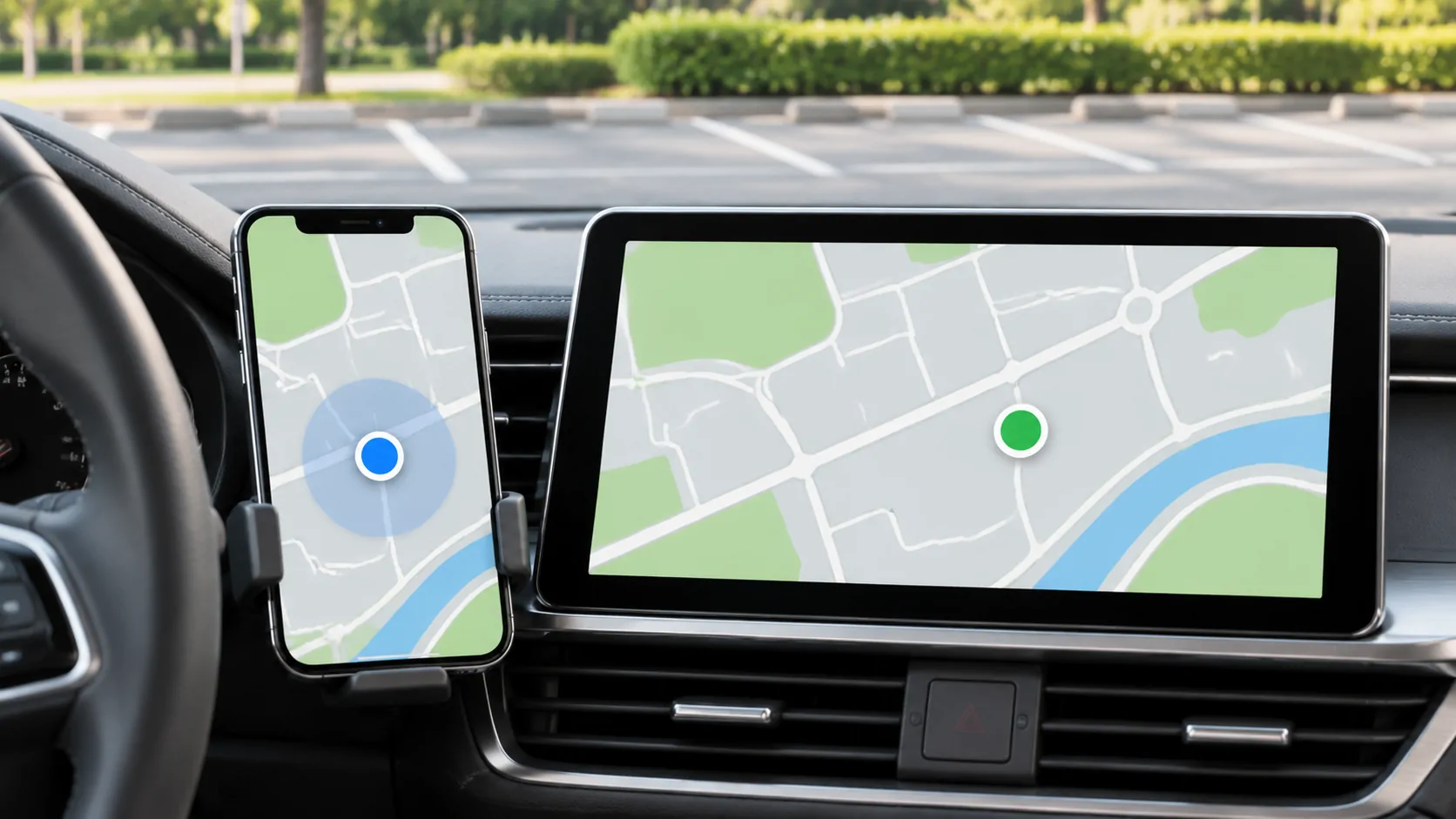
Open the navigation app and compare the location marker with your real surroundings. Apple's Location Services explanation says location can use GPS, cellular, Wi-Fi and Bluetooth information, and that obstructions can reduce accuracy. A large uncertainty circle is different from an accurately positioned marker on the wrong street.
Then check whether spoken directions can be heard at a sensible volume. Some receivers adjust navigation prompts separately from music. Use the vehicle's documented controls and adjust during a prompt while parked where possible.
If the map position is wrong, follow location diagnosis. If the position is correct but guidance is silent, treat that as an audio or app setting issue rather than a location failure.
Use Dashboard without losing context
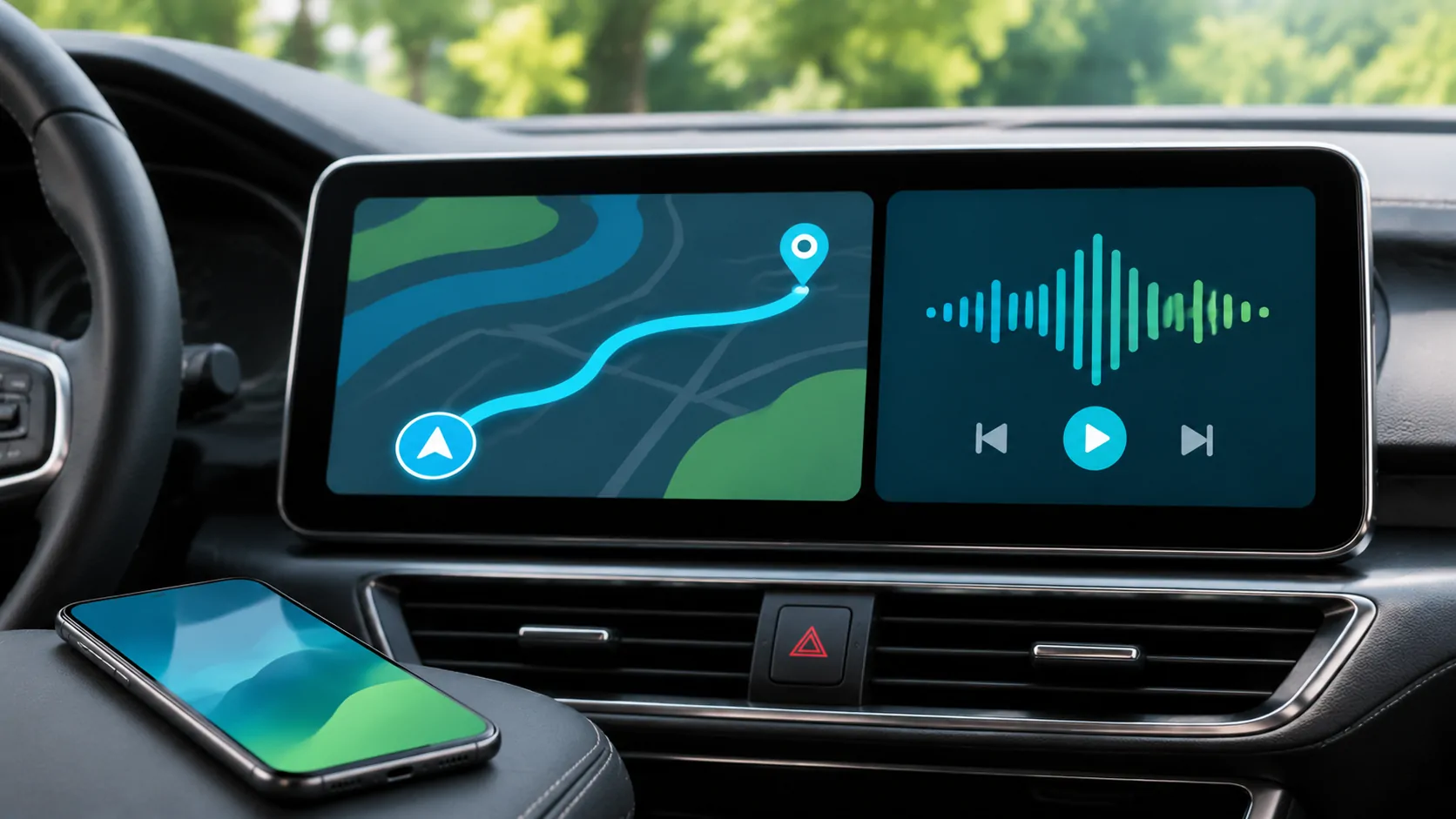
The CarPlay Dashboard can place navigation, audio and suggestions together. That makes it useful for a quick overview, but it does not mean the full navigation app has stopped running when its map becomes smaller. Use the supported control to return to the full map when you need more detail.
Prepare a simple Siri request for the destination if voice entry is appropriate. Include a city or street number when ambiguity is likely. If Siri selects the wrong location, cancel and resolve the destination while parked instead of repeating increasingly complicated instructions while moving.
A passenger can help verify an address, but changing the active destination still needs care. Confirm whether a new search adds a stop, replaces the destination or simply previews another place.
Evaluate changes during the journey conservatively
Traffic estimates and arrival times are predictions based on available data. A newly suggested route can be useful, but a few minutes of estimated savings do not justify an unsafe turn. Continue to a safe, legal place if a turn is missed.
Apple warns that maps and location information can be incomplete or inaccurate and advises comparing guidance with the surroundings. Follow closures, posted signs and instructions from authorities even when the screen suggests otherwise.
After arrival, note any repeatable issue in the relevant app rather than treating one poor route as proof that CarPlay itself failed. A useful report identifies the destination, app, approximate location and observed error without publishing private travel history. Preparing those distinctions before the next trip makes navigation both easier to diagnose and less distracting to use.
Sources
Related reading
Bring your own media.
Explore CarCast for iPhone with your own authorized sources and supported display configurations.