Guides
Using Siri with CarPlay: Controls and Limits
Use the steering-wheel button, CarPlay screen or supported voice activation for Siri, and distinguish microphone, connection and request limitations.
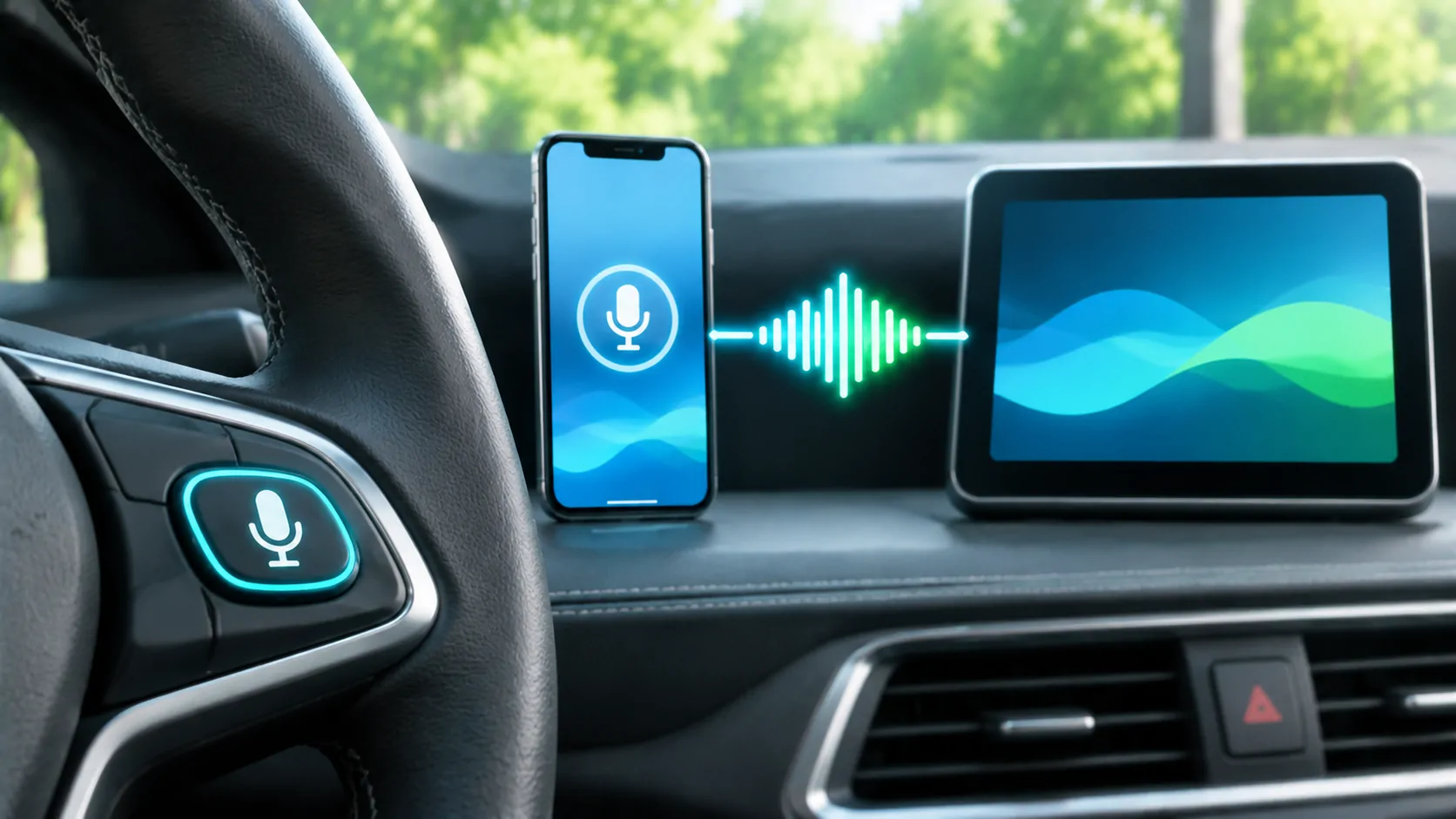
You can use Siri in CarPlay through a supported steering-wheel voice button, a long press on the CarPlay Home or Dashboard control, or supported voice activation. The available methods depend on the vehicle and iPhone settings. Start with a short, specific request while parked, confirm the result, and use the vehicle manual to identify the correct button behaviour.
Learn which assistant the button invokes
A car can provide its own voice assistant as well as Siri. A brief press may activate one system while a longer press activates another. The symbol printed on the button does not establish that both systems use the same commands or settings.
Apple's CarPlay instructions describe pressing and holding the steering-wheel voice command button, touching and holding the CarPlay Home or Dashboard button, and using supported voice activation. Try the documented long press first while parked. Identify the onscreen response before speaking so that a command intended for Siri is not sent to the receiver's separate assistant.
Do not repeatedly press an unfamiliar steering-wheel control during a journey. Check the manual in advance, especially in a rental car or a vehicle with aftermarket controls.
Enable the relevant Siri settings
Open the Siri settings on the iPhone and check that the desired activation method is available. Apple's general Siri guidance notes that settings names and features vary with hardware, software, language and region. A guide showing an older menu label should not be treated as proof that your phone lacks the feature.
If voice activation is supported by the car, enable the appropriate listening option and follow its setup instructions. If it is not supported, the steering-wheel or touchscreen method can still be the appropriate route. Do not assume that a response to a spoken phrase on the phone proves that the car's microphone path is working.
Where a managed device or Screen Time restriction controls Siri, consult the person responsible for those settings. Changing unrelated privacy controls is not a useful substitute for identifying the specific restriction.
Make requests with a clear action and target
Begin with a command that has a predictable result, such as asking Siri to call a named contact or navigate to a known address. Include enough detail to distinguish people with similar names and places with multiple branches. For navigation, specify the city when a business name is common.
Wait for the assistant to acknowledge the request. If it asks a clarifying question, answer that question rather than repeating the whole command with extra details. Long strings of instructions can obscure which part failed.
For messages, state the recipient, then the intended text. Review the read-back or confirmation options available in your setup. The messaging guide explains why correct contact selection and content confirmation deserve separate checks.
Distinguish recognition from execution
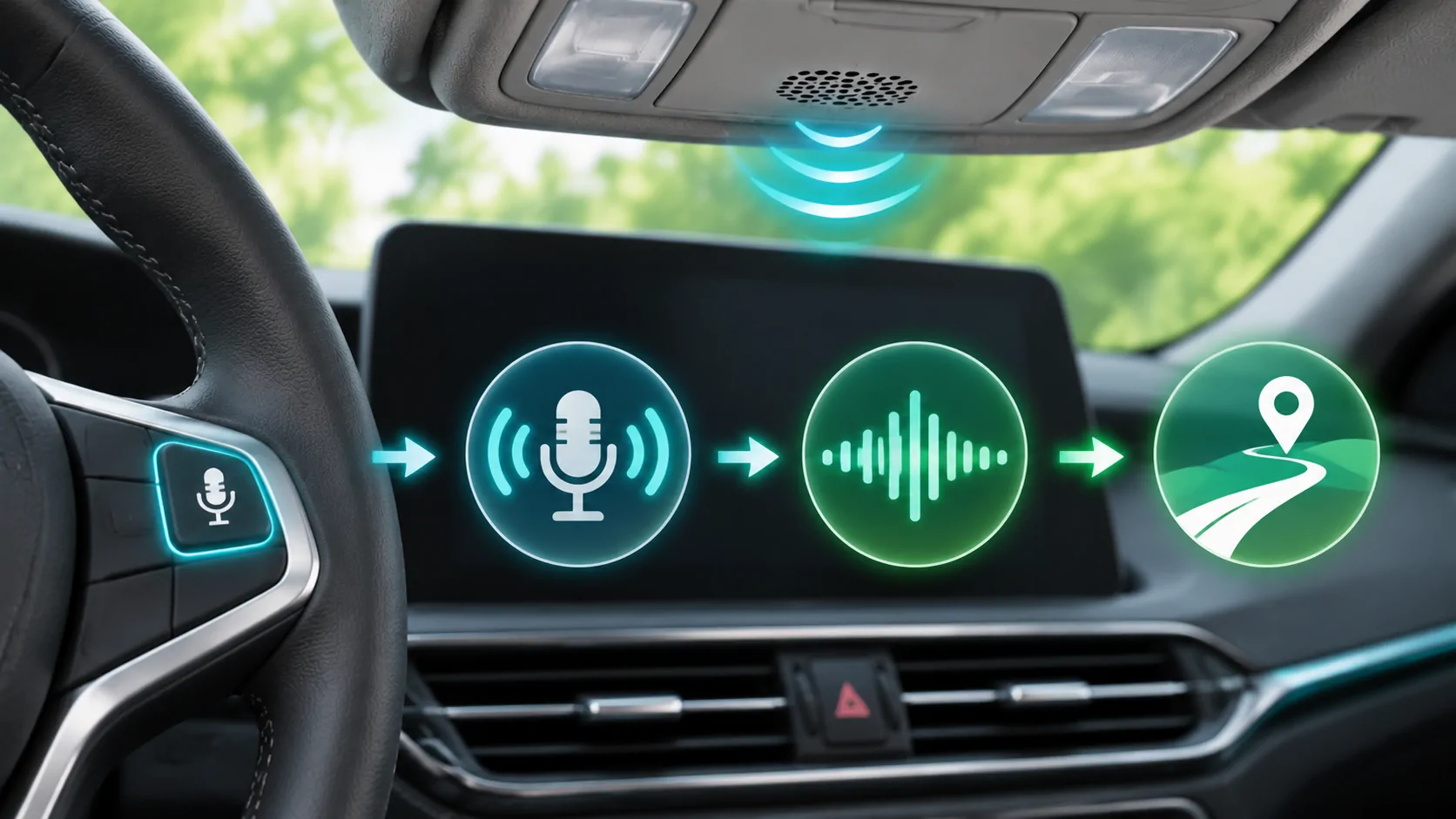
There are several different failure stages. Siri may fail to activate, activate but not hear speech, transcribe the wrong words, or understand the request but be unable to complete it. Each stage points toward different checks.
If Siri displays the correct request but reports that a service is unavailable, the microphone has already done part of its job. Check network access, the relevant application or the requested feature rather than immediately replacing the microphone. If no words appear despite a visible listening state, investigate the input path and background noise.
A successful request does not mean Siri can operate every iPhone app or every vehicle function. App integration, supported actions, account state and regional availability all matter. A car's climate control may remain part of the vehicle's own system even when Siri handles navigation and calls.
Adjust the listening environment
During a parked test, lower music volume, close noisy windows and speak at a normal pace toward the normal driving position. Do not shout directly into an assumed microphone location. The microphone may be built into the headliner, receiver or another part of the installation.
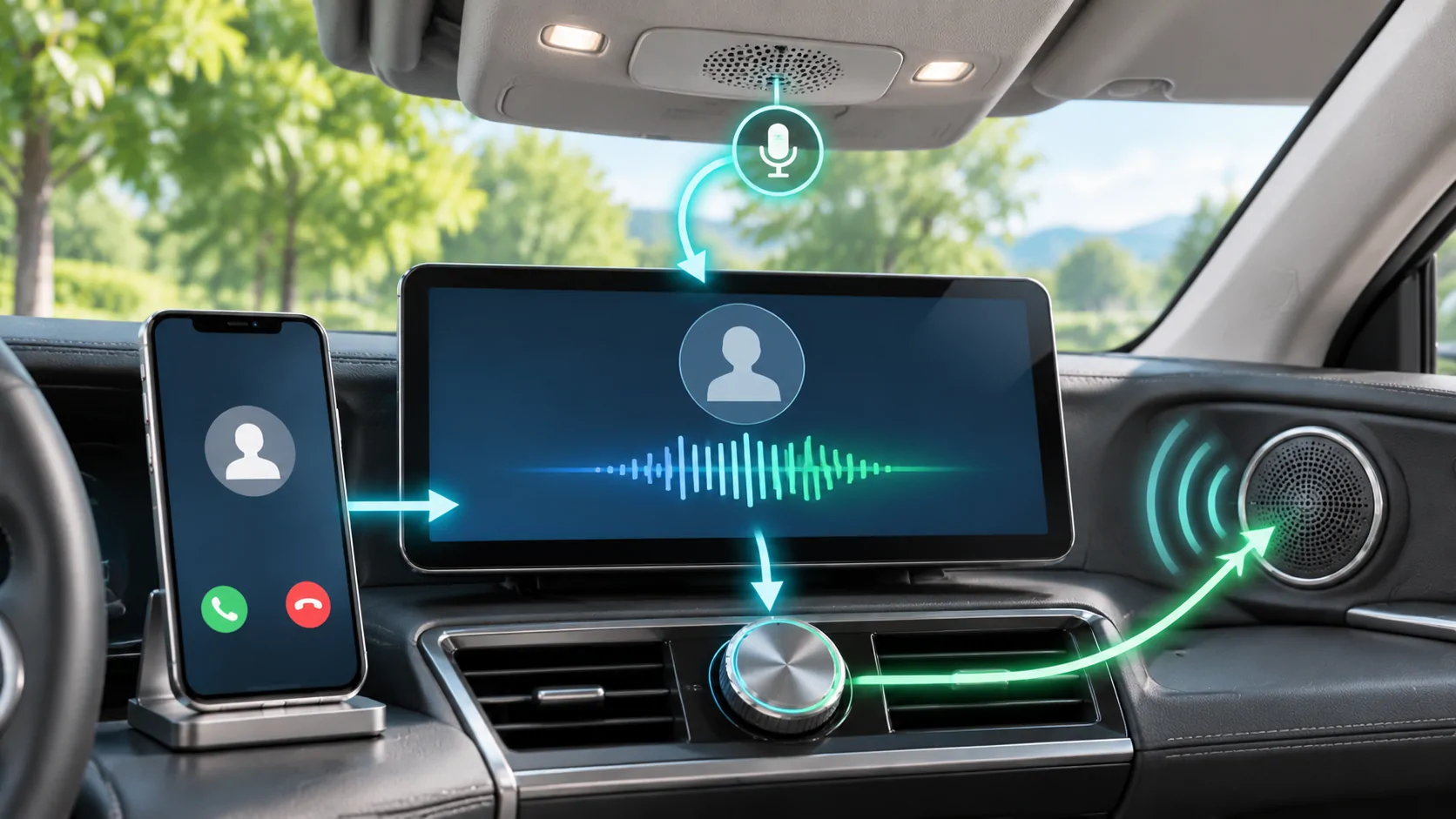
Try the same short request first through the connected car and then directly on the phone after disconnecting. If the phone works but the car does not, that comparison supports investigating the vehicle input route. It does not establish whether the cause is microphone hardware, receiver configuration or software.
For call-related input problems, use microphone diagnosis rather than assuming that Siri and every calling app share identical permissions and routing.
Check the connection before resetting settings
If CarPlay itself repeatedly closes, Siri may be a symptom of the wider connection failure. Confirm that the interface remains active and that supported audio works. For wireless use, both Bluetooth and Wi-Fi should be enabled as Apple's connection instructions describe.
Apple's troubleshooting checklist includes checking Siri, restarting the phone and car, reviewing restrictions and reconnecting the car. Apply these steps individually. Forgetting the car can be useful for a damaged pairing relationship, but it should not replace a simple check of which assistant a button invokes.
Avoid resetting all phone settings merely because one unusually worded request fails. Record a repeatable example and test a basic action first.
Use voice as an aid, not a reason for longer interactions
Voice control can reduce the need to handle the phone, but a complicated conversation can still demand attention. Prepare destinations and contact details before travelling. If a command requires extensive corrections, postpone it or pull over safely rather than continuing a difficult exchange.
For navigation, obey road signs and actual conditions when they conflict with spoken guidance. For messages and calls, verify the recipient where the interface makes that possible. Siri is a control method within the supported setup, not a guarantee of error-free recognition.
A useful working result is modest and observable: the intended activation method starts Siri, a short request is understood, and the correct supported action completes. Anything beyond that should be evaluated feature by feature, without assuming that an assistant update adds unverified vehicle or media capabilities.
Sources
Related reading
Bring your own media.
Explore CarCast for iPhone with your own authorized sources and supported display configurations.