Guides
Sending and Hearing Messages in CarPlay
Send and hear messages through supported CarPlay and Siri controls while checking recipients, announcement settings and privacy.
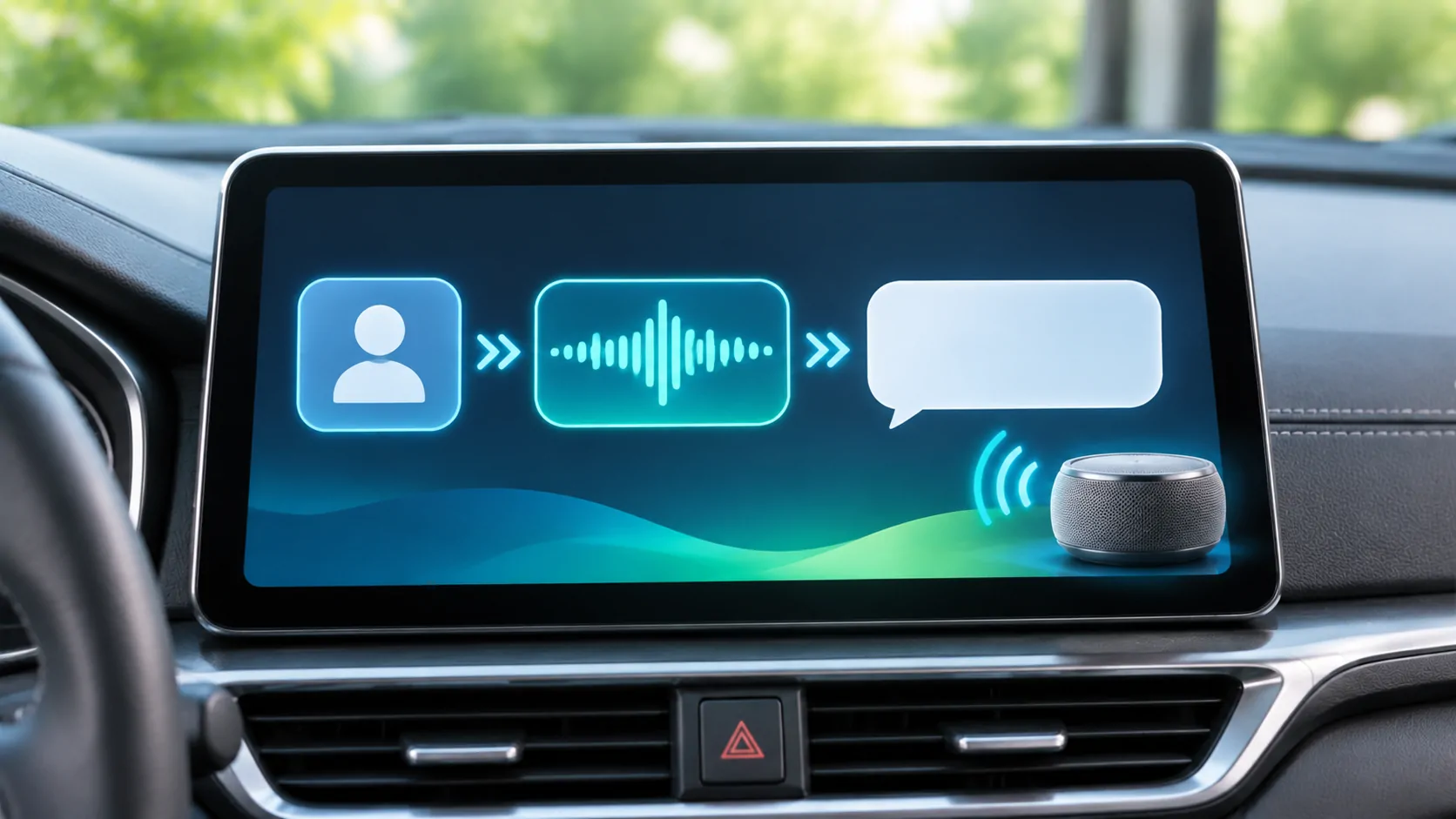
CarPlay can support sending and hearing messages through Siri and supported messaging apps, but the available actions depend on the app, phone settings and region. Set up announcements while parked, verify the recipient and message content, and avoid assuming that every notification or attachment can be presented on the vehicle display.
Begin with the supported messaging route
The Messages app and a compatible third-party messaging app may offer different CarPlay features. A notification visible on the iPhone does not prove that its app can show the same content in CarPlay. Likewise, a contact appearing in the car's ordinary Bluetooth phonebook is not evidence that a separate messaging app is ready.
Apple's CarPlay guide explains using Siri and enabling incoming message announcements. Use that supported route first. If a particular third-party service is the problem, consult its current CarPlay and Siri documentation rather than granting unrelated permissions in the hope that they will add support.
Before testing, choose a trusted recipient who expects a short test message. Avoid experimenting with business groups, emergency contacts or a conversation containing sensitive information.
Confirm Siri activation and the contact
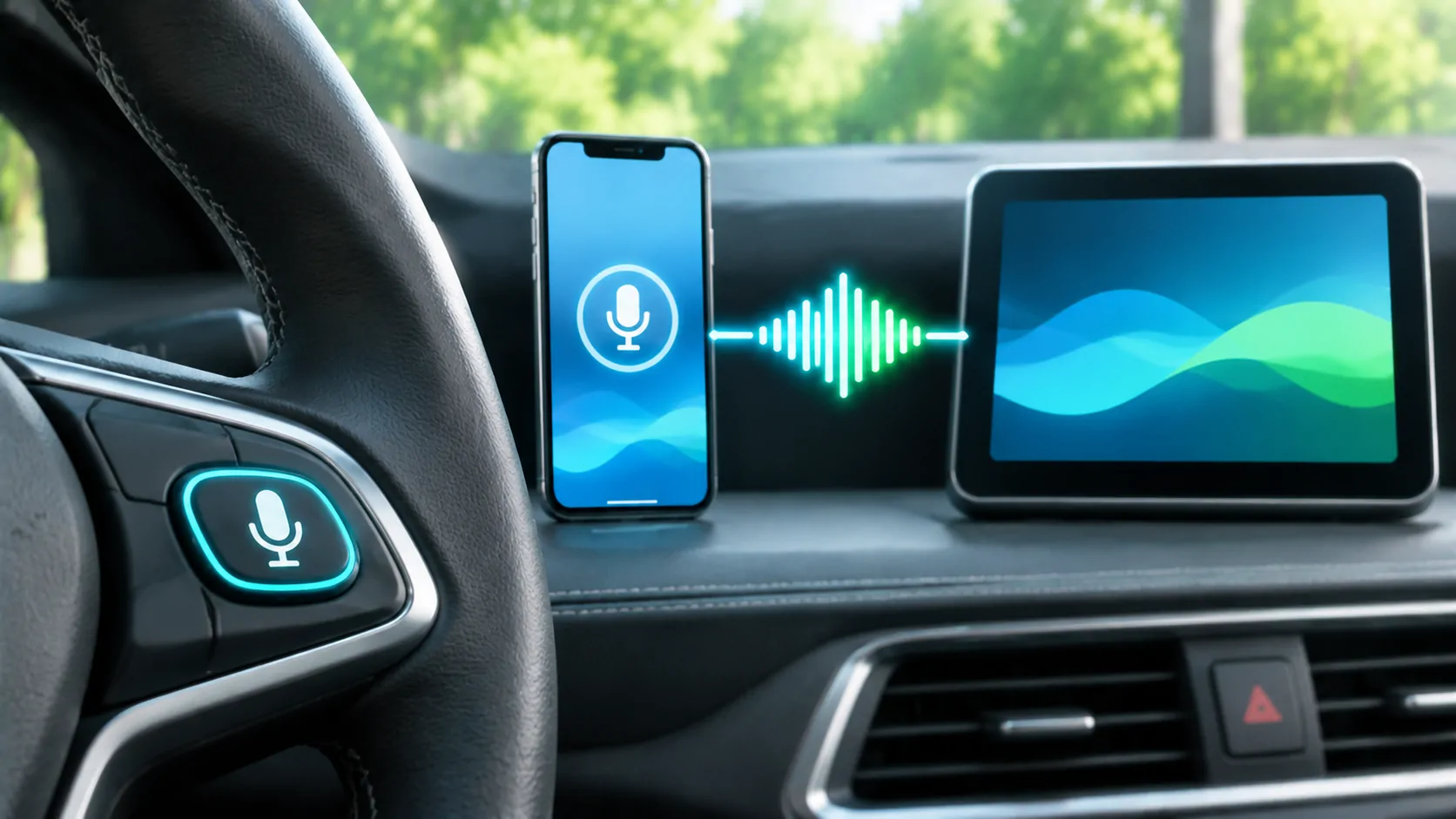
Activate Siri using the documented steering-wheel control, CarPlay screen control or supported voice phrase. Say the intended recipient clearly. If several contacts share the same name, provide enough detail for a reliable match.
A request such as sending a message to a named person can trigger a question about which address, number or service to use. Resolve that choice before dictating a long message. Contact entries with obsolete numbers can cause an apparently successful action to reach the wrong destination.
Review your saved contacts while parked. Distinguish a mobile number from an office line or an old account. Correcting the underlying record is more durable than repeatedly trying to compensate through longer spoken commands.
Dictate short messages and check the result
Speak in short, natural sentences. If the interface reads back or displays the draft, use that opportunity to verify the recipient and meaning before sending. Available confirmation behaviour can vary, so inspect the settings in your own setup instead of assuming that a familiar prompt always appears.
Names, street numbers and unusual terms deserve extra care. A message that sounds similar can still communicate the wrong time or location. For complicated details, wait until you can use the phone safely rather than attempting a lengthy sequence of corrections.
If Siri understands the words but cannot send, investigate connectivity, account state and the messaging service. If it repeatedly misunderstands the words, investigate speech recognition and microphone input. Those are different failure stages, as the Siri control guide explains.
Configure incoming announcements deliberately
Apple describes an iPhone route through Notifications, Announce Notifications and CarPlay, as well as announcement controls in CarPlay settings. Menu labels can change with software, but the important choice is whether messages should be spoken and which messages are eligible.
Apple also notes that a long message may initially be announced by sender rather than read in full. You can request the full text through the supported controls. Do not interpret that abbreviated announcement as evidence that the rest of the message was lost.
Test with an ordinary short message from the chosen contact. Then confirm whether the sound, sender identification and readout behave as intended. Testing one controlled example is more informative than waiting for a mixture of promotional alerts, group messages and different app notifications.
Review Driving Focus separately
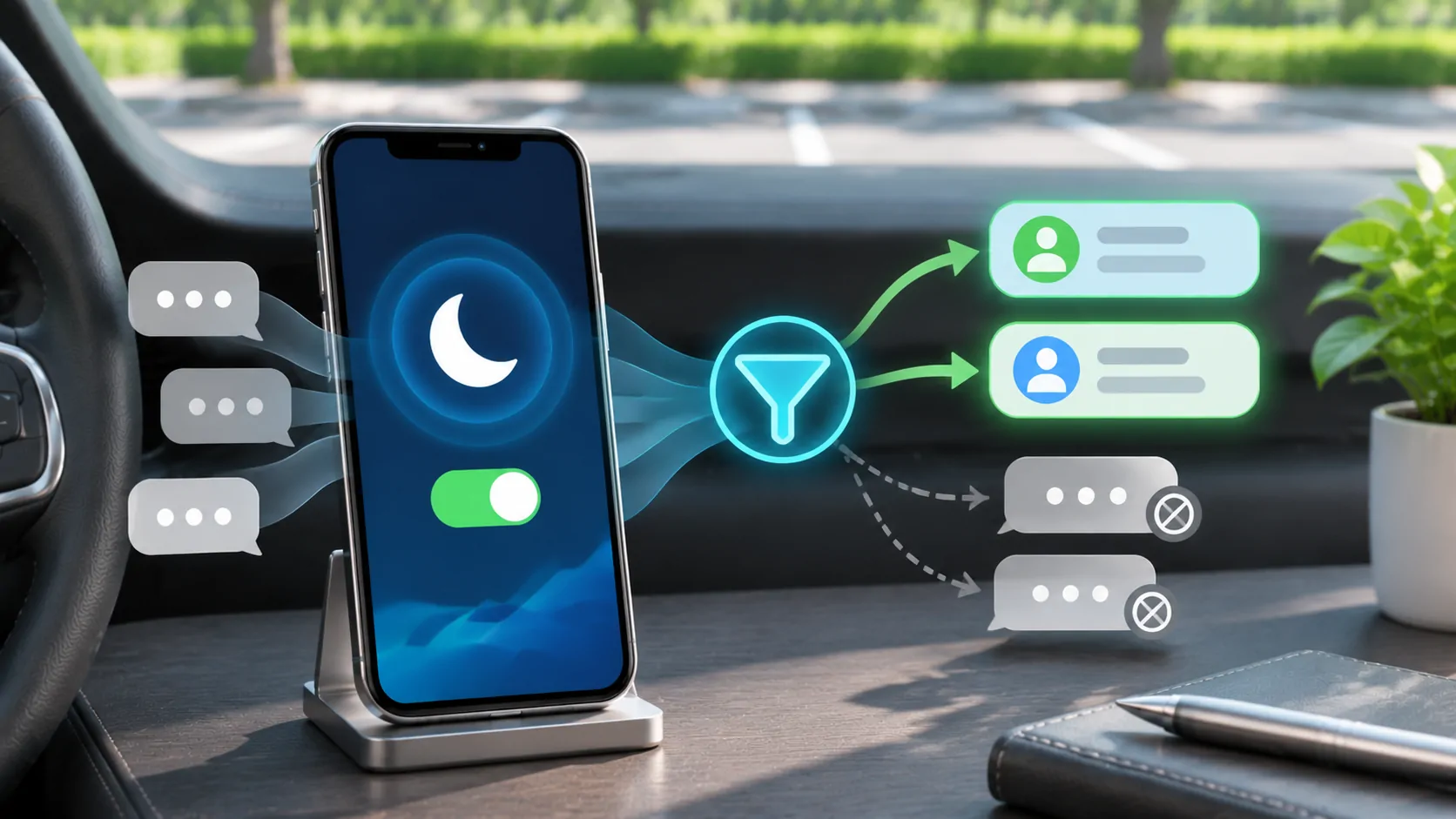
The Driving Focus documentation says texts and other notifications can be silenced or limited. Driving Focus can also activate automatically with CarPlay or a car Bluetooth connection, depending on the selected settings.
If messages arrive on the phone but are not announced in the car, inspect both notification announcements and Focus. Turning off every protective setting is not necessary. Decide which contacts or notifications should be allowed, then test that specific policy while parked.
Focus status and an automatic reply serve different purposes. Sharing that notifications are silenced does not mean a message has failed to deliver. An auto-reply can inform selected contacts that you are driving without requiring an immediate spoken response.
Consider the other people in the cabin
Spoken messages can expose personal information to passengers. Before enabling announcements in a shared vehicle, consider who might hear names, appointments, account details or workplace conversations. A feature that is useful alone may be inappropriate with clients or children present.
You can disable announcements for a journey or narrow the eligible notifications using supported settings. Explain the choice to other regular users of the vehicle so that a privacy setting is not later mistaken for a technical failure.
Do not test with passwords, authentication codes or private medical information. If a message needs confidentiality, wait until you are safely parked and can choose an appropriate private channel.
Diagnose missing or unsuccessful messages
Check whether the message exists in the correct phone app. If it never arrived there, the issue precedes CarPlay. If it arrived but was not announced, examine notification permissions, Focus and announcement settings. If only one sender is affected, review that conversation and its notification state.
For sending problems, verify whether a short message to the same recipient works directly on the phone after disconnecting. A failure in both places suggests investigating the app, account or network. A failure only through CarPlay deserves a record of the activation method and exact response.
Use the missing-notification diagnostic for a structured comparison. Apple's Siri documentation also makes clear that features vary by language, device and region; a feature described for another setup may not apply.
Keep the conversation secondary to driving
Voice access does not make every conversation suitable for a journey. If a message requires careful interpretation, emotional discussion or repeated correction, defer it. A simple acknowledgement can be useful, but no message needs to be answered merely because it can be announced.
A successful setup delivers the intended short message, to the correct recipient, with a notification policy you understand. It does not guarantee support for every messaging platform or rich attachment. Recheck these choices after changing phones, messaging apps or vehicle users, especially when privacy expectations differ.
Sources
Related reading
Bring your own media.
Explore CarCast for iPhone with your own authorized sources and supported display configurations.