Guides
Managing Phone Calls through CarPlay
Make, receive and route CarPlay phone calls while separating cellular service, cabin audio, microphone input and Driving Focus settings.
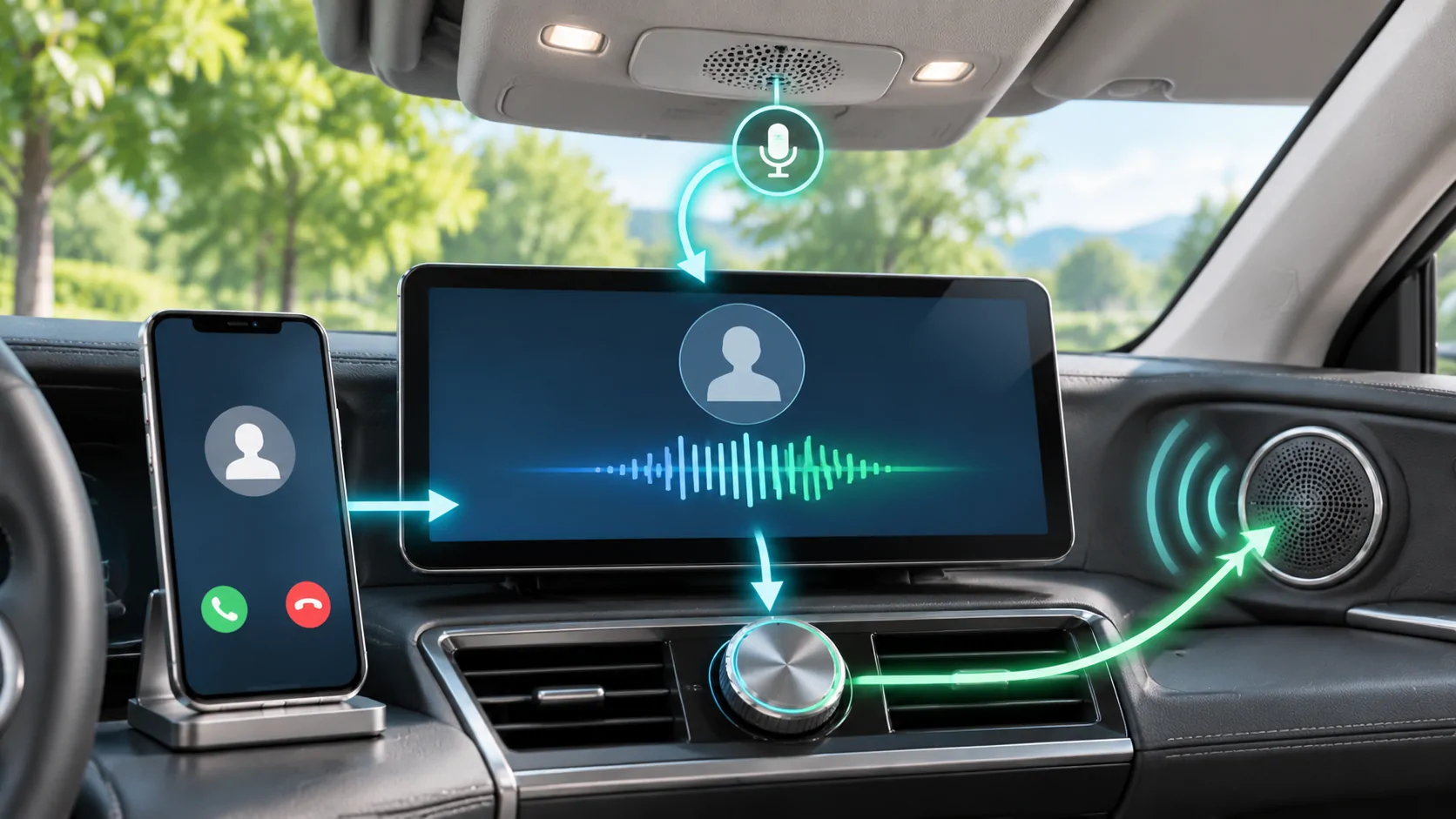
CarPlay lets you make and receive supported phone calls through the vehicle interface and Siri, but a reliable call still depends on the phone service, correct audio route and working microphone. Set up contacts and controls while parked. When something goes wrong, distinguish an unanswered call from a silent speaker or a microphone the other person cannot hear.
Check the active phone first
In a shared car, confirm which iPhone is connected to CarPlay. The receiver may remember more than one device and can sometimes use a different device for another Bluetooth function. Seeing a familiar contact on the dashboard does not guarantee that the intended phone or account is active.
Check the displayed device name in the receiver's connection menu. If the wrong phone is selected, switch through the documented device controls rather than trying to compensate by calling from the other handset. Keep personal and work accounts distinct where their policies require it.
Apple's CarPlay overview describes calls as a supported task, but individual receiver controls differ. Learn the steering-wheel answer, end and voice-command actions before relying on them during a trip.
Place a simple test call while parked
Choose a trusted person who can help check audio. Use the Phone interface or activate Siri and request a call to a specific contact. If multiple numbers exist, select the intended one. A saved contact with an old mobile number can make a successful call command appear to fail.
Confirm that the call is actually connecting. Ringing, an account error and a connection timer are different states. Once the other person answers, ask whether they can hear you clearly, then check whether you can hear them at a modest volume.
End the call using the intended vehicle control and confirm that it ends. This small test establishes the complete path from choosing a recipient to disconnecting, rather than merely proving that an outgoing number appears onscreen.
Adjust call volume during a call
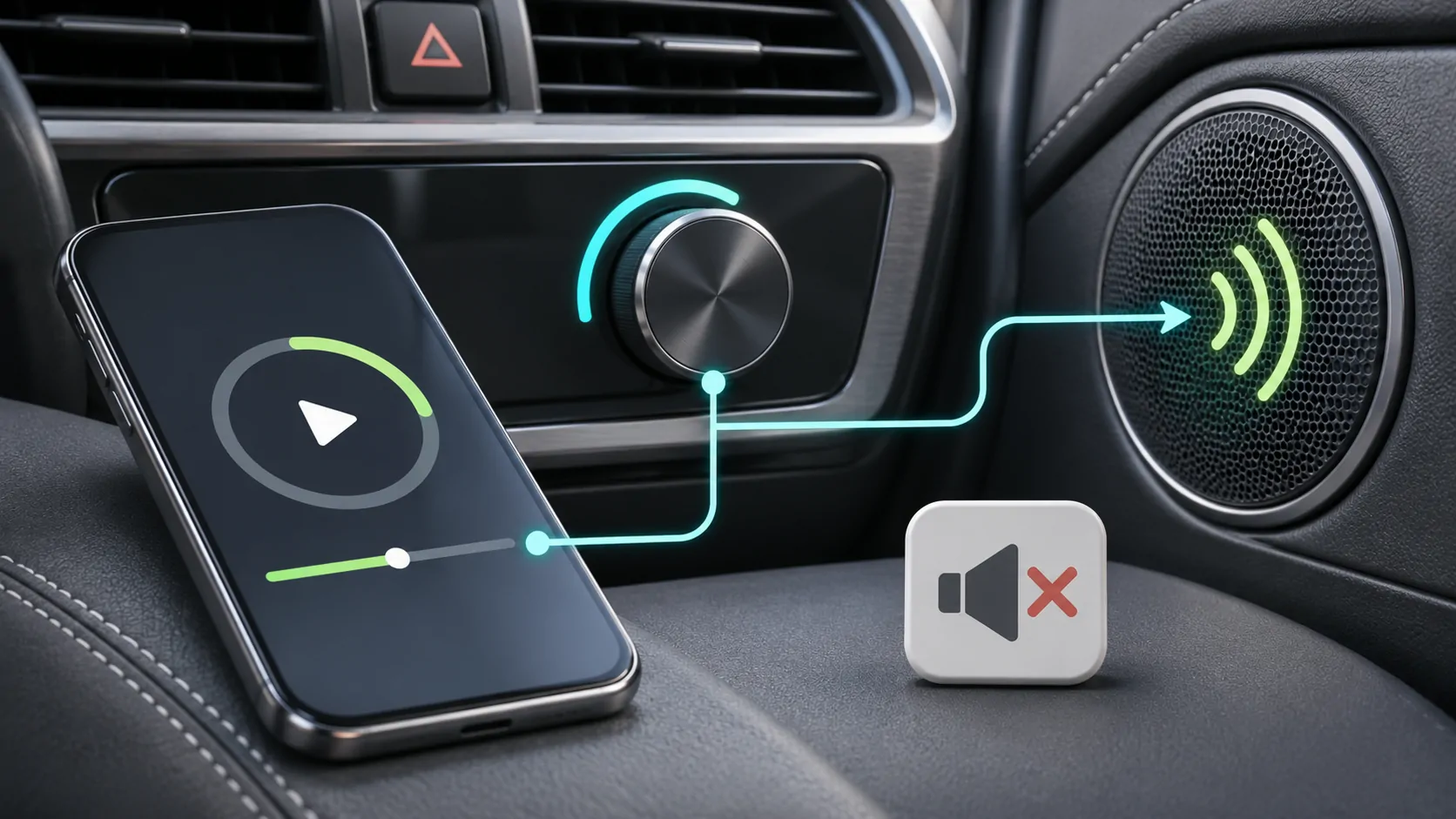
Some vehicles manage call, navigation and music levels separately. If you turn the volume knob while music is playing, you may not be adjusting the later call volume. Use the receiver's documented controls while a parked test call is active.
If you hear nothing, inspect the phone's current audio route. Sound may be directed to the handset, another accessory or a different Bluetooth device. Do not assume a silent car speaker means the cellular call failed.
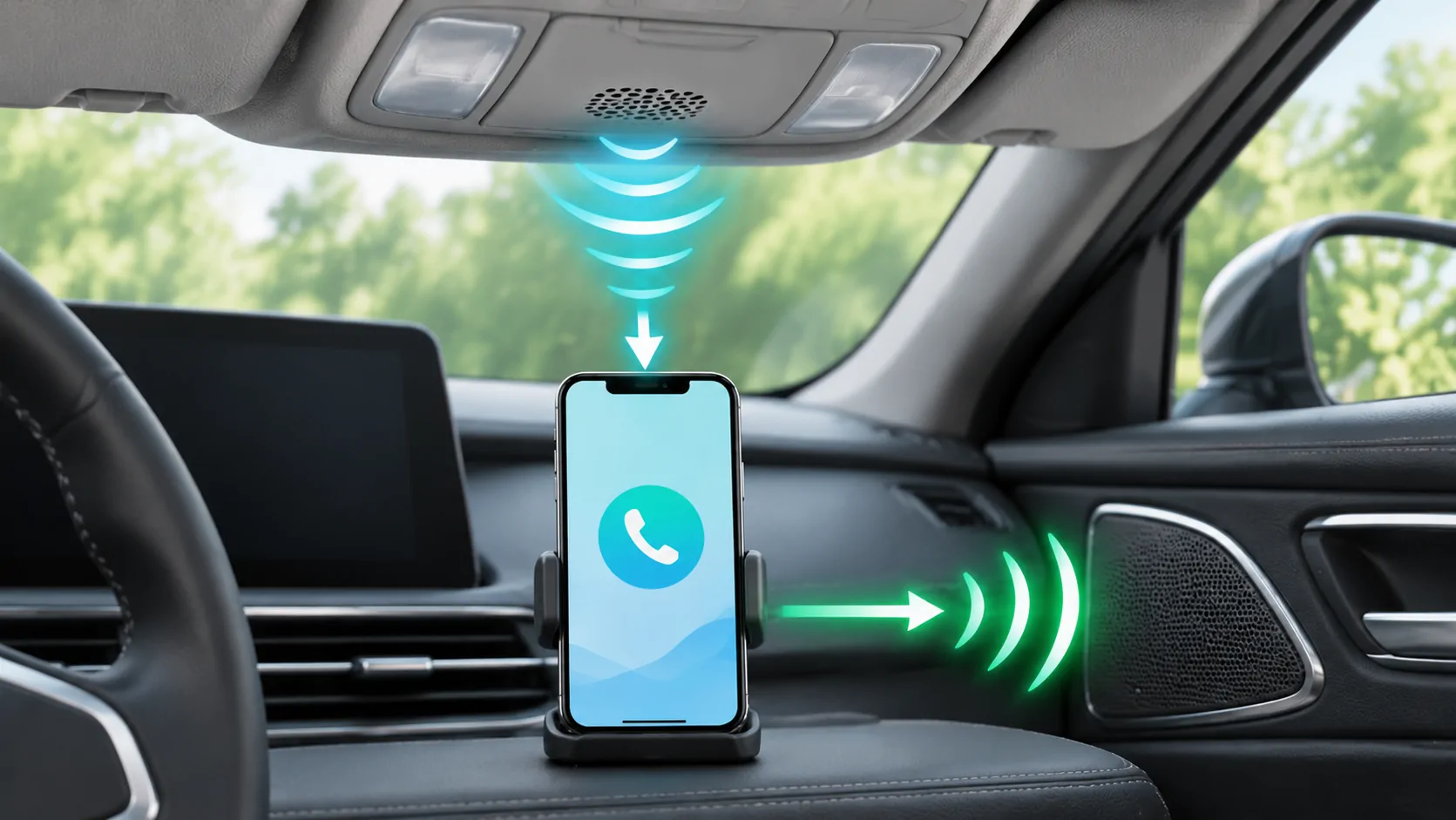
Ask the other person to confirm whether your speech is audible. If they hear you but you cannot hear them, focus on output routing and volume. If you hear them but they cannot hear you, focus on mute, microphone input and the relevant calling app. The microphone diagnostic covers that second branch.
Understand incoming-call behaviour
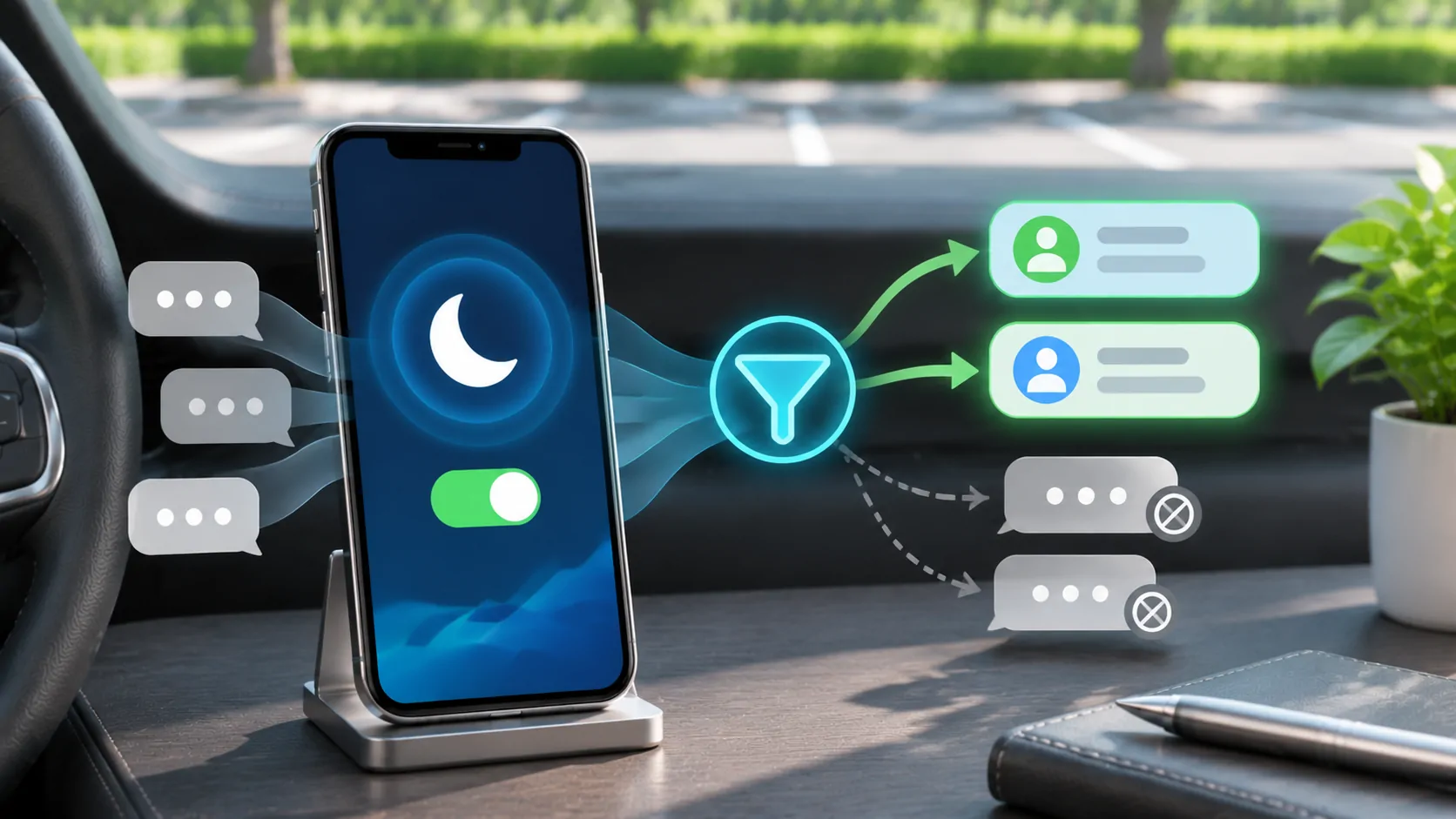
Driving Focus can influence interruptions. Apple's Driving Focus guide explains that incoming calls are allowed when the iPhone is connected to CarPlay, car Bluetooth or a hands-free accessory, with notification policy also affecting the experience.
Review the intended allowed contacts and call behaviour while parked. A silenced alert, a call declined by the user and a missed call caused by network coverage are not the same event. Check the phone's call history and the caller's experience before changing settings.
Do not disable all Focus protections as a routine fix. Configure the specific behaviour you need, then repeat a controlled test. If calls work but message announcements do not, investigate message settings separately.
Use Siri with precise contact requests
A short request with a clear contact name is easier to verify than an ambiguous phrase. If Siri offers several matches, resolve the identity before proceeding. Correct confusing contact records on the phone when parked.
The Siri support documentation notes that interactions vary with hardware, software, language and region. A feature that works in another person's video may depend on a different device or setting. Use the supported activation method available in your vehicle.
If Siri hears the correct contact but cannot complete the call, check the phone service and relevant app. If it hears a different name, that is a recognition problem. Repeatedly re-pairing CarPlay is unlikely to fix an incorrect saved number.
Separate ordinary calls from internet calling
A conventional cellular call and a call inside a third-party internet service can use different accounts, data paths and permissions. A successful ordinary call is a useful comparison, but it does not prove that every messaging or conferencing app supports the same CarPlay actions.
If only one service fails, verify its account, microphone permission and supported in-car integration. If all calls fail directly on the phone as well, investigate coverage or the phone service before blaming the vehicle.
Avoid running multiple test calls simultaneously. End the first session, confirm the audio route, and start the next. This reduces confusion from call waiting, another accessory reconnecting or a conferencing app retaining audio control.
Handle a lost connection safely
If CarPlay disappears during a call, the phone may continue the call through another route. Do not reach for it while driving to find out. Pull over safely if the conversation requires attention, then check the active route and whether the call is still connected.
When parked, compare a direct phone call with a CarPlay call and record whether the interface, audio or whole call drops. For recurring silent output, continue with audio checks. A precise report gives the receiver manufacturer or app developer a more useful starting point.
Keep private calls private
Cabin speakers make a call audible to passengers. Tell the other person when appropriate and avoid sharing confidential details in a public or shared setting. Transferring a call to the handset should be done only when you can handle the device safely.
A working CarPlay call is not a reason to hold a demanding conversation while moving. Use the feature for brief, appropriate communication, and postpone complex discussion. The goal is predictable recipient selection and clear two-way audio within the supported setup, not continuous availability at the expense of attention.
Sources
Related reading
Bring your own media.
Explore CarCast for iPhone with your own authorized sources and supported display configurations.