Guides
Siri Not Responding in CarPlay
Find why Siri does not respond in CarPlay by separating activation, microphone recognition, network execution and app support.
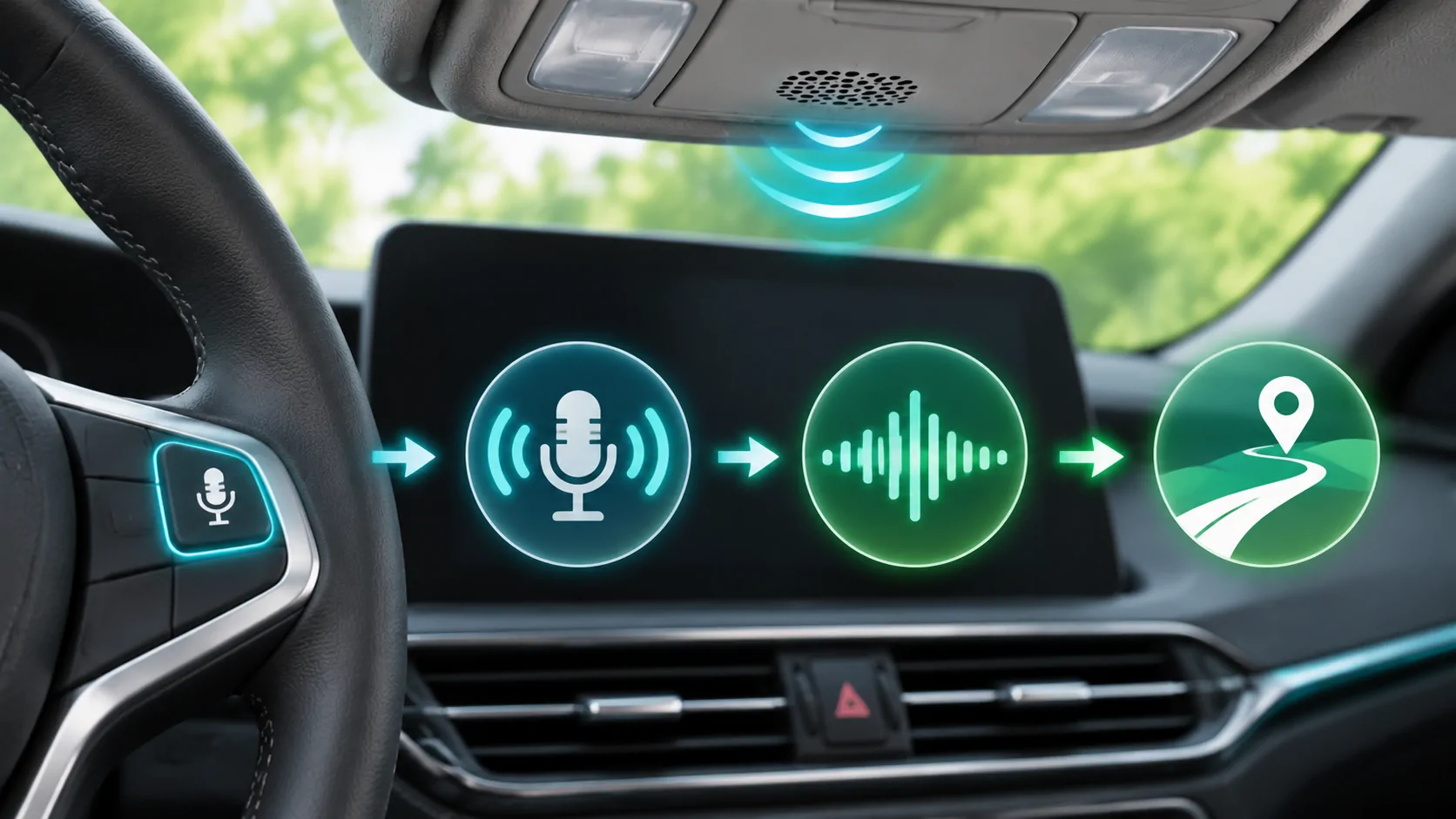
If Siri is not responding in CarPlay, identify where the request stops: activation, hearing speech, understanding it or completing the action. Test a short request while parked through a supported control, then compare Siri directly on the phone. These stages involve different settings, so a failed navigation request does not automatically mean the microphone or CarPlay connection is broken.
Establish a simple reference request
Choose a short request with a clear expected response. Avoid an unusual contact name, ambiguous business or complex third-party action for the first test. A complicated task can fail for reasons unrelated to Siri activation.
Record whether the listening interface appears, whether words are recognised and whether an error is spoken or displayed. Those observations tell you more than simply noting that nothing useful happened.
End unrelated calls or voice sessions before testing. An application holding an active audio session can complicate the result. Keep the test stationary and use the same request for each comparison.
Check the correct activation method
Apple's CarPlay guide describes holding the steering-wheel voice button, holding the CarPlay Home or Dashboard control, and supported voice activation. Your vehicle may offer only some of these methods.
A short press can invoke the vehicle's own voice assistant while a long press invokes Siri. Consult the receiver manual and identify the onscreen response. If the wrong assistant appears, changing microphone permission for an unrelated app will not correct the button behaviour.
Try a second documented activation method while parked. If the touchscreen method works but the steering-wheel method does not, the problem may concern the control mapping or vehicle integration rather than Siri as a whole.
Review Siri settings on the phone
Apple's current Siri support page explains that features and settings depend on device hardware, software, language and region. Settings may appear under Siri or another Siri-related label depending on the installed software.
Check that the intended button or voice activation is enabled. If spoken activation is unsupported by the vehicle, use a supported button route rather than assuming that a phrase recognised by the standalone phone must work through the receiver.
For a managed phone, review restrictions with the responsible administrator. Do not bypass a workplace or family policy to complete a diagnostic test. A restricted function is different from a hardware fault.
If Siri activates but does not hear you
Lower background audio and fan noise for a parked comparison, close noisy windows and speak naturally from the normal driving position. Observe whether any words are recognised.
Then disconnect from the car and try the same short request directly on the phone. If the phone hears it but the car does not, investigate the connected input route and receiver microphone. If neither hears it, investigate the phone's own settings or microphones.
The microphone diagnostic separates ordinary calls, app-specific permissions and phone recordings. A successful Voice Memos recording tests a phone input, not every vehicle microphone path.
If the words are wrong
Check the selected language and the way the requested name is stored. A contact with a confusing pronunciation or several similar entries can produce the wrong match even when speech is clearly recorded.
Try a different simple request. If general speech is recognised but one contact repeatedly fails, correct the contact information while parked or use a less ambiguous supported request. Do not repeatedly re-pair the car to fix an obsolete phone number.
For a place search, include the city or street number. Cancel a wrong result rather than accepting it simply because Siri returned something. Recognition and correct interpretation are separate checks.
If Siri understands but cannot act
A displayed request followed by a service or connection error indicates that activation and some recognition have already succeeded. Investigate the requested app, account, feature and network.
A local CarPlay connection can remain active while cellular internet access is weak. Compare a basic supported action and inspect whether other online tasks work on the phone. Do not disable Wi-Fi indiscriminately during wireless CarPlay, because that connection needs it.
An app may not support the requested Siri action, even if the app itself supports some CarPlay function. Using Siri in CarPlay does not mean unrestricted voice control of every application or vehicle setting.
Check the wider CarPlay session
If Siri stops because the whole interface disconnects, resolve that shared failure first. Note whether navigation and audio also disappear. A Siri-specific settings change will not repair a receiver that repeatedly restarts.
Apple's CarPlay troubleshooting includes checking Siri, restarting the phone and car, reviewing CarPlay restrictions and setting up the car again. Follow the sequence with a repeatable test after each change.
Check official phone and receiver updates without claiming that a particular version is responsible unless there is verified evidence. Record the installed versions before updating.
Escalate with the failing stage identified
A useful support report states which activation method was used, whether the listening interface appeared, whether speech was recognised and the exact error afterward. Include whether the standalone phone and another supported CarPlay task worked.
Do not send private contact details or a recording of a sensitive request. A harmless example is sufficient to demonstrate most activation and recognition failures. If the receiver uses aftermarket steering-wheel controls or a separate microphone, identify that equipment.
The goal is to restore a specific supported interaction, not to make every request succeed. A carefully described activation, input or execution problem gives Apple, the receiver manufacturer or the app developer a much clearer next step than a general claim that Siri is broken.
Sources
Related reading
Bring your own media.
Explore CarCast for iPhone with your own authorized sources and supported display configurations.