Guides
Fixing Microphone Problems in CarPlay Calls
Diagnose CarPlay call microphone problems by checking mute, audio route, app permissions and separate phone-versus-vehicle input tests.
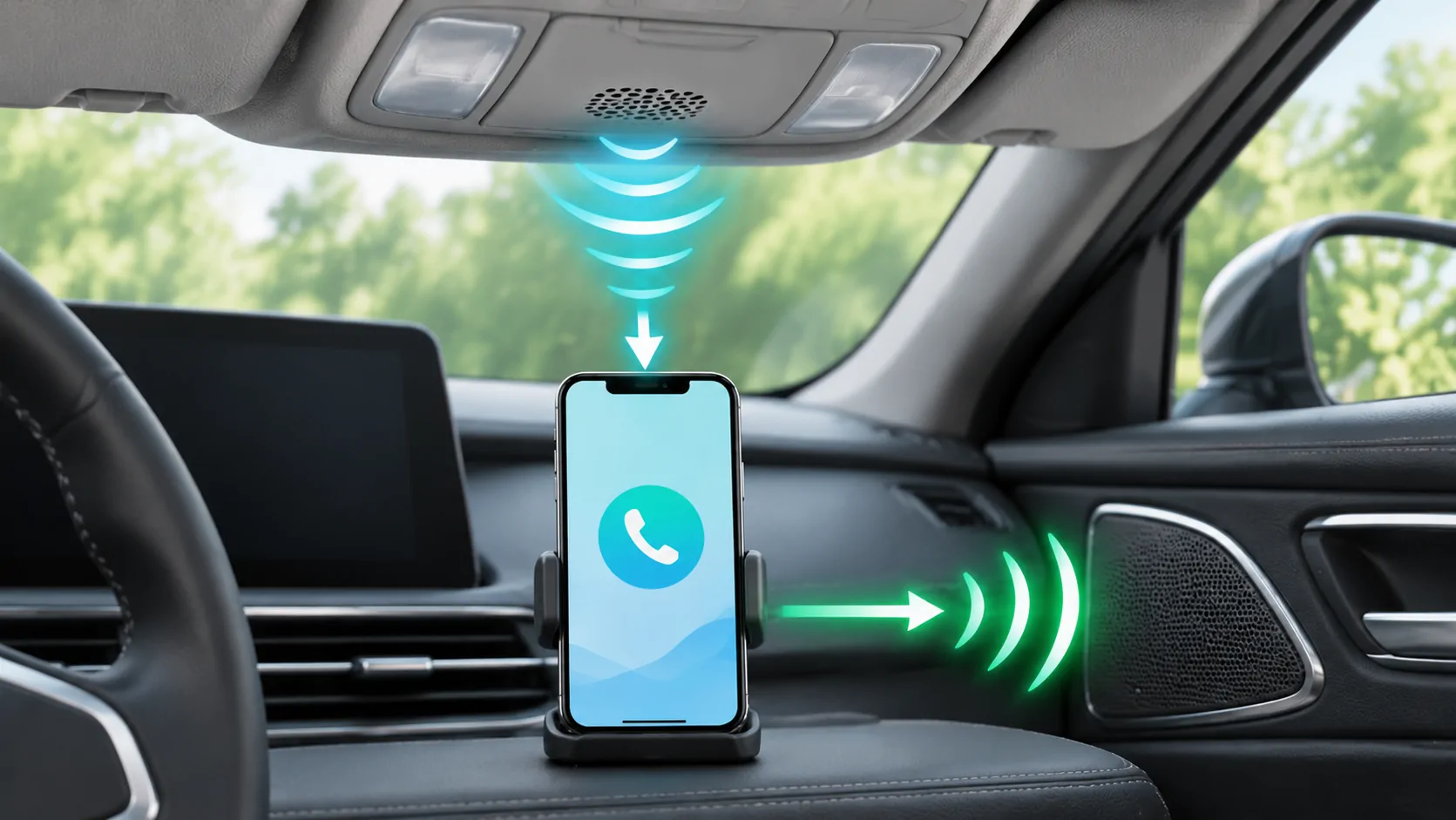
If callers cannot hear you through CarPlay, check mute and the active call route, then compare a call through the car with a call directly on the phone while parked. Microphone hardware, receiver routing and an individual calling app can fail at different stages. A successful phone recording alone does not prove that the vehicle's microphone path is working.
Confirm the direction of the problem
Ask a trusted person to help with a short parked test. Can you hear them? Can they hear you? Is your speech absent, quiet, distorted or intermittent? These observations distinguish microphone input from silent speaker output.
Check whether the call is muted in either the app or vehicle interface. A visible mute state is a straightforward explanation and should be resolved before changing permissions or pairing.
If the other person hears you clearly but you cannot hear them, use the audio-output guide. Replacing a microphone will not address a call routed to the handset or a muted output channel.
Verify the actual call route
Inspect the available audio route on the phone during the parked call. The call may be using the handset, an earbud or another accessory even though CarPlay is visible. Confirm which device is selected rather than assuming the display determines the microphone.
Disconnect unrelated accessories for the controlled comparison if their owner agrees. Keep the test simple: one phone, one car connection and one call. Reconnecting an earbud halfway through can change the route and obscure the original result.
The vehicle may use a built-in microphone or one supplied with an aftermarket receiver. Consult the receiver documentation rather than assuming that the iPhone's physical microphone is always used.
Compare the phone independently
After ending the car test, disconnect from the vehicle and make a short direct phone call. If speech is unclear there too, investigate the phone before focusing exclusively on CarPlay.
Apple's microphone troubleshooting describes using Voice Memos to check speech recorded near the phone's bottom microphone and using camera recordings for other phone microphone checks. Follow those instructions for the phone itself.
These tests help identify an independent phone issue. They do not test the vehicle's microphone wiring, placement or receiver settings. State that limitation when sharing a recording or support report.
Compare ordinary calls and one affected app
If ordinary calls work through the car but a third-party calling app does not, inspect that app's microphone permission and current in-car support. Apple directs users to Privacy & Security, Microphone for app-specific access checks.
An app not appearing in the permission list may not yet have requested access. Consult the developer rather than enabling unrelated settings. Apple's privacy explanation describes how permission categories are requested and managed.
A failed internet call can also involve account or network trouble. If the app displays the correct microphone route but the call never connects, distinguish that from an established call with missing speech.
Evaluate the cabin input environment
During a parked test, close noisy windows, reduce fan noise temporarily and speak at a normal volume from the normal seating position. Ask the other person whether clarity changes. Restore ventilation to a safe, comfortable setting afterward.
Check the receiver manual for microphone placement and input settings. A poorly positioned aftermarket microphone can produce different results from a factory installation. Do not pull trim panels or change wiring without appropriate expertise.
If the symptom is distortion rather than silence, record whether it affects both Siri and calls. That comparison can help the installer or manufacturer investigate shared input components without proving a specific hardware fault.
Use Siri as a comparison, with limits
Activate Siri through the car and make a short, harmless request. If Siri hears you accurately but one calling app does not transmit speech, the problem may be app-specific. If Siri and all calls fail only through the car, the shared vehicle input route deserves attention.
Siri recognition is not an acoustic calibration tool. Network availability, language and the requested action can affect its response. Observe whether speech is recognised, not merely whether a complex task completes.
For a failure to activate or recognise requests, continue with Siri diagnosis. Keep activation, recognition and call transmission as separate stages.
Restart and re-pair in a documented sequence
Apple's CarPlay troubleshooting includes restarting the phone and car, checking settings and setting up the saved car again when needed. Use those steps after verifying mute and routing.
Repeat the same short call after each change. If re-pairing restores speech only temporarily, record the next action that causes it to fail. Do not claim a permanent fix from one successful call.
Check official receiver firmware instructions and the affected app's updates. Avoid unofficial microphone-boost tools or configuration profiles that promise universal CarPlay repair.
Escalate with useful evidence
Provide the phone and receiver models, software versions, connection method and exact direction of the audio failure. State whether a direct phone call, Voice Memos recording, Siri request and ordinary CarPlay call succeeded.
Do not share a private conversation as a diagnostic sample. A short consented test phrase is enough if a recording is actually necessary. Remove phone numbers and account information from screenshots.
A clear result identifies which input route works and which does not. That can guide the phone manufacturer, receiver installer or app developer toward the relevant component without claiming that an untested cable, app reinstall or microphone replacement is guaranteed to solve the problem.
Sources
Related reading
Bring your own media.
Explore CarCast for iPhone with your own authorized sources and supported display configurations.