Guides
Diagnosing Wireless CarPlay Wi-Fi Interference
Investigate suspected wireless CarPlay interference with repeatable parked comparisons rather than assuming every wireless failure is radio noise.
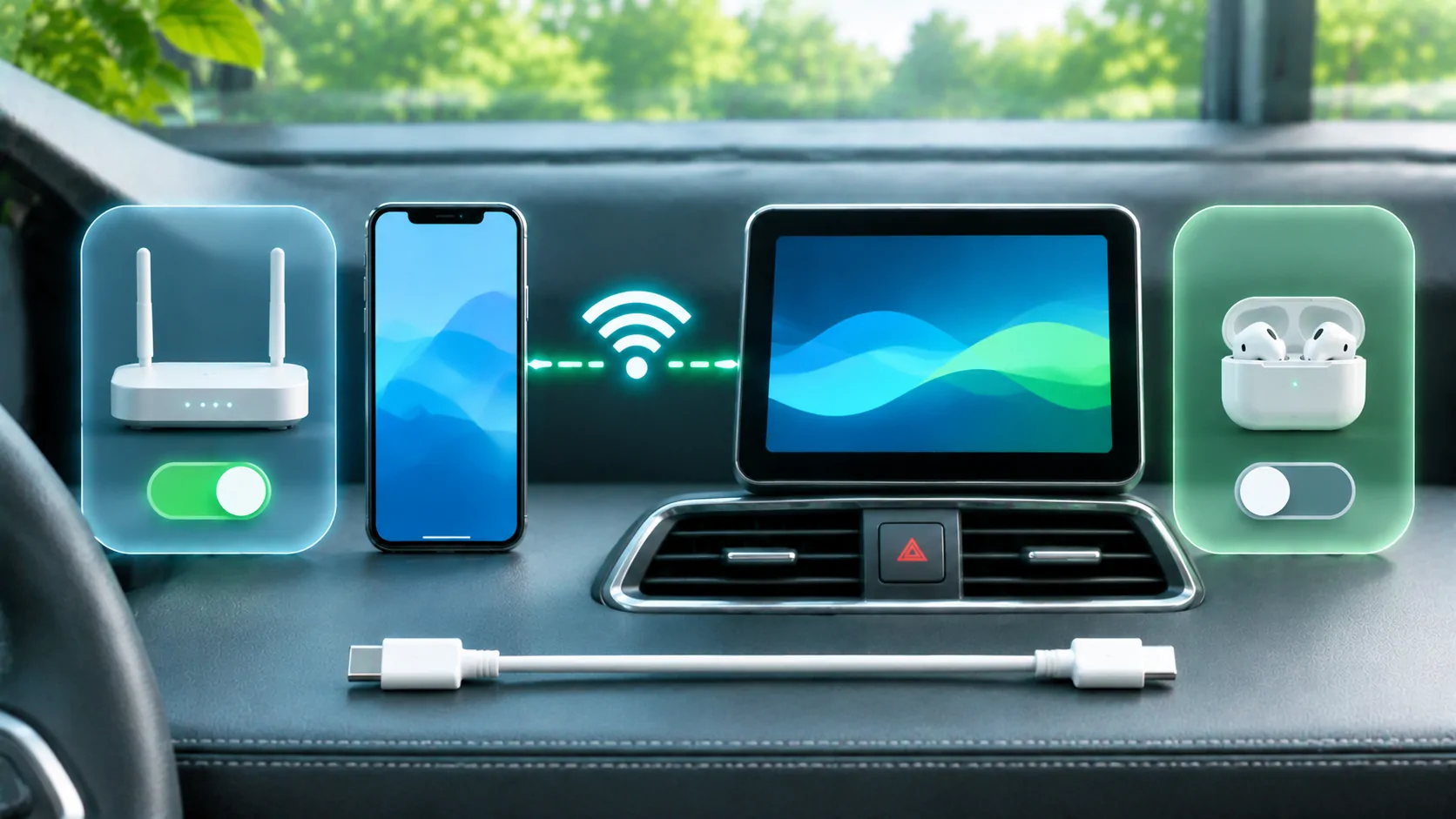
Radio interference is one possible reason for unstable wireless CarPlay, but a wireless failure alone does not prove it. First verify pairing, Bluetooth, Wi-Fi and the active phone, then compare the same setup under controlled conditions. A streaming pause, receiver restart and complete wireless link loss require different explanations.
Define an interference hypothesis precisely
Write a testable observation: for example, the entire CarPlay interface drops repeatedly at one location but remains stable during parked use elsewhere. That is more useful than saying the wireless signal is bad.
A location correlation can guide investigation, but it is not proof of a particular transmitter, frequency or nearby device. The phone can also encounter changing cellular coverage, and the receiver can switch phones or restart independently.
A stable parked test also has a limit: it does not reproduce every condition encountered during travel. Report the test setting honestly. Do not describe a brief stationary success as proof that a journey-specific fault has been eliminated.
Do not make a diagnostic drive that encourages watching the screen. Record naturally occurring circumstances afterward, and conduct any deliberate comparisons safely parked.
Confirm the required connection settings
Apple's CarPlay troubleshooting recommends enabling Bluetooth and Wi-Fi and checking Auto-Join for the CarPlay network. Correct these basics before investigating an environmental cause.
Check the receiver's selected phone and saved priority. Another regular user's phone entering the car can change the active device. That can look like a dropped radio link when it is actually a connection-selection event.
Use the wireless setup guide to establish a clean reference. If pairing never completes, solve that first; interference during an established session is a different question.
Separate wireless transport from mobile internet
Wireless CarPlay connects the phone to the receiver, while an online music or video source may rely on the phone's mobile data. Losing the second path does not necessarily end the first.
During a parked test, play a known downloaded audio item and inspect whether the interface remains responsive. If downloaded audio and navigation controls continue while one stream buffers, investigate the source or mobile connection before blaming the local wireless link.
If the receiver returns to its native menu and CarPlay disappears entirely, record that as a session interruption. If the receiver's own menus restart as well, identify a possible receiver reboot rather than reporting only interference.
Compare a wired connection where supported
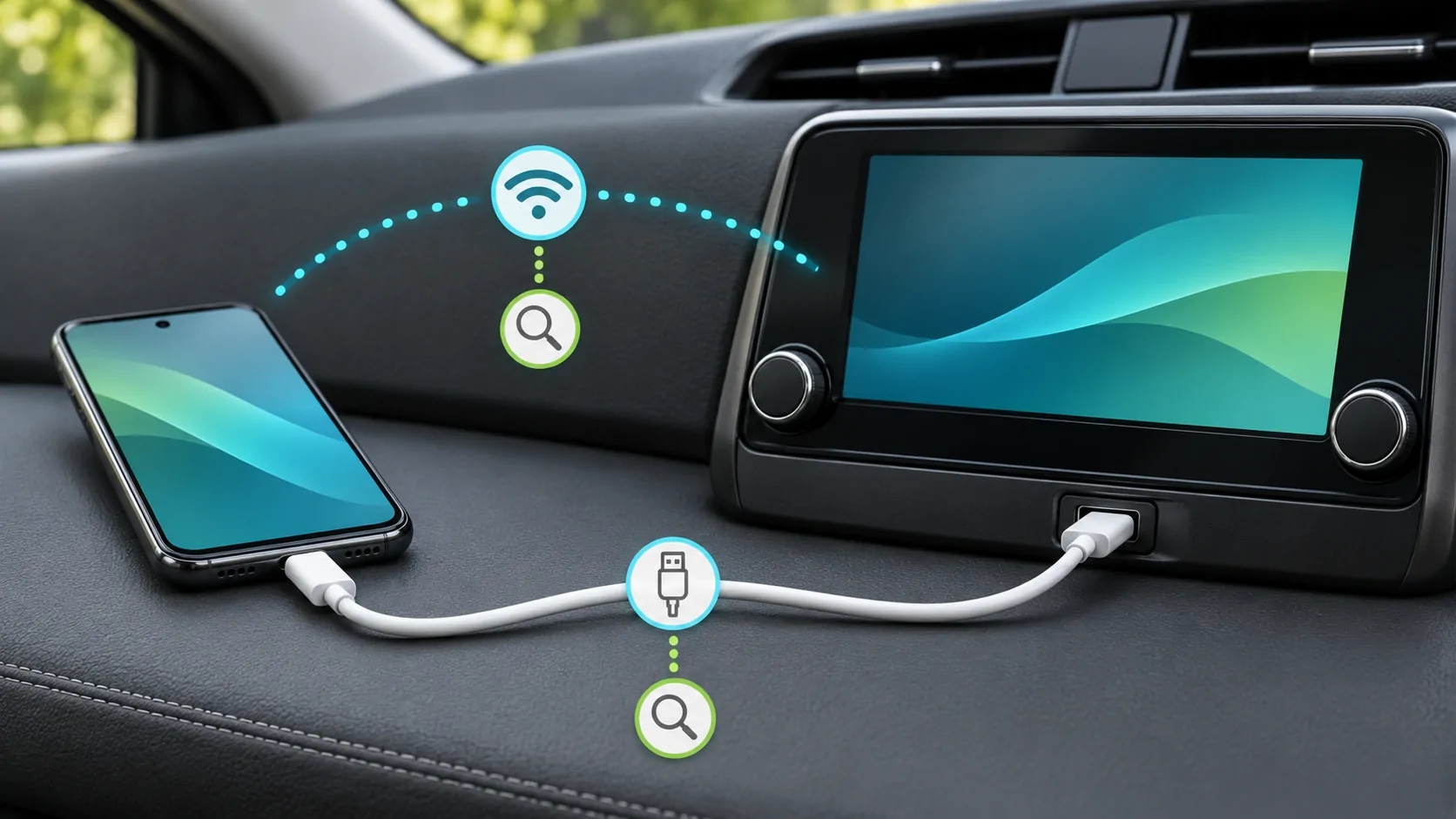
If the same receiver supports wired CarPlay, connect the same phone using a suitable direct data cable and the designated port. Keep the app and test item unchanged.
A stable wired session with an unstable wireless session narrows the issue to differences between the arrangements. It does not identify interference specifically; pairing state, receiver wireless software or hardware can also differ.
Apple's setup documentation makes clear that connection methods depend on vehicle support. Do not buy an adapter solely to create this comparison if the receiver has no documented wired alternative.
Reduce optional devices one at a time
For a parked test, temporarily disconnect nonessential accessories with their owners' permission. Examples might include an additional phone competing for the receiver or an optional hotspot device. Change one item, repeat the same task and record the result.
Do not disable safety equipment, vehicle systems or required communications devices. Do not assume that all Bluetooth accessories interfere or that removing one proves a frequency conflict.
If disabling an optional device appears to help, repeat the comparison before drawing a conclusion. A single successful session can result from a fresh pairing, different temperature or the receiver completing a restart.
Record location and timing without overclaiming
Useful notes include whether the car was stationary, whether the receiver was newly started, which other devices were present and whether the complete interface or only online content stopped.
Avoid publishing a detailed personal travel history. A broad public location and approximate test conditions are usually sufficient for manufacturer support. Do not record nearby network identities unnecessarily.
If the problem occurs only after a consistent period of use rather than at a location, consider heat, receiver state and software behaviour as other possibilities. The timing should guide the next controlled test rather than be forced into an interference explanation.
Check software and pairing state
Restart the phone and receiver normally, then repeat the reference test. Review official phone and receiver updates. A software change may affect wireless behaviour, but do not name a version-specific defect without verified evidence.
If the saved relationship is suspect, forget and re-pair the car using the documented procedure. Keep a note of previous settings first. A broad network reset can affect other saved connections and should not replace a focused pairing check.
For a connection that also fails over USB, continue with the wider disconnection diagnostic. A problem shared by both transports may involve a component beyond wireless radio conditions.
Decide what the evidence supports
A useful outcome can be modest: the fault occurs only wirelessly, only with a particular accessory present, or only in a repeatable environment. Each narrows the next support question without claiming certainty about the cause.
Provide the receiver manufacturer with phone and receiver versions, connection history, active devices and the exact symptom. Ask whether there are model-specific wireless diagnostics or firmware recommendations.
Do not use unofficial radio tweaks or configuration profiles that promise a universal fix. There is no justified single channel, accessory ban or reset procedure for every receiver.
Wireless reliability is best assessed through repeatable observations and controlled changes. Preserve a working reference, distinguish local transport from internet delivery, and label interference as a hypothesis until the evidence supports a more specific conclusion.
Sources
Related reading
Bring your own media.
Explore CarCast for iPhone with your own authorized sources and supported display configurations.