Guides
Missing Messages and Notifications in CarPlay
Diagnose missing CarPlay messages by checking delivery, app support, notification permissions, Driving Focus and spoken announcements in order.
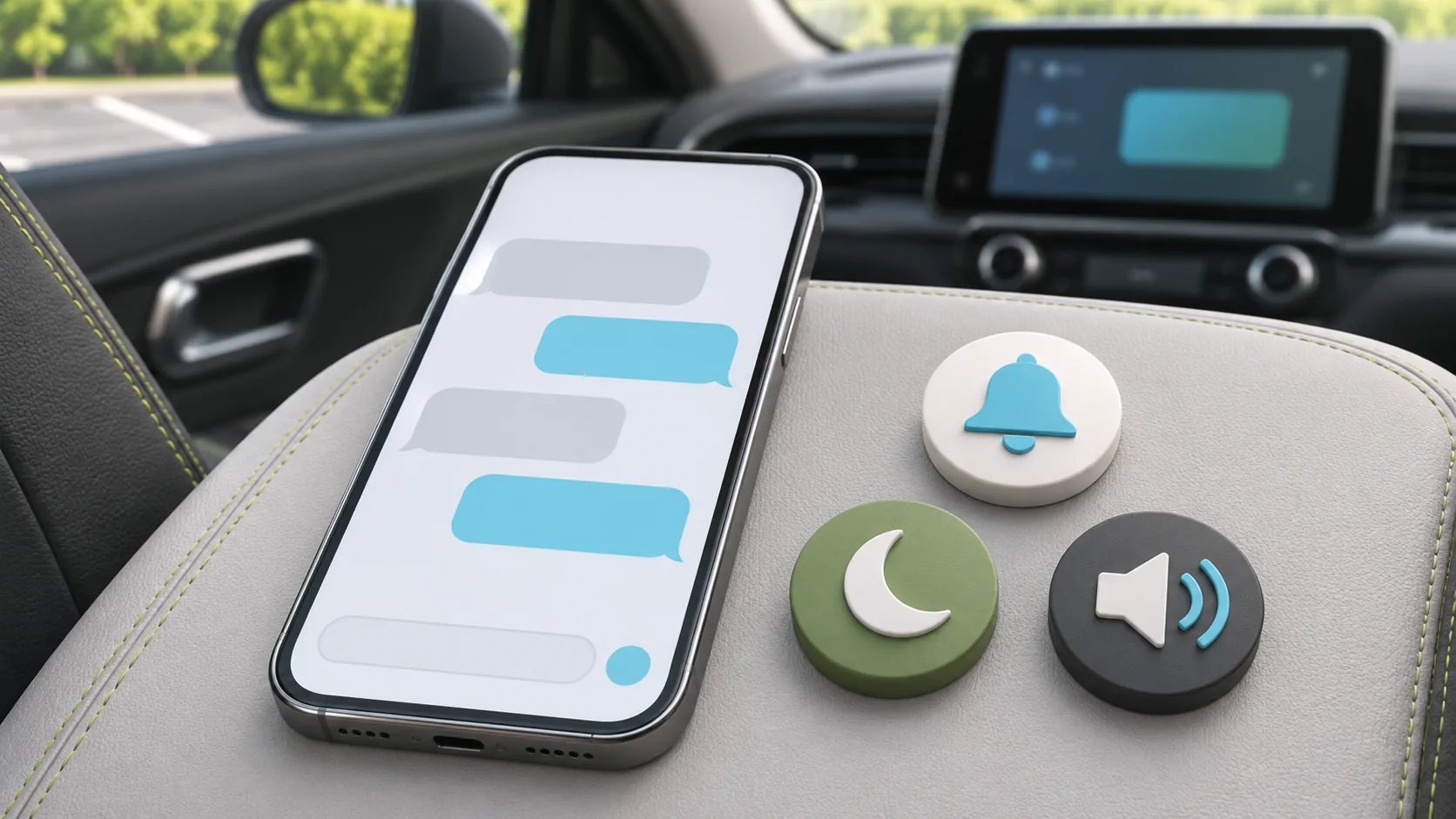
When messages or notifications are missing in CarPlay, first confirm that the message arrived in the correct iPhone app. Then check that app's supported CarPlay behaviour, its notification settings, Driving Focus and announcement options. Delivery, a visible alert and Siri reading the text are different stages; one can work while another is intentionally limited.
Start with a controlled incoming message
Ask a trusted person to send one short, ordinary message while the car is parked. Use a conversation and service you can identify clearly. Do not begin with a mixture of group alerts, marketing notifications and several messaging apps.
Check the source app on the phone. If the message is absent there, investigate the account, service or network before CarPlay. If it is present, note whether the phone displayed an alert, played a sound or simply stored the message silently.
Keep private content out of the test. A simple sentence is enough to establish delivery and presentation without exposing personal details to passengers or support staff.
Verify what the app actually supports
Not every iPhone notification is expected to become a CarPlay notification. An app can be installed and send phone alerts without offering the same vehicle interface or spoken actions.
Apple's CarPlay use guide describes supported messaging and Siri announcements. For a third-party app, consult that developer's current instructions as well. Do not assume that a feature available in Apple's Messages app exists identically elsewhere.
If ordinary Messages works but another service does not, preserve that comparison. It suggests an app-specific support or configuration issue rather than a general failure of the vehicle's display.
Review the app's ordinary notification settings
While parked, open the affected app's notification settings on the phone. Confirm that the intended alert types are allowed. Inspect any conversation-specific mute setting too; one muted thread can behave differently from the rest of the app.
A privacy option that hides previews is not necessarily a delivery failure. Decide what should be visible in a shared cabin before enabling broader previews. More visible information is not automatically the correct configuration.
If the app does not offer a particular CarPlay setting, do not try to create one through an unrelated permission. Apple's privacy documentation explains that access categories belong to specific app requests and data uses.
Check whether Driving Focus is active
The Driving Focus guide explains that messages and other notifications can be silenced or limited. Focus can activate with CarPlay, car Bluetooth, motion detection or manual selection, depending on your configuration.
Inspect the actual active state and the allowed or silenced people. A contact whose alert was intentionally excluded does not demonstrate a broken CarPlay connection. Test with a person covered by the intended policy.
Focus status and an auto-reply can explain what the sender sees, but neither proves whether the car should have spoken the content. Review those choices separately using the Driving Focus guide for CarPlay.
Review Siri announcement options
Apple describes turning on message announcements through iPhone notification settings and through CarPlay settings. Check whether announcements are enabled and which messages are eligible in your setup.
A long message can initially produce a sender announcement rather than a complete readout. Apple notes that you can ask Siri to read the full message. Do not interpret the abbreviated announcement as evidence that part of the text disappeared.
Use the same short controlled message after changing one setting. If the tone is audible but the message is not read, investigate the announcement choice rather than re-pairing the car immediately.
Distinguish silence from missing visual information
If Siri announces the message but no banner appears as expected, inspect the available presentation settings and app behaviour. If a banner appears but nothing is heard, inspect announcement policy and the relevant audio level.
Test another supported sound, such as a basic call or audio item. If every sound is absent, the problem is broader than notifications. A receiver can have separate volume handling for different tasks, so change levels carefully while parked.
Do not turn the main volume to maximum while waiting for an alert. An unexpectedly restored sound can be very loud. Use a modest level and a predictable test.
Compare phones and reconnections carefully
If the wrong iPhone is active, the dashboard may be showing another person's apps and notifications. Verify the receiver's selected phone in a shared car. A phone connected only for charging is not necessarily the active CarPlay device.
If the expected phone is active and settings look correct, reconnect normally and repeat the test. Restarting the phone and receiver can be a later step, but first preserve the account, app and Focus observations.
The message-use guide explains how to test sending and readout without a lengthy conversation. Do not reset network or privacy settings merely because one sender's notification is missing.
Keep a narrow support record
If the issue persists, record the app, phone software, receiver, connection method, Focus state and exact test result. State whether the message arrived on the phone and whether a visual alert, sound or announcement was missing.
Avoid claiming that a software update caused the problem solely because it happened recently. Include the timing as an observation and list any other changes, such as a new phone, new account or changed allowed-contact list.
A useful resolution restores the notification policy you intended. It does not require announcing every message or exposing private previews. Once the controlled example behaves correctly, keep the settings understandable and review them when the phone or vehicle's regular users change.
Sources
Related reading
Bring your own media.
Explore CarCast for iPhone with your own authorized sources and supported display configurations.