Compatibility
Porsche PCM and CarPlay: Finding the Correct Instructions
Find the correct Porsche PCM CarPlay procedure by model and model year, compare documented pairing routes and record the result of a parked setup check.
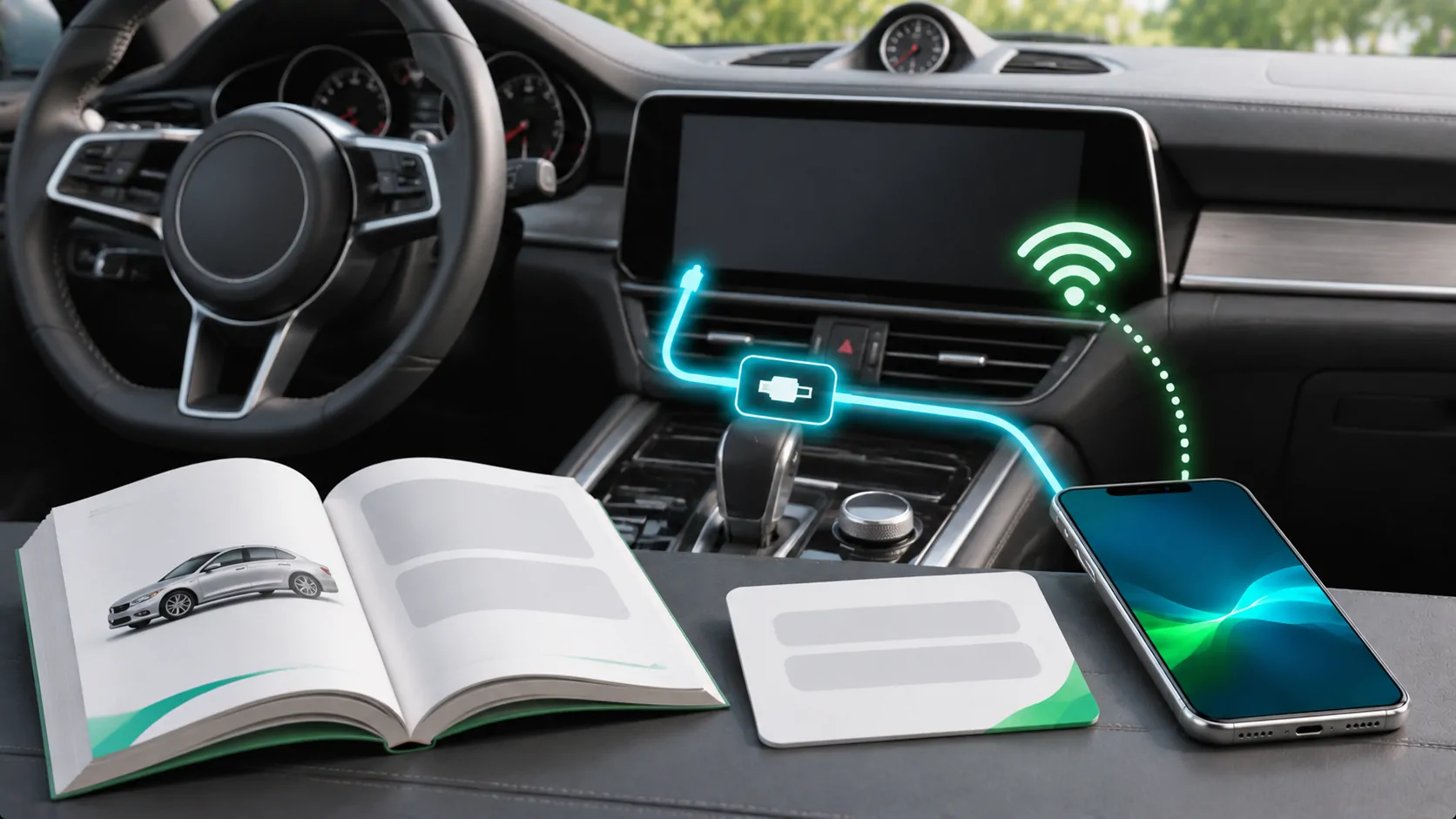
For Porsche PCM CarPlay setup, choose the instructions for the actual model and model year before following a menu sequence. Porsche's official CarPlay help page separates procedures by vehicle and notes that button names can vary. Use that model-specific guidance together with the applicable driver's manual, then confirm the result while safely parked.
Identify the matching instructions
Write down the model, model year, original sales market and installed Porsche Communication Management system. Distinguish model year from the date the vehicle was first registered. Note any replacement unit or aftermarket interface because the factory instructions may no longer describe the whole installation.
Open Porsche's official CarPlay guide and select the matching model section. Read qualifications about software and production dates rather than selecting a row only because the model name matches.
The page also directs owners to their manual for further details. Use the Porsche driver's manual portal or the supplied vehicle manual for the exact configuration. If the equipment cannot be identified confidently, have Porsche confirm it before changing settings.
Read availability and procedure as different claims
A model's appearance in a wireless-availability list does not mean every procedure underneath uses the same controls. Porsche's guide provides different menu routes for different vehicle groups and model years.
For example, its 911 instructions for model year 2022 onward include a Devices route followed by Connect new devices and Connect Apple CarPlay. Its Panamera model-year-2021 instructions instead describe a phone-status symbol in the PCM header, followed by Apple CarPlay or Link.
These are examples of why the selected section matters, not instructions for every Porsche. Check the current page and the applicable manual for your vehicle. If the expected control is absent, recheck the selected model and software information rather than trying random nearby functions.
Prepare the iPhone for the chosen route
Porsche's guidance asks owners to enable the relevant iPhone functions, including Bluetooth, Wi-Fi and Siri. Keep the phone available to read and approve prompts during setup. Do not try to complete initial pairing while moving.
For a supported wireless procedure, follow the phone-screen preparation specified in the selected section. Several of Porsche's documented routes ask you to open the iPhone's Bluetooth settings and keep that screen open while initiating the PCM search.
A different documented option uses the iPhone's CarPlay settings and a sustained press of the vehicle's voice-control button. Use that option only where it is given for the selected configuration. Our wireless CarPlay guide explains the general roles of Bluetooth and Wi-Fi.
Follow one pairing branch to completion
When the matching Porsche instructions use Devices, start there and select the specified connection command. Choose the correct phone when it appears. Read both the PCM and iPhone prompts, check that the device names match and complete the requested confirmations.
Do not simultaneously start another phone pairing or connect an unrelated adapter. If several drivers' phones are nearby, confirm which one is being selected before accepting. A successful connection to another person's device can look like an inconsistent setup fault.
The expected result is the CarPlay interface with supported apps available on PCM. Opening Bluetooth audio alone is a different result. Record where the process stopped if pairing, consent or launch did not complete.
Confirm everyday controls after launch
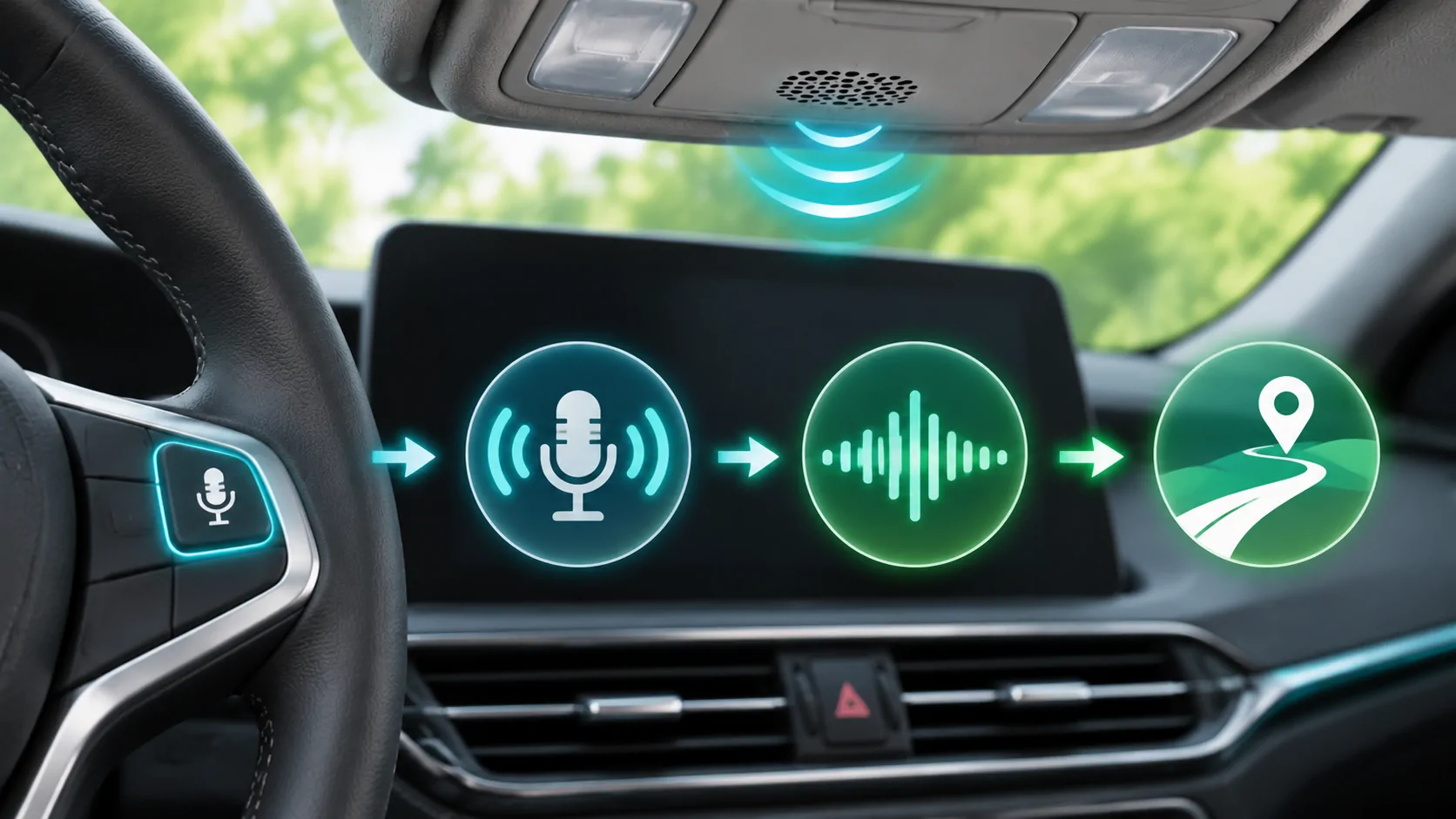
Once connected, check a supported map, a short audio sample and Siri. Porsche's guide describes several ways to start Siri, but also lists conditions that can prevent a voice-control session, such as another active call or competing voice interaction.
Follow the instructions for the actual control location in your car. A steering-wheel button and a control-stalk button should not be treated as interchangeable instructions across models. Keep the check brief and safely parked.
If Siri is the only failing function, distinguish that from a complete CarPlay connection failure. Check the phone's Siri settings and consult the applicable PCM guidance before deleting the whole pairing. Record whether the display, audio and other controls continue to work.
Change drivers or connection methods deliberately
Porsche's guide explains selecting a different saved iPhone through the Devices menu and its CarPlay icon on applicable systems. Confirm the procedure in your manual and choose the intended driver's device before starting a journey.
Our multiple-driver guide helps plan a clean handover of phone access and personal information. A shared vehicle should not rely on guessing which nearby phone will win a connection.
The Porsche page also describes switching from wireless to wired operation for applicable configurations, including removing existing pairings and accepting the relevant USB prompt. Do not apply those detailed steps to an unconfirmed system. Save any information you need before removing a device, and expect the next setup to require consent again.
Diagnose failure without losing the baseline
Note the phone, software versions, selected model instructions and the last successful step. If wireless CarPlay previously worked, Porsche's guide describes reconnecting through Devices and, for persistent issues, removing and recreating the phone association.
Apple's troubleshooting checklist adds general checks for Siri, restrictions, wireless settings, cables and vehicle firmware. Apply one relevant change at a time so the resulting observation remains useful.
For a documented wired connection, use a suitable undamaged direct cable and the specified port. A phone receiving power does not alone establish a successful data session. If a connector is damaged or loose, seek service instead of repeatedly forcing the connection.
Document what the setup actually established
Save the model-specific reference, connection method and a short result: CarPlay opened, the selected phone was correct, basic audio and voice controls responded, or a named step failed. This record helps Porsche support reproduce an unresolved issue.
Do not extend that result into a claim about every PCM version. Features described elsewhere on the page, including additional My Porsche integration, have separate qualifications and should be checked independently.
Ordinary CarPlay setup also does not establish video or unrestricted phone mirroring. Confirm each intended feature against current documentation for the exact vehicle, and complete all setup and troubleshooting interactions while safely parked.
Sources
Related reading
Bring your own media.
Explore CarCast for iPhone with your own authorized sources and supported display configurations.