Video & Casting
Planning Media for an EV Charging Stop
Prepare lawful media, data, devices and stopping conditions for an EV charging break without assuming every car screen supports video.
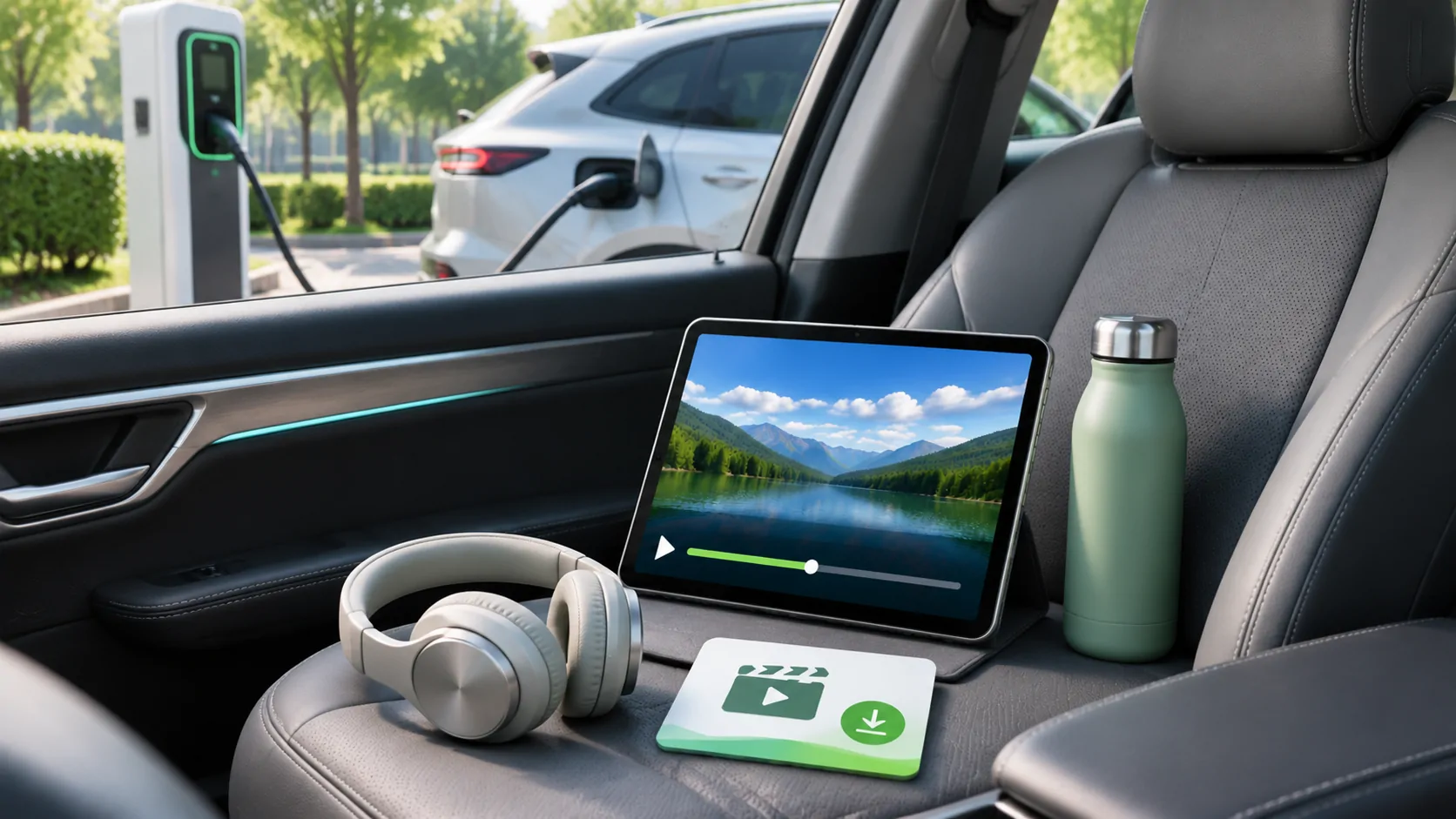
Plan the break around charging, then choose the screen
A charging stop can be a convenient time to watch personal media, but charging does not automatically enable video on a dashboard. First park safely, follow the charger and vehicle instructions, and confirm that the screen and application support the intended viewing mode. Prepare a phone-based alternative. The charging session, your network and the display connection can each end independently, so entertainment should be easy to pause and pack away rather than determine when the vehicle moves.
The useful preparation happens before arrival: select authorised content, check storage and access, and know which device will play it. No particular application can guarantee charger availability, an uninterrupted connection or a fixed amount of viewing time.
Estimate a flexible viewing window
Use the vehicle's current charging estimate as a planning input, not a promise. Arrival battery level, charger power sharing, temperature and the vehicle's charging behaviour can change the stop. A long film may be inconvenient when a charger needs to be vacated promptly.
Choose short chapters, episodes or personal clips with clear stopping points. Keep the charger's notification method audible or otherwise available, and check the charging session itself rather than relying on a media application to signal completion. Passenger plans and site time limits also matter.
Avoid assigning a universal charging duration to an EV model or assuming that the dashboard remains powered in a particular state. Check the exact vehicle instructions. If the display sleeps or a vehicle state changes, stop playback instead of looking for a way around the vehicle's safeguards.
Prepare files and licences before the journey
For your own videos, confirm that the file is actually stored on the intended device. A library thumbnail can represent a cloud-only item. Open a representative clip while you still have a reliable connection, and verify the required audio and subtitle tracks.
If using a subscription service's offline mode, follow that service's download and expiry rules. An in-app download is not necessarily an exportable file for another media player. Do not transfer a protected download into a personal library merely because both interfaces call their items videos.
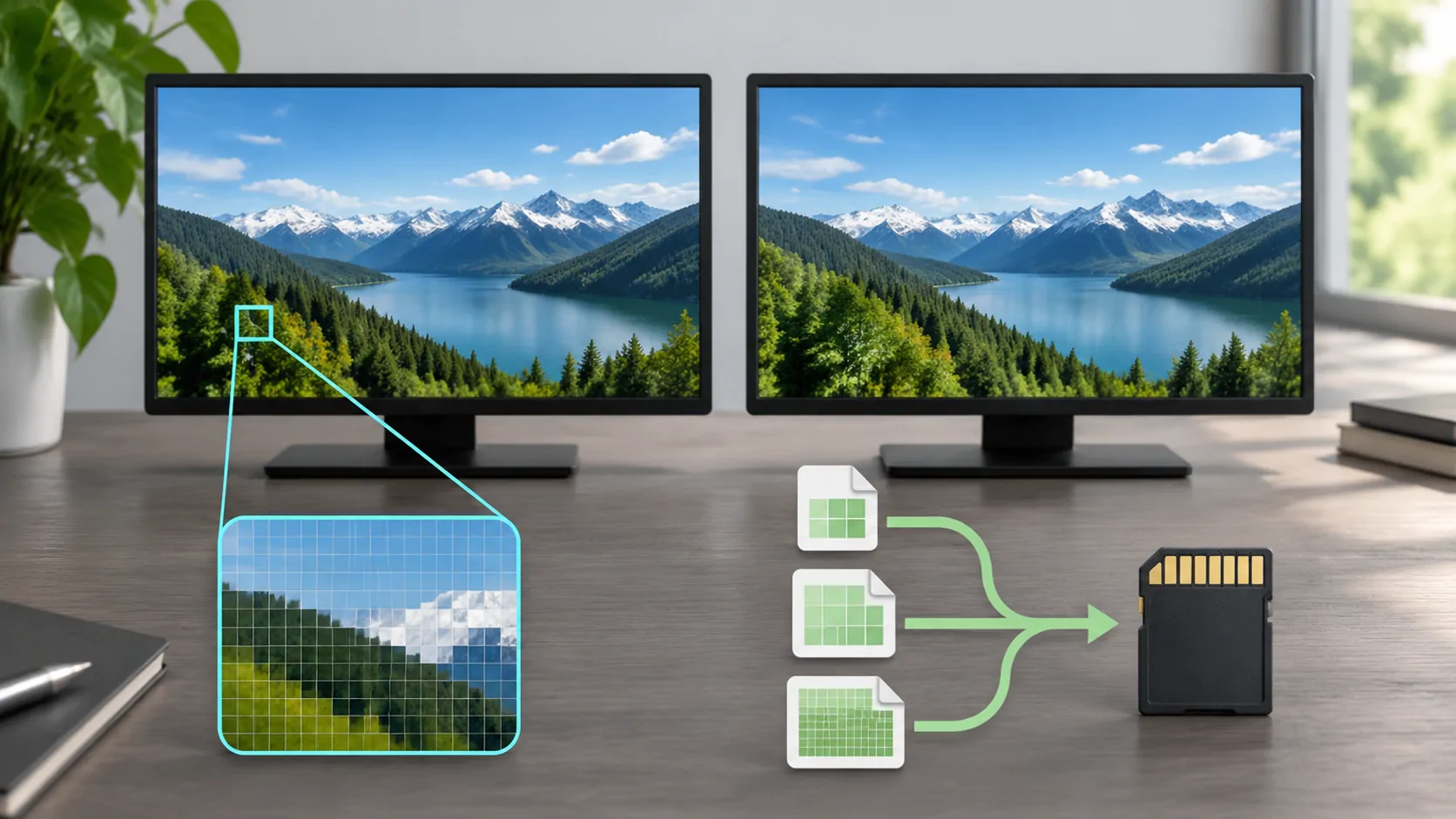
For personal media, resolution and bitrate planning explains how file size and sustained data requirements differ. You can often choose a smaller authorised copy before departure rather than discover a storage or network problem at the charger. Keep the original safely backed up when creating an alternative copy.
Treat the data connection as its own system
A phone can have enough reception for maps but insufficient sustained capacity for high-bitrate video. Public Wi-Fi may require a captive-portal login, have a session timeout or limit bandwidth. A car's hotspot can depend on a separate plan, and wireless display traffic is not the same thing as an internet connection.
Test the actual media source rather than only a speed-test website. Check the mobile allowance and any hotspot rules with the provider. Start at a conservative quality setting where the application permits it, particularly when the connection fluctuates.
Apple's HTTP Live Streaming resources explain adaptive streaming for providers and developers. Adaptive delivery can help when multiple suitable renditions exist, but it cannot manufacture reception or guarantee that every player exposes the same quality controls. A single fixed-bitrate personal stream may have no lower alternative.
Check heat, power and placement
Video decoding, charging and networking together can warm a phone. Place it in a stable, ventilated location away from direct sunlight and avoid covering it with clothing or leaving it against a hot surface. Follow Apple's temperature guidance if the device becomes too warm, displays a warning or limits operation.
Do not assume that plugging in a phone guarantees uninterrupted playback. A cable can disconnect, the vehicle can change power state, or the phone can throttle charging to manage heat. Bring a suitable alternative power source where appropriate, but do not improvise unsafe wiring around the vehicle or charger.
Keep cables away from controls and the area needed to exit the vehicle. Secure any stand so that a quick departure does not leave a loose device. Set the viewing position while stationary rather than repeatedly reaching toward the dashboard.
Verify the viewing route, not just CarPlay availability
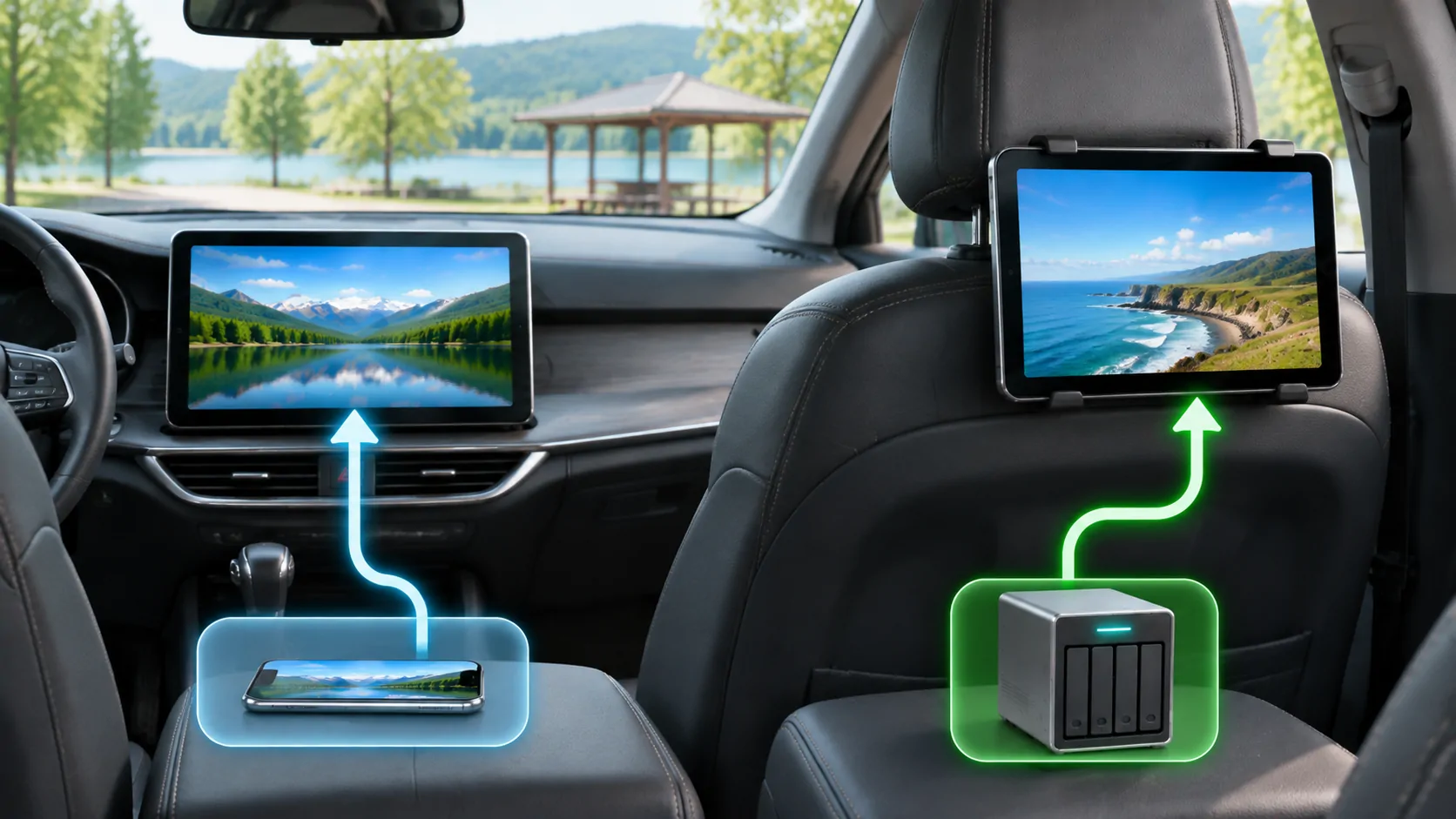
CarPlay availability does not by itself identify every video capability of a vehicle. Native CarPlay, an independent rear-seat system, AirPlay and a phone screen are distinct routes. The car manual and the source application's current requirements decide which can be used.
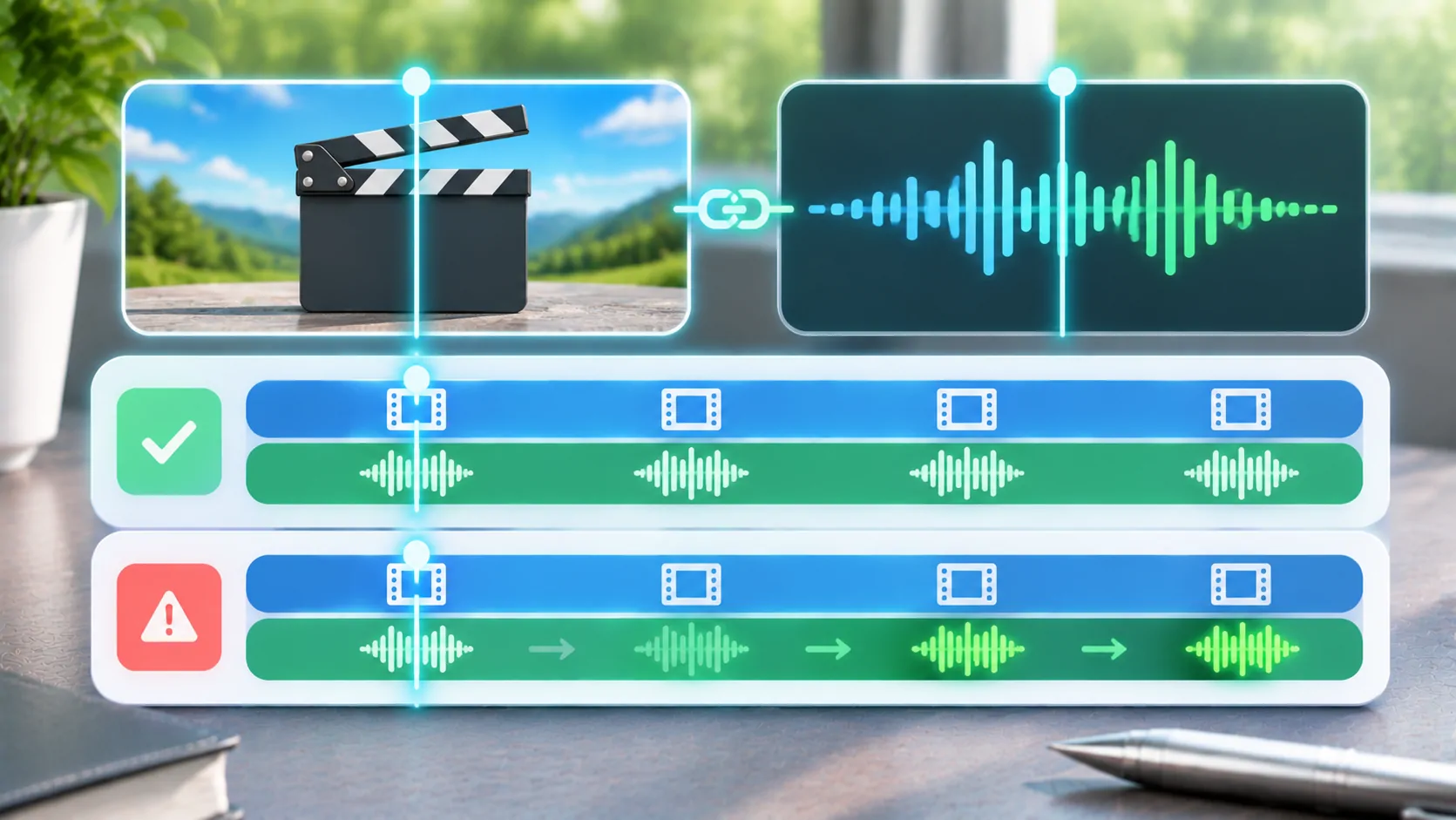
If a permitted car display is available, make a short test before relying on it for a trip. Include sound, pause/resume and subtitles, not merely the first picture. A protected source may behave differently from a personal clip; do not generalise that result to all services.
CarCast can be considered for users' own or authorised media within its documented device and display conditions. It should not be presented as a charger entertainment service or a way to override vehicle or DRM restrictions. A directly supported phone screen remains a sensible fallback when the car route is uncertain.
Leave the stop with an orderly shutdown
Before moving, pause the media, end any screen broadcast, disconnect accessories that need to be stored and verify that nothing obscures the driver's view. Check the charging session and cable according to the site's instructions. A route back to normal navigation should require no on-road setup.
For passengers who want to keep watching, a supported rear-seat device may be more appropriate than the dashboard. Read the screen-system comparison before assuming they share permissions or inputs.
Save troubleshooting for a later parked stop. Record the media source, device, connection and symptom so that an interrupted session becomes useful diagnostic information. The successful plan is one that remains convenient when the network, viewing window or display changes, rather than one that depends on every part of the system behaving perfectly.
Sources
Related reading
Bring your own media.
Explore CarCast for iPhone with your own authorized sources and supported display configurations.