Guides
iPhone Charges but Wired CarPlay Does Not Start
Troubleshoot an iPhone that charges without starting wired CarPlay by checking the data port, cable, restrictions and receiver selection.
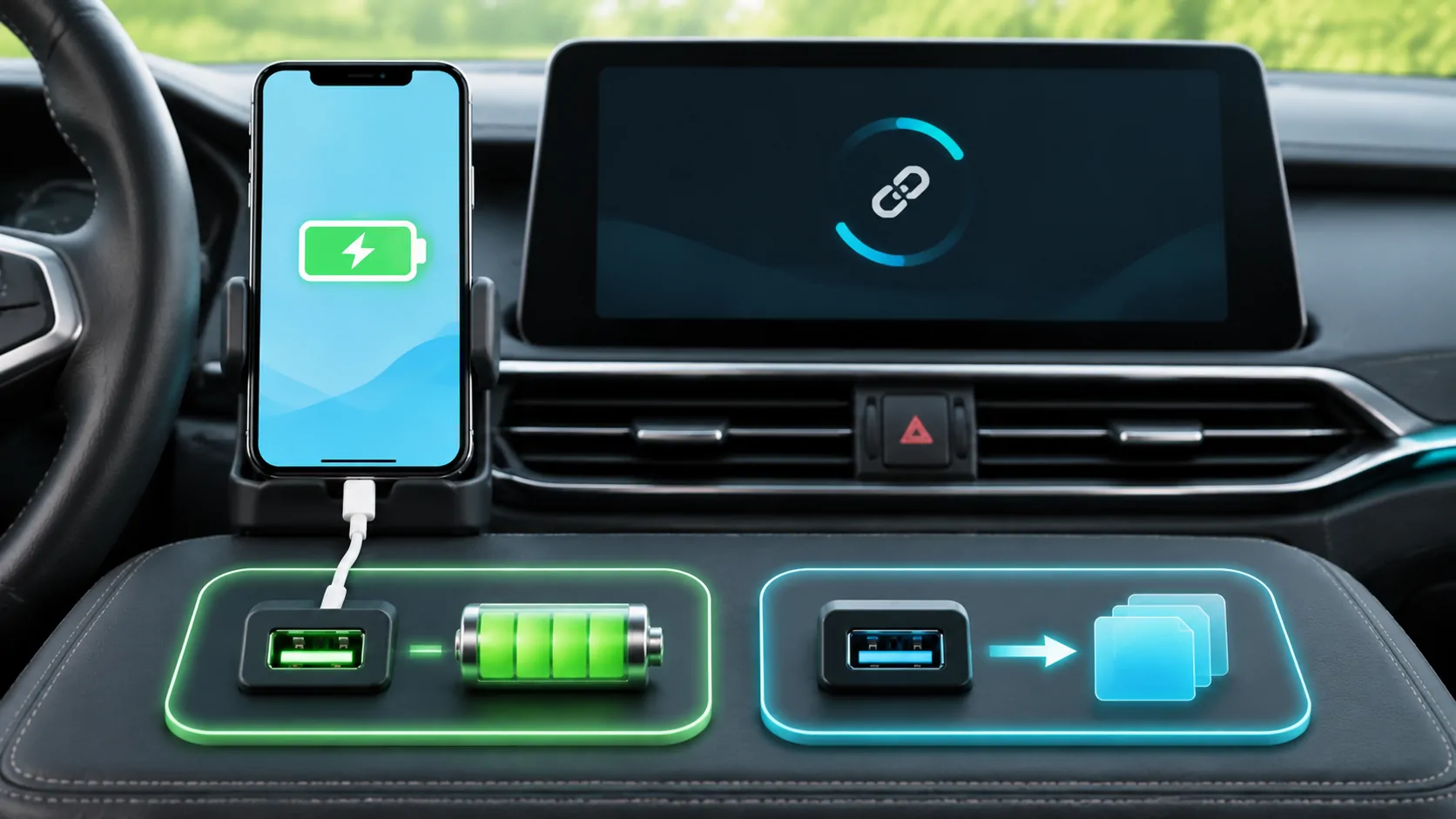
An iPhone can charge from a vehicle USB socket without establishing wired CarPlay. Power is only one part of the connection: the port must support CarPlay data, the cable must carry it, and the phone and receiver must permit the session. Start with the documented CarPlay port and a direct data cable before changing broad phone settings.
Confirm that the receiver supports wired CarPlay
Find the manual for the installed head unit and check its supported connection methods. A car with Bluetooth, a USB media player or a smartphone charging socket does not necessarily support wired CarPlay.
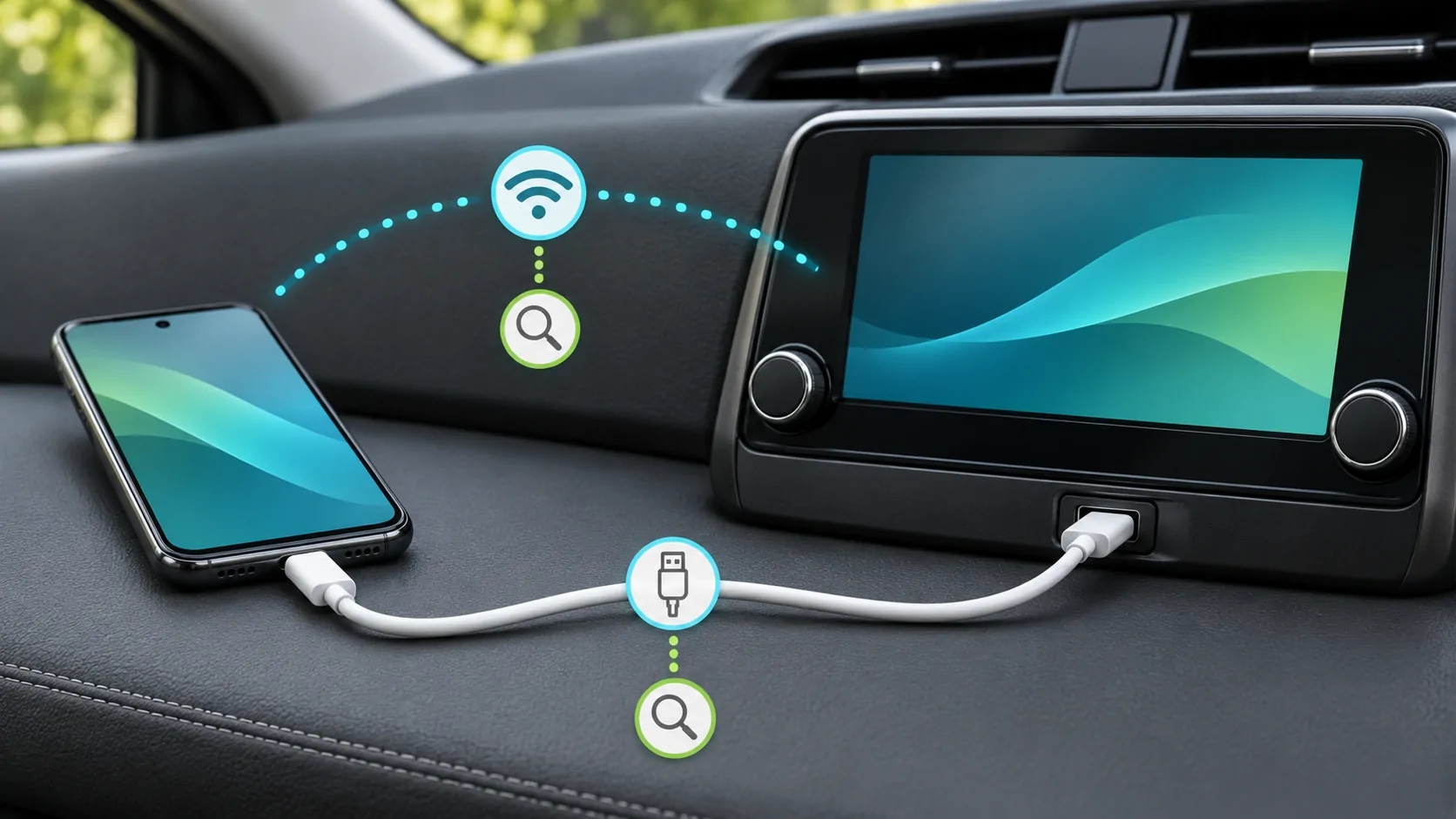
Apple's setup guide distinguishes wired and wireless arrangements. Some cars support both, while others use a different setup route. If the receiver is wireless-only, repeatedly changing USB cables may never produce the expected result.
For aftermarket equipment, identify the receiver rather than relying on the original vehicle specification. An added USB extension or relocated port can also differ from the manufacturer's direct connection.
Use the designated data port
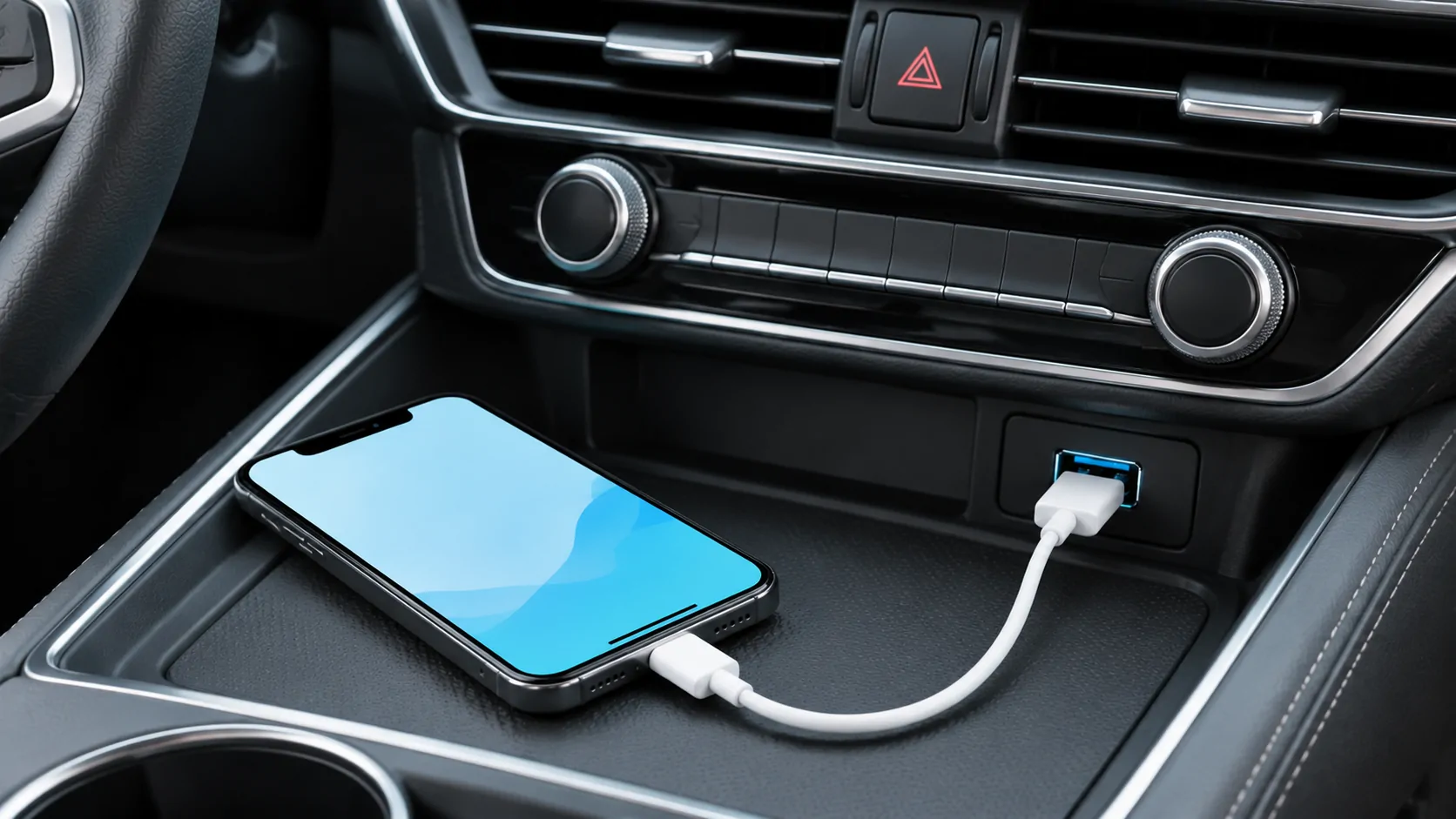
Look for the CarPlay or smartphone marking described in the manual. Test that exact socket first. A centre-console port and a rear-seat port can look similar but serve different roles.
If the manual lists more than one CarPlay-capable port, label the test results by location. Do not assume that every powered USB socket is interchangeable. A phone charging from a socket confirms power, not the availability of the required data path.
If the receiver uses an extension lead installed behind the dashboard, have a qualified installer check it when appropriate. Do not remove trim or disturb vehicle wiring simply to follow a generic online test.
Replace the cable as a single variable
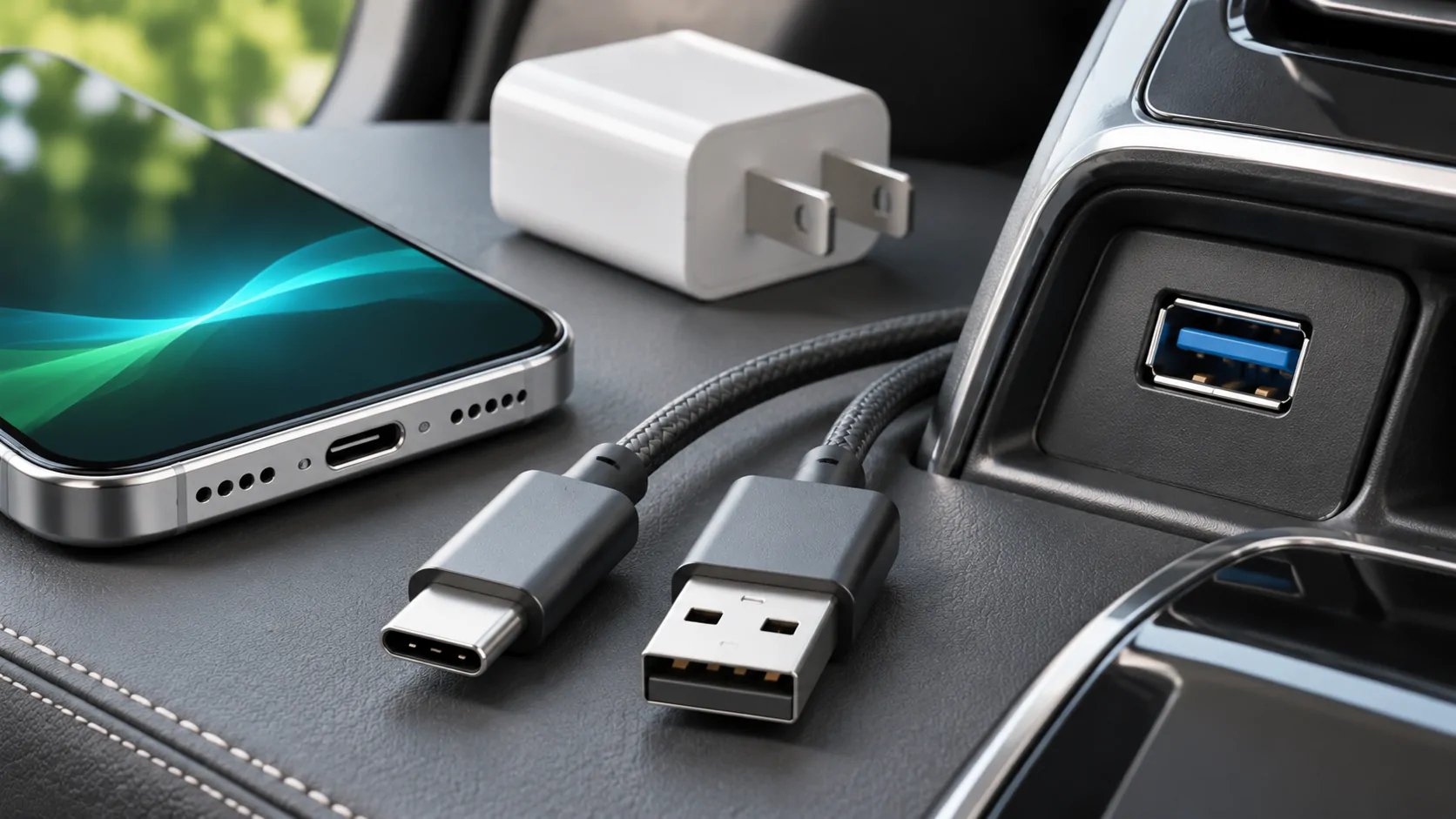
Use a suitable direct data cable with connectors matching the phone and port. Remove hubs and unnecessary adapters for the reference test. Keep the same phone and receiver socket while comparing cables.
If one cable starts CarPlay repeatedly and another only charges, that is evidence about the cable arrangement. If neither works, continue to settings and receiver checks rather than buying a succession of accessories without a controlled comparison.
The USB-C cable guide explains why charging-wattage claims do not establish CarPlay data compatibility. Check connector fit around the case and avoid tension that prevents a plug from seating properly.
Account for USB-C adapter combinations
Apple's USB-C-to-Lightning adapter guidance says the adapter works with wired CarPlay in most vehicles, but some combinations of adapter, cable and entertainment system can disrupt the connection.
For a failing arrangement, compare a suitable direct USB cable. Do not turn that conditional warning into a claim that all adapters fail. Equally, do not assume an adapter must work simply because it charges the phone.
Record the exact adapter and cable used. A later phone replacement can change the connector chain, making an old working configuration a poor comparison unless the parts are identified.
Inspect the phone's setup and restrictions
Unlock the phone while safely parked and look for setup prompts. Make sure Siri is enabled. If the phone is managed or subject to Screen Time restrictions, confirm that CarPlay is allowed through the appropriate settings.
Apple's connection troubleshooting includes checking Content & Privacy Restrictions and allowed apps when the iPhone is not detected. Menu names can change with software, so follow the current controls on the phone.
Do not bypass a work or family restriction. Ask the device owner or administrator to confirm the intended policy. A restricted feature is different from a broken connector.
Select CarPlay on the receiver
The receiver may remain on its native home screen after the phone connects. Look for and select the CarPlay logo as Apple recommends. A USB media-browser screen is not necessarily the same source as CarPlay.
Check which phone is active if another saved device is nearby. A receiver already running a wireless session with a different phone can complicate what happens when your cable is connected.
The wired setup guide provides a clean first-connection sequence. Complete the prompts on both screens and verify the actual interface rather than stopping at the charging indicator.
Use a comparison phone carefully
If available with permission, test another compatible iPhone using the same reference cable and documented port. If the second phone works, investigate the original phone's connector, restrictions and software. If both fail, investigate the shared cable, port and receiver configuration.
This comparison narrows the investigation but does not certify a hardware failure. Two phones can share the same unsupported adapter or encounter the same receiver setting. Record the exact arrangement.
If the interface appears briefly and drops, the problem has moved beyond initial recognition. Continue with disconnection diagnosis and note whether motion, connector position or a receiver restart accompanies the drop.
Restart and escalate with the right evidence
Restart the iPhone and vehicle multimedia system using their documented procedures. If necessary, forget the car and set it up again. Check official manufacturer firmware instructions without assuming that a phone update also updates the receiver.
A useful support report states that charging works but CarPlay does not, identifies the exact data port and lists the cable comparisons. Include whether prompts appeared, whether manual CarPlay selection helped and whether another phone worked.
Avoid destructive resets or unofficial repair tools before those facts are established. The practical goal is a repeatable data connection through supported hardware, not proof that a charging symbol means the entire USB system is healthy.
Sources
Related reading
Bring your own media.
Explore CarCast for iPhone with your own authorized sources and supported display configurations.