Compatibility
CarPlay or a Mounted iPhone for Navigation?
Compare CarPlay navigation with a securely mounted iPhone using visibility, controls, charging, offline preparation, privacy and vehicle compatibility.
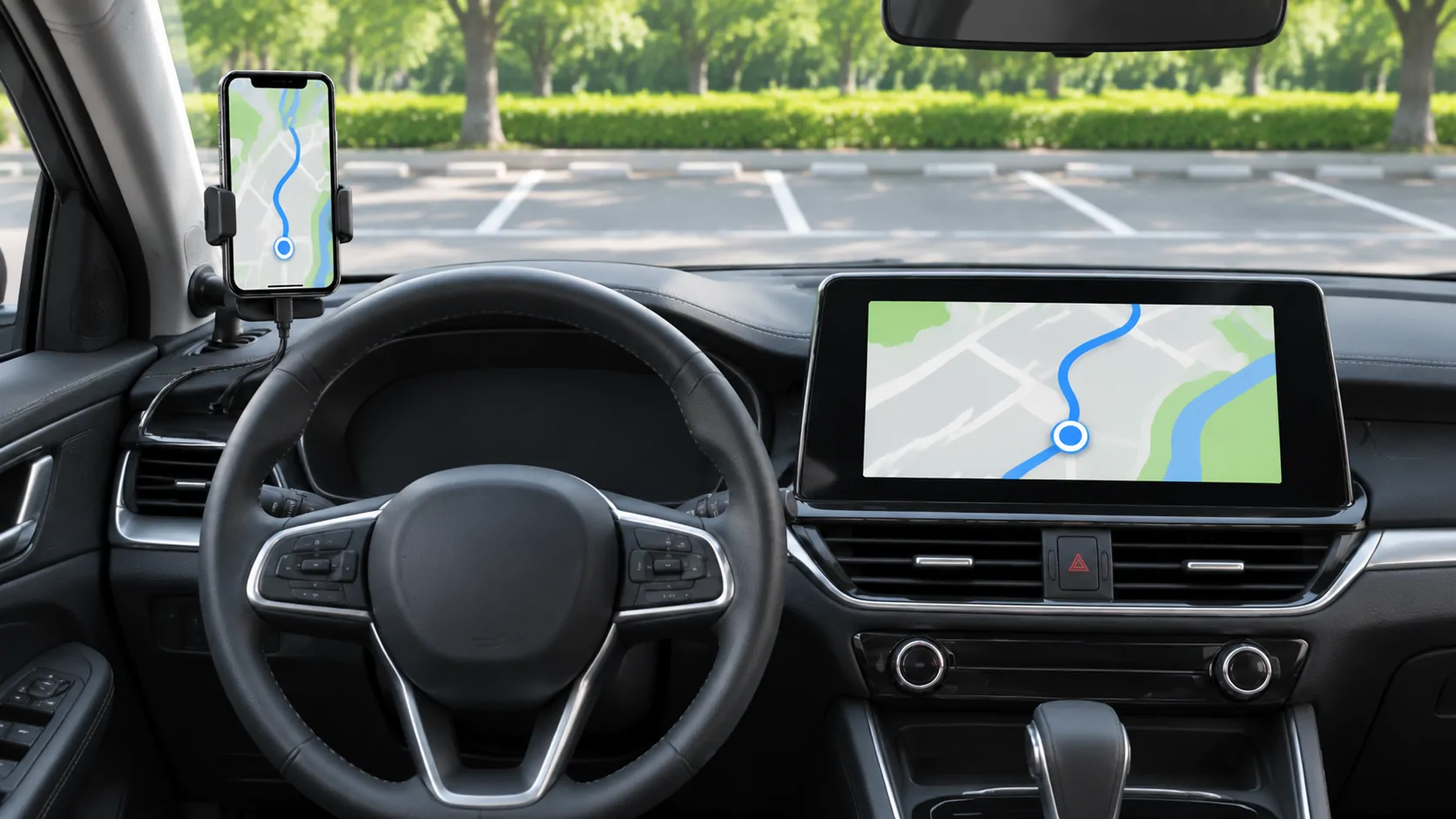
Choose a setup you can prepare before departure
CarPlay can place a supported iPhone navigation app on a compatible vehicle display. A mounted iPhone can provide the phone's own navigation interface when the vehicle lacks CarPlay or when another supported workflow suits the driver. The right choice depends on visibility, controls, secure installation and local rules. Neither arrangement makes manual interaction while driving appropriate.
Plan the route, audio and charging while safely parked. A mount is not permission to operate the phone repeatedly, and a vehicle display is not proof that every task is suitable while moving. Begin with a practical question: which arrangement lets you obtain the needed guidance with the least distracting interaction under the rules that apply to your location?
Confirm what your vehicle can support
Before purchasing a mount or adapter, identify whether the car has wired CarPlay, native wireless CarPlay, another supported receiver or no CarPlay capability. A USB charging port does not answer that question. Apple's setup guide describes the normal connection process, while the owner's manual identifies the vehicle's supported ports and wireless controls.
If the receiver already supports CarPlay reliably, test its navigation display before assuming a phone mount will improve the experience. If CarPlay is absent, assess a safe phone installation or a properly specified replacement receiver. An inexpensive wireless adapter usually cannot add CarPlay to a system that lacks the wired prerequisite. Verify the product category and vehicle compatibility before spending money.
Evaluate visibility from the driving position
A factory display may be larger than the phone but located lower or farther away. A mount can place a phone differently, but it must not obstruct the road, instruments, airbags, controls or required visibility. Rules for windshield and dashboard placement vary by jurisdiction. Check those requirements and the vehicle's installation guidance rather than copying another driver's location.
While parked in the normal seating position, examine map text, upcoming turn information and glare. Test the setup with normal corrective lenses or sunglasses if relevant. Consider day and night brightness separately. A display that looks excellent in a product photo can be difficult to read when sunlight hits it or when the mount vibrates over ordinary road surfaces.
Compare the controls you will actually use
CarPlay can integrate supported touch, steering-wheel, knob or other vehicle controls, depending on the receiver. A mounted phone uses the phone interface and whatever audio or voice setup is available. Check how to repeat an instruction, adjust sound and return to the map. A feature count matters less than clear access to the few operations needed during a normal journey.
Apple's CarPlay developer overview describes supported interface categories and vehicle integration. Those platform capabilities are not identical on every car. Try the actual receiver while stationary. If an action requires searching through several screens, plan a simpler workflow or handle it at a stop instead of assuming a larger display automatically reduces distraction.
Treat audio routing as a separate setup
A phone on a mount may use its speaker, a supported Bluetooth audio route or another vehicle input. CarPlay has its own audio integration. Confirm that spoken directions remain audible at a reasonable volume and that music or calls do not hide important guidance. The correct setting depends on both the app and the receiver.
Perform a short stationary test with a route preview and, when appropriate, an authorized call. Check volume changes and what happens when the call ends. Do not infer the complete workflow from hearing a single notification. If the phone display works but audio does not, diagnose the selected sound route rather than replacing the mount or declaring navigation itself unreliable.
Plan power and heat management
Long navigation sessions can use substantial phone power. Wired CarPlay may supply power through its supported data connection, while a mounted phone needs a separate charging plan. Wireless CarPlay also requires power management. Check whether the cable reaches safely without crossing controls, and whether the charging arrangement is suitable for the phone and vehicle.
Avoid placing the phone where direct sun and charging create excessive heat. A vent mount may affect airflow or control access, and a wireless charging mount has its own alignment requirements. Follow device and accessory guidance, then observe actual behavior on a stationary test. Charging convenience should not come at the cost of a loose installation or an unreadable, overheated screen.
Prepare offline guidance on the chosen app
The connection to the display and the connection to the internet are different. A mounted phone is not inherently offline-capable, and CarPlay is not inherently dependent on continuous mobile data for every navigation function. Confirm the chosen app's offline map, search and rerouting behavior. Download required regions using a trusted connection before travel.
Test a new destination while parked under the intended offline conditions. A route already buffered can continue without proving that a fresh search will work. For remote areas, keep a destination record and another appropriate fallback. Account for roaming and data coverage separately from receiver compatibility; changing the mount cannot repair a missing map region or an unavailable online search service.
Consider shared vehicles and personal information
CarPlay pairing can create records in the vehicle, while a mounted phone can expose notifications and personal information directly to passengers or people outside the car. Review notification settings and the vehicle's device-removal process. For a rental, know how to clear your pairing, contacts and destinations using the manufacturer's supported controls before returning it.
Keep the phone secured when the vehicle is occupied and remove it when appropriate after parking. Do not leave a visible device in an unattended vehicle merely because the mount is fixed in place. If several drivers share the car, check that the correct phone connects and that another driver's information is not automatically displayed. Privacy is part of the everyday workflow, not a final cleanup detail.
Compare failure recovery while stopped
A CarPlay session can fail because of a cable, port, phone setting, wireless issue or receiver software. Apple's troubleshooting guide provides a documented starting point. A mounted setup can fail through a loose mount, charging issue, audio route or phone orientation. Keep the failure types distinct so the remedy addresses the actual component.
Prepare a safe recovery rule: stop in an appropriate place before changing connections or re-entering a destination. A cable or offline map can be useful only if its role is already understood. Do not balance the phone on an unsuitable surface when a mount fails. The fallback should remain secure and legal, rather than preserving a preferred display arrangement at any cost.
Decide on complete journeys, not screen size
Choose CarPlay when its supported vehicle interface and controls work reliably for your routine. Choose a securely mounted phone when it is the practical lawful option and its installation, power and audio are verified. For some vehicles, a suitable aftermarket receiver may be a longer-term choice, but installation and integration need their own assessment.
Use the compatibility record for the receiver and built-in versus CarPlay navigation for a second route option. Evaluate startup, legibility, instructions, charging and recovery as one journey. A sound choice is the arrangement you can prepare fully while parked and use with predictable guidance, rather than the device with the largest map or longest specification sheet.
Sources
Related reading
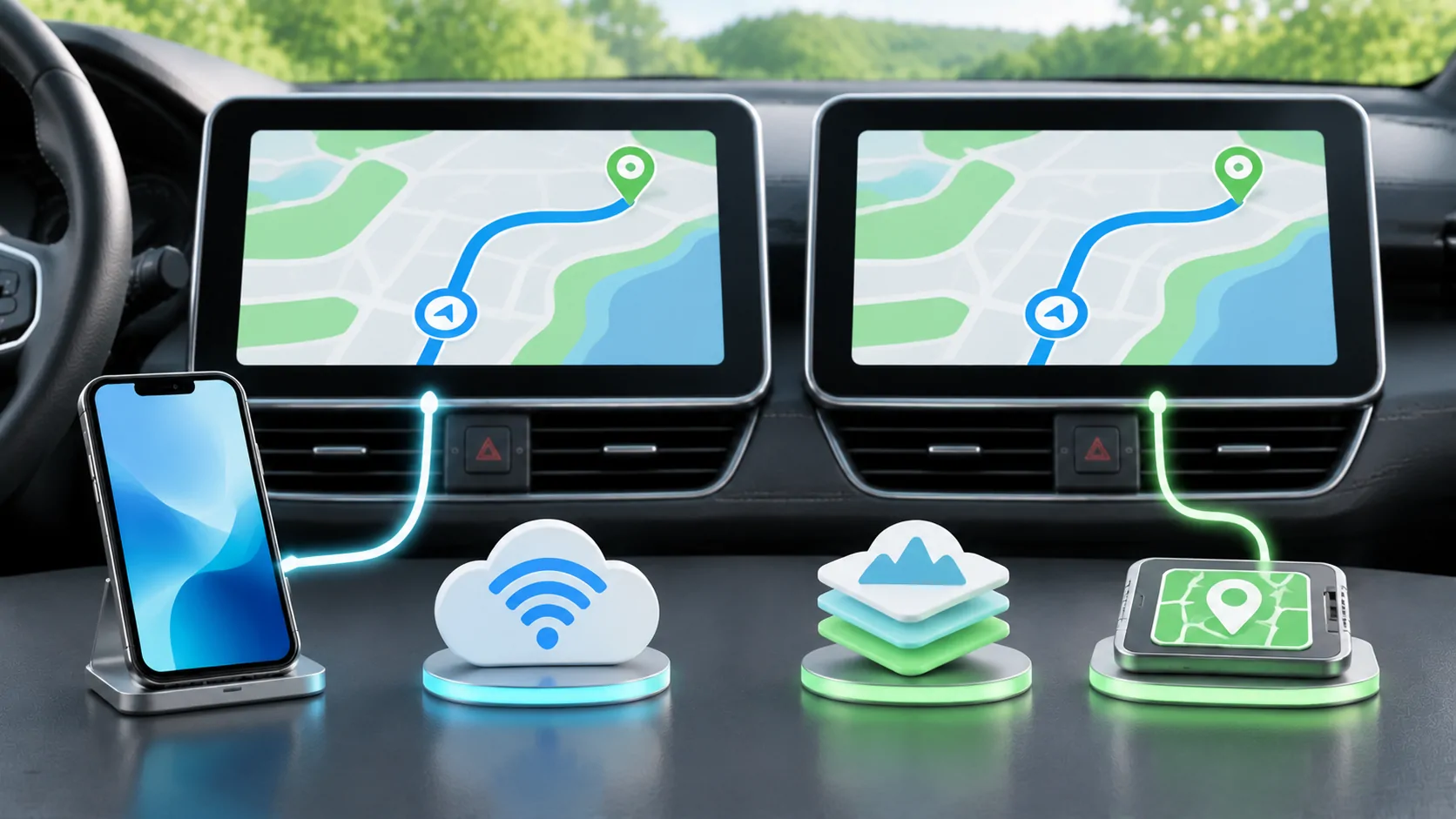
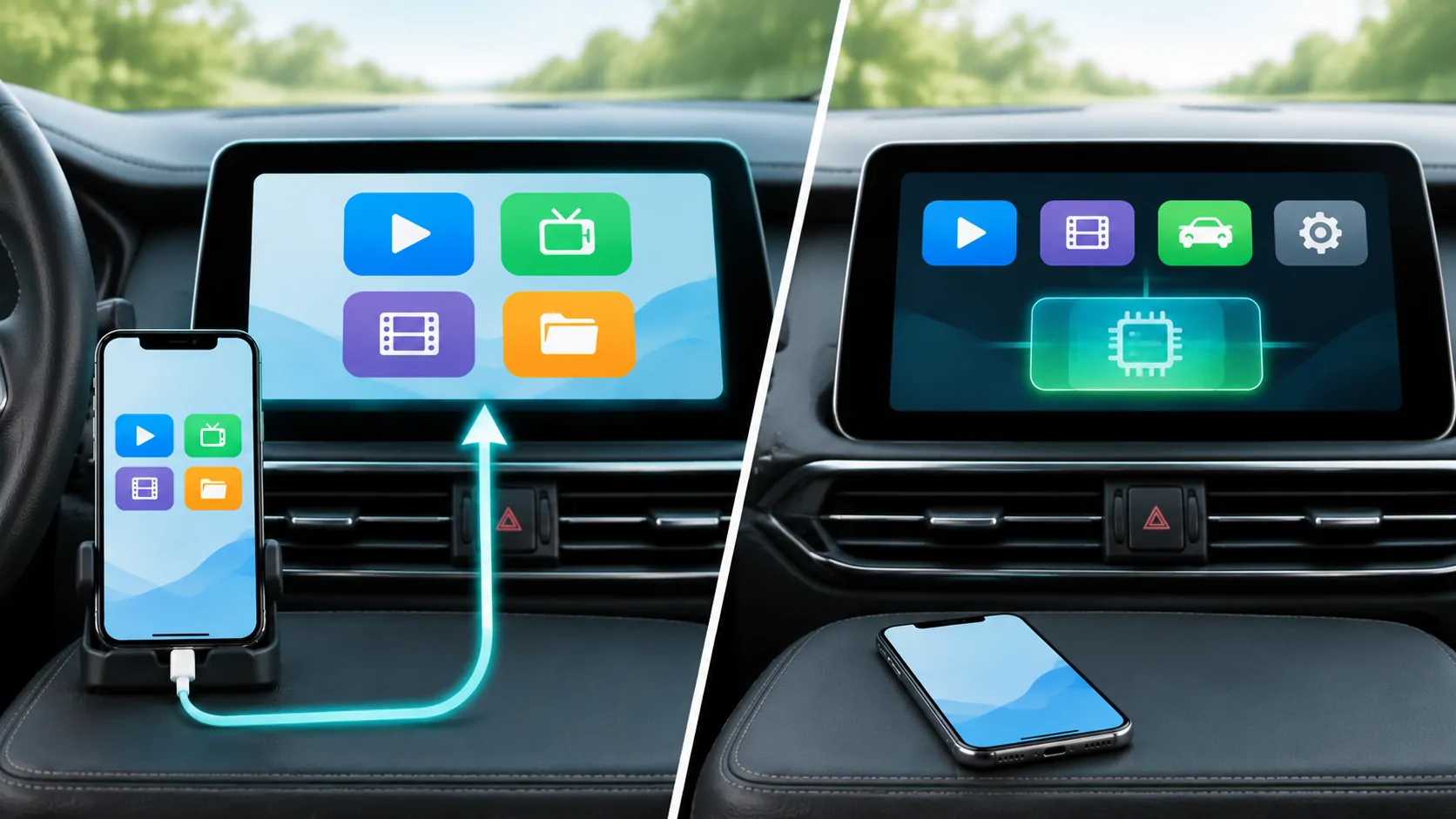
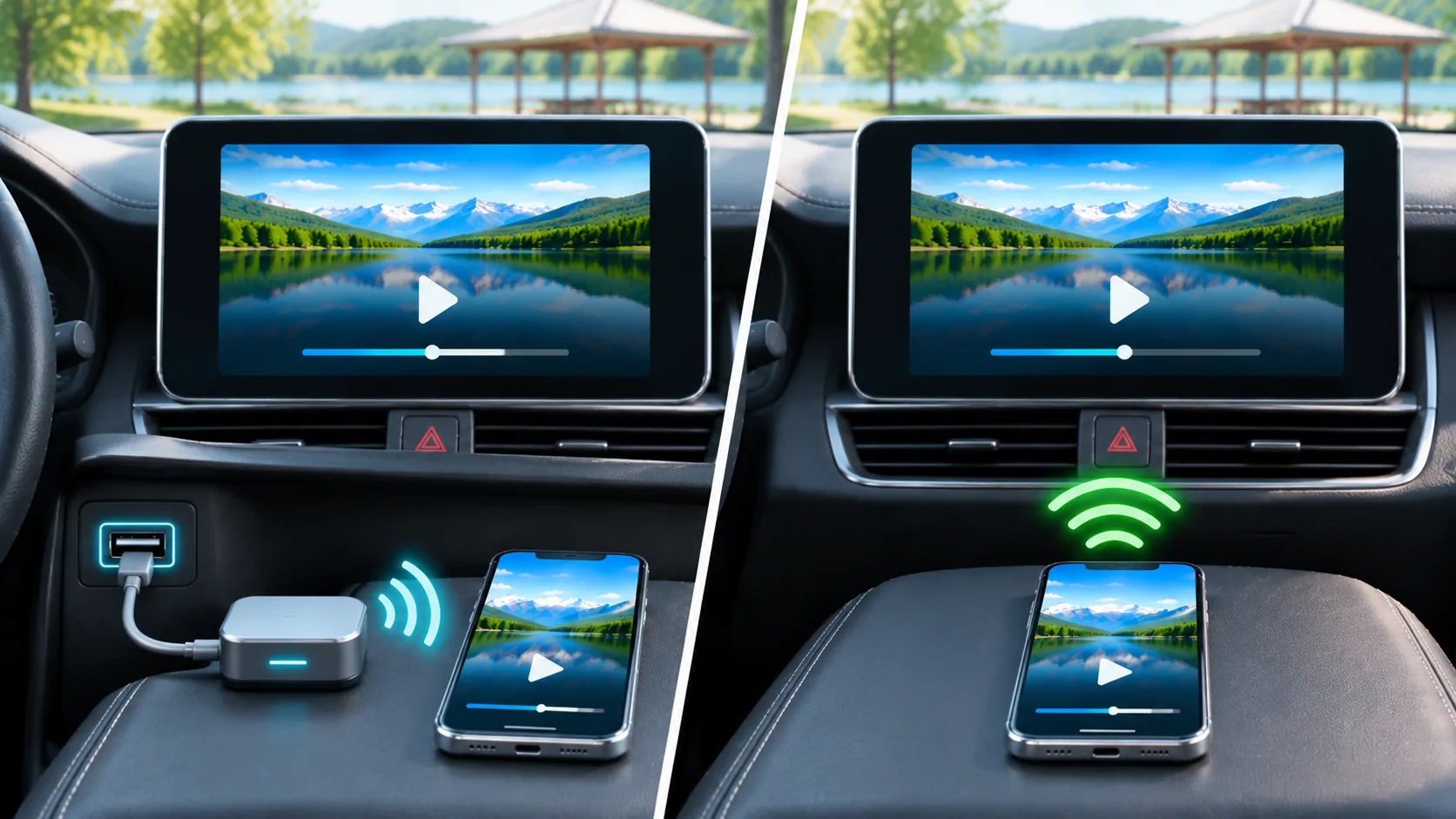
Bring your own media.
Explore CarCast for iPhone with your own authorized sources and supported display configurations.