Guides
CarPlay Permissions: Contacts, Messages and Location
Understand CarPlay connection approval and separate app permissions for contacts, messages, microphone and location before changing privacy settings.
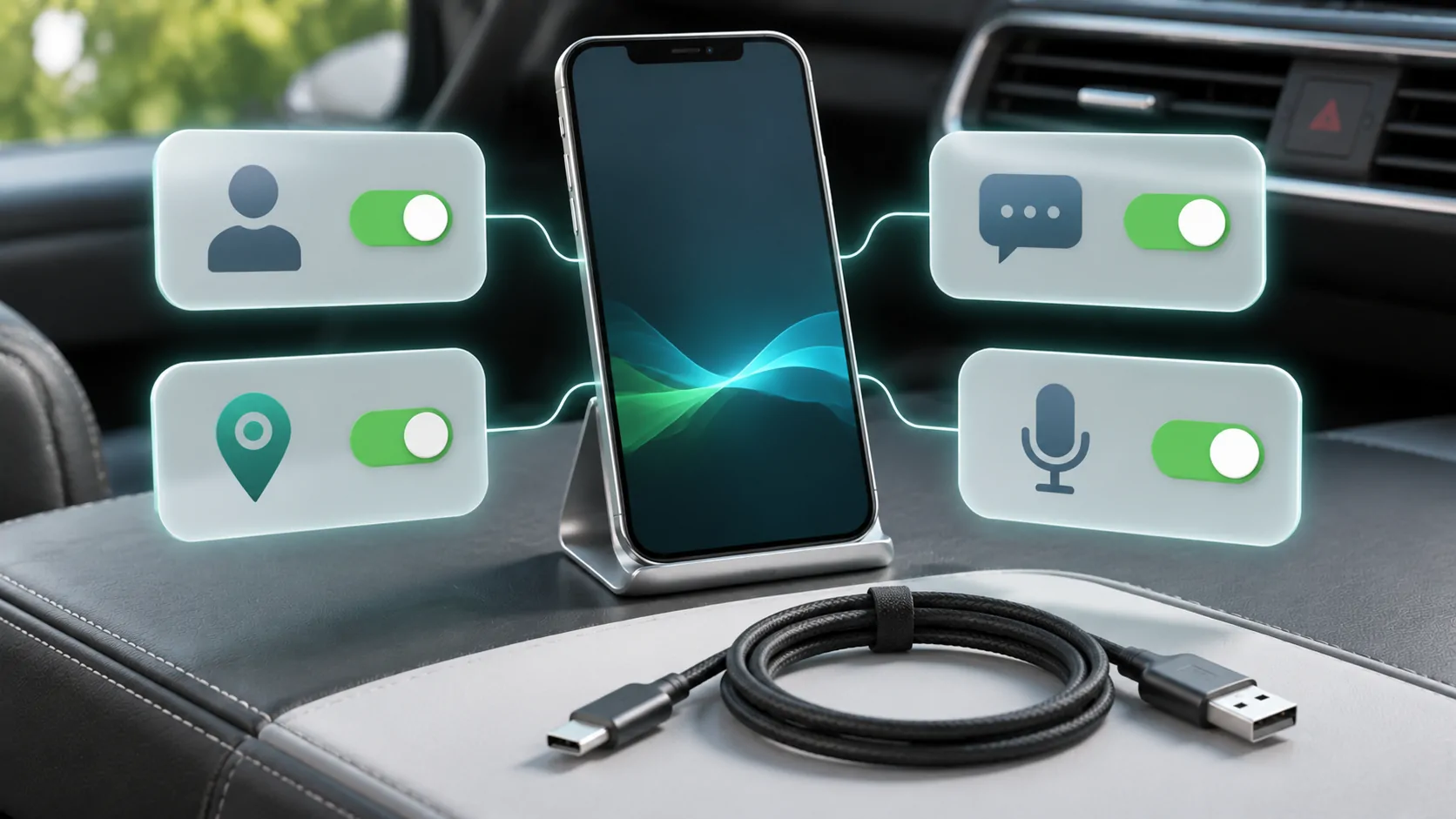
CarPlay connection approval and individual app privacy permissions are different controls. A navigation app may need location access, a calling app may need microphone access, and message announcements have their own settings. Review the permission relevant to the failed task instead of granting everything or assuming that connecting the phone gives every app access to all personal data.
Separate the vehicle connection from app access
The initial CarPlay setup can ask whether the iPhone should connect to a particular receiver. Approving that connection is not a universal authorization for every application to use contacts, photos, location or the microphone.
Apple's privacy guidance explains that apps request access to protected categories and that you can review or change those decisions in Privacy & Security. An app may not appear in a permission list until it has requested that kind of access.
When a task fails, identify the app and the requested information first. A map unable to locate you needs a different investigation from Siri selecting the wrong contact or a message being silenced by Focus.
Review contacts without exposing the whole address book unnecessarily
Contacts can help an app identify recipients, but the required access depends on that app's design and available permission choices. Read the prompt and the developer's explanation rather than assuming every communication feature requires the broadest access.
If a spoken contact name resolves incorrectly, check the actual contact record while parked. Duplicate names and obsolete numbers can produce a wrong result even when permission works correctly. Correct the data instead of repeatedly toggling access.
In a shared vehicle, consider what contact details may appear on the display or in the receiver's own phonebook. The vehicle's ordinary Bluetooth contact synchronization may be a separate setting from the supported CarPlay interface.
Understand location permission for navigation
Location access lets a navigation app estimate the phone's position. Apple describes using GPS, Wi-Fi, cellular and Bluetooth information, subject to available signals and permissions. A vehicle connection does not remove the app's need for suitable location access.
Review the navigation app under Location Services. Choose an option appropriate to the documented feature and your privacy preferences. Do not enable background access universally just because one app cannot find a destination.
A large uncertainty circle can indicate imprecise positioning rather than a completely disabled permission. Tall buildings, roofs and other obstructions can affect the result. If the marker is wrong despite appropriate settings, use location diagnosis before resetting every privacy decision.
Treat message announcements as a separate policy
The CarPlay use guide explains incoming message announcements and their settings. A message can be delivered to the phone but not spoken in the car because announcement options or notification policy deliberately limit it.
Review announcements with a harmless test message. Confirm whether the sender's name, tone and content are presented as intended. Long messages may be handled differently from short ones, so do not assume an abbreviated announcement means delivery failed.
Passengers can hear cabin announcements. Disable or narrow them when appropriate rather than treating maximum announcement access as the correct configuration for every trip.
Review Driving Focus and shared status
Driving Focus can silence or limit notifications and can activate with CarPlay or other configured triggers. Its allowed-people list and auto-reply audience are not the same as an app's permission to access contacts.
Focus status can tell compatible apps that notifications are silenced without disclosing which Focus is active. Decide whether to share that status and review any cross-device behaviour. A setting changed on another device can otherwise appear to be caused by the car.
If a contact complains that you did not hear a message, inspect delivery, notification permission, Focus and announcements as separate stages. That sequence identifies the relevant decision without opening unrelated data access.
Check microphone access for the specific app
A third-party calling app may request microphone access. If ordinary calls work but that app cannot transmit speech, inspect the app's permission and supported CarPlay integration before assuming the vehicle microphone is broken.
Conversely, if Siri and ordinary calls both fail to hear speech through the car while the phone works independently, investigate the vehicle input route. Granting microphone permission to an unrelated media app will not establish a functioning cabin microphone.
Use a trusted contact for parked testing and avoid recording private conversations as evidence. A short description of who could hear whom is often enough to identify the direction of the problem.
Make changes one at a time
Before changing a permission, record the current symptom and expected result. Change only the relevant control, reopen the affected app if required, and repeat the same task. If the result does not change, do not keep expanding access without a reason.
A broad privacy reset can cause many apps to ask again and can remove useful evidence about the original configuration. Apple's privacy guide explains that resetting location and privacy returns those permissions to their defaults. That is more disruptive than adjusting one app.
Managed devices may restrict some changes. Consult the owner or administrator rather than attempting to bypass those controls.
Remove temporary vehicle relationships
After using a rental or borrowed car, review the saved CarPlay relationship and any receiver-stored phone information. Remove the phone from the vehicle using the documented controls when appropriate, and forget the car on the iPhone if you will not use it again.
Do not assume that disconnecting the cable erases every saved receiver preference. Equally, do not claim that every car stores the same data; check the receiver's manual and privacy information.
A good permission setup supports the tasks you need while keeping data access understandable. Revisit it after changing phones, apps or regular vehicle users. The aim is an explainable set of choices, not a blanket promise that one privacy switch controls every part of CarPlay.
Sources
Related reading
Bring your own media.
Explore CarCast for iPhone with your own authorized sources and supported display configurations.