Guides
When CarPlay Maps Show the Wrong Location
Diagnose incorrect CarPlay map positions by separating location permission, signal accuracy, map data and vehicle-display differences.
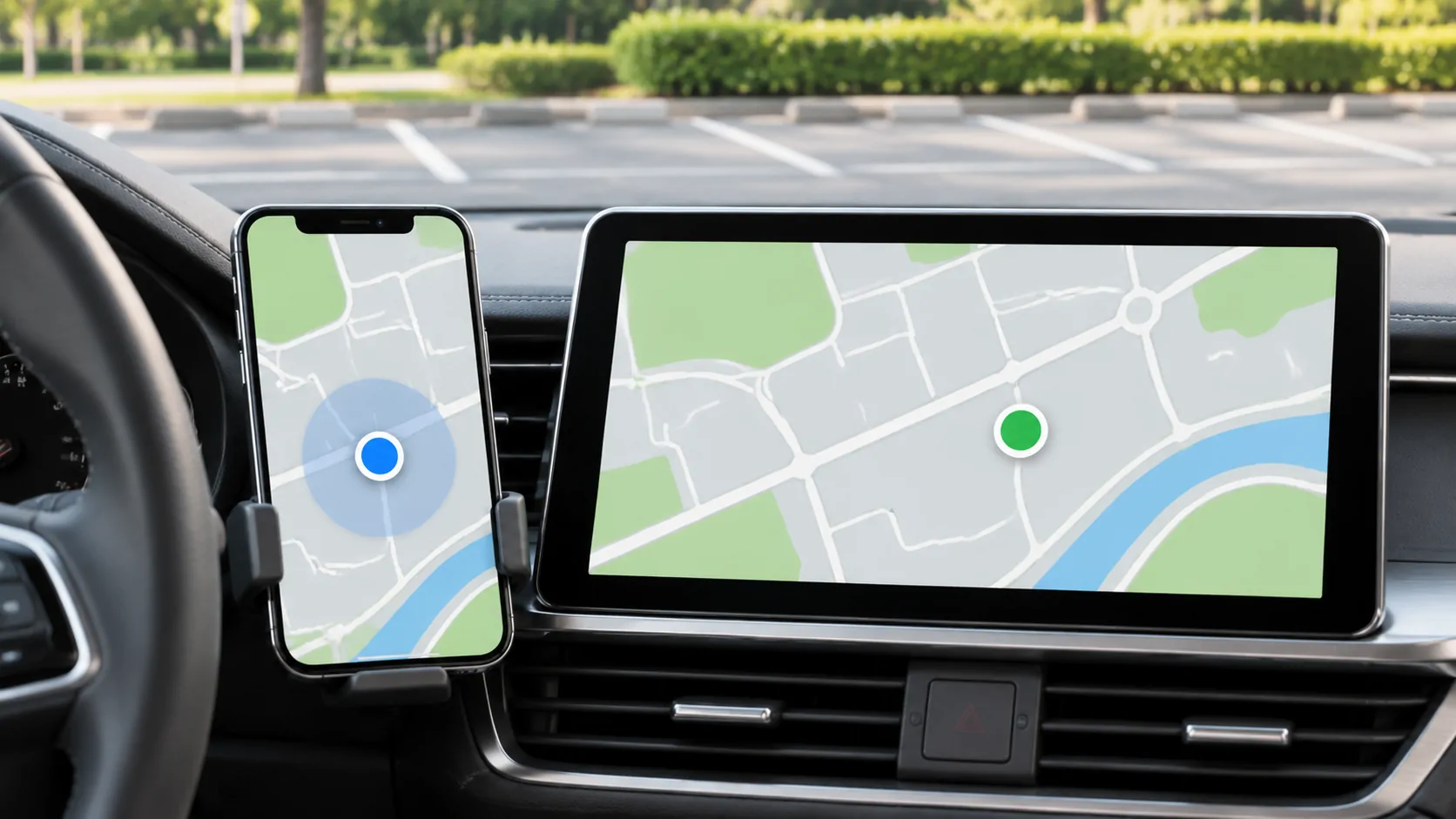
When a CarPlay map shows the wrong location, first compare the position in the same navigation app on the iPhone while parked. Then check location permission, the size of any uncertainty area and the surroundings. A wrong destination, stale map data and inaccurate positioning are separate problems; re-pairing CarPlay is not automatically the right first step.
Define what is wrong on the map
A position marker on a parallel road differs from an outdated street name, an incorrect business entrance or a route heading toward the wrong branch. Write down the specific error rather than describing all of them as GPS failure.
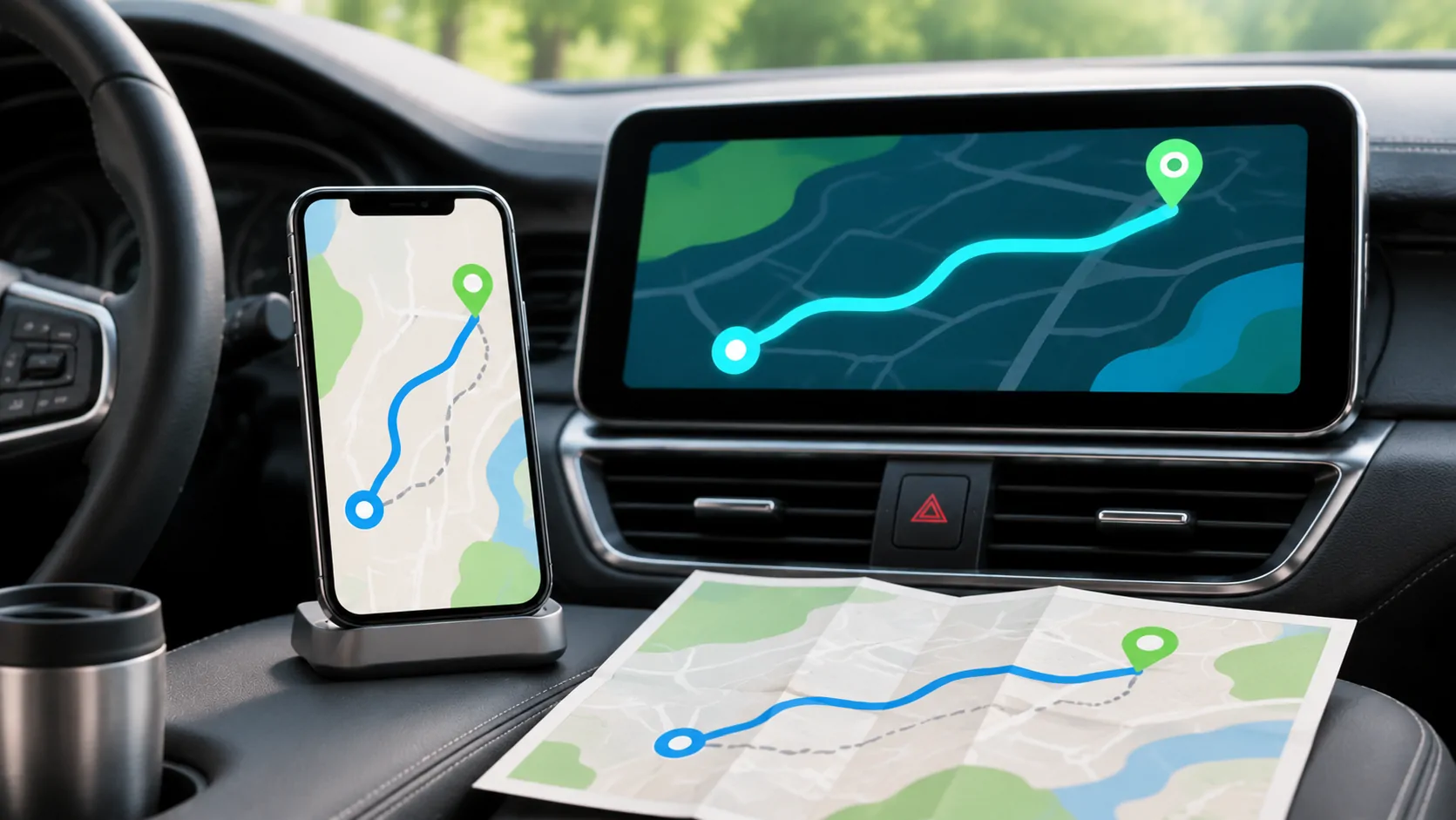
Check whether the marker moves, remains stuck or briefly jumps after leaving a covered area. Note whether the route line itself is sensible. A correct current position with a wrong destination suggests a search or address issue.
Do not follow a clearly incorrect instruction to test the system. Stop safely when necessary and use road signs and actual conditions as the authority.
Compare the phone and car views
While parked, inspect the same app and active route on the phone and receiver. If both show the same wrong position, the problem is not limited to the CarPlay display. If the phone is correct but the vehicle view differs, record that distinction.
Do not compare two different navigation apps and immediately attribute the difference to CarPlay. They may use different maps, update schedules or route preferences. Start with the same app to isolate presentation from data.
If possible, take a non-sensitive screenshot or note the approximate public location. Avoid publishing a precise home address, routine travel route or private destination in an open support forum.
Review the app's location access
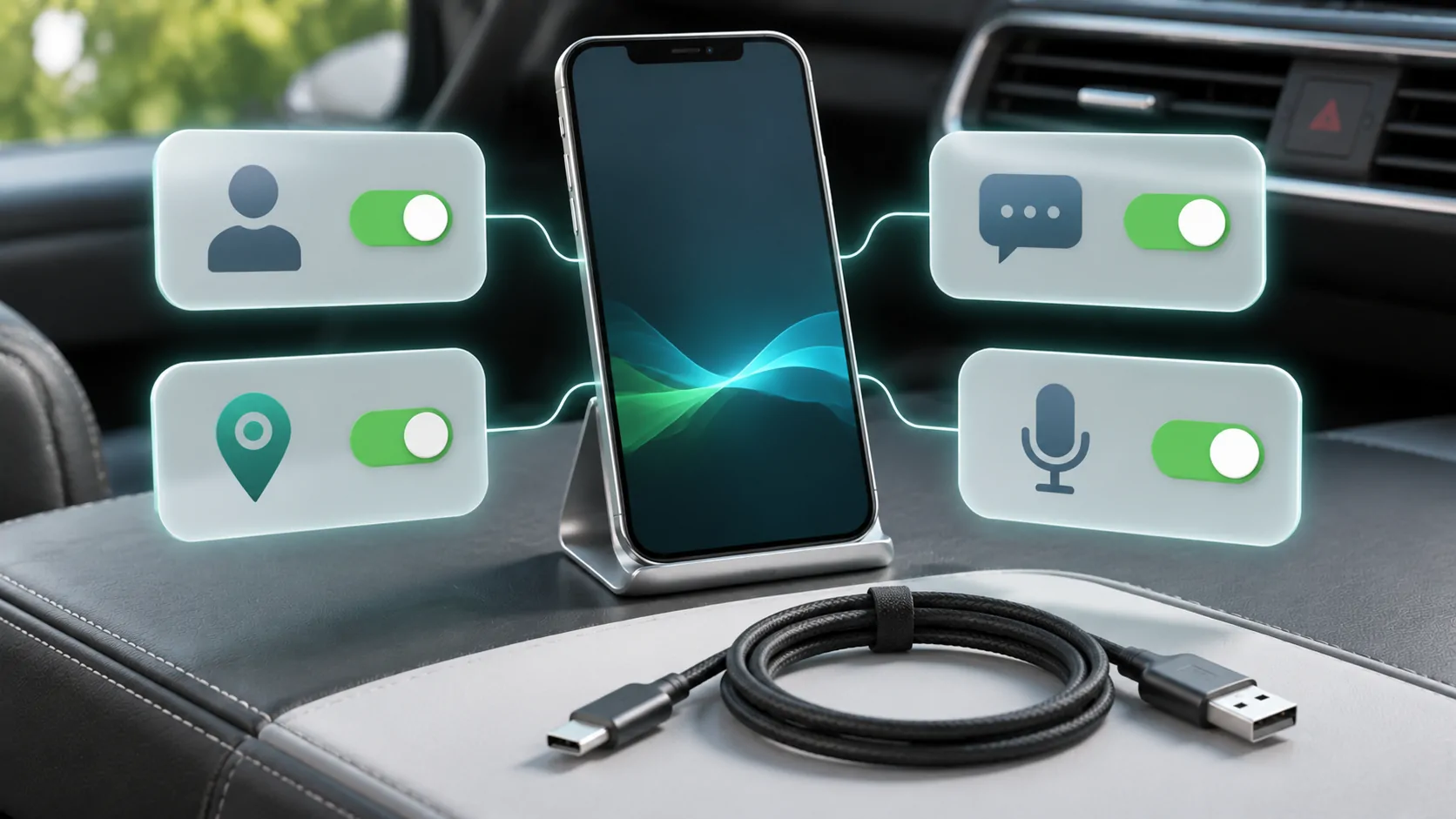
Apple's Location Services guidance explains that apps request permission and can be managed in Privacy & Security, Location Services. Confirm that the chosen navigation app has access appropriate to its documented function.
An app that has not requested a permission may not appear where you expect. Follow its supported setup rather than enabling every privacy option. If a more precise location option is offered, understand what it changes before using it.
Review whether the phone's date, time and time zone are correct. Apple recommends correct time settings as part of improving GPS accuracy. A privacy reset is much broader than adjusting one navigation app and should not be the first response.
Consider signal obstruction and uncertainty
Apple explains that location can draw on GPS, Wi-Fi, cellular and Bluetooth information. Buildings, vehicle roofs, mountains and other obstructions can reduce satellite visibility. A position estimate can therefore be less precise in a covered garage or among tall buildings.
In Maps, a larger circle around the position marker indicates lower precision. That is different from a confidently placed marker at an incorrect business entrance. Observe whether accuracy improves after a normal move to an open location, without creating a distracting test while driving.
The fact that cellular data works does not prove that GPS conditions are good. Similarly, a phone showing strong satellite-based positioning may still lack current online traffic information.
Separate missing map data from missing location
Offline maps, cached map tiles and live traffic are distinct features. A map can know approximately where the phone is while failing to load surrounding detail. Conversely, a detailed downloaded map can remain visible while the current position is uncertain.
Check the navigation app's current offline documentation and coverage. Do not assume that a previously viewed route is fully downloaded. Search and rerouting may have different limitations when disconnected.
The route-planning guide explains how to prepare destinations and weak-coverage sections before departure. That preparation reduces confusion between an unavailable online feature and a location problem.
Check whether the destination itself is misleading
For large sites, the centre of the address may differ from the usable entrance. A shopping centre, airport or hospital can have multiple access roads. Verify the venue's official arrival instructions instead of expecting one map pin to identify every appropriate entrance.
If only one business is wrong but the phone tracks nearby roads accurately, report the place information through the map provider's supported process. Resetting the vehicle connection will not correct the provider's business listing.
Review saved contact addresses and favourite destinations as well. An old address stored locally can produce repeatable wrong routing even when the navigation app and positioning are functioning.
Investigate repeatable vehicle-only behaviour
If the same app is accurate on the phone but consistently wrong through the receiver, record the exact phone, app and receiver versions and connection method. Note whether the issue begins immediately or after a particular interruption.
Apple's CarPlay guide provides the supported connection context. A receiver manufacturer's documentation is needed for any vehicle-specific location integration, firmware issue or recommended update. Do not invent a universal rule about which antenna every vehicle uses.
Compare another supported navigation app only after documenting the original result. If multiple apps differ in the same way only when connected, that is useful evidence for the manufacturer, not proof of a particular component failure.
Decide when to seek help
Restart the affected app and phone using their documented procedures if the position remains stuck. Check available official software and receiver updates. Preserve the observed versions before changing them so a later report remains meaningful.
Use permission checks when access is uncertain, and report map-data errors to the relevant provider. Seek receiver support for repeatable vehicle-only differences with a clear reproduction sequence.
Accurate navigation depends on several inputs and current information. No single setting guarantees a correct route everywhere. A useful diagnosis identifies whether the failure concerns permission, positioning precision, map detail, destination data or the connected display, then addresses that stage directly.
Sources
Related reading
Bring your own media.
Explore CarCast for iPhone with your own authorized sources and supported display configurations.