Guides
CarPlay Connected but No Sound: What to Check
Find the cause of silent CarPlay audio by comparing source selection, separate volume channels, call routing and local versus streamed media.
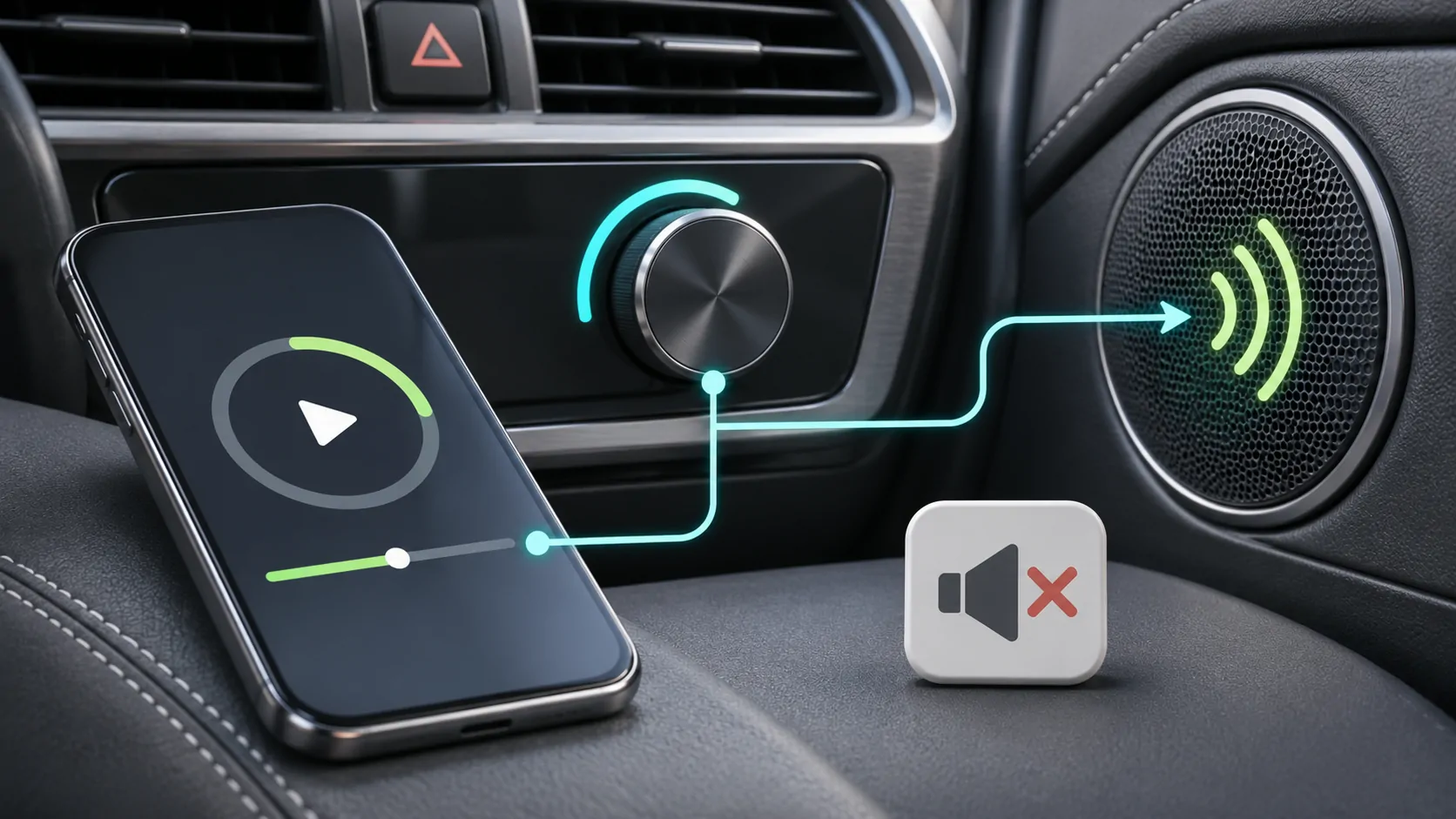
If CarPlay is connected but silent, check the selected audio source, the volume for the active task and the phone's output route before resetting the connection. Music, navigation and calls can behave differently. A responsive map with silent music does not establish a failed CarPlay link, and a caller who cannot hear you is a microphone issue rather than speaker silence.
Establish which sounds are missing
During a parked test, compare three tasks: a known audio item, a navigation prompt and a short call to a trusted person. Note which are audible. Do not use an unfamiliar internet stream as the only test because the source itself may not be delivering audio.
If all vehicle sound is absent, including native radio or receiver tones, investigate the vehicle audio system using its manual. If native radio works but every CarPlay task is silent, investigate source selection and the shared phone output route.
If music works but calls do not, keep that distinction. It provides a more useful starting point than a report that says the car has no sound.
Confirm that playback is actually running
Open the intended supported app and inspect its playback state. A paused item, expired account session or unavailable stream can resemble an output failure. Check whether the progress indicator advances and whether an error appears.
Try an audio item stored locally or explicitly downloaded in that app, if available. A successful local test points toward the original source, account or mobile connection rather than the cabin speakers.
Apple's CarPlay guide describes supported audio use, but not identical behaviour for every third-party service. If only one service fails, check its current support instructions and account before changing the receiver.
Select the intended receiver source
A car can have radio, Bluetooth audio, USB media and CarPlay selections. Make sure the receiver is using the source associated with the current CarPlay session. The fact that a cable is connected does not always mean the receiver has switched away from radio.
In a shared vehicle, verify which phone owns the active session. Another saved device may provide an audio connection while your iPhone supplies a different function. Use the receiver's documented device controls to simplify the test.
Avoid playing several apps at once to find which is loudest. Stop the unrelated sources, select one known item and test again. This makes the outcome easier to interpret.
Adjust the appropriate volume channel
Some receivers maintain separate levels for music, call audio and navigation prompts. Adjusting the knob while nothing is speaking may affect a different channel from the one you intend to change.
While parked, adjust modestly during an active test call or prompt, following the receiver's instructions. Check any mute indication and the app's own sound setting. Start low to avoid a sudden loud result when the correct channel becomes active.
If a voice prompt briefly lowers music and then music resumes, that may be normal audio management. If music never resumes, record the interruption sequence rather than treating ordinary ducking as the original fault.
Inspect call routing separately
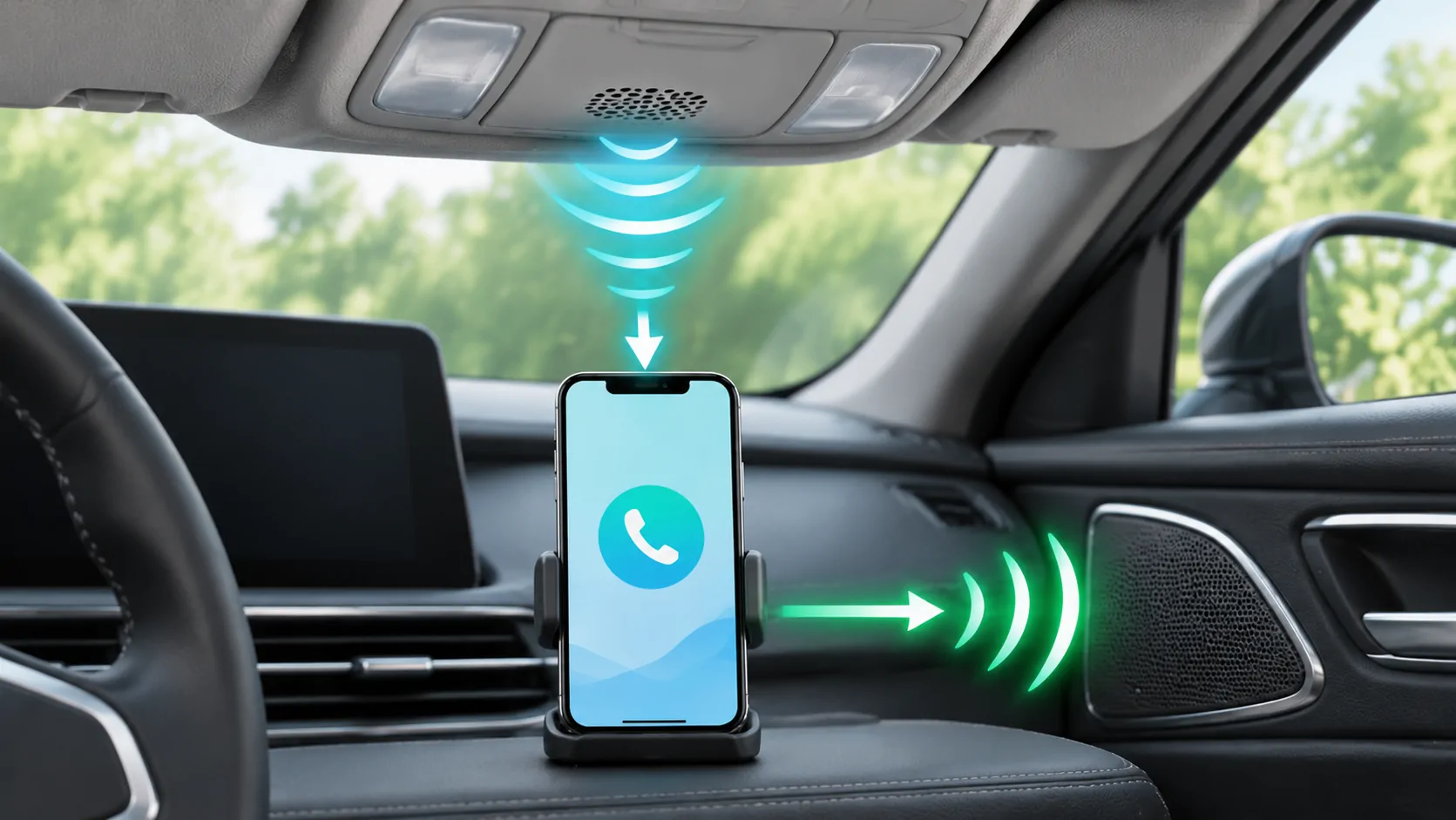
During a test call, inspect the available audio route on the phone while parked. Audio may be directed to the handset or another accessory instead of the car. A call timer can continue even when cabin output is silent.
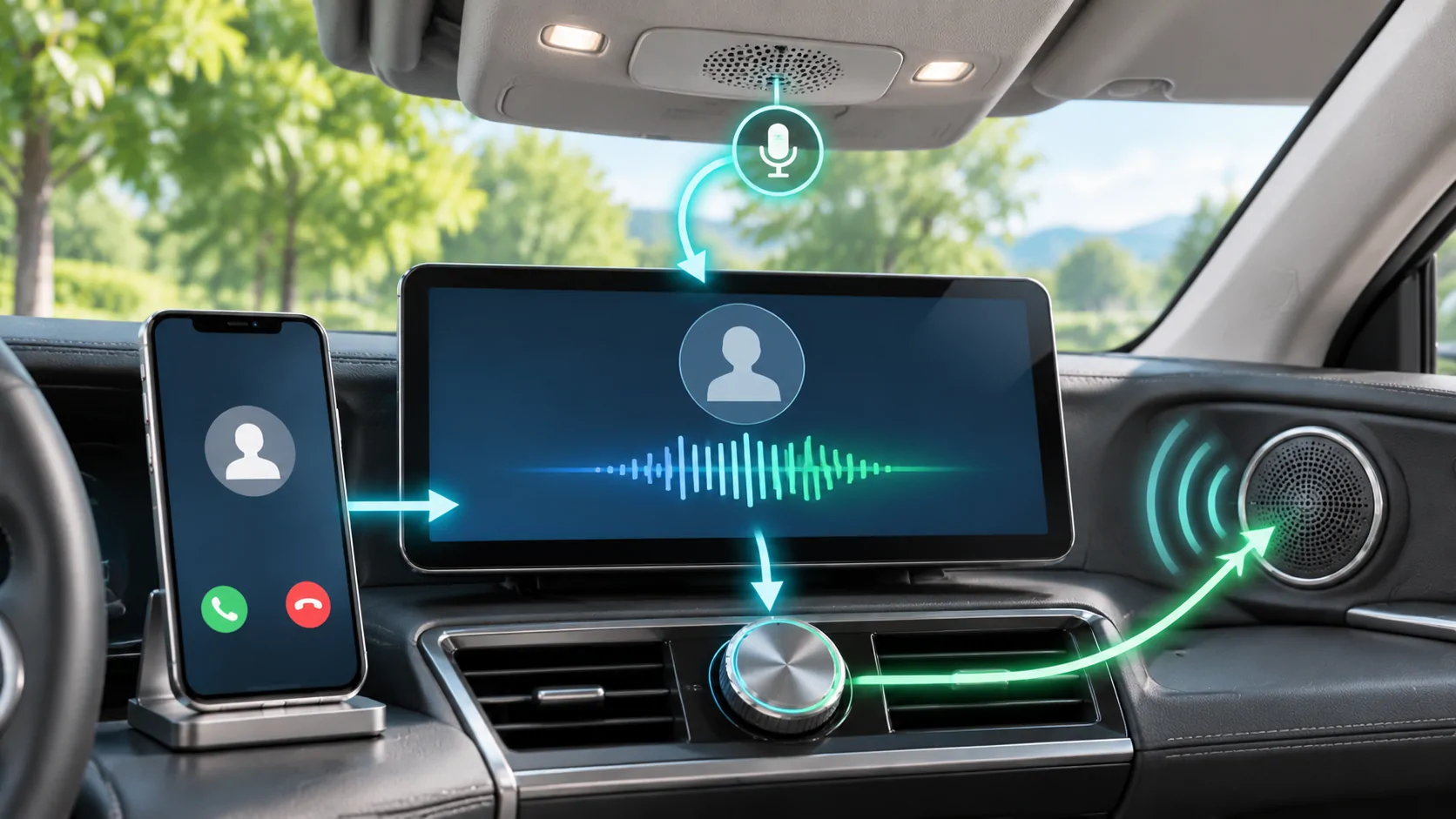
Ask the other person whether they can hear you. If you hear them but they cannot hear you, check mute and microphone input. If they hear you but you cannot hear them, focus on output routing and call volume.
The call-management guide explains that an ordinary cellular call and a third-party internet call can use different accounts and permissions. Success in one is a useful comparison, not proof that all call services should behave identically.
Compare connection methods without confusing the result
If both wired and wireless CarPlay are documented for the receiver, test the same phone and same audio item through each. A difference narrows the problem to parts of the arrangement that changed.
For wired use, try the designated CarPlay data port and another suitable cable. For wireless use, keep Bluetooth and Wi-Fi enabled as Apple's connection troubleshooting recommends.
Do not assume that switching methods improves every audio delay or source limitation. If the item is silent directly on the phone after disconnecting, the source or app needs attention before the receiver.
Restart only after the simple checks
Restart the affected app through its documented process, then the phone and vehicle multimedia system if necessary. Repeat the same audio test after each step. This reveals which change affected the result.
If the saved CarPlay relationship appears damaged, forgetting and re-pairing the car is part of Apple's official troubleshooting sequence. Record existing preferences first. A broad reset is not a sensible first response to a muted channel or paused stream.
Check the receiver manufacturer's current firmware instructions when the problem affects multiple apps and repeats consistently. Use official software and preserve the exact versions in the support record.
Describe the result precisely
A useful report says whether radio works, whether a local audio item plays, whether navigation prompts are audible and which side of a call cannot be heard. Add the phone model, receiver identity, connection method and software versions.
For speech that does not reach the other caller, continue with microphone checks. For sound that arrives late rather than being absent, use latency diagnosis.
The intended resolution is a repeatable supported audio route with sensible levels. No media app should be presented as a universal repair for vehicle speakers, phone service or CarPlay transport. Diagnose the missing stage before adding software or replacing hardware.
Sources
Related reading
Bring your own media.
Explore CarCast for iPhone with your own authorized sources and supported display configurations.